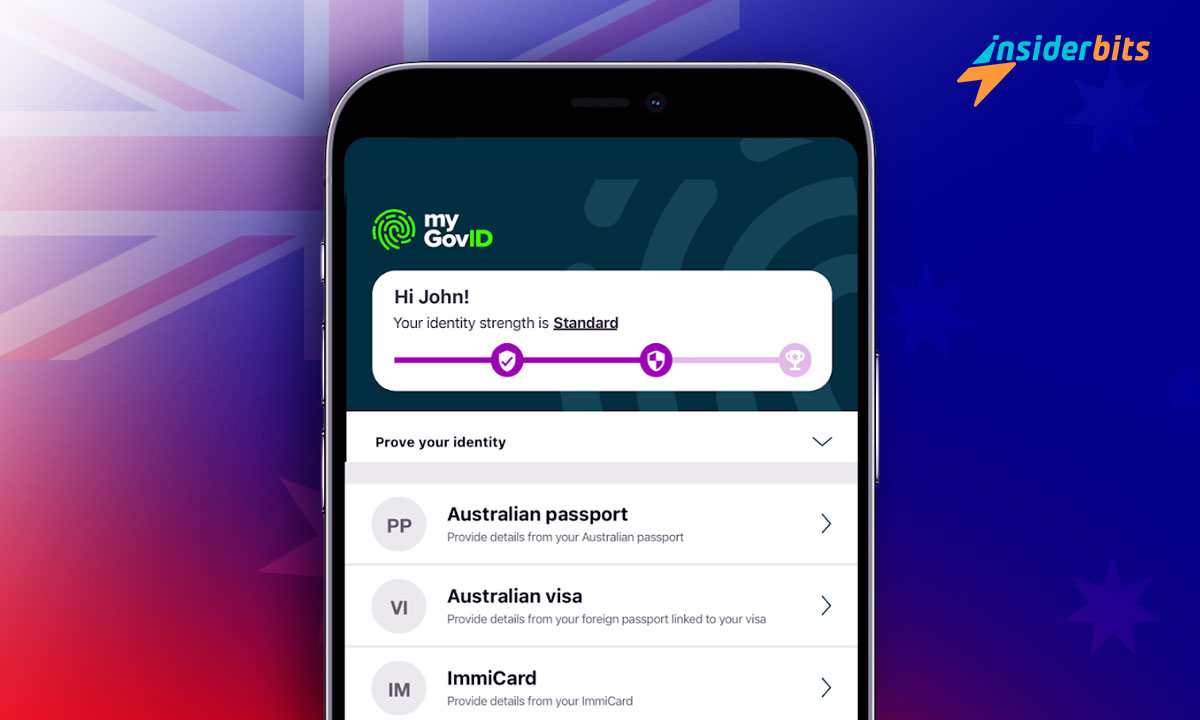
The digital ID app is transforming access to government services in Australia. It simplifies the process of proving your identity online, making everything quicker and safer for everyday users.
With myGovID, setting up your secure digital identity is just a few steps away. This app offers a user-friendly way to manage access to crucial Australian government services and much more.
Insiderbits takes a closer look at this ID verification app so you can understand how it protects your personal information and why it’s an essential tool for accessing secure online services.
Related: Essential US Government Must-Have Apps
myGovID App Insights: A Sneak Peek
| Pricing: | The app is completely free, offering secure access to Australian government services without subscription fees. |
| Available For: | Android and iOS. |

myGovID makes accessing Australian government services simpler. It allows users to manage their identity online efficiently, helping them complete everyday tasks with confidence and ease.
The setup is fast, requiring personal details and document verification. Once verified, it ensures secure access to services, empowering users to enjoy the benefits of digital ID in Australia.
myGovID offers access to essential government services, including healthcare, tax, and more. It gives you control over your digital identity, protecting your data across multiple platforms.
This ID verification app also uses encryption and biometric features to safeguard personal data. This added layer of security helps users manage services confidently without any issues.
With its robust privacy measures, it ensures user data is never shared without consent. It prioritizes security, offering a trustworthy way to access vital government services safely.
myGovID Key Features
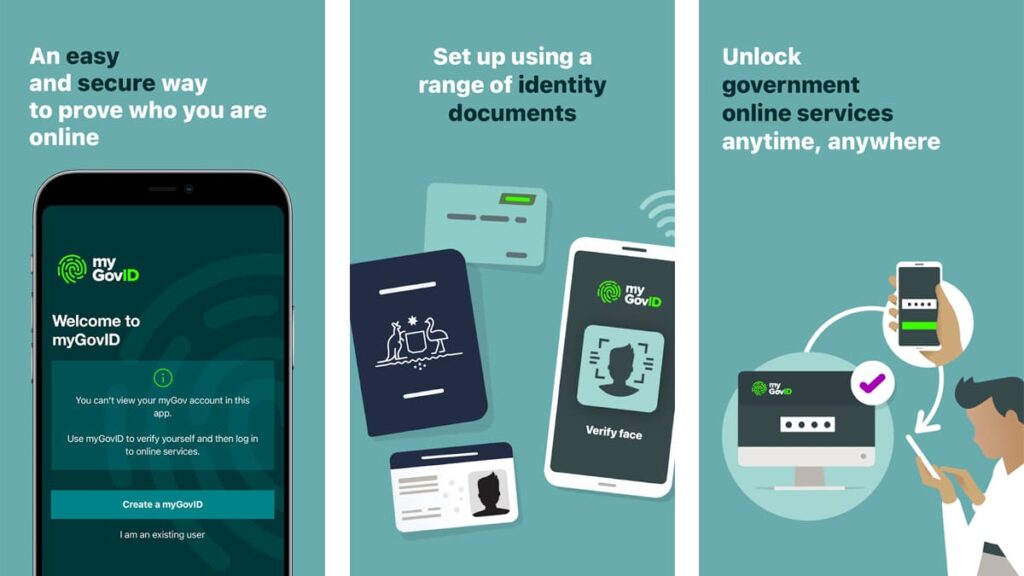
The app simplifies access to government services by allowing users to securely manage their identity online. It enables a fast, reliable, and secure experience for digital ID in Australia.
With easy setup and strong security features, myGovID empowers users to verify their identity with confidence. It’s a trusted solution designed to protect personal data.
- Secure Access to Services: myGovID provides encrypted access to a wide range of government services, ensuring only authorized users can manage critical tasks.
- Fast and Easy Setup: The app allows users to create their digital identity in just a few steps. After verifying basic details, users can quickly start using the app.
- Multi-Level Identity Verification: it offers three identity levels: Basic, Standard, and Strong. The stronger your identity, the more services you’ll be able to securely access.
- Document Verification Options: By verifying documents like your passport or driver’s license, you strengthen your digital identity. This helps unlock more services.
- Facial Recognition Technology: As an ID verification app, it uses biometric features like facial recognition. This ensures only the authorized user can access services.
This ID verification app is a reliable tool for securely managing your online identity. Its simple setup and strong privacy measures ensure you can access government services with ease.
With its multi-layered protection and easy-to-use features, myGovID makes it easier for Australians to verify their identity online. It offers a practical, safe solution for managing services.
Related: The Best Authenticator Apps to Secure Your Data
A Look at the App’s Potential Drawbacks
While myGovID offers a secure way to manage your digital ID in Australia, it isn’t without some limitations. These drawbacks can affect the overall experience, so it’s important to learn them.
Despite its benefits, myGovID presents challenges that may cause frustration. From occasional glitches to limited compatibility, users should be aware of these issues when using the app.
- Limited Document Verification Options: myGovID only accepts specific Australian documents like a passport or driver’s license.
- Device Compatibility Issues: The app may not work smoothly on older devices, causing slow performance, which can disrupt access to important services.
- Occasional Verification Delays: Some users report delays in document verification, especially during peak times. This can hinder the ability to access services quickly.
- Age Restrictions for Setup: myGovID requires users to be 15 years or older to set up an account, limiting younger individuals from accessing services.
- App Requirements: As an ID verification app, it depends on specific documents and biometric technology, which can be challenging for those with privacy concerns.
Although myGovID has drawbacks, it remains a reliable solution for accessing essential services. For users able to overcome these issues, the benefits can still outweigh the limitations.
It’s important to weigh the pros and cons before deciding if myGovID suits your needs. Knowing potential challenges helps set realistic expectations for using this secure app.
How to Download this ID Verification App
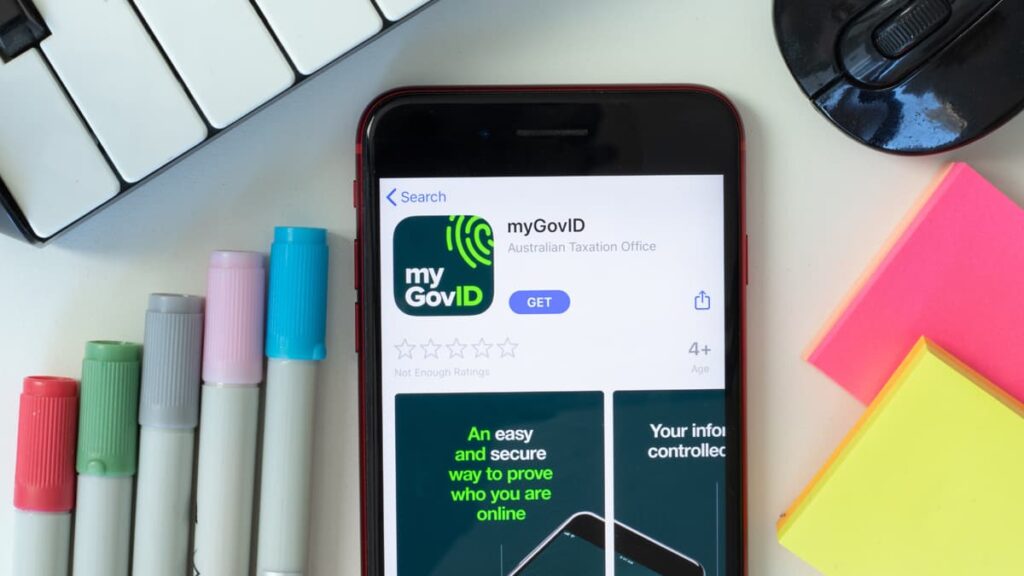
Downloading the myGovID app is a simple process that allows you to securely access Australian government services. If you’re using Android or iOS, the setup takes a few minutes.
To get started with myGovID, you’ll need a compatible device and internet access. Follow these easy steps to download the app and begin managing your digital identity securely.
Android Devices
- Open the Google Play Store on your Android phone and search for “myGovID”.
- Select the myGovID app from the results, then tap the “Install” button.
- Once installed, open the app from your home screen or app drawer.
- Follow the on-screen prompts to begin setting up your myGovID account securely.
- Verify your personal details and documents to complete the setup.
iOS Devices
- Open the App Store on your iPhone and search for “myGovID” in the search bar.
- Tap the myGovID app and then select “Get” to start the download.
- Open the app once downloaded and follow the instructions to create your account.
- Enter your personal details and verify your identity through approved documents.
- Complete the setup to start using myGovID for secure access to government services.
Downloading myGovID is a quick way to streamline access to government services. With just a few steps, you’ll have a secure digital identity on your device.
Whether you’re on Android or iOS, the app offers a reliable solution to managing your identity. Protect your information and easily access essential services in one convenient app.
Related: Secure Passwords: Empowering You in Cybersecurity
myGovID App Navigation: Step-by-Step
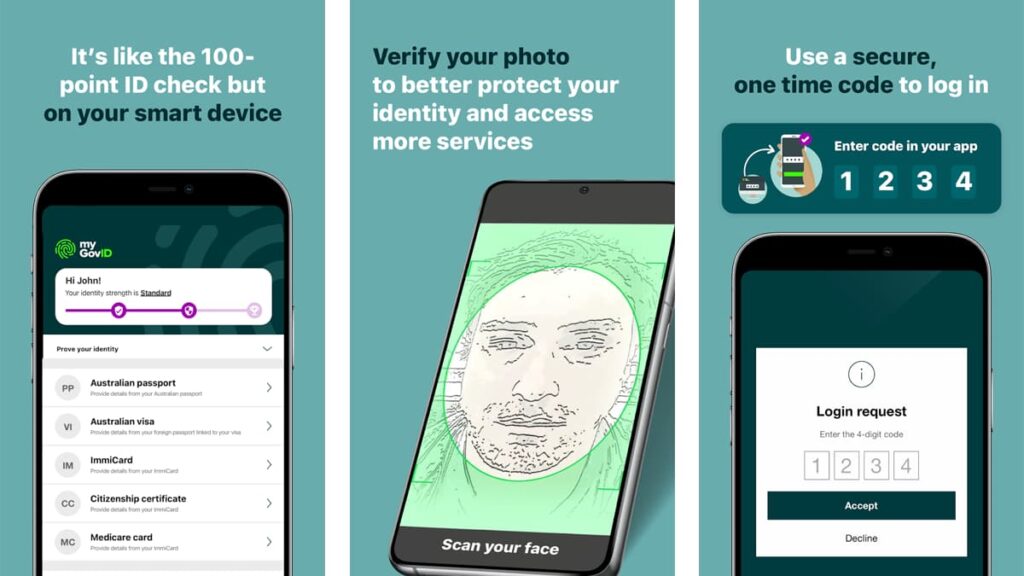
Using the myGovID app is easy and secure. With this digital ID, residents of Australia are able to manage their digital identity, ensuring safe access to a series of government services.
Once your account is created, you can access a wide range of important resources. Below is a detailed step-by-step guide to help you set up and use myGovID effectively.
Enter Personal Information
After downloading myGovID, the first step is to enter your personal details. The app will prompt you to provide your full name, date of birth, and personal email.
Make sure to use an email that only you can access. This information is essential for creating your identity within the ID verification app and ensuring it’s secure.
Once your details are entered, the app will guide you through the process, ensuring your identity is registered correctly before moving on to verification steps.
Verify Your Identity with Documents
To unlock more services, you’ll need to verify your identity using official Australian documents. This is an important step to enhance your digital ID in the government system of Australia.
Documents such as a passport, driver’s license, and Medicare card can be used. These documents are cross-referenced with government databases to confirm your identity.
The stronger your identity verification, the more government services you can access. Using multiple documents helps protect your identity and makes your profile more secure.
Strengthen Security with Facial Recognition
For added protection, myGovID offers facial recognition technology. This step ensures that only you can access your digital identity through this advanced ID verification app feature.
You’ll be asked to scan your face, which will be matched with your verified documents. This quick process boosts your identity strength and adds another layer of security.
Completing this step ensures maximum protection for your data, allowing you to securely access a wide range of government services without worrying about identity theft.
Access Government Services with myGovID
Once your identity is fully verified, you can use myGovID to securely log in to various government services. This digital ID in Australia ensures that your login process is secure.
Simply open the app, verify your identity using fingerprint or facial recognition, and access services like tax, healthcare, and more. It’s all handled within the myGovID app.
With your digital identity secured, you can manage government tasks easily from anywhere, knowing that your information is protected by the highest security standards.
myGovID: A Smart Choice for Safe Digital Identity
myGovID is a secure app that simplifies accessing Australian government services. With strong security features, it gives users peace of mind while managing their digital identity effortlessly.
This solution for digital ID in Australia offers users an easy way to verify their identity and access important services. It’s a trusted tool for staying in control of your personal data.
This was a review by Insiderbits, focusing on how myGovID works as an effective ID verification app. We hope this guide has helped you understand its features and benefits.
Keep reading Insiderbits for more in-depth reviews on resourceful apps. We cover essential tools to keep your identity secure and help you navigate the digital landscape with confidence.