
Screen mirroring lets you display your smartphone’s screen on a Smart TV wirelessly, making it easier to enjoy content on a bigger display without crowding around your phone.
If you’re watching home videos or presenting slides during a meeting, wireless casting makes it simple to bring your phone’s content to the big screen. Read on Insiderbits.
Screen mirroring with Smart View or AirPlay
Straining to view photos, mobile games, video calls, or documents on a compact smartphone screen can quickly cause eye fatigue.
While handheld devices offer unmatched portability, their smaller displays make sharing media with family and friends in a living room environment cumbersome.
Modern mobile operating systems include native wireless streaming protocols engineered for seamless pairing with Smart TVs, streaming sticks, and wireless displays.
The two most common built-in protocols are Samsung Smart View (built into Android/Galaxy devices) and Apple AirPlay (integrated into iOS devices):
- Samsung Smart View: uses Wi-Fi Direct and Miracast standards to mirror your Galaxy phone or tablet screen onto compatible Smart TVs. Smart View allows users to adjust screen aspect ratios, hide notifications during playback, and mirror TV sound back to mobile devices;
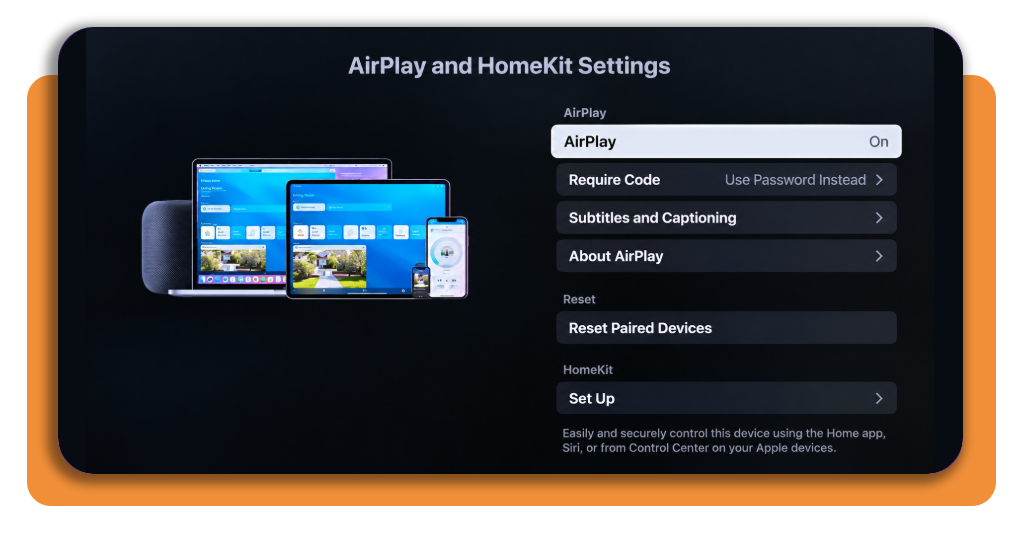
- Apple AirPlay: Apple’s proprietary wireless technology allows iPhone users to stream full 4K HDR video content or mirror their phone screen to an Apple TV or any AirPlay 2-enabled Smart TV (from brands like LG, Samsung, Sony, and Vizio).
Step-by-step: connect your compatible phone and TV
Setting up a wireless screen mirroring session takes less than a minute. Follow this step-by-step connection guide to pair your phone with your TV:
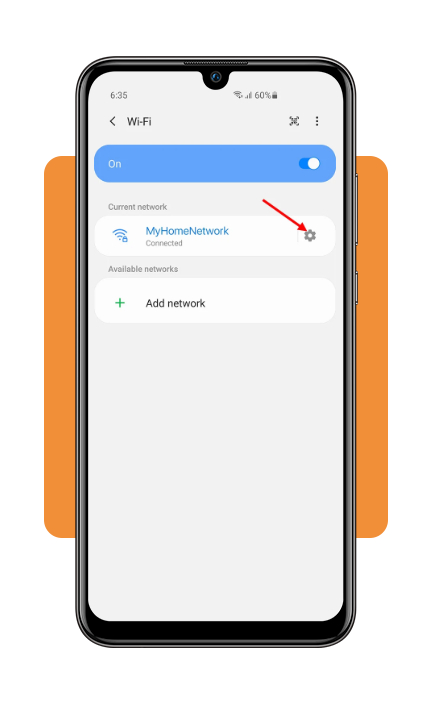
Step 1: verify shared Wi-Fi network connection
Ensure both your phone and Smart TV are powered on and connected to the same local Wi-Fi network (2.4 GHz or 5 GHz frequency band).
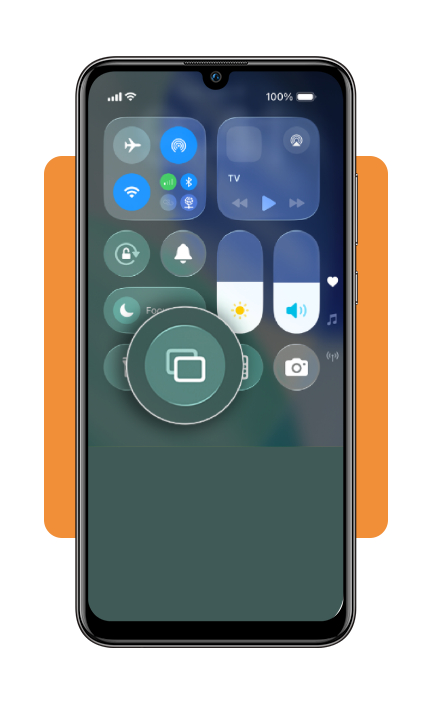
Step 2: open your phone’s control menu
On a Samsung/Android phone, swipe down from the top of your screen to open ‘Quick Settings’ and tap ‘Smart View’. On an iPhone, swipe down from the top-right corner to open the Control Center and tap Screen Mirroring.
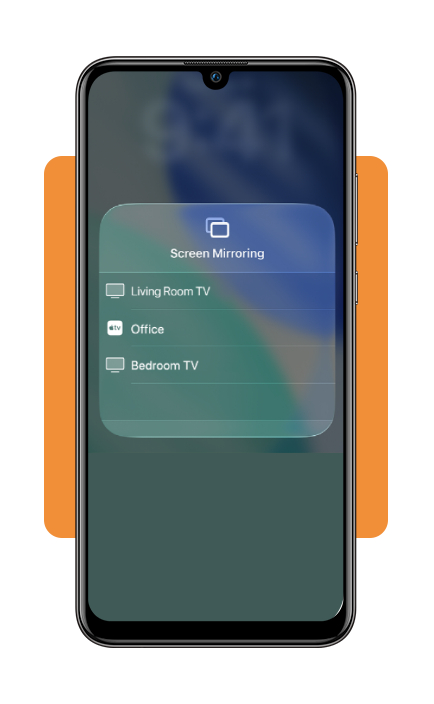
Step 3: select your TV from the device list
Your phone will scan the local network for available receivers. Tap the name of your Smart TV or Apple TV unit from the pop-up menu. If pairing for the first time, a 4-digit security PIN will display on your TV screen.
Type this code into your phone to establish a secure link and begin mirroring.
Understand screen sharing features and limitations
Wireless screen mirroring makes it easy to share content on a bigger display, but knowing how it works and where its limitations lie can help you get the most out of the experience:
- Aspect ratio adjustments: smartphone screens feature elongated vertical aspect ratios (19.5:9), while widescreen televisions use 16:9 aspect ratios. Features like Smart View allow you to adjust mobile aspect ratios to fill the entire TV screen without black sidebars;
- Display latency for gaming: wireless screen mirroring introduces slight input lag (milliseconds of latency), making it ideal for photos, videos, and presentations, but less suitable for fast-paced competitive mobile gaming;
- DRM content protection locks: high-bandwidth Digital Content Protection (HDCP) restrictions may prevent protected video streams from subscription apps (such as Netflix, Hulu, or Disney+) from showing video during full screen mirroring, requiring native app casting instead.
Where to access official Smart View and AirPlay guides
For device compatibility details, troubleshooting tips, and setup instructions, check the official support resources from your phone and TV manufacturer:
- Samsung Smart View support: access step-by-step setup guides, aspect ratio settings, and TV compatibility details on the Samsung Smart View Support Portal;
- Apple AirPlay support: learn how to mirror your iPhone screen, stream 4K video, or troubleshoot AirPlay 2 connections on the Apple AirPlay Support Guide.
Want to explore more ways to share your screen? Check out our complete guide on how to mirror your phone for useful apps, streaming devices, and troubleshooting tips to help you get everything working smoothly.
Enjoy a bigger view and compare compatible TV connections
Setting up screen mirroring turns your smartphone into a versatile media player for your living room TV.
Choosing the right connection method depends on whether you prioritize wire-free convenience or zero-latency video playback:
Screen-mirroring vs. Chromecast casting explained
While both put phone content on your TV, screen mirroring and app-based casting work in completely different ways:
Screen mirroring (Smart View / AirPlay)
- How it works: your phone records its own screen in real time and sends that video feed to the TV;
- What shows: everything—notifications, incoming texts, and UI menus;
- Best for: sharing photos, showing non-video apps, or giving presentations;
- Drawback: drains battery quickly and lags slightly.
App-based casting (Chromecast / Google Cast)
- How it works: your phone acts as a remote control, sending a link to the TV. The TV then streams the video directly from the internet;
- What shows: only the selected media (e.g., a YouTube or Netflix video);
- Best for: movies, TV shows, and long music playlists;
- Advantage: saves battery; you can lock your phone or use other apps without stopping the TV stream.
Make the most of your big screen
Choosing the right connection method for your phone and TV makes it easier to share vacation photos, watch personal videos, or present slides on a larger display.
Check device compatibility before getting started, and choose the setup that works best for your needs. With the right approach, you can enjoy a more comfortable viewing experience without huddling around your phone.