Scrolling past spam emails to dig up a billing reminder or a friend’s birthday invitation turns a quick inbox check into a tiring chore, and a cleaner app can haul that clutter out for good.
This Insiderbits reviews the Clean Email app, showing you the tools that silence pushy senders and cancel newsletters, with settings that let your important messages rise to the top. Read on!

4.5/5
Clean Email: block spam emails instantly app
Clean Email (Android | iOS) works as a cleanup crew for the mailbox you already use, sorting thousands of messages into neat groups that you can delete, archive, or keep in a batch.
Once connected, the app combs through your folders and spots newsletters, promos, and spam emails hogging space, letting you wipe out a pile without opening the messages one by one.
Your password stays with your email provider, and the app connects through that provider’s secure login while the team behind it promises never to sell, read, or analyze your messages.
Key features within the Clean Email app
- Unsubscriber: pulls up the newsletters and promo lists you’ve joined over the years, letting you drop the ones you no longer want with a tap;
- Smart folders: sorts your mail into groups like ride receipts, food delivery orders, and job alerts, making it painless to find or delete a category;
- Block or mute: silences a pushy sender or an entire domain, routing future messages to a separate folder or trash before they crowd your inbox;
- Privacy monitor: watches for data breaches tied to your address and pings you when your email turns up in one, giving you a head start.
Clean your first thousand emails for free
Setting up an account is free, and the starter tier lets you clean your first thousand emails, leave 25 mailing lists, and test “screener” and “Auto Clean” for two full weeks.
Screener holds back messages from new senders until you approve them, and Auto Clean runs your custom rules around the clock to keep spam emails out of your main folder.
One app for nearly every email provider
Clean Email connects with Gmail, Outlook, Hotmail, Yahoo, iCloud, AOL, Office 365, Zoho, and GMX, plus any IMAP account, letting you keep the email address you’ve had for years.
Changes you make in the app show up in your regular mail app, and plans covering five or ten accounts let you tidy personal and work inboxes from one dashboard.
Step-by-step: how to stop unwanted emails and clean your inbox
Setting up Clean Email (Android | iOS) calls for your phone, a decent connection, and the login for the inbox you want to fix, with no extra accounts or downloads on your computer.
Before you start deleting in bulk, take a moment to star or flag the messages you can’t lose, like tax forms, travel bookings, and notes from your bank or doctor.
Once those are safe, go after the senders who flood you the most, as a handful of brands and spam emails tend to cause most of the mess in your inbox.
Step 1: download the app to your phone
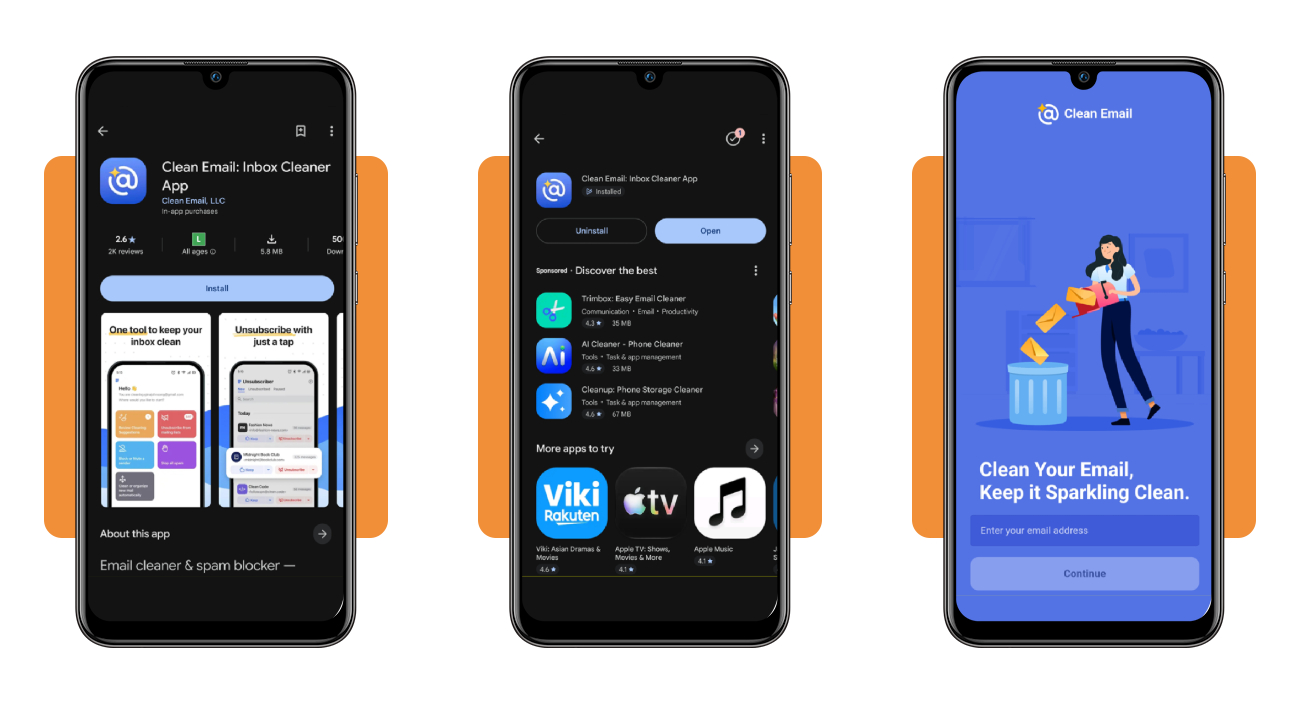
Open the Google Play Store on Android or the App Store on iPhone, search for ‘Clean Email’, and confirm the developer reads Clean Email LLC before tapping ‘Install’ on the listing page.
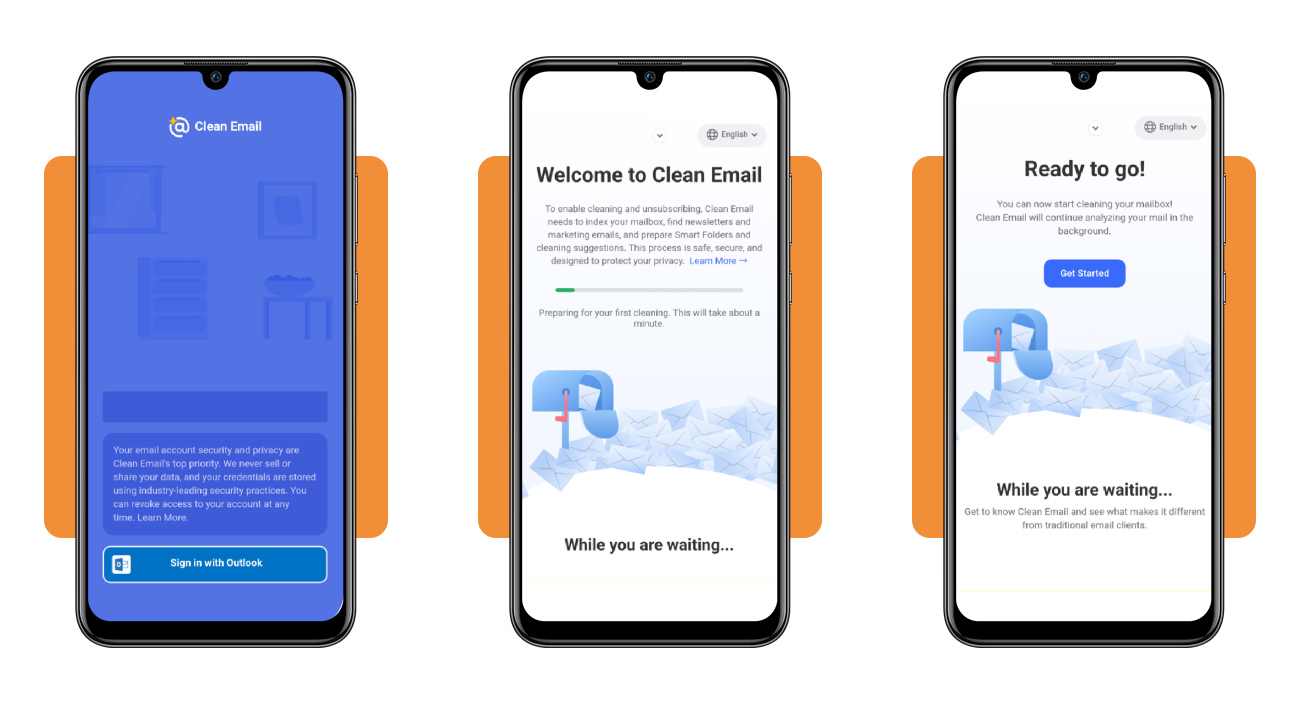
After launching the app, type the email address you’d like to tidy into the field on the welcome screen, then press Continue to move on to the login page.
Step 2: sign in with your email account
Hit the ‘Sign in’ button that matches your provider, such as Outlook or Gmail, then enter your password on the provider’s page and approve the access request it shows you.
The app spends about a minute indexing your mailbox, hunting down newsletters and spam emails along the way, and you can press ‘Get Started’ as soon as the button appears.
Step 3: unsubscribe and block unwanted senders
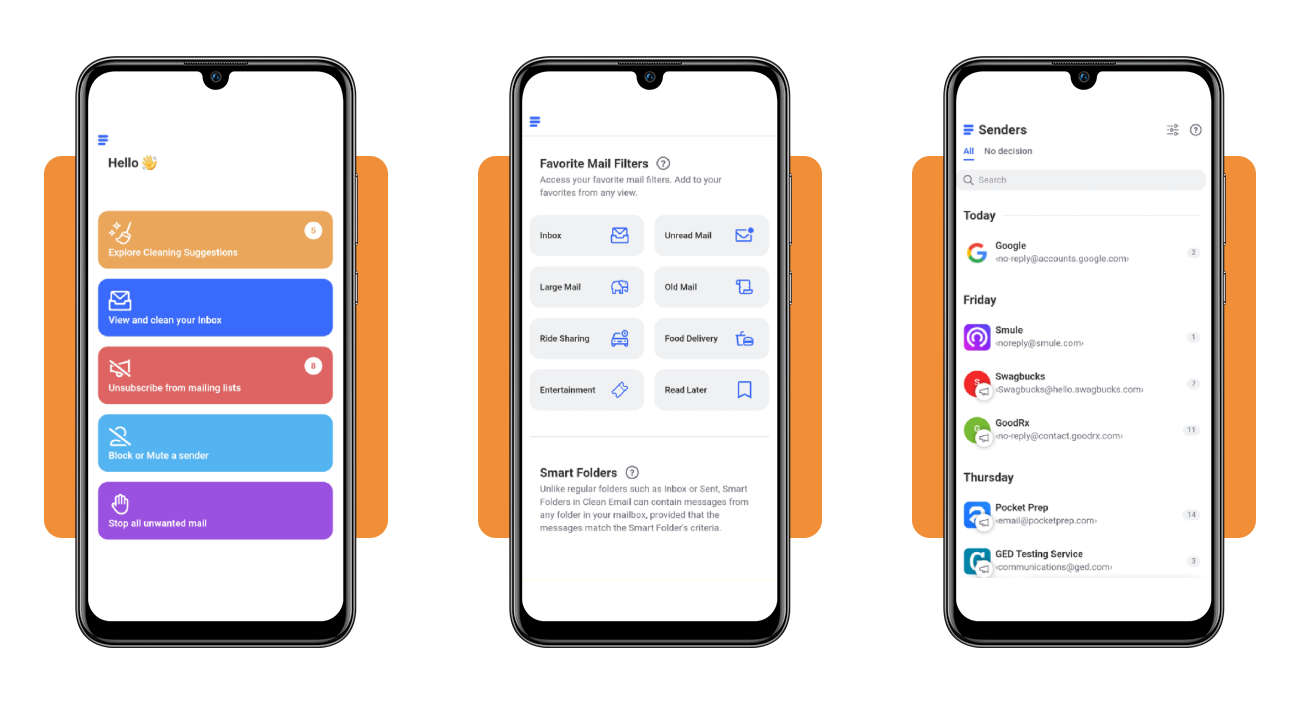
From the home dashboard, choose ‘Unsubscribe from mailing lists’, look over the subscriptions the app found, select the ones you’re done with, and confirm to stop them from coming back.
For senders who ignore unsubscribe requests, open ‘Block or Mute a sender’, sort the list by message count, and block the culprits stacking up the highest numbers in your mailbox.
Top secure email providers
With the clutter gone, the next move is protecting what’s left by using an email provider that locks your messages away from hackers, advertisers, and the company that hosts them.
Encrypted email scrambles your message into unreadable code as soon as you hit send, and only your recipient’s device can unlock it, leaving snoops staring at gibberish.
Switching to a secure provider also shrinks the trail of details that spam emails and phishing scams feed on, a smart move if your address showed up in a leak.
Proton Mail guards your messages with Swiss privacy
Backed by Switzerland’s strict privacy laws, Proton Mail encrypts messages sent between accounts from end to end and stores your inbox in a format the company itself can’t read.
The free plan gives you one address and 1GB of storage, while paid tiers start around $7 a month and bundle extras like a VPN, but subject lines stay unencrypted.
PreVeil adds an encrypted inbox to your email
PreVeil plugs a protected mailbox into your Outlook, Gmail, or Apple Mail, letting you send scrambled messages without giving up your current address or learning a brand new email app.
Instead of passwords that hackers could steal, it relies on keys stored on your devices, and its free plan includes 5GB of encrypted space for your emails and shared files.
SecureMyEmail encrypts the address you already use
SecureMyEmail adds OpenPGP encryption to the address you have, with apps for Windows, Mac, Android, and iPhone, and it stays free for personal Gmail, Yahoo, and Microsoft accounts.
Other addresses come with a 30-day trial before plans start at $3.99, and pairing it with Clean Email (Android | iOS) lets you guard private notes while the cleaner tackles spam emails.
How to protect your personal email from data breaches
Companies can take up to 90 days to warn you about a breach, leaving crooks weeks or months to misuse your address, passwords, and whatever details they managed to grab.
Your first line of defense is a password with 10 to 12 characters mixing letters, numbers, and symbols, minus your kids’ names, pets, or birthday, stored in a password manager.
Keeping your phone and computer updated patches holes that hackers love, and sticking to links that start with HTTPS helps you dodge the fake login pages hiding inside spam emails.
Act fast within the first 72 hours
Call or message the company to find out the date of the breach and the details it exposed, giving you a sense of how long thieves have held your information.
Change any leaked password on that site and other accounts where you reused it, starting with your email and banking logins, as those can reset the rest of your passwords.
Lock down logins with two-factor authentication
Turning on two-factor authentication means a stolen password won’t open your account, as the site also asks you for a code sent by text or generated in an authenticator app.
Watch for strange logins, password resets you didn’t request, or purchases you don’t recognize, and expect a wave of spam emails baiting you with fake security alerts and refund offers.
Freeze your credit if financial data leaks
If card numbers leaked, call your bank or card issuer to lock the old card and send a replacement with a new number, stopping fresh charges on the stolen one.
Freezing your credit with credit bureaus is free and stops impostors from opening new accounts under your name, while credit monitoring alerts you to changes on your report.
4.5/5
Reclaim your inbox and keep the junk out for good
A tidy inbox paired with a few smart habits means less time hunting for important mail and more peace of mind about who’s on the other end of your messages.
In this guide, you learned to set up Clean Email (Android | iOS), shut out spam emails and pushy senders, pick an encrypted provider, and act fast when a breach exposes your details.
Browse more Insiderbits for tips that keep your phone, passwords, and online accounts safe, helping you spot scams early and spend less time worrying about who’s peeking at your stuff.