

A storage warning that blocks your shot as the band takes the stage can spoil a night out. Learning to increase phone storage means you’ll never again have to pick which memories stay.
This Insiderbits guide shows how Google Drive keeps your photos online and your phone light. Read on, and you’ll learn to reclaim gigabytes in minutes without giving up a single picture.

4.8/5
What is the best app to increase phone storage instantly?
Google Drive (Android | iOS) is the cloud storage app tied to your Google account, giving you 15 GB of free space that your Gmail inbox and Google Photos library draw from.
Once your files land on Google’s servers, you can delete the copies on your phone and increase phone storage without losing access to anything you’ve uploaded to the app.
Sign in with the same account on a laptop or tablet, and your folders show up there as well, letting you pick up any file from whatever screen you have in hand.
Key features within the Google Drive app
- Over 100 file types: Google Drive opens PDFs, Office documents, videos, and images in the app, letting you view or edit them without downloading any extra software;
- Built-in document scanner: point your camera at a receipt or a signed form, and the app turns it into a crisp PDF inside your folders;
- Search by name or content: type a word you remember from inside a file and filter results by type or date when you forget its name;
- Offline access: mark the files you’ll want on a flight or in a dead zone, and Drive saves a copy you can open with zero signal.
Free up gigabytes without deleting a single memory
Videos and long bursts of photos hog the most room in your gallery, and moving them to Google Drive (Android | iOS) helps you increase phone storage without hitting delete on a memory.
After the upload finishes, remove the originals from your camera roll and keep streaming those clips or zooming into those pictures from the app on your phone.
Send big files without clogging your inbox
Email attachments hit a size limit pretty fast, but Google Drive (Android | iOS) lets you send a link to a long video or a folder packed with photos that your friend opens in a browser.
You decide if they can only view the file or edit it too, and the app sends you a notification when someone comments on or changes something you’ve shared with them.
Step-by-step: how to backup photos and free up storage
Backing up your photos with Google Drive (Android | iOS) protects years of birthdays and road trips if your phone ever ends up cracked or wiped by a bad software update.
Connect to Wi-Fi and plug in your charger before you begin, letting large uploads run without draining your data plan as you increase phone storage in one sitting.
Google’s free tier covers your first round of uploads without asking for a credit card, and you won’t need a computer or a cable to tame a crowded camera roll.
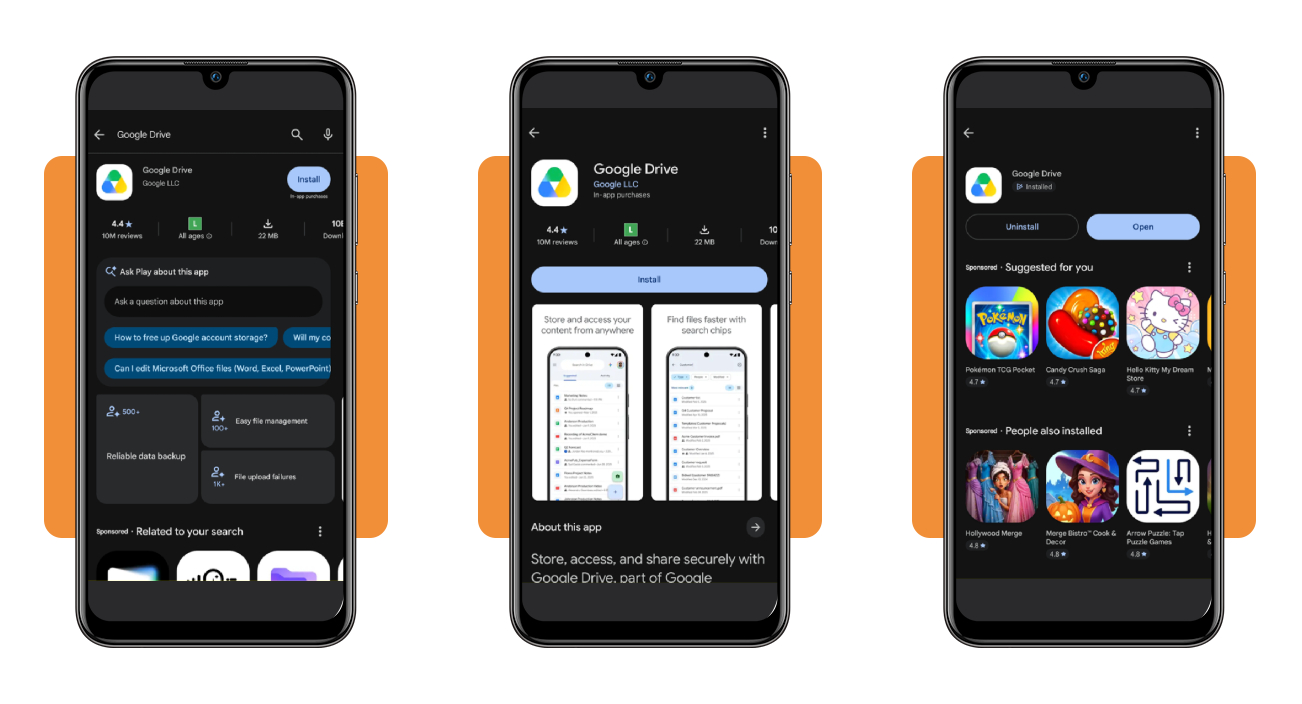
Step 1: download Google Drive on your device
Many Android phones come with Google Drive preinstalled, and if yours doesn’t show it in the app drawer, open the Google Play Store and install the official version from Google LLC.
On an iPhone or iPad, launch the App Store, type Google Drive in the search bar, and tap ‘Get’ next to the app with the colorful triangle icon to download it onto your device.
Step 2: sign in or create a Google account
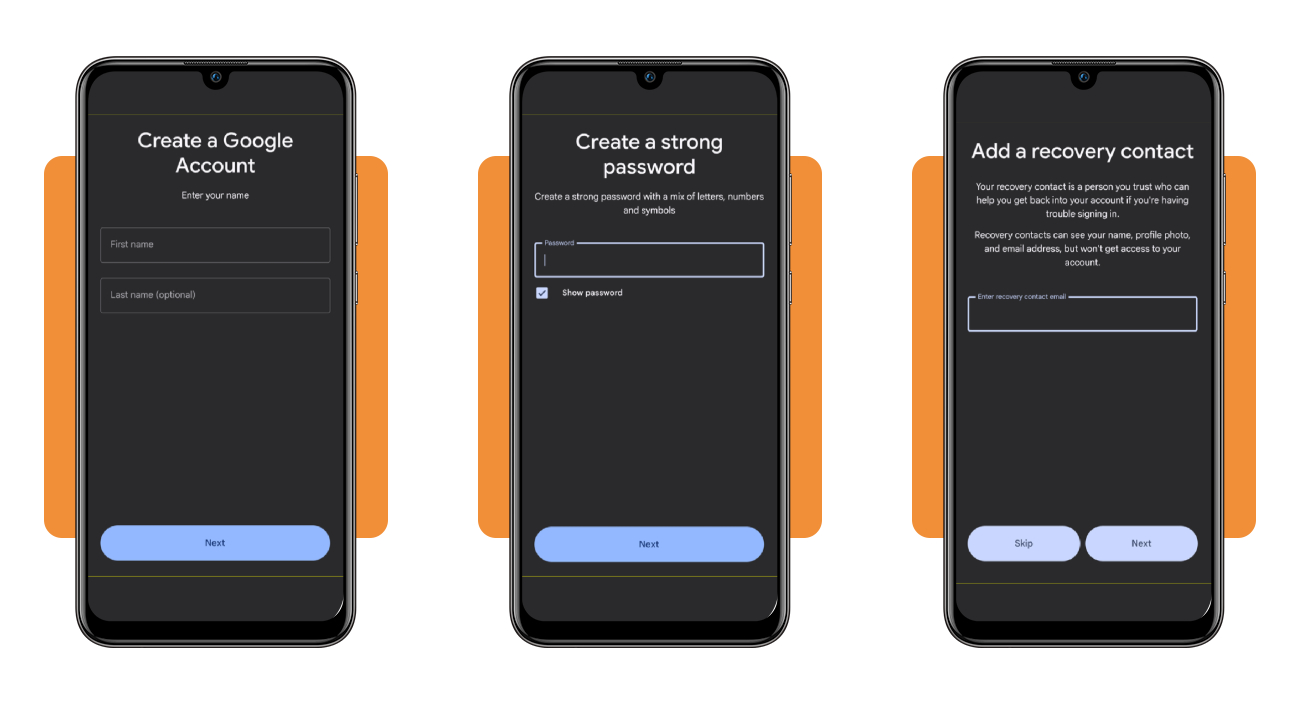
If you already have a Gmail address, open the app and sign in with it, and Drive will load your folders along with any files saved to that account.
Starting fresh means typing your name and birthday, choosing a Gmail address and a strong password, and adding a recovery contact if you want an extra route back in.
Step 3: upload your photos and clear space
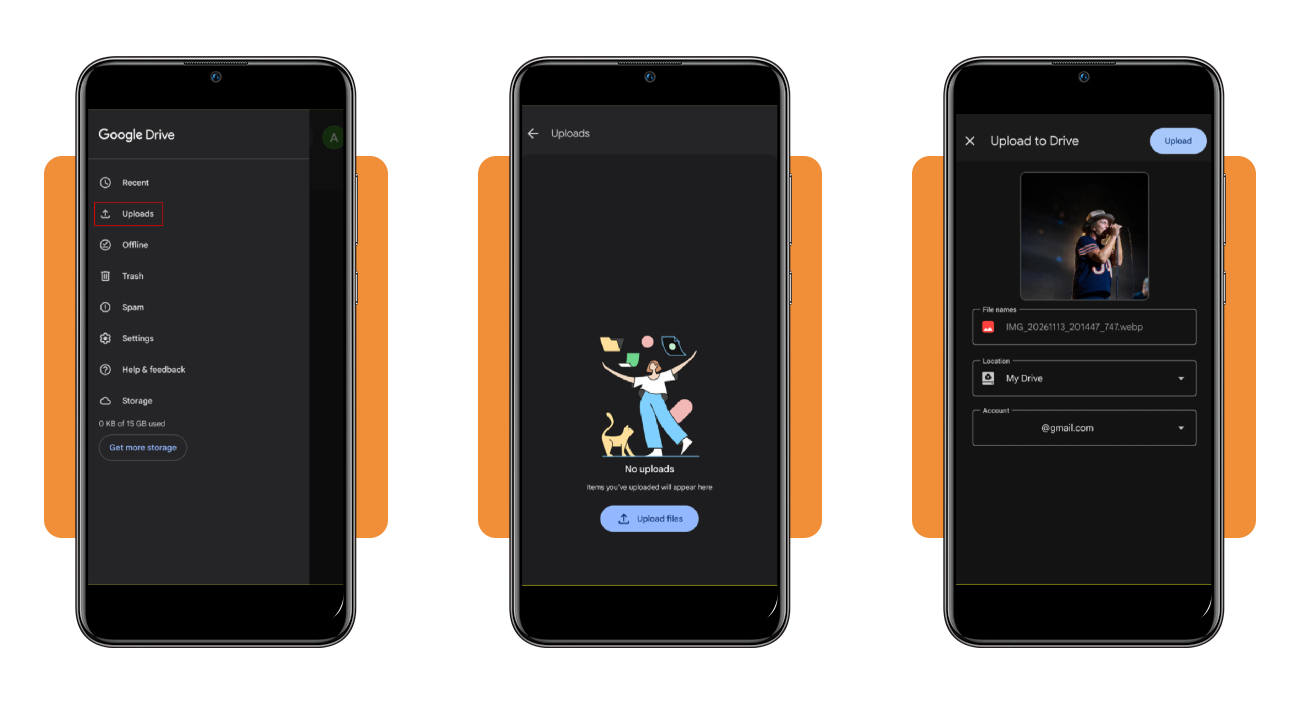
Tap the menu icon in the top left corner, choose ‘Uploads’, and hit ‘Upload files’, then select the photos you want and confirm the account before pressing ‘Upload’.
Wait until the thumbnails load under Uploads to confirm the backup worked, then erase those shots from your gallery to increase phone storage and make room for new ones.
Google One: pricing for extra Drive storage subscriptions
Google One is the paid subscription that adds room to your Google account once the free tier fills up, and the extra space also covers your email and photo backups.
You can pay for it monthly or switch to annual billing, and plans renew on their own until you cancel, with local taxes added to the price you see at checkout.
To upgrade inside the Google Drive (Android | iOS) app, open ‘Settings’ and tap ‘Upgrade storage’, then pick the plan you want to increase phone storage without extra downloads.
Basic and Standard plans for everyday users
The Basic plan gives you 100 GB for $1.99 a month, a comfortable jump if you back up your photos and short videos but rarely shoot in 4K.
Standard bumps you to 200 GB for $2.99 monthly, and both plans let you run device backups and use the storage manager to find files you can delete.
AI plans bundled with Gemini and extra perks
Google AI Plus costs between $4.99 and $9.99 a month for 400 GB or 2 TB, while AI Pro jumps to 5 TB for $19.99 and quadruples your Gemini limits.
Ultra 5x gives you 20 TB for $99.99 a month, and Ultra 20x pushes you to 30 TB for $199.99, both with YouTube Premium as an extra in over 40 countries.
Split one plan with up to five people
Any plan from Basic up lets you invite five other people at no extra cost, and each member keeps a private space nobody else in the group can see.
Sharing a $2.99 Standard plan with roommates or family helps you increase phone storage for the group without six separate bills, though bundle savings and a few perks stay with you.
How to manage cloud backups
Behind the scenes, your phone sends app data and settings to the cloud, and managing those backups means knowing what they include and how long they stick around.
The first backup copies everything on your device, while later runs upload only the pieces that changed, sparing your data plan and battery from another full copy of your phone.
Pairing device backups with your Drive uploads lets you increase phone storage without worrying about losing your contacts or text messages if you upgrade to a newer model.
Syncing and backing up are not the same
Drive and iCloud sync your files by mirroring changes across devices, letting a deleted folder or a ransomware attack spread to your laptop and your tablet as well.
Deleted files stay in the Drive trash for about 30 days before they’re gone for good, while a true backup keeps older copies you can roll back to.
Find your device backups in a few taps
On an iPhone or iPad, open ‘Settings’, tap your name, go to ‘iCloud’, and then ‘iCloud Backup’ to see the list of devices saving data to your account.
Android keeps this info for you under ‘Settings’, then ‘Google and Backup’, where you can see what’s covered and increase phone storage by deleting local files the cloud already holds.
Clean out old backups you no longer need
Tap an old iPhone in that list and choose ‘Turn Off and Delete’ from iCloud, because switching the backup off alone leaves the copy there for 180 days.
Turning off Android Google Backup erases that data, although your photos and videos stay in Google Photos, and Google wipes backups from any phone you leave unused for 57 days.
4.8/5
Your camera roll just got a lot more room
Running out of room on your phone feels like a closet that won’t shut, but Google Drive (Android | iOS) gives your favorite photos a safe home of their own in the cloud.
In this guide, you saw how cloud uploads and a Google One plan can increase phone storage, plus how to tidy up the old backups you forgot were taking space.
Keep browsing Insiderbits for simple tips that help your phone stay quick and your battery last longer, giving you more time to enjoy the device instead of fighting with it.