

There are many sources of a slow phone charge and they can come from the charger, cable, battery condition, device temperature, or power source.
Charger Master (iOS) doesn’t physically boost charging speed, but it can measure charging power and compare chargers so you can identify which setup performs better.

How to make your phone charge faster using an app
In this article we will present to you Charger Master (iOS), an app that helps you identify issues with your phone charge.
However, the app itself doesn’t increase charging speed by itself, but it can help you check if your charger, cable, or charging setup is performing as expected.
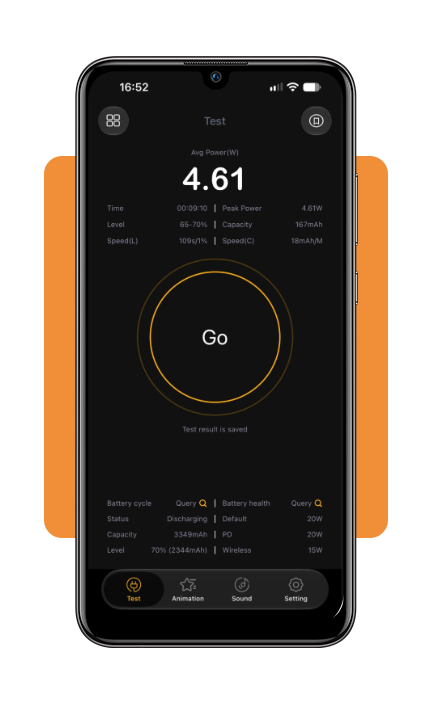
The app measures estimated charging power and shows charging time, capacity, and speed, and it can save test results so you can compare different chargers later.
That makes it easier to test one adapter against another instead of guessing which setup gives you the fastest phone charge.
Additionally, Charger Master (iOS) includes information about supported adapter power, PD fast charging, wireless charging, battery capacity, and estimated charging time.
Then, if one charger consistently performs worse, the app can point you toward the accessory worth replacing.
That’s important since actual charging speed depends on the phone, cable, adapter, temperature, battery condition, and power source.
Charger Master
Key features within the Charger Master app
One of the main features on Charger Master (iOS) is the charging power test, which estimates how much power your device is receiving during a charging session.
You can also save detailed test results and label different charger models, brands, power ratings, and connector types for easier comparison.
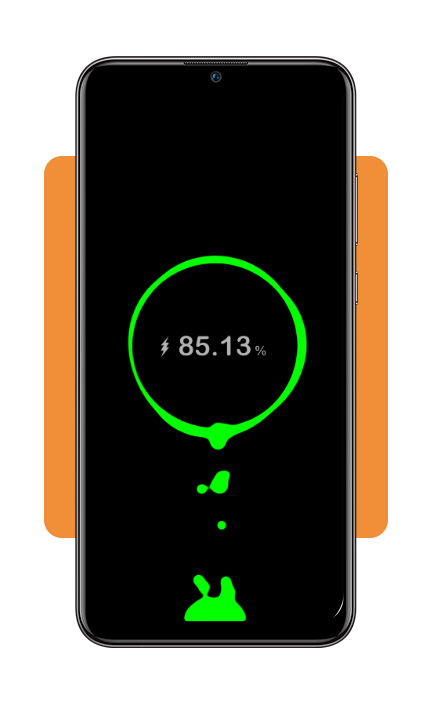
The app includes a charging-time calculator, battery-life calculator, battery maintenance tips, and charging animations and sounds.
For users mainly interested in faster charging, the most relevant tools are the power test, charger comparison, and charging-time estimate.
Step-by-step: how to test charging speed
Charger Master (iOS) can estimate how much charging power your iPhone is receiving and save the results so you can compare different chargers or cables. Check how to do it:
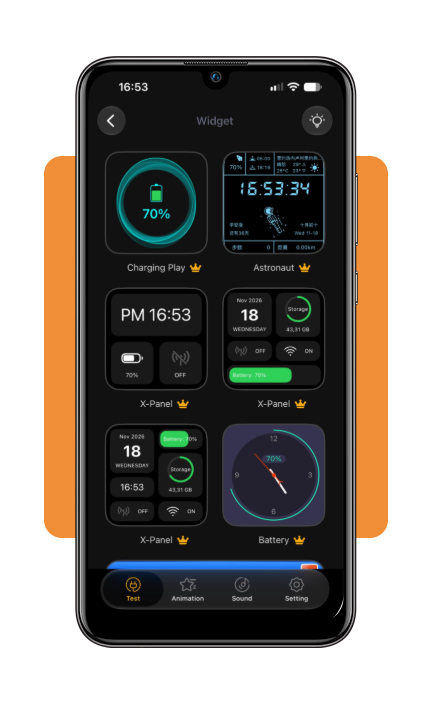
Step 1: open Charger Master
Firstly, download Charger Master (iOS), and connect your iPhone to the charger you want to test, then open Charger Master.
The app also supports an automatic charging test on compatible iOS versions, but starting the test manually is easier to reproduce.
Step 2: start the charging test
Now, open the charging power test and let the app collect enough data to estimate the current charging performance.
Step 3: review the test result
Now, check the estimated charging power and other values shown after the test.
Save the result if you want to compare it later with another cable, adapter, or charging method.
Top fast phone charger brands
Choosing a reliable fast charger matters more than simply buying the adapter with the highest wattage.
Your phone only draws the power it supports, so compatibility with standards such as USB-C Power Delivery is essential.
Firstly, Belkin is a strong option for iPhone and Android users.
Its current USB-C chargers include 20W, 25W, and 30W models with Power Delivery, and some also support PPS for compatible Samsung devices.
Meanwhile, the 30W BoostCharge model can charge an iPhone 15 from 0% to 50% in about 25 minutes.
Anker is another popular brand with compact USB-C and GaN chargers across several power levels.
Its lineup is especially broad if you want one adapter for a phone, tablet, and other USB-C devices.
Whichever brand you choose, match the charger and cable to your phone’s supported charging standard.
A higher-rated adapter will not necessarily produce a faster phone charge if the device itself limits the incoming power.
How to fix slow charging issues on your phone
In this context, slow charging usually comes from the charger, cable, heat, battery settings, or the way the phone is being used while plugged in.
That said, start by testing another compatible cable and wall charger.
A damaged cable or an adapter that doesn’t support your phone’s fast-charging standard can reduce charging speed.
Also, heat can slow a phone charge, and HONOR explains that high device temperature can reduce charging speed as the phone limits power to protect the battery.
Therefore, it helps to remove a thick case, stop demanding apps, and let the device cool down. You can read more in this guide on why your phone may be charging slowly.
Check the charging port for lint or debris as well. A connector that cannot seat properly may interrupt charging or prevent the phone from reaching its expected speed.
If charging slows near 80%, that may be intentional rather than a fault.
Sometimes modern phones use battery-protection settings that reduce or pause charging near a preset limit to protect long-term battery health.
If you are looking for more troubleshooting ideas, this Insiderbits guide to slow charging problems covers other common causes and fixes you can check.
Always test first, then fix the real problem
Today we highlighted how a faster phone charge depends on the right charger, cable, power source, and device temperature than on any app alone.
Charger Master (iOS) is an app that can help you compare charging performance and identify weaker setups.
Still, the actual fix may involve replacing an accessory, cleaning the port, or reducing heat while charging.
All you need to do is test your current setup, compare the results, and only replace hardware once you have a clearer idea of what is slowing the charge.
Enjoyed this article? Save Insiderbits to your favorites and discover the most useful tech tips.