

Asking a doctor’s office to repeat your appointment details a third time feels awkward, and low call volume can turn a quick chat with reception into a guessing game you’d love to avoid.
This Insiderbits guide points you to the call controls already hiding inside your phone menu. Read on for the tweaks that could spare you from pressing the phone against your ear.

4.4/5
Low call volume: start with your phone settings
When a caller sounds faint, it’s easy to blame your phone’s speaker, but a volume setting you lowered by accident can cause the same problem and takes seconds to undo.
Bump the volume key during one call, and the quieter level can stick around, leaving you with low call volume on the calls that follow until you turn it back up.
Checking your settings first helps you figure out if the phone needs a trip to a repair shop, and it might save you money on a fix you don’t need.
Two volume settings that sound alike
On most Android phones, media volume and call volume are separate settings, and turning up the one you use for music and videos won’t make your caller sound any louder.
Your volume keys follow what the phone is doing on both Android and iPhone, and pressing them outside a call changes music or ringer levels while call audio stays put.
Phone menus differ across brands and versions
Google’s steps vary with your Android version, and Apple lets you pick your iOS release in its iPhone User Guide, with versions going from iOS 12 up to iOS 27.
Phone makers like Samsung also rename and move these menus, and sorting out low call volume on your model might mean looking for different labels than the ones Google uses.
Everything you need is already on your phone
Turning up call audio on Android or iPhone doesn’t require you to download an app or pay for a subscription, and the controls are part of the phone you own.
A media booster app such as GOODEV (Android | iOS) works on media without touching phone calls, and installing one won’t make the person on the other end sound any louder.
Step-by-step: adjust call volume and audio output
The screens and menu labels in these steps come from a Samsung Galaxy running Android, and the call volume slider on this model only appears once you’re on a call.
Dial your voicemail for a practice run, as the greeting plays at the same level on each call and helps you judge whether low call volume improves after a change.
Also, hold the phone against your ear for these checks, as the speakerphone and earpiece keep their own volume levels on many Android models, and adjusting one leaves the other alone.
Step 1: press a volume key during the call
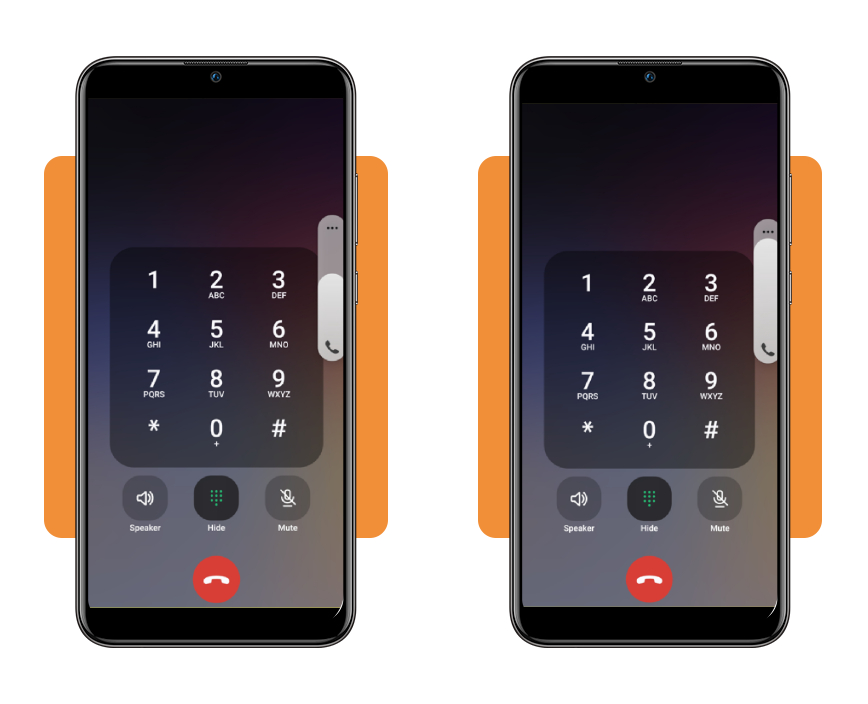
Once the call connects, press the volume up key on the side of your phone and watch for a slider marked with a phone icon to pop up on screen.
Keep pressing until the voice on the line sounds comfortable, or drag the slider with your finger, and your phone will hold that level for later calls through the earpiece.
Step 2: find the volume menu in ‘settings’
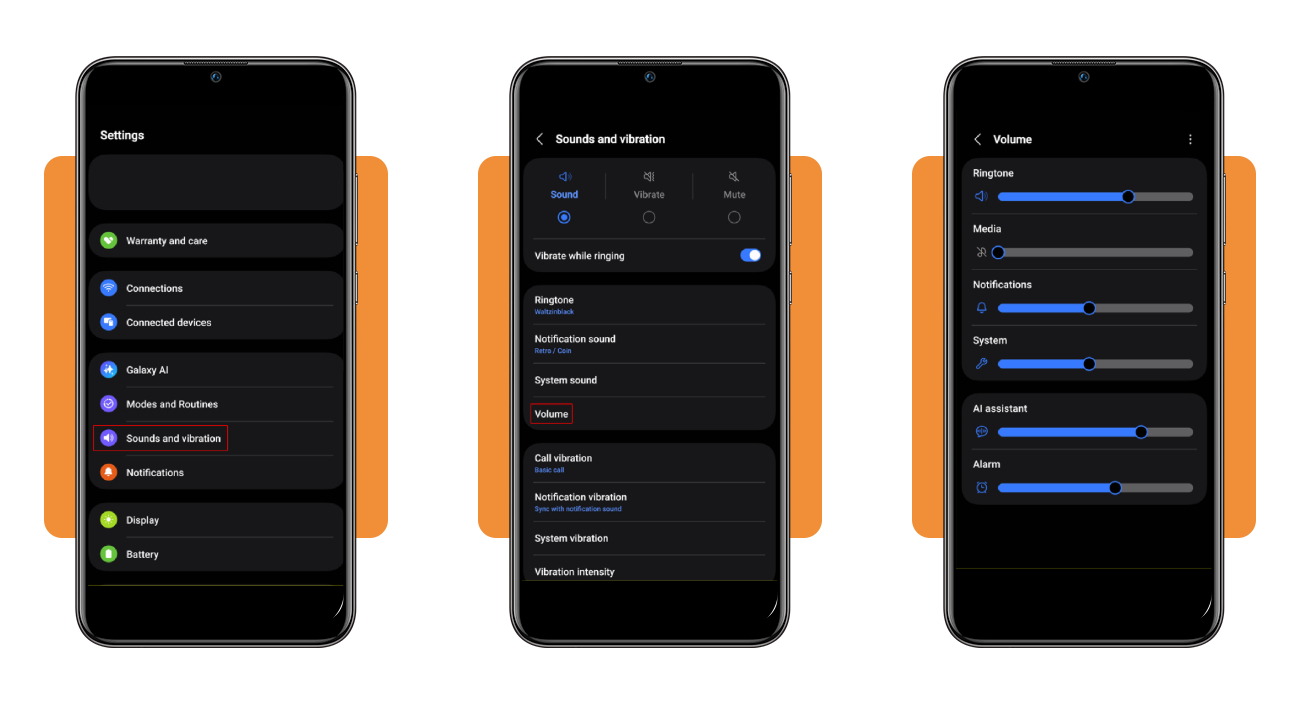
Open ‘Settings’, tap ‘Sounds and vibration’, and choose ‘Volume’ to find the sliders your Android phone relies on for ringtones and media when you’re not on a call.
You won’t find a call slider on this screen if you own a Samsung Galaxy, and raising the Ringtone bar only makes incoming calls ring louder before you pick up.
Step 3: keep volume keys from controlling media
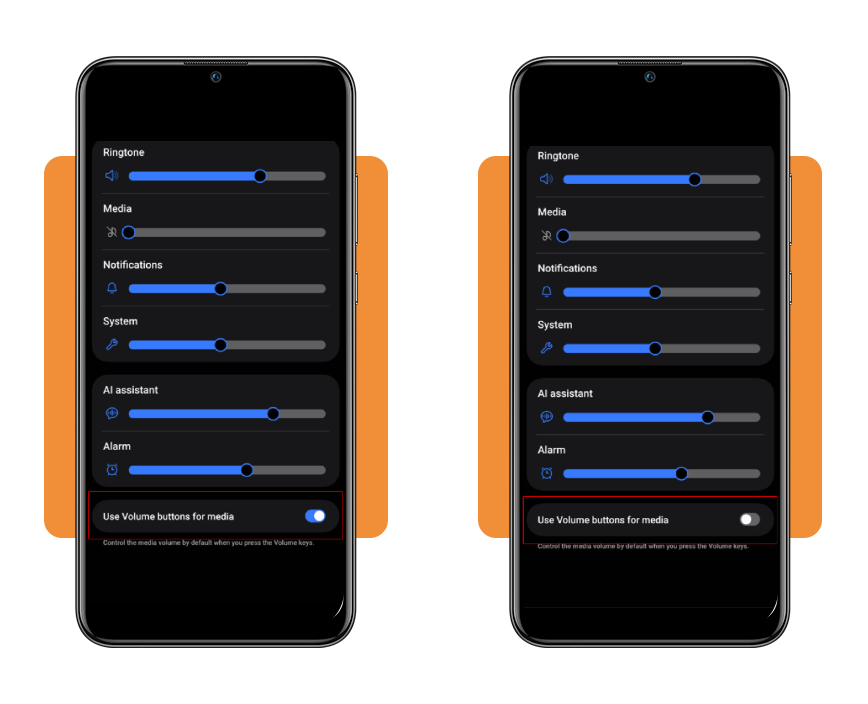
Scroll to the bottom of that ‘Volume’ screen, find the label ‘Use Volume buttons for media,’ and slide the toggle next to it to the left if it shows blue.
With that option on, your keys control media by default, and you might walk into your next call thinking you’ve solved low call volume when only your music went up.
How to adjust call volume on an iPhone
If you carry an iPhone, the call controls work a little differently, and Apple keeps the volume buttons and the audio picker within reach while your call is in progress.
- Press the volume up button on the left side of your iPhone during the call, and keep pressing until the voice on the line sounds comfortable to you;
- Swipe down on the call banner at the top of the screen to bring up the call controls if you’ve jumped into another app while talking;
- Tap the ‘Audio’ button and choose ‘iPhone’ to hear your caller through the earpiece, or pick ‘Speaker’ if you’d rather set the phone down and listen hands-free;
- Select your Bluetooth headset or car stereo from that same ‘Audio’ list when you want the call to play through a connected device;
- Close your iPhone Duo if the sound moved to the speaker when you opened it, as the earpiece option stays grayed out while the phone is unfolded.
Check the receiver, speakerphone, and Bluetooth connection
Pushing the slider up won’t help if the sound plays through a speaker far away from your ear, and low call volume can trace back to where the audio lands.
The receiver is the slit along the top of your screen, and it’s the part that carries the voice on the line when you hold the phone to your face.
Speakerphone uses the grille at the bottom, and a paired headset or car stereo can grab the call as soon as it connects, leaving your phone silent against your ear.
Spot the active audio output on the screen
On your Android phone call screen, a highlighted ‘Speaker’ button means the voice is playing out loud, and tapping it a second time sends the sound back to the earpiece.
The ‘Audio’ button on your iPhone swaps its icon to match the output, showing a little speaker or headphone symbol that tells you where your caller’s voice is headed.
Inspect cases and screen protectors near the earpiece
Pop off your phone case and look at the edge of your screen protector to check whether either one covers the earpiece opening, as a slight misalignment can muffle voices.
Lint and dust can pack into the earpiece grille and cause low call volume, and your phone maker’s cleaning instructions help you avoid pushing debris deeper or damaging the mesh.
Reconnect or unpair your Bluetooth headset
Switch off Bluetooth from your quick settings panel or Control Center and place a test call, and if the voice sounds fine through the earpiece, your headset deserves the blame.
Forget the headset in your Bluetooth settings and pair it again on a full charge, as a weak battery or glitchy connection can leave the voices sounding thin and distant.
Where to access official Android and iPhone call-audio help
If none of your tweaks bring the voice up to a comfortable level, the companies behind your phone publish free help pages covering the settings tied to low call volume.
Official pages match the menus Google and Apple ship to your phone, and they revise them when a software update moves a button or gives a setting a new name.
Sticking with official sources also keeps you away from random forum tips that push unproven volume apps or ask you to tinker with hidden developer options on your Android phone.
Google support pages for Android sound settings
Search for Android Help and type volume into the search bar to find Google’s page on sound settings, which covers the main sliders on phones running Android 12 and up.
If the steps don’t match your screen, post your question in the Android Help Community at the bottom of that page and mention both your phone model and Android version.
Apple’s guide to iPhone call controls
Apple’s iPhone User Guide has a page called ‘While on a call’, and the sidebar on that page links to a ‘Hearing’ section with accessibility options for audio and captions.
The ‘Live Captions’ page in that section shows you how to turn spoken audio into text on screen, a handy backup for calls while you’re sorting out low call volume.
Contact your phone developer for persistent problems
When the voice stays faint after every fix, contact the company that made your Android phone, as brands like Samsung and Motorola offer support teams that can test the hardware.
If you carry an iPhone, the Apple Support app lets you chat with an advisor or book a visit to an Apple Store or an authorized service provider near you.
Test your call audio and consider suitable phone options
Testing in a quiet room gives you a fair read on the earpiece, as street noise or a running TV can make a healthy speaker seem weaker than it is.
Check your signal bars during the test, as a weak connection can pass for low call volume when the culprit is a choppy voice relayed from a distant cell tower.
Phones sold in the US carry a hearing aid compatibility rating on the box or maker’s site, and checking it helps if you wear hearing aids and plan to upgrade.
Call a friend to compare the sound
Ask a friend to call you, have them call a second phone in the same room, and you’ll know whether the faint voice comes from your device or their line.
Turn on ‘Wi-Fi Calling’ in your phone settings and ask your friend to call back, as a fuller voice over Wi-Fi points to your cellular signal instead of your earpiece.
Settings can’t fix hardware problems
A drop or a splash can damage the tiny speaker behind the earpiece, and crackling or buzzing during calls suggests a part that no slider or toggle can repair.
Your phone has a volume ceiling set by its hardware, and if low call volume follows you to the top of the slider, a trained technician should take a look.
Repairs and new devices may cost extra
Earpiece repairs on an older phone come with a fee, and checking whether your warranty or carrier insurance plan covers the part can spare you a surprise bill at the counter.
When a repair quote comes close to the price of a brand new model, compare the credit your carrier and phone maker give for your old device before you pay.
4.4/5
Your next call could sound a lot clearer
Your phone came with more control over call sound than the box ever let on, and a minute spent poking around those menus can turn faint voices into easy chats.
In this guide, you discovered how to raise a caller’s voice from your settings and tell low call volume apart from a spotty signal or a speaker that needs repair.
Stay with Insiderbits for more articles on keeping your phone working as it should, and you’ll pick up fixes that keep repair bills low and your calls sounding their best.