
Cast photos to TV to turn your living room into a giant photo album. Whether you’re sharing vacation snapshots or that family picture, a bigger screen makes the experience more fun.
Use Google Photos with Chromecast or Apple AirPlay to share images wirelessly. No cable hunt required. Just make sure your devices support the feature. Read on Insiderbits.

4.4/5
Cast photos to TV with Google Photos or AirPlay
Trying to show vacation pictures or birthday snapshots on a phone screen can quickly turn into a game of “Can you see this?”.
Cast photos to TV makes sharing much easier, giving everyone a better view without passing a phone around the room.
Two convenient options are Google Photos with Chromecast and Apple AirPlay. Both let you display pictures wirelessly, provided you have a compatible TV or streaming device and the required network connection.
Google Photos (Android & iOS)
Open Google Photos, select a photo or album, tap ‘More’, then choose ‘Cast’ and select your Chromecast. Your phone and Chromecast need to be connected to the same Wi-Fi network.
You can swipe through your photos on your phone to change what’s displayed on the TV. The feature is available on both Android and iPhone, although the Google Photos TV app isn’t supported by every smart TV.
Apple AirPlay (iPhone & iPad)
Open the Photos app, choose a picture, tap ‘Share’, swipe up, and select ‘AirPlay’. Then choose your Apple TV 4K or AirPlay 2-compatible smart TV.
Both devices must be on the same Wi-Fi network, and your TV may display a passcode for you to enter on your iPhone.
The main difference is compatibility: Google Photos (iOS | Android) works with Chromecast, while AirPlay requires an Apple TV or a compatible television.
Check what your devices support before you start. That way, the only debate during photo night will be which vacation picture deserves the biggest screen.
Step-by-step: choose an album and connect your TV
Ready to cast photos to TV? Follow these steps to get your favorite pictures up on the big screen:
Step 1: connect your devices to the same Wi-Fi network
Make sure your phone and smart TV or streaming device are connected to the same Wi-Fi network. This helps compatible devices find each other and communicate.
No need to worry about choosing a 5 GHz connection specifically; a stable network is what matters most.
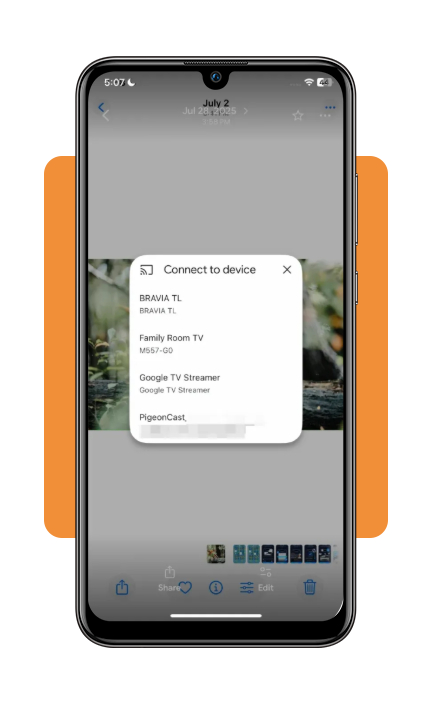
Step 2: open your photo app and choose your pictures
Launch Google Photos on your iOS or Android, or open Apple Photos on your iPhone or iPad. Find the album you want to share, then select a photo.
Whether it’s a vacation collection or a family album, your living room is about to become the viewing room.
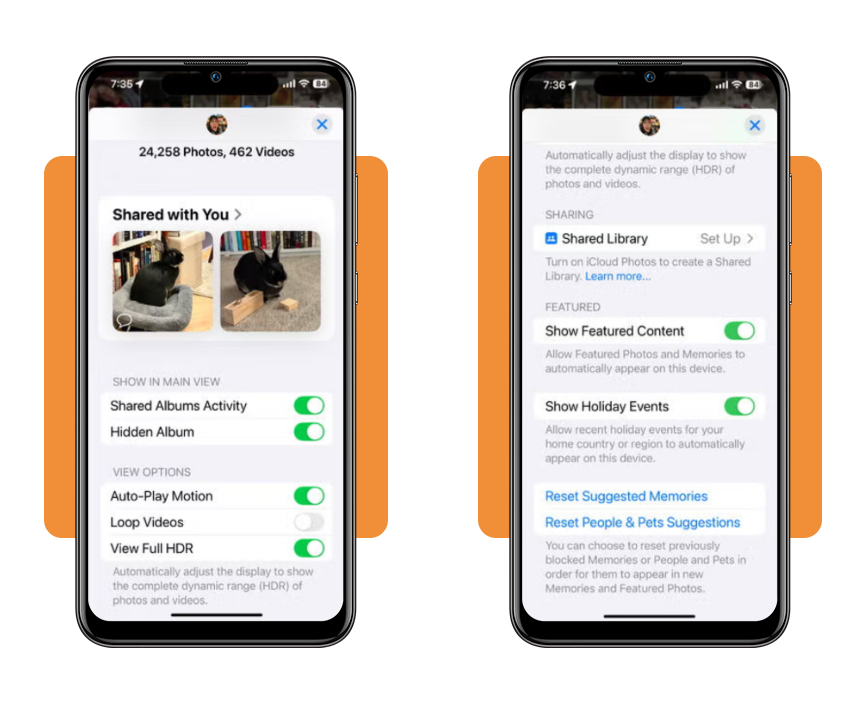
Step 3: tap the Cast or AirPlay option
In Google Photos, look for the ‘Cast’ icon and tap it to find compatible devices.
If you’re using Apple Photos, open the ‘Share’ menu and look for the ‘AirPlay’ option. The exact steps and available controls may vary depending on your device and software version.
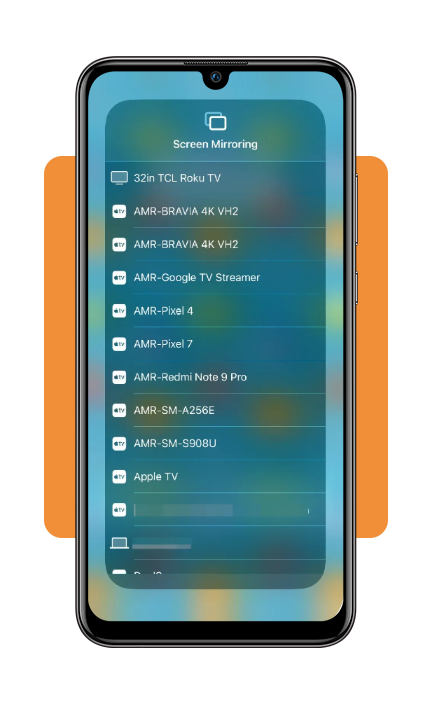
Step 4: select your TV and start viewing
Choose your television or streaming device from the list of available options. Once connected, your selected photo should appear on the TV.
You can then move through the pictures using your phone. If you want an automatic slideshow, check whether your photo app or TV offers that option.
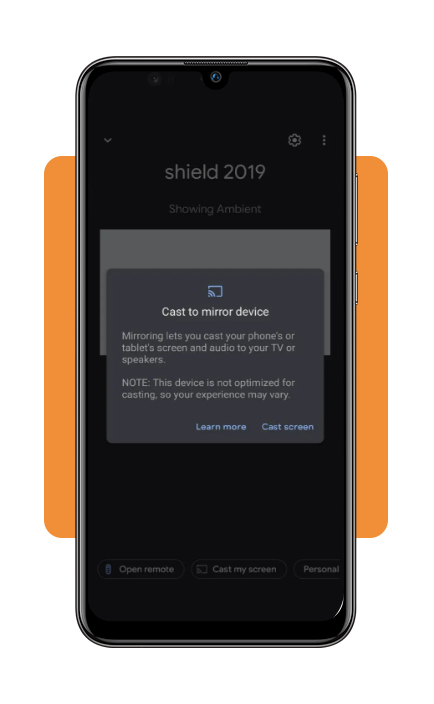
Share selected memories and understand device limits
Want to cast photos to TV without turning the setup into a weekend tech project?
Wireless sharing is usually simple, but the experience depends on the devices you own and the casting technology they support.
Before picking your favorite vacation shots, check whether your phone, tablet, or computer can connect to your TV.
One important distinction: Google Cast, AirPlay, DLNA, and Miracast aren’t interchangeable.
A Roku or Fire TV device, for example, may support certain casting or mirroring options depending on its model and software, but that doesn’t automatically make it compatible with every protocol.
Check your TV’s specifications before getting started, and make sure your devices meet the requirements for the method you plan to use.
Where to download Google Photos and check compatibility
Setting up Google Photos on your mobile device provides multi-platform access to casting features:
- Android Devices: Google Photos comes pre-installed on most Android phones. Access updates directly on the Google Play Store;
- iOS / iPhone: download the app for free from the Apple App Store to unlock Google Cast capabilities on Apple hardware;
- Official Google Photos Support: review step-by-step setup guides for casting on Google Photos Android Help and Google Photos iOS Help;
- Official Apple AirPlay Support: learn how to configure AirPlay photo streaming on the Apple AirPlay Support Portal.
Enjoy family photos and explore compatible viewing options
Once you know how to cast photos to TV, you can do more than display a single snapshot.
A few extra settings can make family photo nights easier, keep favorite memories within reach, and help prevent private notifications from becoming an unexpected part of the show.
- Explore ambient mode and screen savers: compatible Google TV devices offer Ambient Mode, which can display selected Google Photos (iOS | Android) albums when the TV is idle. Apple TV also supports photo-based screen savers using compatible photos from your Apple library. Available options depend on your device, software version, and account settings;
- Create shared family albums: Google Photos and Apple’s Shared Albums feature let you invite other people to contribute pictures. It’s an easy way to collect everyone’s vacation shots or holiday photos in one place. You can then open the album in a supported app and cast its contents to your TV;
Want to explore more ways to share your screen? Check out our guide on how to mirror your phone to TV for additional tools and options.
4.4/5
Bring your favorite memories to the big screen
Learning how to cast photos to TV makes it easier to turn the pictures on your phone into something everyone can enjoy together.
With compatible tools such as Google Photos (iOS | Android) and Apple AirPlay, you can revisit vacations, birthdays, and everyday moments on a much larger display.
Check your device compatibility, choose the sharing method that works for your setup, and let the living room take a trip down memory lane.