

Pressing a phone against your ear to catch a podcast or a loved one’s voicemail wears you out, but there’s an easy way to turn up phone volume with just a few taps on your screen.
This Insiderbits guide covers the volume panels, settings, and checks that push your phone to its loudest, so your playlists and shows come through stronger without extra purchases.
Turn up phone volume with built-in controls
Your phone ships with a trio of volume tools, from the physical buttons on its edge to sliders on the screen and a voice assistant that listens for your commands.
Learning to use them well lets you turn up phone volume on Android or iPhone at no cost, with no app to download and no subscription to sign up for.
Working with the controls you hold in your hand helps you rule out the simple causes of faint audio before you begin wondering whether your speaker needs a technician’s attention.
Let the side buttons do the first work
Pressing volume up while a song or video clip plays raises that audio, and a bar on the edge of the screen shows how close you are to the top.
On a locked iPhone, ‘Control Center’ gives you a slider to drag upward, and some video apps carry their own volume bar that you’ll want to push to its maximum.
Ask Google Assistant or Siri for more sound
When both your hands are covered in flour or gripping a steering wheel, saying ‘Hey Google, change volume’ or asking Siri for louder audio lets you skip pressing any buttons.
Voice commands help you turn up phone volume while the device rests across the room, though you’ll need your assistant turned on in your settings for it to hear you.
Know which sound your buttons control
Android phones change the volume of whatever you’re doing, so the buttons raise a movie’s audio during playback and adjust media volume when you press them with no sound running.
On iPhone, the buttons handle calls and media, then move over to ringer and alerts, and turning off ‘Change with Buttons’ in ‘Settings’ stops them from touching your ringtone level.
Step-by-step: adjust media volume and audio output
Music, videos, and games run on their own volume track apart from calls and alerts, and finding that track lets you turn up phone volume for the sound you want.
Menu labels shift between Android brands and versions, and iPhones running iOS handle media with fewer menus, so the Android routine comes first and the iPhone version wraps it up.
Your phone remembers the levels you pick, so you won’t repeat the routine before every video, and you can lower the media sound at bedtime without touching your ringtone volume.
Step 1: play the audio you want louder
Open your music app, a streaming service, or a video you saved and start playback, giving the volume buttons a target to adjust as soon as you reach for them.
Choosing a song or clip you know well helps, and leaving it running while you work lets your ears catch the difference with each change you make to the sliders.
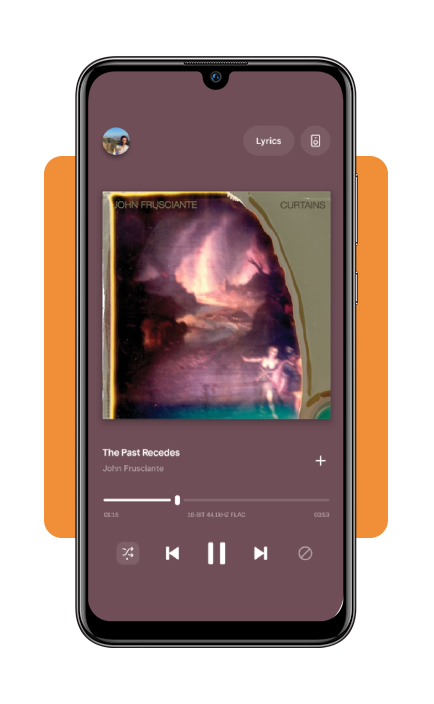
Step 2: open the full volume panel
Press either volume key on the side of your Android phone, and a slim slider pops up on the screen next to the buttons with three small dots underneath it.
Tapping those dots expands the panel into a full set of sliders, giving you room to turn up phone volume for media without changing how loud your text alerts ring.
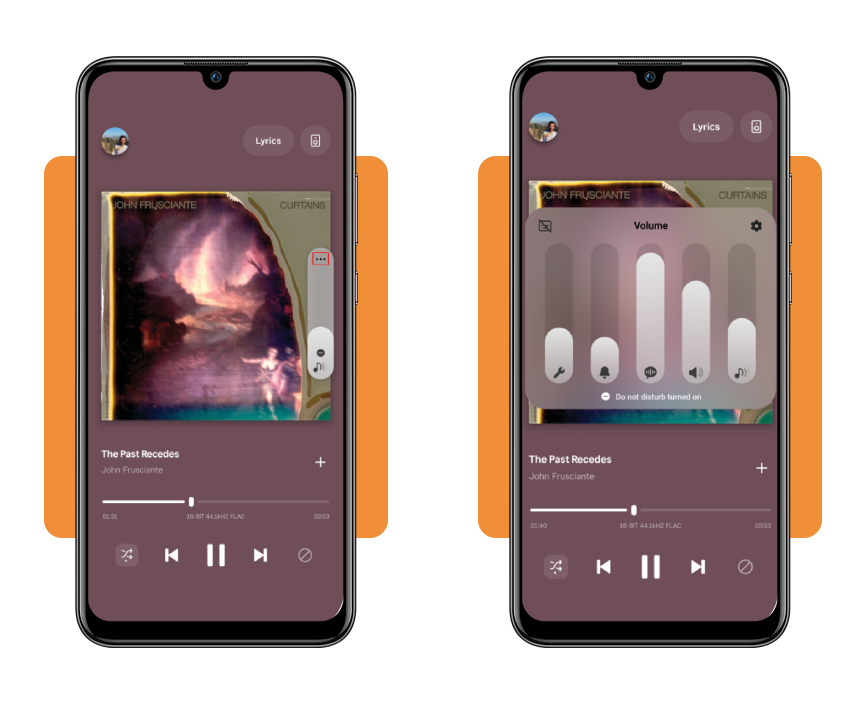
Step 3: slide each sound type to your level
Drag the ‘Media’ slider to the top for music, videos, and games, then decide where ‘Ringtone’, ‘Notifications’, and ‘System’ sounds should land so incoming calls and messages reach you.
The call volume slider shows up once a phone conversation begins, and pressing volume up while you talk raises the other person’s voice in your ear or through the speakerphone.
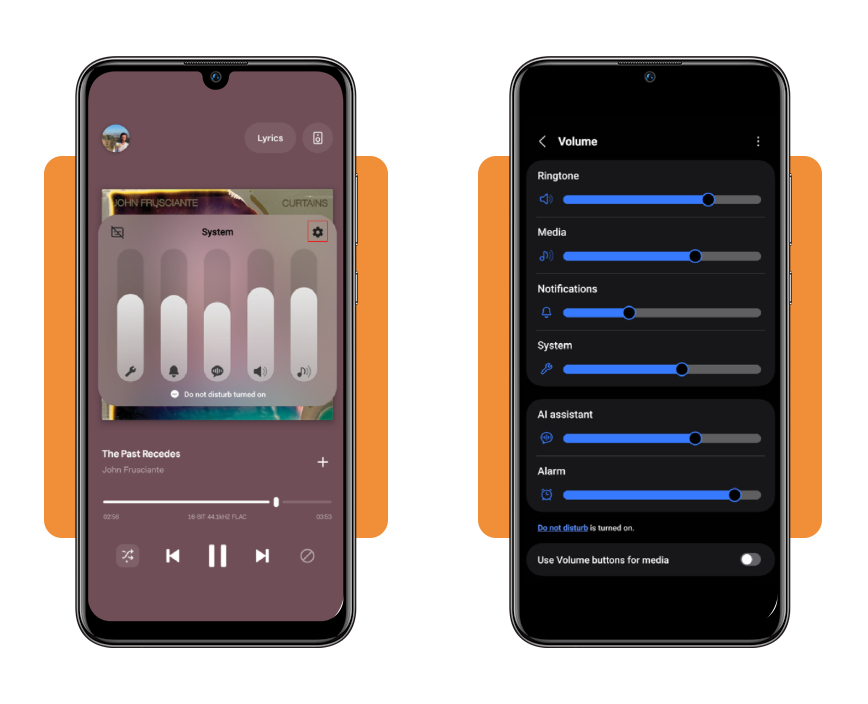
Step 4: confirm where your phone sends sound
A pair of earbuds in your bag or a car stereo you paired before can steal your audio, leaving the phone speaker silent while the sliders rest at their maximum.
Swipe down from the top of the screen to open the quick panel, tap the ‘media output’ option in the media controls, and choose your phone from the list of devices.
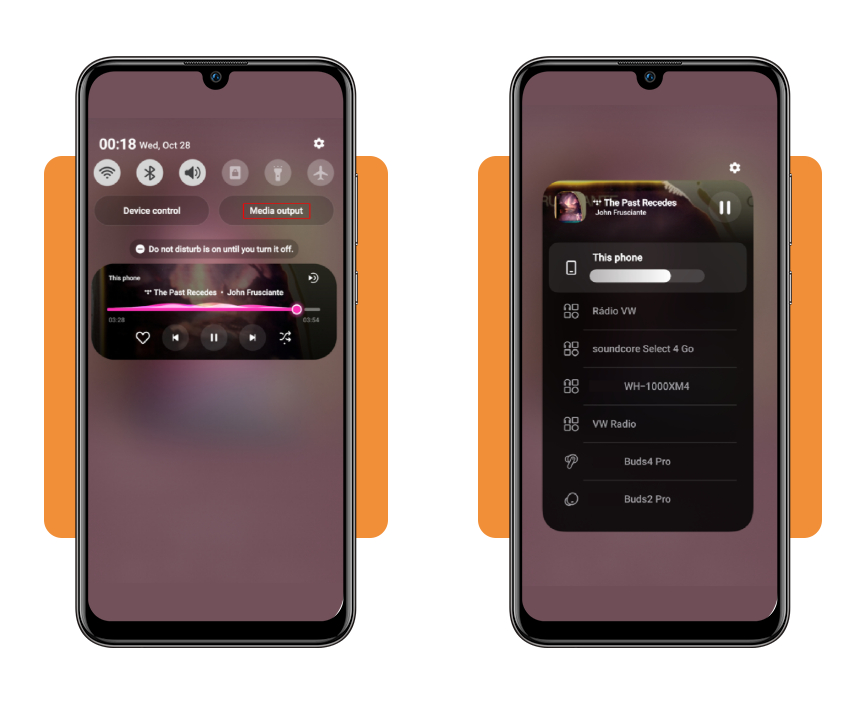
Turn up the iPhone sound while media plays
- Start a song, podcast, or video in the app you use, and your iPhone points its side buttons at that playback instead of the ringer;
- Press the upper button on the left edge until the volume indicator reaches its peak, keeping the audio running so you can hear each jump;
- Swipe down from the top right to open ‘Control Center’, tap the ‘AirPlay’ icon on the ‘Now Playing’ card, and pick ‘iPhone’ from the list;
- If audio keeps drifting back to earbuds or a car stereo, open ‘Settings’, tap ‘Bluetooth’, and disconnect that accessory so your speaker holds the sound.
Understand sound settings and common limitations
A phone that stays quiet with the sliders maxed out has a setting working against you, and spotting it beats pressing buttons to turn up phone volume with no result.
Your speaker also has a ceiling set by its hardware, and no menu, app, or setting can push your sound past the loudest level the manufacturer built it to reach.
Accessibility menus hide a balance slider on Android and iPhone, and if it drifts toward one side, the opposite speaker or earbud plays softer than the rest of your audio.
Menus look different across versions and brands
Some volume features from Google need Android 12 or newer, so open ‘Settings’, tap ‘About phone’, and look for the Android version line to see the release your phone runs.
On older Android software, a small down arrow replaces the three dots in the volume panel, and iPhones on earlier iOS releases kept a volume cap inside the Music settings.
Silent modes and ‘Focus’ settings can hide sound
A bell icon above your Android volume slider shows whether the phone rings, vibrates, or stays muted, and ‘Do Not Disturb’ can silence calls and alerts on its own schedule.
Before you turn up phone volume to fix a missed ringtone, flip the iPhone ‘Ring/Silent’ switch or press the ‘Action’ button, then confirm ‘Do Not Disturb’ is off in ‘Focus’.
Hearing protection limits deserve to stay on
On iPhone, ‘Reduce Loud Audio’ inside ‘Sounds & Haptics’ caps the sound in your headphones at a decibel level you choose, and your speaker keeps playing at full strength.
Android phones may show a warning when headphone volume climbs past a safe level, and reading that message before you tap through it helps protect your ears from lasting damage.
Where to access official Android and iPhone guidance
Help pages from the companies behind your phone and its software track menu changes as updates roll out, and you can read them free without an account or app download.
Bookmarking a couple of them helps after an update moves a setting, giving you a trusted reference when you need to turn up phone volume on an unfamiliar menu screen.
Reading the instructions costs nothing, but repairs and replacement accessories through these support teams can carry a price, so ask for a quote before you agree to anything.
Google’s free help pages for Android phones
Searching ‘Android Help‘ for its volume, sound, and vibrate page brings up sliders for media, calls, and alarms, plus ringtone swaps, notification sounds, and emergency alert controls.
Links at the bottom of that page open Google’s Do Not Disturb and notification articles, and a separate section covers the older Android versions if your phone predates Android 12.
Samsung and Pixel support for model specifics
Pixel Phone Help hosts a speaker troubleshooting flow and restart instructions, with ‘Power’ and ‘Volume up’ for a Pixel 6 or newer and a long ‘Power’ press for older models.
Samsung’s support site lets you search by the model number under ‘About phone’, and its Galaxy sound articles help when you can’t turn up phone volume past a muffled level.
Apple’s iPhone User Guide and speaker article
Apple’s iPhone User Guide lives online with a version menu at the top, and picking the iOS release you run keeps the volume instructions matched to the screen you see.
Apple’s article on missing or distorted speaker sound adds a quick test in ‘Sounds & Haptics’, where dragging the ringtone and alerts slider shows whether the speaker makes any sound.
Test your sound and explore suitable audio options
Once your settings check out, a couple of hands-on tests reveal whether faint sound comes from the content, the case, or the phone, and you won’t need tools for them.
Run them in a quiet room so noise can’t fool your ears, and results show if it’s worth trying to turn up phone volume or if the cause lives elsewhere.
Jot down what you hear after each test, and those notes will save you from repeating the same story if you end up contacting a support team about your speaker.
Compare two recordings to find the real culprit
Play a video you recorded yourself, then a track from your music app, and if one sounds faint while the other comes through loud, the quiet file is the problem.
Faint or crackly audio across both recordings points to the phone, and Google tells Pixel owners to contact its support team when distortion shows up in all of their sound.
Check the case and speaker openings
Pull off the case, screen protector, or film and replay the same clip, because some designs cover the speaker slots or a tiny vent near the camera on Galaxy phones.
Lint packed into the bottom slots muffles sound however hard you turn up phone volume, so sweep them with a small, soft, dry brush and skip liquids, pins, and needles.
Try headphones or a speaker you already own
Plug in wired earbuds or pair the Bluetooth headphones tucked in your drawer, and strong sound through them points the trouble toward the phone speaker and away from your apps.
A Bluetooth speaker, TV, or car stereo you own can carry your audio in a noisy room, and pairing it through the Bluetooth menu takes no extra purchase or subscription.
Louder starts at the slider, not the store
A louder phone means catching the doctor’s office when they call you back, hearing every punchline in the family videos, and keeping the money for new speakers in your pocket.
In this article, you learned to raise media volume, pull sound back from forgotten earbuds, and spot the settings and covers that muffle audio when you turn up phone volume.
Do you know how to really use your phone? Browse more Insiderbits articles to uncover handy features, skip extras you don’t need, and enjoy more from the device you carry.