

Robocall protection may already be built into your phone, so you might not need another app. Both iPhone and Android help identify, filter, or silence certain unknown spam callers.
Few adjustments to your phone’s settings, along with spam-blocking features make a real difference to your daily call routine. Here’s how to put those tools to work—on Insiderbits.
Robocall protection with built-in phone filters
Unwanted automated calls, pushy sales pitches, and phone scams can turn a simple ring into a daily interruption.
Some scammers even spoof local numbers to make their calls look familiar, hoping you’ll pick up and share personal information or approve a payment.
Spoiler: that familiar area code doesn’t always mean the caller is from your neighborhood.
The good news is that you may already have robocall protection tools built into your phone. Both iOS and Android offer call identification, spam warnings, and options to silence or filter certain calls.
The exact features depend on your device, operating system, region, and carrier, but they can help you spot suspicious activity without downloading another app. Here are a few tools worth checking:
- Built-in call filtering: iPhones and Android devices offer settings that can identify or silence certain unknown or suspected spam callers. Available options vary by model and software version;
- Carrier-level protection: some mobile providers offer network-based spam detection and call blocking. In the United States, STIR/SHAKEN helps carriers verify caller ID information, making certain types of number spoofing harder, although it doesn’t catch every fraudulent call;
- Custom screening settings: depending on your phone and carrier, you may be able to display spam warnings, silence unknown callers, or send selected calls to voicemail. Check the available options before turning on automatic filtering, especially if you regularly receive calls from new clients, delivery drivers, or healthcare providers.
Step-by-step: enable available call-labeling options
You don’t necessarily need to download another app to get started with Robocall protection.
Your phone and mobile carrier may already offer tools to identify suspicious callers, filter spam, or silence numbers you don’t recognize. Here’s where to find them:
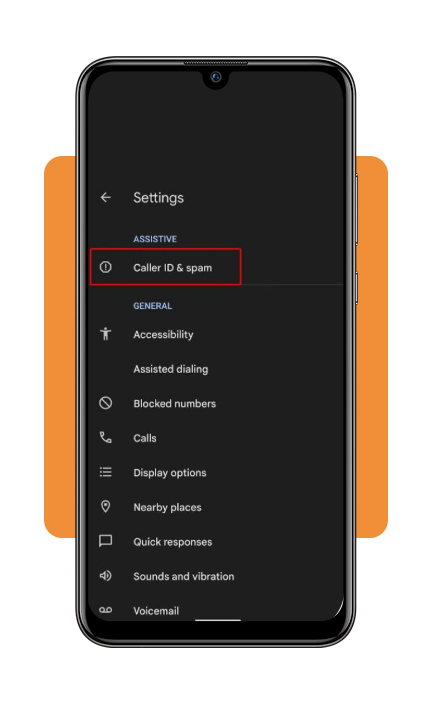
Step 1: turn on caller ID and spam filtering on Android
If your phone uses Google’s Phone app, open it, tap the three-dot menu, and go to ‘Setting’, ‘Caller ID & spam’. Turn on ‘See caller ID & spam’ to receive information about unfamiliar callers and potential spam.
You can also enable Filter spam calls to keep calls identified as spam from ringing. These options may look different or be unavailable in other Android phone apps.
Step 2: screen or silence unknown callers on iPhone
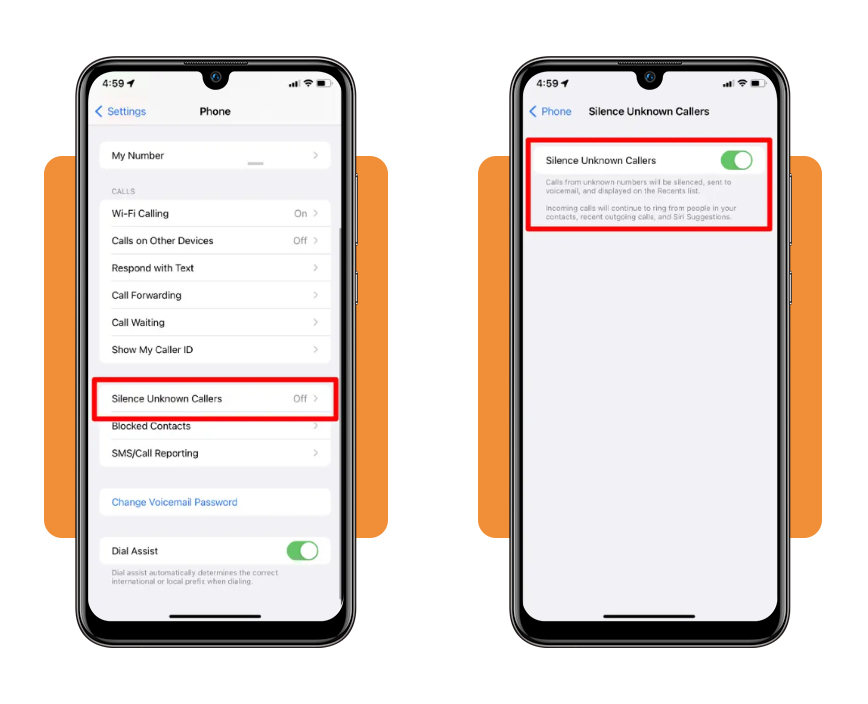
On newer iOS versions, open ‘Settings’, ‘Apps’, ‘Phone’ and look for ‘Screen Unknown Callers’.
Depending on your version, you may be able to choose ‘Ask Reason for Calling’, which screens the caller before your phone rings, or ‘Silence’, which sends calls from unsaved numbers to voicemail.
You can also enable the carrier-supported spam filter, when available, to silence calls identified as spam or fraud. Keep important numbers saved in your contacts so legitimate calls don’t get lost in the shuffle.
Step 3: check your carrier’s spam protection service
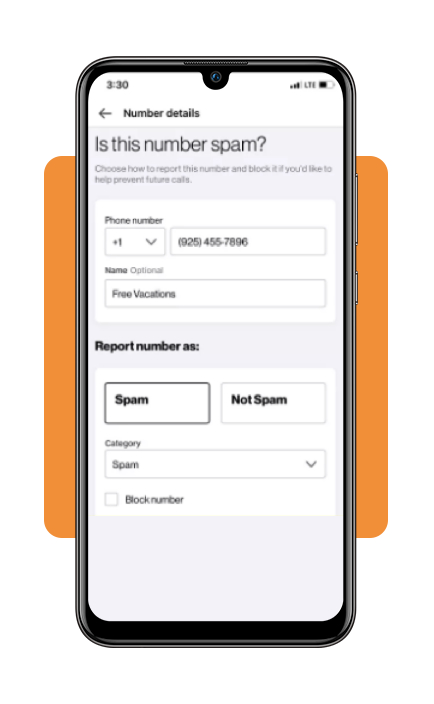
Mobile providers may offer their own call-filtering tools, sometimes through a separate app or your existing account. In the US, examples include AT&T ActiveArmor, Verizon Call Filter, and T-Mobile Scam Shield.
Available features, pricing, and blocking options vary, so check your carrier’s official website before downloading anything or assuming a feature is free.
Step 4: register your number with the National Do Not Call Registry
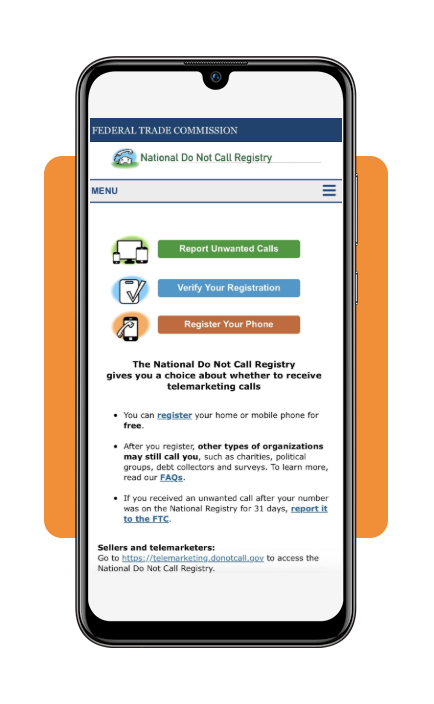
If you’re in the United States, you can add your mobile or landline number for free at DoNotCall.gov.
The registry helps limit legitimate telemarketing calls from companies required to follow the rules, but it doesn’t block calls directly or stop scammers who ignore the law.
Registration can take up to 31 days to take effect, so think of it as one more layer of protection, not a magic switch that makes every unwanted call disappear.
Understand filtering benefits and missed-call risks
Stronger Robocall protection can bring some welcome peace and quiet, but aggressive filters may also silence calls you actually want to answer.
Before turning every setting up to maximum, take a look at what each option does and where it might get a little overzealous.
The Federal Trade Commission’s guide to blocking unwanted calls recommends using available phone and carrier tools alongside the National Do Not Call Registry.
The registry is useful, but it isn’t a force field against scammers, so combining protections is important.
Want to tackle unwanted messages, too? Check out our guide to spam-blocking tools and tips for more ways to keep your inbox and phone a little less chaotic.
Where to access official phone and carrier guidance
- Android / Google Support: access full device configuration details on the Google Phone App Spam Protection Portal;
- Apple / iOS Support: review step-by-step setup for iPhone call management on the Apple Silence Unknown Callers Page;
- Federal Trade Commission (FTC): learn how to report persistent illegal robocallers directly via the FTC Unwanted Call Portal.
Review your calls and compare protection options
- Save frequent business contacts: always save numbers for your doctor’s office, children’s schools, pharmacies, and local service providers into your primary Contacts list to prevent them from being silenced;
- Audit blocked call history periodically: check your call history or voicemail inbox occasionally to verify that important unrecognized calls were not accidentally misflagged;
- Never answer ‘Can You Hear Me?’ scams: if an unknown caller asks a question prompting a simple ‘Yes’ answer, hang up immediately. Scammers frequently record voice affirmatives to attempt unauthorized charges.
Take back control of your phone
Built-in robocall protection tools can help you cut down on unwanted interruptions without adding another app to your phone.
No setting can block every robocall, but combining these tools can make your phone a little less noisy.
Just remember to review filtered calls now and then, so an important appointment reminder doesn’t get lost in the spam pile.