

Free up phone storage without saying goodbye to your favorite media. Cloud backup services move libraries out of your local storage, giving you some needed breathing room.
Instead of deleting memories to make room for new apps and updates, you can back up your files online and access them whenever you need them. Read on Insiderbits.

4.4/5
Free up phone storage with Google Photos
Running out of space on your phone is more than an annoying notification. It can leave you unable to install updates, download apps, or capture that perfect photo because your storage is already packed.
High-resolution pictures and 4K videos can fill up gigabytes surprisingly quickly, and deleting your favorite memories isn’t exactly anyone’s idea of a good time.
Available for Android and iOS, Google Photos offers a Free up space feature that helps you reclaim device storage without manually deleting files one by one.
Once your photos and videos have been successfully backed up to your Google Account, you can use this tool to remove their local copies from your phone.
Your backed-up media remains available through the app whenever you have access to your account and an internet connection. Just make sure the backup is complete before clearing anything from your device.
Step-by-step: verify backup before removing local copies
Before using Google Photos to free up phone storage, make sure every photo and video you want to keep has finished uploading.
A little patience here can save you from accidentally losing pictures you thought were safely stored in the cloud.
Step 1: check your backup status
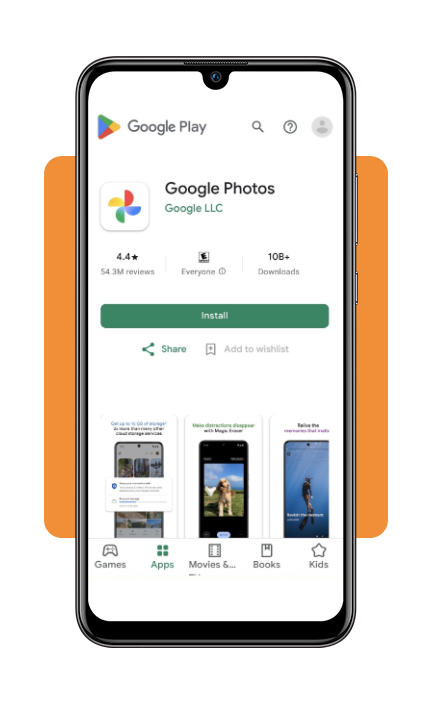
Open Google Photos (iOS | Android) and tap your profile picture or initial in the top-right corner. Look for the ‘Backup complete’ message.
If the app still shows items being uploaded, wait until the process finishes before moving on.
Step 2: open the storage cleanup tool
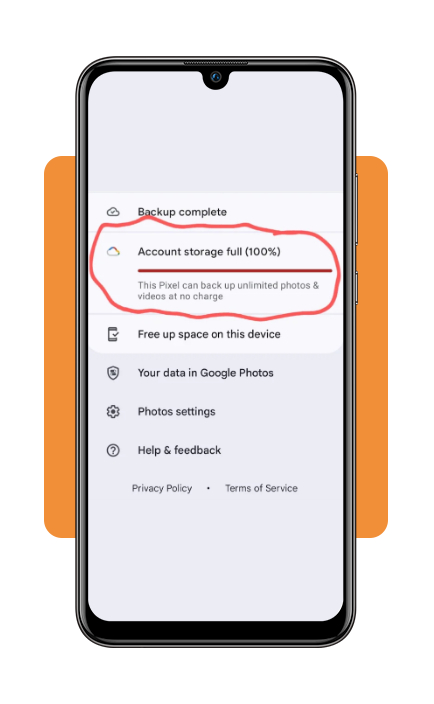
Tap your profile picture again and select ‘Free up space’ or ‘Free up space on this device’, depending on your device and app version.
Google Photos will show how much local storage you can reclaim by removing backed-up copies.
Step 3: review and confirm the deletion
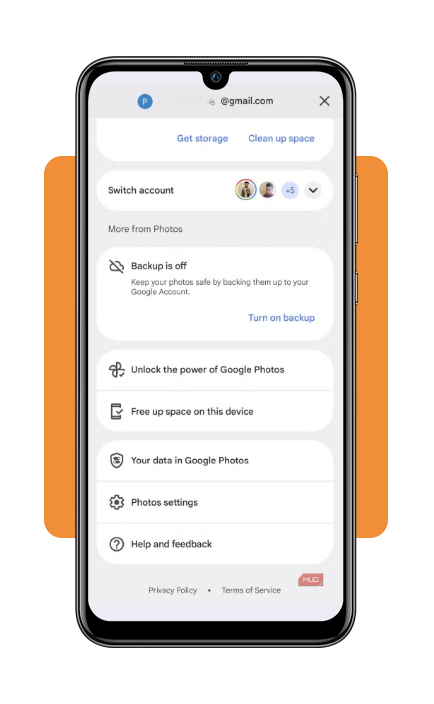
Check the estimated amount of space to be recovered, then tap the confirmation button, such as ‘Free up [amount] from device’.
The app removes eligible local copies while keeping the backed-up versions in your Google Photos (iOS | Android) library.
Step 4: check your device’s Recently Deleted folder
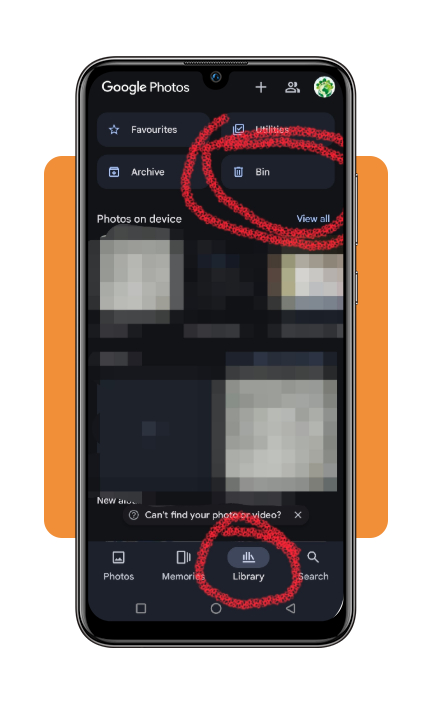
On some devices, deleted photos may remain in a trash or Recently Deleted folder before they’re permanently removed.
Check your phone’s native gallery or Photos app and follow its instructions if you need to clear that folder to reclaim additional space. The exact process varies by device.
One important reminder: After using Free up space, you may no longer see those photos in your phone’s built-in gallery, and you’ll need an internet connection and access to your Google account to view their cloud copies.
You can still find them in Google Photos or at photos.google.com.
Understand cloud storage, device space, and photo access
Understanding how cloud storage interacts with your phone helps prevent confusion when browsing media offline:
Looking for more ways to free up phone storage?
Check out our guides on how to free up space on Android and choose a reliable phone cleaner app. For step-by-step instructions on managing backed-up photos, visit the official Google Photos Storage Help Guide.
Where to download Google Photos for Android and iPhone
Google Photos is available as a free download across all major mobile platforms:
- Android Devices: Google Photos (iOS | Android) comes pre-installed on most modern Android devices. Access updates directly on the Google Play Store;
- iOS / iPhone: download the official client for free from the Apple App Store.
Build a backup routine and compare storage options
A little organization can go a long way when you’re trying to free up phone storage without losing the photos and videos you care about.
- Enable automatic backup over Wi-Fi: in Google Photos (iOS | Android), turn on Backup to automatically upload new photos and videos to your Google Account. You can also check whether backup is limited to Wi-Fi to avoid using mobile data. Just remember to confirm that uploads have finished before deleting local copies;
- Review what takes up the most space: use Google Photos’ storage management tools to identify large photos and videos, screenshots, and other items you may no longer need. Take a moment to review everything before deleting it. Your camera roll deserves an occasional spring clean, not a surprise disappearance;
- Keep a second copy of important memories: cloud storage is convenient, but an external hard drive or computer can provide another layer of protection for photos and videos you can’t replace. For especially meaningful moments, having more than one backup is a sensible precaution.
4.4/5
Reclaim your phone’s memory safely
Learning how to free up phone storage with Google Photos (iOS | Android) can make running out of space less of a recurring headache.
Automatic backups and the app’s cleanup tools help you remove eligible local copies while keeping backed-up media in your Google Photos library.
Before deleting anything, check that your backup is complete and make sure you can access your Google Account. And if you’re dealing with particularly precious photos, consider keeping a second copy somewhere safe.