

Emails, long reports, and course readings can drain your focus before you reach the second paragraph, but a dyslexia-friendly screen reader turns those pages into audio you can follow.
In this guide, Insiderbits introduces you to Speechify, an app whose photo scanning and adjustable voices turn tomorrow’s study chapters into material you finish with energy to spare.

4.7/5
Which is the best dyslexia-friendly screen reader app to help read easier?
Speechify (Android | iOS) is a text-to-speech app that takes the words you’d have to read on a page or a screen and speaks them aloud in a voice of your choosing.
When letters fight you at work or school, this dyslexia-friendly screen reader lets your ears do the decoding while your mind stays locked on the meaning behind them.
Bring in PDFs from your phone, Google Drive, or OneDrive, Kindle books, pasted text, and web links, and the app files everything in one library ready to play.
Key features within Speechify
- Synced highlighting: each word lights up as the voice reads it, giving your eyes a moving anchor that keeps you from losing your place;
- Photo scanning: snap a picture of a printed book page, letter, or handout and the app turns the text into spoken audio for you;
- Voices and speed: choose from 1,000+ voices, including Gwyneth Paltrow and Snoop Dogg, and push playback up to 4.5x as your listening comfort grows;
- Built-in assistant: ask for takeaways, request a quiz on the material, or turn a long chapter into a summary you can play back anytime you want.
Free features versus premium features
Downloading Speechify costs nothing, and the free tier lets you listen with standard voices while you browse hundreds of classic books like Pride and Prejudice and Moby Dick.
Premium costs $139.99 a year or $11.99 a month, unlocks AI podcasts and header skipping, and starts with a 3-day free trial that reminds you before it ends.
Everyday uses for students and professionals
Drop your syllabus, journal articles, and notes into the app, then listen on the bus or between classes while the dense pages that used to blur stay closed.
At the office, this dyslexia-friendly screen reader turns long reports, client emails, and lengthy contracts into audio you can review during your commute or in gaps between meetings.
Step-by-step: how to scan printed books
Printed pages come with fixed fonts, tight margins, and lines you can’t resize, which makes a phone camera the quickest way to change how a book reaches you.
Workbooks and out-of-print novels rarely have audio editions, and that gap keeps plenty of your shelf space off-limits until Speechify (Android | iOS) starts narrating the pages you hold.
With your own edition in hand, this dyslexia-friendly screen reader lets you keep the margin notes and follow along with the page numbers your class or team cites.
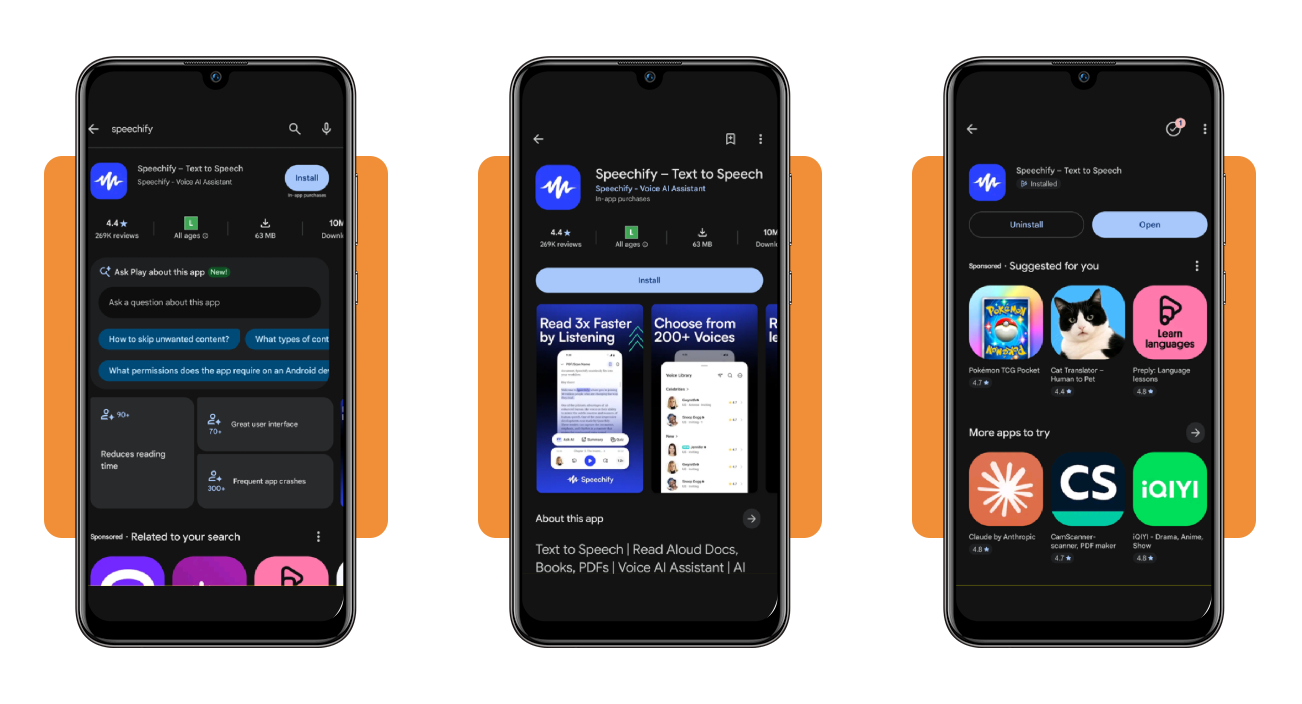
Step 1: download the app on your device
To begin, search ‘Speechify’ in the App Store on iOS 17 or later, or in Google Play on Android, and tap ‘Get’ or ‘Install’ beside the blue icon with a white wave.
Check that the developer name reads Speechify Inc. to avoid lookalike apps, and leave at least 600 MB of space for the iOS download and 65 MB for the Android version.
Step 2: build your profile and sign up
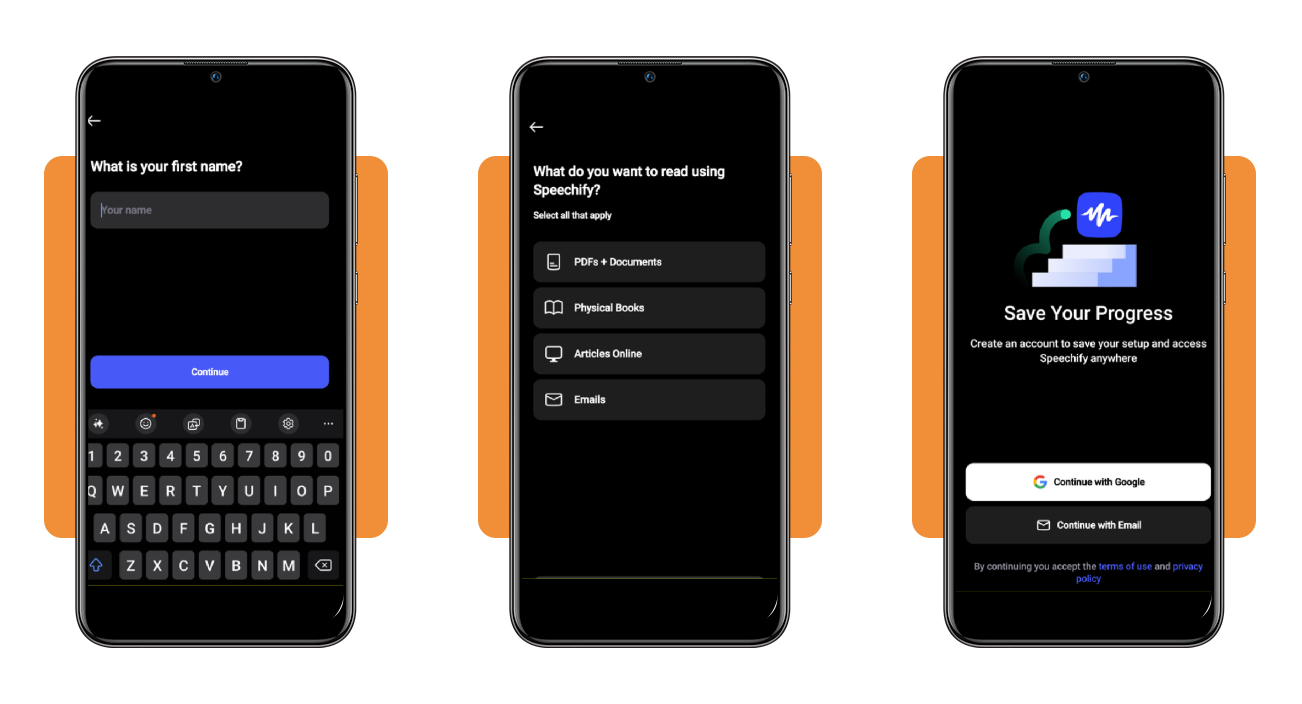
Next, say your age and first name, pick ‘Physical Books’ when the app asks what you plan to read, and name school, work, or leisure as your main focus.
Choose a voice and starting speed, then sign in with Google or email, which lets this dyslexia-friendly screen reader keep that setup and follow you across your devices.
Step 3: scan the page and listen
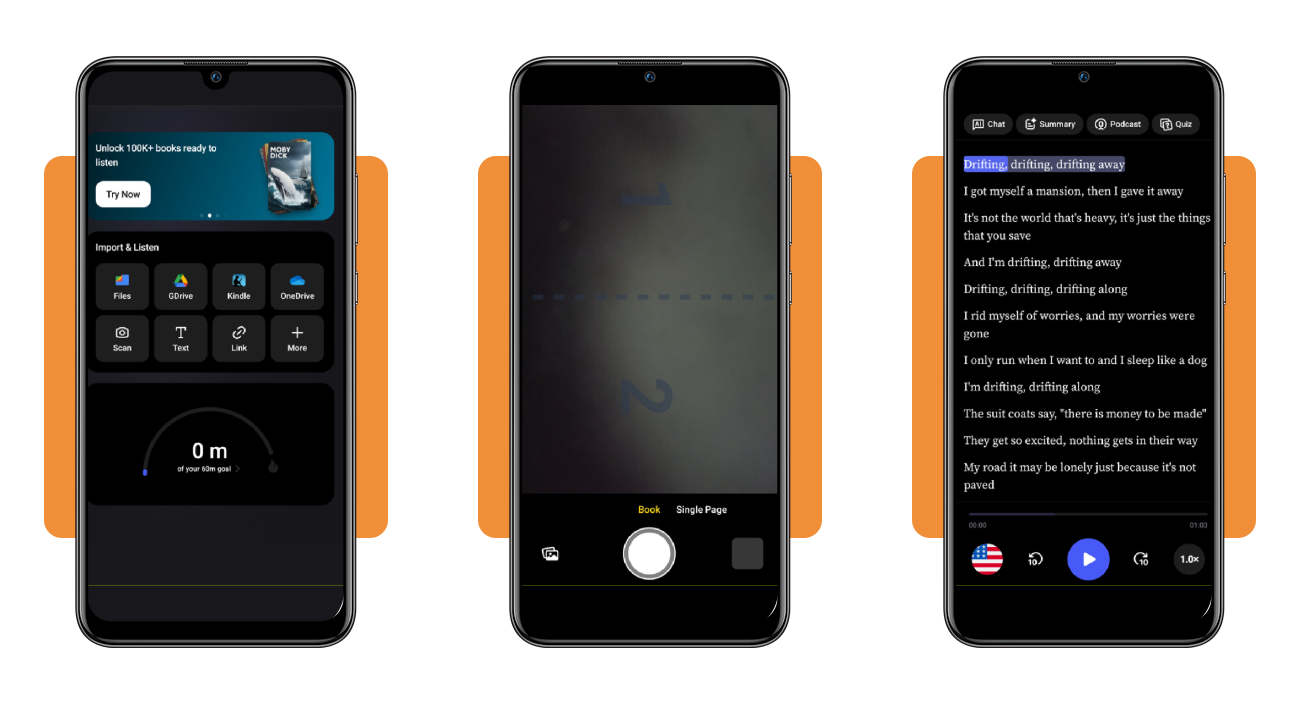
On the home screen, tap ‘Scan’ under ‘Import and Listen’, choose ‘Book’ mode for open spreads, the mode for one page, or the gallery icon for saved photos.
Hold the phone level over the page, use the flash and grid icons when you need them, press the round shutter, and tap ‘Play’ to hear what you just scanned.
Top assistive technology platforms
Speechify (Android | iOS) handles the reading, but dyslexia also shows up in writing, note-taking, and inbox management, and the platforms you use can share that load with you.
If you absorb pages by hearing them, a dyslexia-friendly screen reader fits your routine, while other platforms shine when spelling, organizing ideas, or long emails drain your energy.
Test each platform on a real report or assignment from your week, tweak the display and voice options until they suit you, and keep whichever lightens your workload.
Microsoft 365 reads your documents aloud
Microsoft built a ‘Read Aloud’ feature into Word, Outlook, and OneNote that speaks your reports, emails, and notes in a voice you can adjust while you follow along.
‘Focus Mode’ hides the menus and toolbars, leaving only your open document on screen, which keeps busy page layouts from pulling your eyes off the sentence you’re reading.
Google Docs turns your speech into text
In Google Docs, voice typing under the ‘Tools’ menu turns spoken sentences into typed text, which lets you skip the keyboard and move your ideas onto the page.
The suite bundles ChromeVox, too, and pairing its spoken feedback with dictation gives you a dyslexia-friendly screen reader workflow that reads your text back for a final check.
ChatGPT rewrites hard passages in plain language
OpenAI’s ChatGPT takes a tangled paragraph from a benefits letter and rewrites it in the plain language a friend would use, and you can compare the two versions.
It also sorts your loose notes into an outline and stretches a handful of bullet points into a working draft, which gives you sentences to edit and shape.
Best options for adjusting playback speed
YouTube’s player stops at 2x, and Netflix stops at 1.5x, which limits your control over lectures, webinars, and training videos that move at whatever pace the speaker picks.
Just as a dyslexia-friendly screen reader lets you set the pace for written text, a browser extension gives you that control over meetings, videos, and podcasts you stream.
All of these options install as Chrome extensions from the Chrome Web Store, run in browsers like Edge and Brave, and differ in how much setup they demand.
Video Speed Controller Pro remembers every site speed
Video Speed Controller Pro saves a separate speed for each website you visit, which lets your lecture portal stay at 1.75x while your tutorial channel plays at 2.5x.
Its range runs from 0.0625x to 20x, four overlay themes include a dark option, and the modest install base of this recent extension means a brief track record.
The original Video Speed Controller keeps things simple
Ilya Grigorik, a former Google engineer, released Video Speed Controller in 2015, and the lightweight open-source tool has won over 3M installs while keeping a plain white speed overlay.
Pair this resource with a dyslexia-friendly screen reader for written material, press S, D, or R to slow, speed, or reset video, and reapply speed on each new site.
Global Speed adds audio and pitch control
Global Speed handles audio and video playback, and its pitch correction keeps podcast and interview voices sounding natural when you push the tempo up toward its 16x limit.
URL rules assign different speeds to different sites, though the dense settings screen and missing speed display on the video ask for patience while you learn the controls.
4.7/5
Let your ears do the heavy lifting
Reading shouldn’t feel like a battle, and Speechify (Android | iOS) returns your energy by letting your ears carry the daily workload at the office, in your classes, and at home.
In this Insiderbits guide, you learned to scan printed books, lean on the tools you already use, and build a dyslexia-friendly screen reader routine around your busy day.
Stay with Insiderbits for more assistive and resourceful apps and websites that take the strain out of reading, writing, and planning, and could become your next favorite.