

Nothing kills a fun video like an ad break popping up when things were about to get good. A video ads blocker is a quick way to make sure these interruptions never happen again.
Adblock Plus is a free app that’s easy to use and keeps your favorite content rolling smoothly from beginning to end, and in this review, Insiderbits will show you how to get it. Read on!
Related: Movie Blocker for Kids: Block Explicit Movies With this App

4.3/5
Adblock Plus: best video ads blocker app
Adblock Plus (Android | iOS) works as both a browser extension and a standalone app, built to strip away ads from every website and video you open on your phone or computer.
This tool blocks pop-ups, banners, and autoplay clips before they even load, giving you a video ads blocker that handles the heavy lifting while you enjoy your favorite content online.
The app gives you full control over the websites you visit, allowing you to decide what loads on your screen instead of leaving that choice up to random advertisers.
Features available in the Adblock Plus app
- Domain blocklist: block specific websites entirely so they never load on your device, keeping heavy pop-ups and shady links out of your way;
- Blocking stats: check how many ads got stopped on each page and see your total count grow every single time you open the browser;
- Quick pause option: turn off blocking on one page for a single visit without changing your permanent settings anywhere else in the app;
- Filter list autoinstall: get filter updates added automatically based on your location, so your protection stays current without any manual digging.
Choose whether to allow acceptable ads
Adblock Plus (Android | iOS) lets you decide if small, clearly marked ads show up on the sites you visit, giving creators a solid way to earn money from those visits.
You can switch this setting off anytime you want fewer ads on screen, and the app remembers your choice across every site you open afterward on your phone.
Block trackers and other annoyances
This feature stops trackers from following your online activity across different sites. It also clears out cookie pop-ups, floating banners, and other distractions that slow down pages.
Combined with its tracking protection, this video ads blocker cuts loading times and keeps your browsing history private from companies that build profiles based on your daily habits.
Customize filters for your language
Adblock Plus (Android | iOS) offers filter lists built for specific regions and languages, so ads written in Portuguese, German, Hebrew, or Dutch get caught just as well as English ones.
Turning on the list that matches where you regularly browse sharpens accuracy right away, catching regional ad formats that generic filters sometimes miss across local websites.
Related: App to watch Italian western movies for free right now
Step-by-step: how to stop annoying interruptions using the app
Setting up a video ads blocker on your phone takes just a few minutes, and once it’s running, those annoying pop-ups and autoplay clips stop bothering you.
Adblock Plus (Android | iOS) walks you through a simple setup process, guiding you from download to full protection without any technical jargon getting in your way at all.
Once everything is configured properly, your browsing sessions feel much lighter and faster, and every video you open plays nicely without ads breaking your focus or attention.
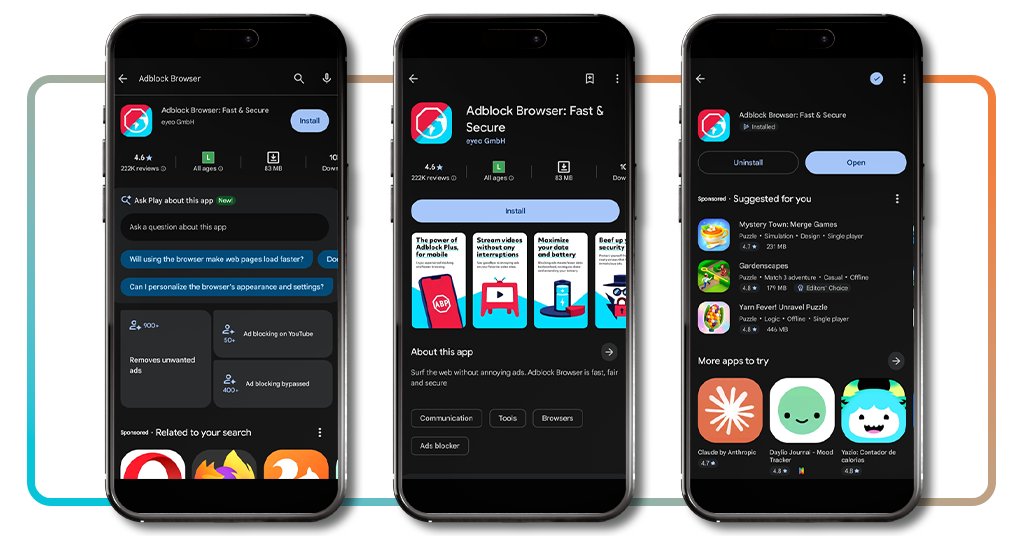
Step 1: download the app on your device
Open the Google Play Store and search for ‘Adblock Browser’. On the App Store, the app goes by ‘Adblock Plus’. Tap ‘Install’ or ‘Get’ to download the app onto your phone.
On Wi-Fi, the installation process should be quick, and you’ll spot a small icon added to your home screen, ready for you to tap whenever you feel like browsing.
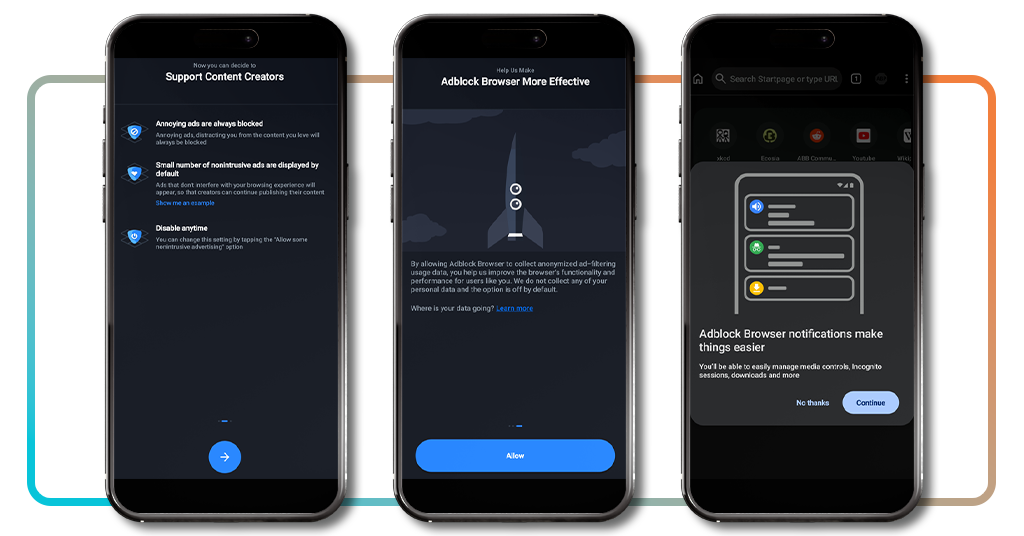
Step 2: allow data collection and notifications
Once the app opens for the first time, it asks permission for a few things, like sending notifications and collecting anonymous data to improve its ad blocking performance.
Turning on notifications keeps you posted about downloads and blocked content, while allowing data collection helps this video ads blocker fine-tune its filters for much better accuracy.
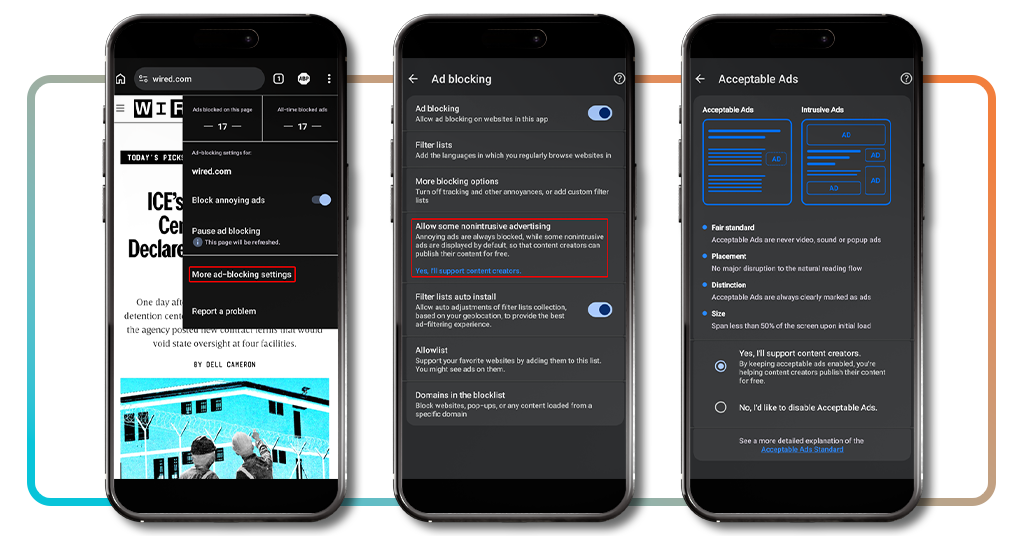
Step 3: pick your acceptable ad settings
Open your browser and go into the ‘Settings’ menu to look for the ‘Acceptable ads’ option, where you decide if small, nonintrusive ads show up on the websites you visit the most.
Switching this setting off blocks every single ad completely, while leaving it turned on supports the creators and sites you enjoy visiting most days of the week.
Step 4: browse and enjoy ad-free pages
With everything now set up, open any website or video and watch each page load faster without banners, pop-ups, or autoplay clips slowing down your personal screen.
This video ads blocker keeps working quietly in the background, so every single page you open from now on stays clean, fast, and free from constant interruptions.
Tips for better browsing and safety
Downloading Adblock Plus (Android | iOS) solves most of your ad problems right away, but a handful of settings inside the app deserve a second look for stronger results.
Your allowlist, filter schedule, and blocklist all work together behind the scenes, and adjusting them slightly can catch threats that default settings sometimes let slip through.
Pairing those adjustments with the video ads blocker already running gives you a browsing setup that stays fast, private, and far harder for sketchy ads to crack.
Add trusted sites to your allowlist
Think about the sites you visit daily and genuinely want to support, then add them to your allowlist so their ads keep showing up when you browse there.
This small gesture helps the people running those sites keep the lights on, and it costs you nothing beyond a few extra seconds spent typing in a URL.
Update filter lists on a schedule
Checking your filter lists every couple of months keeps them sharp, catching new ad formats and tracking scripts that pop up as websites change their layouts.
Set a reminder on your phone once a season, and spend a minute confirming your active lists still match the sites and regions you browse most often.
Check the app’s shield icon for stats
Tapping that shield icon pulls up a running count of blocked ads on the page you’re viewing, giving this video ads blocker a way to prove its worth.
Glancing at those numbers now and then shows you exactly how much clutter gets filtered out, and it makes the whole browsing experience feel a lot more rewarding.
Block risky domains before they load
Some domains push malware, phishing attempts, or shady redirects disguised as regular ads, so adding them to your blocklist stops that content before it ever reaches your device.
Building this list over time turns your browser into a much safer space, keeping sketchy pop-ups and fake download buttons far away from your daily routine.
Related: Watch your favorite novelas and series with this Latin TV app
4.3/5
Say goodbye to endless ad interruptions
Adblock Plus (Android | iOS) turns those pesky pop-up ads and autoplay clips into a thing of the past, letting your videos play the moment you tap them.
This guide by Insiderbits explained how this video ads blocker fits into your daily routine, from picking acceptable ad settings to checking your shield icon for real stats.
Keep browsing Insiderbits and learn more ways to keep sketchy domains, shady trackers, and slow-loading pages far away from your phone for good.