

A bookshelf cut an inch short costs you hardwood and a ruined weekend, but a woodworking app lets you verify measurements on your smartphone before a blade touches any wood.
Moblo gives your phone part libraries, material previews, and AR placement, and this guide by Insiderbits shows how to reach the workshop with every cut mapped and every board counted.

4.5/5
Which is the best free woodworking app for beginners?
The best pick for a first build is Moblo (Android | iOS), a free 3D modeling program that turns your phone screen into a drafting table for shelves, desks, bookcases, and kids’ beds.
You drop boards, legs, and handles from a library into a 3D scene, then stretch, move, and rotate pieces in this woodworking app until the proportions match the furniture you pictured.
When the model looks right, you can aim your camera at the floor to park it inside your room, then open a list with the length, width, and thickness of each piece.
Key features within Moblo
- Board shaping: round every corner with its own radius, cut circular or rectangular holes, add notches along the edges, and bevel them for a finished look;
- Material library: oak, walnut, cherry, maple, and bamboo join paint, metal, and glass finishes, plus a custom editor that adjusts color, texture, shine, reflection, and opacity;
- Part controls: duplicate a leg, hide the tabletop to inspect the structure below, lock finished pieces in place, and attach a short note to any part;
- Typed measurements: an onscreen keyboard accepts simple math in each dimension field, while a measuring tool reports the distance between two points on your model.
Who will get the most out of Moblo?
If design software has intimidated you, Moblo’s sample projects, including a record player stand and a workshop cabinet, let you open, spin, and dissect finished builds before drafting your own.
If you like sketching on the couch and polishing on a large screen, a share code copies projects to another device, and the woodworking app responds to touch or mouse.
Where the free version stops
Free projects stop at 12 parts, while Premium access, listed at $7.99 per month, lifts that cap and unlocks all shapes and materials, extra projects, and imports and exports.
Beyond the cap, angled cuts and merged shapes call for workarounds like pairing a rectangle with a triangle, and the parts list then shows two separate pieces for one board.
Step-by-step: how to plan your first woodworking project in the app
A first woodworking project runs best when a plan exists before the saw comes out, and your phone offers a place to test sizes and proportions while mistakes cost nothing.
Planning in Moblo (Android | iOS) means settling the piece’s overall height, the width of each board, and the lumber thickness you’ll buy, and it’s all on a screen that fits in your pocket.
A model you build in the woodworking app stays open to edits, from tabletop thickness to leg length, and each change appears the moment you make it.
Step 1: download Moblo on your device
Open Google Play on Android or the App Store on iPhone and iPad, and search for ‘Moblo’, whose title reads ‘3D Furniture Design’ on Android and ‘3D Furniture Modeling’ on iOS.
Confirm in the listing details that MYTIforge made the app, select ‘Install’ on Google Play or ‘Get’ on the App Store, and let the download finish before you open it.

Step 2: create your project and choose units
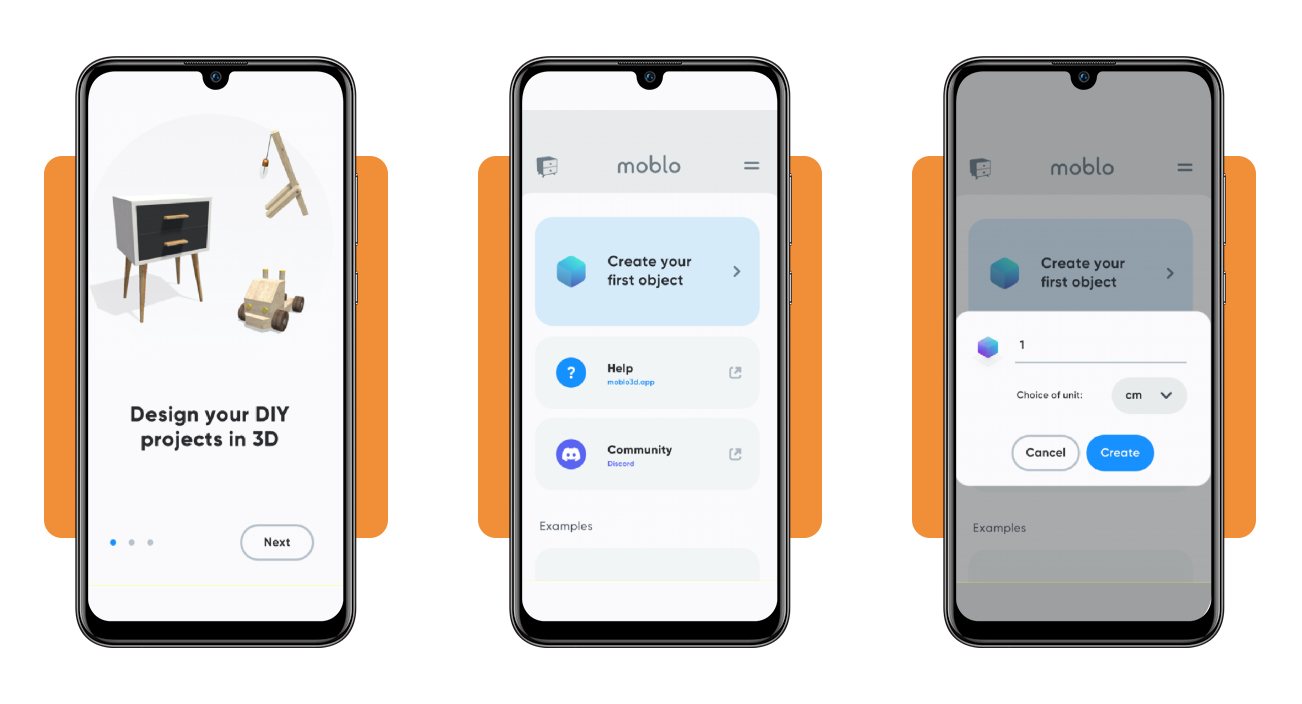
After the welcome slideshow, tap the ‘Create your first object’ card, and a pop-up window asks for a project name, with one filling the field until you type a label.
Open the ‘Choice of unit’ dropdown, match it to your ruler, and press ‘Create’; the woodworking app keeps both in the top bar beside a pencil icon for edits.
Step 3: add parts and build your design
Press the ‘Add a part’ button, and a bottom panel rises with part families down its left edge, opening on a ‘Board’ family that suits a tabletop or a shelf.
Undo and redo arrows rescue a misplaced piece, the target icon recenters your view, and the share button at the top saves a screenshot to carry down the lumber aisle.

Best woodworking courses to improve
Your phone model settles what to build and how large it should be, but cutting straight lines, gluing joints, and sanding smooth surfaces come from watching a skilled maker work.
With structured practice, you can build solid basics in 4 to 8 weeks, covering safety habits, measuring, joinery, and finishing, and one short in-person workshop speeds up your feedback.
Draft the piece you want to build in the woodworking app, and the model reveals which skills a course must teach you before you invest in a membership or class.
The Weekend Woodworker for total beginners
Steve Ramsey created and teaches this online course, which gives you 6 beginner projects, each built across one weekend with a Saturday and a Sunday video to follow along.
The lineup moves from a patio table and garden bench to a coffee table, bookshelf, and wall cabinet, and every project comes with PDF plans, SketchUp files, and tool lists.
Wood Whisperer Guild for project builders
Marc Spagnuolo, known as the Wood Whisperer, founded this guild, a community where you build furniture projects alongside other members and watch lessons that go beyond free videos.
Each full build trains you to order cuts, hit measurements, and fix mistakes, though some projects call for a well-equipped shop, which makes the tool list worth a look.
Fine Woodworking for sharper technique
Fine Woodworking has more than 45 years of experience and partners with teachers, from hobbyists to seasoned pros, to produce video courses you finish at your own pace.
Lessons target cut accuracy, joint strength, and finish quality, and each course hosts a forum where you ask builders how to connect the parts you drew in the woodworking app.
How to get better at woodworking
You’ll cut a board short or glue a crooked joint at some point, just like the skilled makers you watch online, and each slip points to a skill worth rehearsing.
A fixed workflow, from design and lumber buying through dimensioning, joinery, dry fitting, gluing, sanding, and finishing, shows you the time each project demands.
Basic joints deserve your attention before dovetails and inlays, and the woodworking app gives you a low-pressure place to rehearse how simple parts connect inside a cabinet or desk.
Practice new cuts on scrap wood first
Trim offcuts to match the thickness and width of your project boards, then test the new joint or saw cut on them and judge the fit before touching your pieces.
Keep a small stack of offcuts only for experiments, and when a new technique resists after repeated tries, shelve it for the next build rather than risking parts you’ve cut.
Build skills before buying new tools
Spending on gear before your technique holds up buys machines that magnify mistakes, and a powerful blade ruins a good board in seconds while your hands learn the new motion.
Buy a new tool when your project plans outgrow the one you own, and the parts list in the woodworking app shows which cuts push that tool past its limits.
Slow down to work faster
Run each new technique at a crawl until your hands and eyes agree, the way soldiers rehearse a drill before they add speed, and you quicken once cuts land true.
A rushed weeknight build once ruined a step stool for an expert maker who had built hundreds, and your focus will slip the same way when the clock pushes you.
4.5/5
Sawdust-free practice starts today
Moblo (Android | iOS) lets you build a table on your phone, fix every wobbly leg on screen, and walk to the workbench with a plan that makes sense to you.
In this Insiderbits guide, you saw how the woodworking app turns a rough idea into a model, which courses teach steady hands, and why slow practice saves boards.
Read more Insiderbits articles and reviews for practical guidance on learning new skills, and give your next hobby the same patient, relaxed start you gave your first build.