

Typos slipping into an important work email right before you hit send can wreck your credibility in seconds. This AI email writer takes care of those small mistakes right as they happen.
Grammarly offers a keyboard assistant that corrects spelling errors, adjusts tone, and rewrites clunky phrasing to make you sound more confident. This Insiderbits guide shows you how to use it.
Related: Turn Emails Into Tasks Automatically With This Smart Inbox Tool

4.7/5
Which is the best AI email writer app?
Grammarly (Android | iOS) builds itself right inside your keyboard, catching typos and clunky phrasing the moment you start typing, whether you’re firing off a quick text or drafting an email.
Rather than only underlining mistakes, the app reads through your sentences and suggests clearer wording, giving you an AI email writer built to catch what your eyes miss.
You’ll spot it working inside your email client, your messaging apps, and your browser tabs too, keeping your writing sharp and steady no matter where you’re typing away.
Features available in the Grammarly AI Keyboard assistant
- Grammar and spelling checks: catch typos, missing punctuation, and mixed-up words instantly, keeping messages from reading sloppy, confusing, or embarrassing;
- Vocabulary enhancement: swaps repetitive words for options that sound more natural and professional, helping your emails read smoother while keeping your voice intact;
- Cross-app compatibility: works inside Gmail, Outlook, WhatsApp, and dozens of other apps you rely on daily, keeping suggestions available wherever you type something;
- Plagiarism detection: checks your writing against billions of web pages, confirming your words remain original before you send anything off to a client or colleague.
Voice dictation turns your speech into polished emails
Talking your message out loud beats typing it word by word when you’re rushing between meetings and need to send a quick reply from your phone.
Once you tap the microphone icon, this AI email writer strips out filler words and cleans up grammar, turning rough speech into a polished draft ready to go.
Tone detection keeps your message always on point
Every message carries some kind of emotional undertone, whether you plan for it or not, and Grammarly (Android | iOS) studies your word choice to catch phrasing that might land wrong.
The keyboard nudges you toward formal, friendly, or confident phrasing depending on context, giving you control over how your personality comes through with coworkers and every client.
Step-by-step: how to use Grammarly to write emails
That sinking feeling when you spot a typo seconds after hitting send? Grammarly (Android | iOS) exists to stop that exact moment from ever happening to you again.
Going from download to running it on your phone takes only a few minutes, and this AI email writer starts catching mistakes before your fingers even finish typing a full sentence.
Every fix shows up right where you’re already working, so you never have to pause your train of thought or bounce between separate apps to clean up your writing.
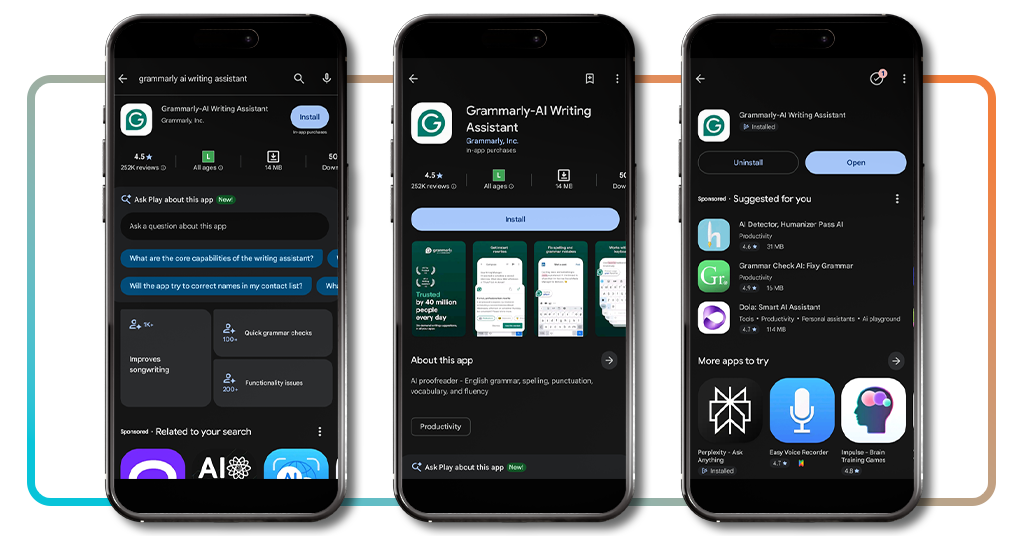
Step 1: download the app or use the website
Open the Google Play Store or the App Store on your phone, search for ‘Grammarly’, and tap either ‘Install’ or ‘Get’ to download the app in just a few seconds.
Working from a laptop instead? Grammarly’s website lets you sign up straight from your browser, and you’ll get access to most of the same tools.
Step 2: grant permissions and sign up
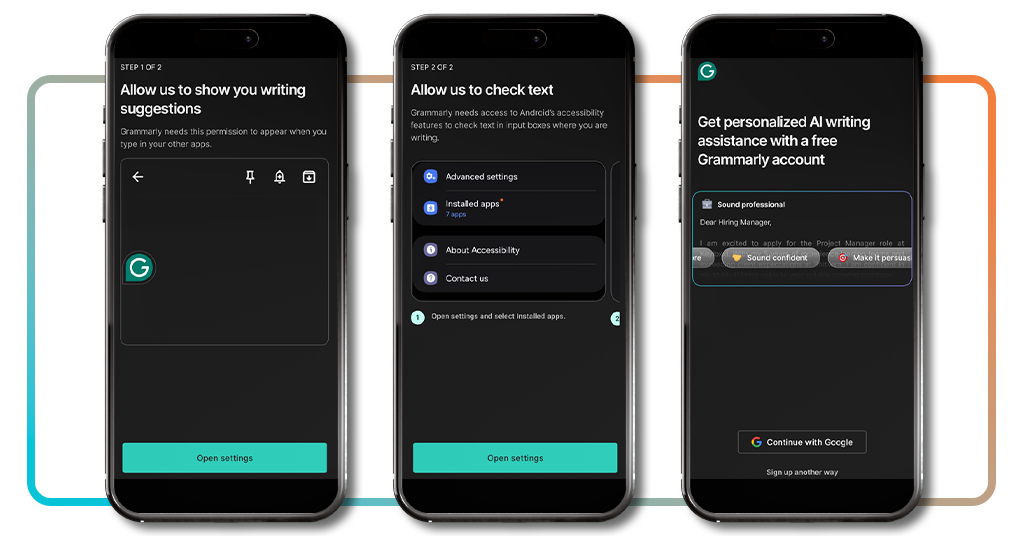
Your phone prompts you to let Grammarly (Android | iOS) display over other apps first, which is what makes those little suggestion bubbles pop up no matter what you’re typing into.
A second prompt asks for accessibility access, and once that’s done, this AI email writer has you create a free account through Google or your regular email.
Step 3: compose your email and accept suggestions
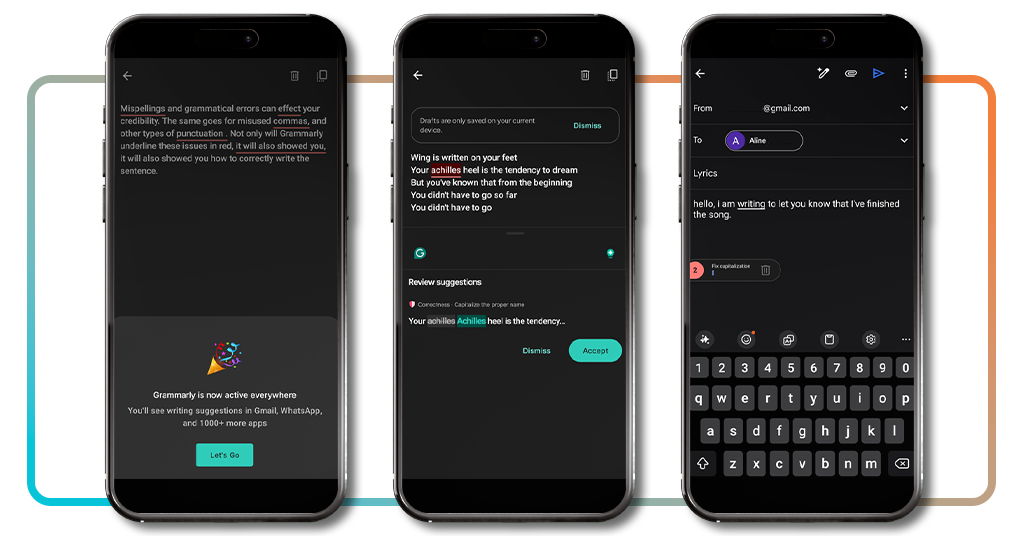
Pull up your email app and start writing your message like you normally would, and Grammarly’s icon shows up right in your toolbar, quietly reviewing each line you type.
Whenever you see an underlined word or phrase, tap it to check the suggested fix, then accept it if it works for you, or dismiss it and stick with your original phrasing.
Related: Basic writing for adults — from quick notes to full emails
Other great tools for remote workers
Grammarly (Android | iOS) handles your writing, but running a remote job takes way more than clean sentences, with your day packed full of meetings, video calls, and constant team huddles.
Keeping every project organized while dealing with messages across five different tabs drains your energy, and that chaos only grows heavier the longer your team stays remote.
Slack, Loom, and Notion are three online tools that plenty of remote workers swear by, and Grammarly’s AI email writer plays well alongside each tool in that lineup.
Slack
Every stray text message and email thread finally has a home once you start using Slack, letting your team chat in organized channels instead of one messy inbox.
You can jump into a quick huddle for a voice chat without scheduling a meeting, and searching old conversations takes seconds instead of scrolling through text threads.
Loom
Recording your screen beats typing out an explanation every time you need to walk a coworker through a process, and Loom makes that recording simple to pull off.
Once you finish recording, Loom hands you a shareable link right away, letting your teammate watch on their own schedule instead of waiting around for a live call.
Notion
Notion gives you one central spot to store notes, project trackers, and team wikis instead of scattering documents across different folders and long-forgotten shared drives.
Building a dashboard for your tasks takes minutes inside Notion, and pairing that setup with your AI email writer keeps every part of your workday running on track.
Best CRM and project management tools
Slack and Notion cover your daily communication, but keeping client relationships and ongoing projects tracked calls for tools built specifically around deals, invoices, and deadlines.
Losing track of a client conversation or missing a project deadline costs you money, and trusting that responsibility to a basic spreadsheet only makes the risk worse.
A handful of standout platforms tackle that challenge from different angles, and pairing any of them with the AI email writer keeps your client communication sharp throughout.
OneSuite
Running an agency means bouncing between client onboarding, invoicing, and project updates, and OneSuite brings all three together under one login you check every morning.
Your clients get their own dedicated space to view progress and sign documents, cutting down on the back-and-forth emails that usually pile up during a project.
FluentBoards
Building your workflow inside WordPress makes sense once you try FluentBoards, since it drops kanban boards and task tracking right into the dashboard you already use daily.
Pairing your project boards with your AI email writer keeps client updates consistent, letting you draft clean messages the moment a task moves into a new stage.
Flowlu
Sales pipelines and project delivery rarely connect inside most software, but Flowlu links the two together, letting you track a deal from the first call through final invoice.
Your team gets shared visibility into where every client stands, and that transparency cuts down on the guesswork that usually slows down handoffs between sales and delivery.
Related: Stop writing emails: those free AI tools for work do it for you in seconds
4.7/5
Never send a messy email again
Grammarly (Android | iOS) turns out to be the friend you didn’t know you needed, quietly catching typos and awkward phrasing long before another person reads your finished message.
Insiderbits came up with this guide to show you how this AI email writer works, covering voice dictation, tone detection, and every tool that keeps your remote workday on track.
Explore other Insiderbits articles and learn more ways to simplify your daily routine, from productivity apps to communication tools that make your workday feel a little easier.