

Clients and managers study the room behind you the moment your camera goes live, and a nice video call background makes that glance reinforce the professional you’ve become.
This guide by Insiderbits introduces Zoom Workplace, whose backgrounds, filters, and lighting tools transform any corner of your home into a setting that earns trust before you speak a word.

4.7/5
Which is the best app to add professional video call backgrounds?
Zoom (Android | iOS) brings live meetings and a shared calendar into a platform that helps you organize a busy workweek, connect with coworkers, and collaborate with clients.
The app’s built-in features let you preview yourself before joining, then choose a video call background that swaps a cluttered space for a soft blur, a polished photo, or a looping clip.
Free calls run up to 40 minutes for 100 guests, while Pro costs $14.16 a month on a yearly contract or $16.99 without one and stretches sessions to 30 hours.
Key features within Zoom Workplace
- Team chat: message colleagues one-on-one or in small groups, sort topics into channels, and share files in the same thread where the conversation lives;
- Whiteboard and docs: drop sticky notes and shapes onto a shared canvas to organize ideas, then draft and edit documents with teammates while the meeting runs;
- Clips: record a short video message or screen capture, send it to a coworker in another time zone, and let them watch whenever their day allows;
- Device handoff: move a call between your phone, tablet, and computer without dropping the conversation; helpful when you walk away from your desk mid-meeting.
Touch up your look in any lighting
The ‘Touch up my appearance’ feature polishes your video on its own, and a slider lets you dial the effect up or down until you look like yourself on a good day.
‘Adjust for low light’ brightens video from a dim corner on evening calls, and you can switch it on alongside any video call background you’ve chosen for your meeting.
Let AI take notes while you talk
Zoom’s ‘My Notes’ AI notetaker captures the key points of your meetings and in-person conversations, then delivers a summary with next steps that frees you to watch the speaker.
The AI also answers questions during a call, like whether someone mentioned your name, and a free account includes three ‘My Notes’ sessions each month for you to try out.
Step-by-step: how to set up professional virtual backgrounds and video filters
Whether you join from a mobile phone or your work laptop, the initial setup takes little effort, and you need no design skills or camera gear to pull it off.
Laundry piles, a roommate walking by, and a crowded kitchen shelf stay out of the frame once a backdrop and a filter take care of the view behind and around you.
Zoom (Android | iOS) remembers the video call background you choose, which lets you set the look once and join every later meeting with a polished room behind you and nothing to tidy.
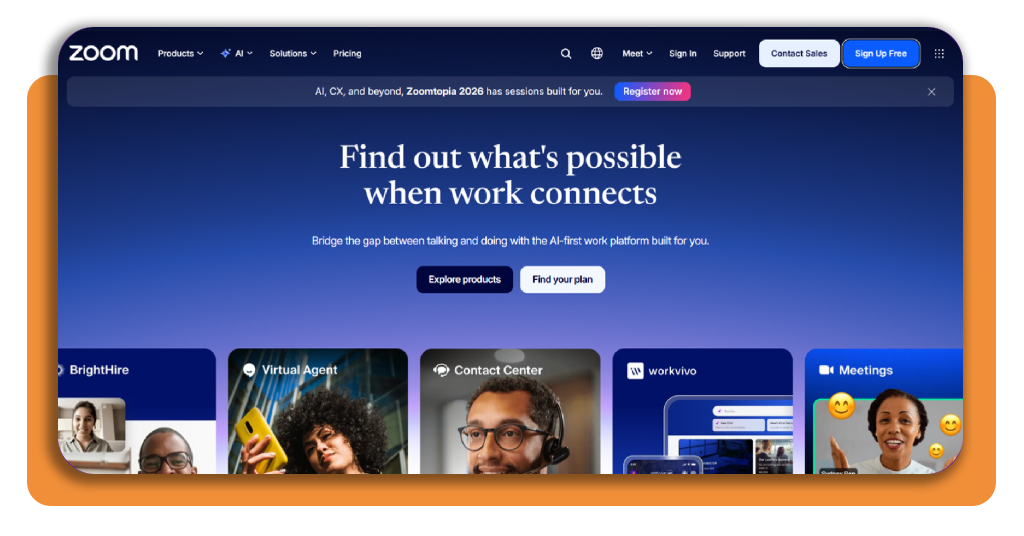
Step 1: download the app or use your browser
Open Google Play on Android or the App Store on iPhone, search for ‘Zoom Workplace’, and install the free, official app that shows the blue Zoom logo on your home screen.
On your computer, you can download the Zoom desktop app on their official website or simply use the browser version that’s available for Chrome and Edge users.
Step 2: create your free account
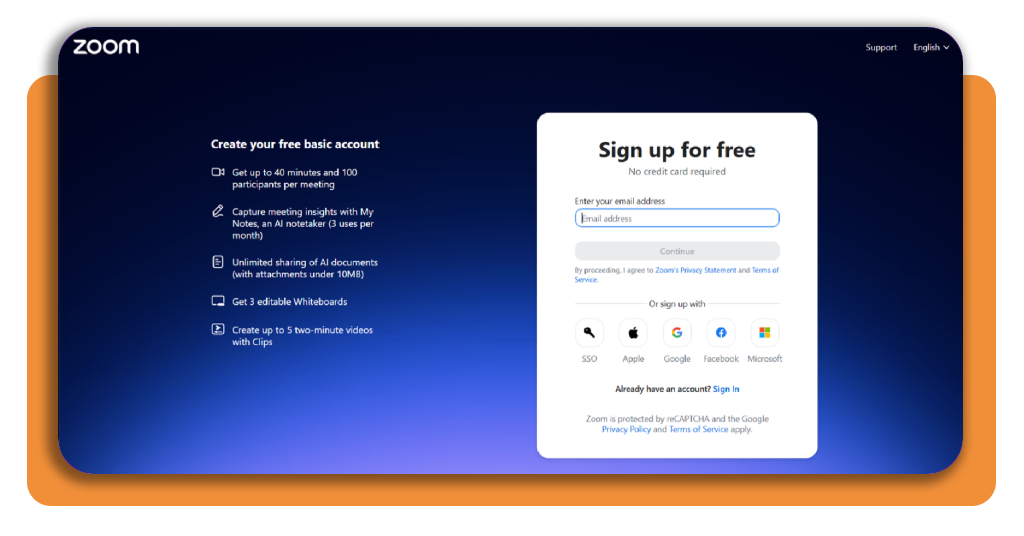
Click ‘Sign Up Free’ in the top right corner of the Zoom website, type in your email address, press ‘Continue’, and confirm the verification message Zoom sends to your inbox.
Google, Apple, Facebook, Microsoft, and SSO buttons appear below the sign-up form, and any of them lets you skip a new password and move on to your first meeting.
Step 3: join or start a meeting
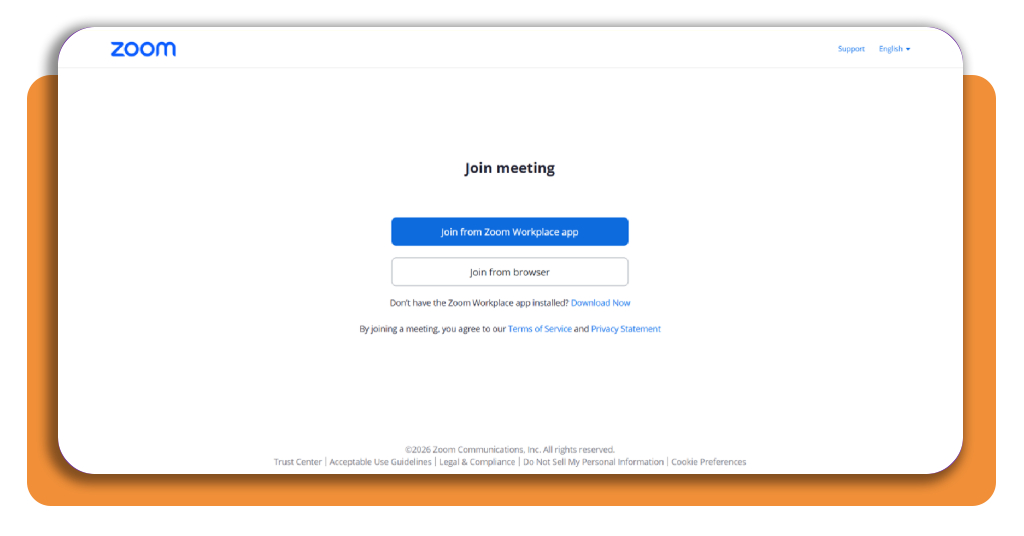
When a host sends you a link, open it and choose ‘Join from Zoom Workplace app’ or ‘Join from browser’, then enter your name if it asks you for one.
To host, open the ‘Meetings’ tab in the left sidebar and start a new meeting, then allow camera and microphone access when your browser or phone asks for your permission.
Step 4: pick your background and video filters
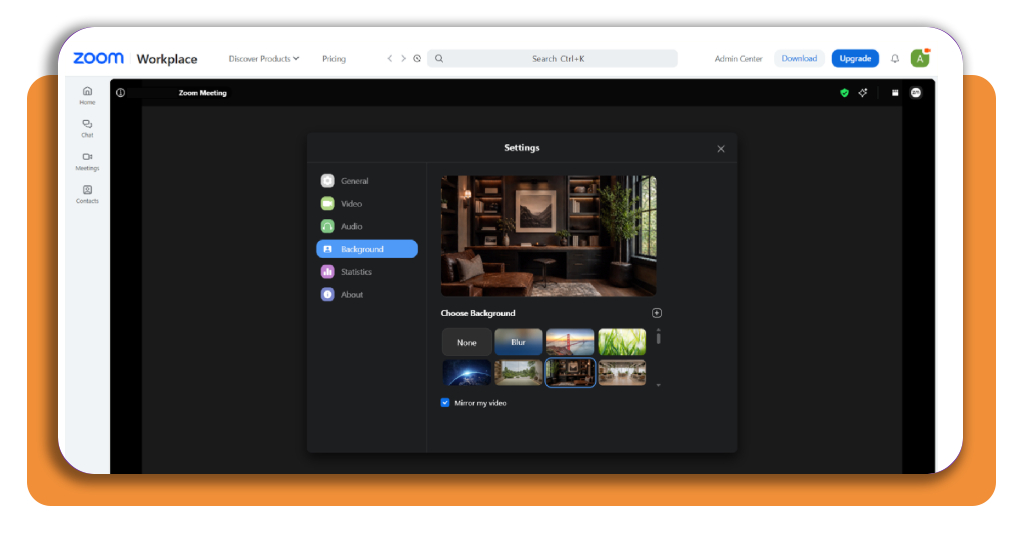
Click the small upward arrow beside the ‘Video’ button, flip the blur toggle for a quick fix, or pick ‘Choose Background’ to browse each video call background Zoom (Android | iOS) offers you.
Settings lists ‘None’, ‘Blur’, and preset scenes under ‘Background’, and the ‘plus’ icon uploads your image, while desktop and mobile apps add a ‘Video Filters’ tab you tap to apply.
Best video conferencing platforms
Clients, coworkers, and relatives send meeting links from whatever platform works for them, and Zoom (Android | iOS) won’t always be the one that lands in your inbox when a call comes up.
A good pick depends on what you do on camera, whether you’re pitching ideas, leading a class, or catching up with family, and each option listed here suits a different routine.
The platforms in this lineup also support a video call background, and the professional look you built in Zoom travels along with you whenever a different link arrives in your messages.
Google Meet for quick calls from any browser
Google Meet runs inside your browser, which means you click an invite link and join the call with nothing to install, and signing in lets you host your own meetings.
Live captions follow the conversation as people speak, every video and audio stream stays encrypted, and a free Google Account hosts up to 100 guests for 60 minutes per meeting.
Microsoft Teams for polished meetings
Microsoft Teams puts chat, calls, meetings, and shared files in one workspace, and its free version schedules calls up to 60 minutes while ‘Teams Essentials’ hosts up to 300 people.
Before you join a meeting, open ‘Video Effects’ to pick a video call background, choose ‘Standard’ or ‘Portrait blur’, or upload a JPG, PNG, or BMP image from your computer.
Jitsi Meet for free calls without an account
Jitsi Meet is a free, open-source video conferencing platform that needs no account, lets you create a custom meeting link of your own, and encrypts every call by default.
Screen sharing, chat with emojis, and shared document editing through Etherpad come built in, and companies can download the server code to host a private Jitsi instance of their own.
Best remote work privacy tools
Working from home or at a coffee shop sends company files, logins, and chats across home networks you don’t control, and privacy tools close the gaps between those spaces.
A polished, professional video call background hides the room behind you, but it can’t protect the files, logins, and company apps you open on the same laptop during the day.
Your employer or IT team usually picks these tools, and knowing how they work lets you ask sharp questions, spot odd prompts, and set up a home office with confidence.
Blue Border keeps work and life apart
Blue Border by Venn creates a protected work zone on your PC or Mac, wraps each work window in a blue border, and runs company apps locally inside the zone.
IT sets rules for copy and paste, downloads, and screen sharing, logs where and when data moves, and can’t see your personal browsing outside the zone on that same computer.
Twingate replaces clunky VPNs with identity checks
Twingate replaces the traditional company VPN by tying each connection to your verified work identity through Okta, Microsoft Entra ID, or Google Workspace, and it denies everything else.
Device checks confirm disk encryption, screen lock, and a current operating system before access opens, and Twingate turns away any laptop that skips those basics.
Cloudflare Access verifies every single request
Cloudflare Access checks your identity and your device health on each request before it opens a self-hosted app, a SaaS tool, or a private service inside your company network.
It works with enterprise and social identity providers, opens web apps and SSH or VNC sessions right in a browser, and offers a free plan for teams under 50 people.
4.7/5
Look prepared before you say hello
Zoom (Android | iOS) gives you a tidy backdrop, a flattering look on camera, and notes that write themselves, which lets you walk into every online meeting feeling calm and ready.
In this article, Insiderbits showed you how to set a video call background, compare platforms, and protect your work files from the first hello to the last login.
Read more Insiderbits articles and reviews for apps and resources that fit your remote workday, and keep browsing until your home office feels like a place you enjoy.