A child’s curiosity has no off switch, and the internet has no shortage of places that take advantage of that. One misspelled word, one autoplay video, one unfiltered search result, and suddenly you’re having a conversation you weren’t prepared for. A kid safe browser app removes a significant chunk of that risk before it ever reaches the screen, running in the background while kids browse freely.
Insiderbits looked at everything SPIN Safe Browser offers families who want real filtering without the complexity. This article covers the core features, the setup process, device tips, and broader advice for keeping kids safer online. Read on and see exactly what this app puts between your children and the parts of the internet they should never reach.
Related: Outstanding Educational Apps for Children
What is the best kid safe browser app?
The best option goes beyond a simple blocklist. It needs to cover search engines, video platforms, private browsing, and every network a child touches throughout the day.
SPIN Safe Browser (Android and iOS) puts content filtering directly into the experience. There’s no separate app or settings to dig through, just protection that runs from inside, automatically.
This kid safe browser app was built for parents who want coverage with no loopholes. Incognito mode is disabled, proxy bypasses are blocked, and kids have no way to switch filtering off.

4.5/5
Features available in the SPIN Safe Browser app
- Adult content blocker: automatically filters any and all types of explicit websites across every browsing session without requiring any manual input from the parent;
- Enforced Safe Search: forces strict Safe Search settings on Google, Bing, DuckDuckGo, and Ecosia so filtered results are the only results kids ever see;
- Restricted YouTube Mode: automatically applies Google’s content filters to YouTube, keeping inappropriate videos from appearing in recommendations or search results;
- No incognito mode: private browsing is fully disabled, removing any possibility of bypassing the app’s content filters through hidden sessions.
Filter content across all your networks
A kid safe browser app that only works on home Wi-Fi leaves a massive opening the moment your child connects elsewhere. SPIN closes that opening entirely.
Whether your child is on Wi-Fi, 4G, or 5G, the same filtering rules apply across the board. No network switch turns the protection off or creates an unfiltered window.
This also means no VPN is needed to make the filtering work. The browser handles everything internally, keeping connections stable and content restrictions fully intact at all times.
Keep explicit content blocked at all times
SPIN blocks entire content categories automatically, covering pornography, nudity, proxy sites, peer-to-peer platforms, and search engines that don’t meet its safety standards.
Once you install this kid safe browser app, manually updating block lists or checking what slipped through is off your plate. The filtering runs on its own without any input.
It also targets gray area sites, those that don’t fall neatly into one category but regularly surface inappropriate content. That extra layer covers territory other browsers completely ignore.

Step-by-step: how to protect your children’s privacy using app
Every unsupervised browsing session is an open door. Getting SPIN (Android and iOS) onto your child’s device and set up properly is what turns that door into a wall.
This kid safe browser app does the filtering work on its own, but the setup has to happen first. Getting it installed, set as the default, and fully active makes all the difference.
Grab your child’s device and give it ten minutes. What comes next will make sure inappropriate content hits a dead end before it ever reaches their screen.
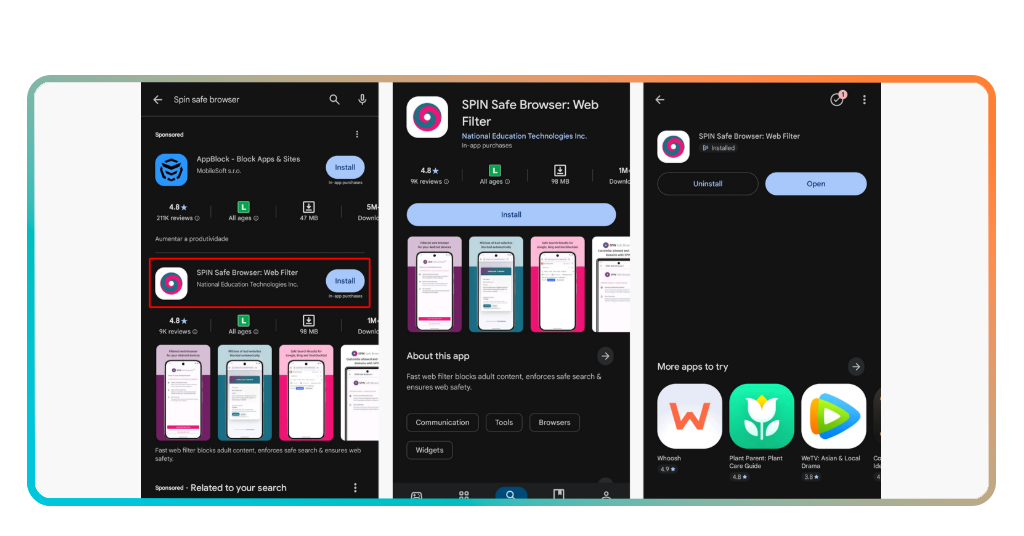
Step 1: download the app on your phone
Access the Google Play Store or the Apple App Store on your child’s phone and search for “SPIN Safe Browser”. The app is free to download and takes less than a minute to install.
Open the app and take a quick look through the default settings. Everything is already configured to filter content, so no adjustments are needed before handing it to your child.
If you want to explore SPIN+ features later, the option is available inside the app. For now, the free version gives you solid filtering coverage straight out of the box.
Step 2: set SPIN as your default browser
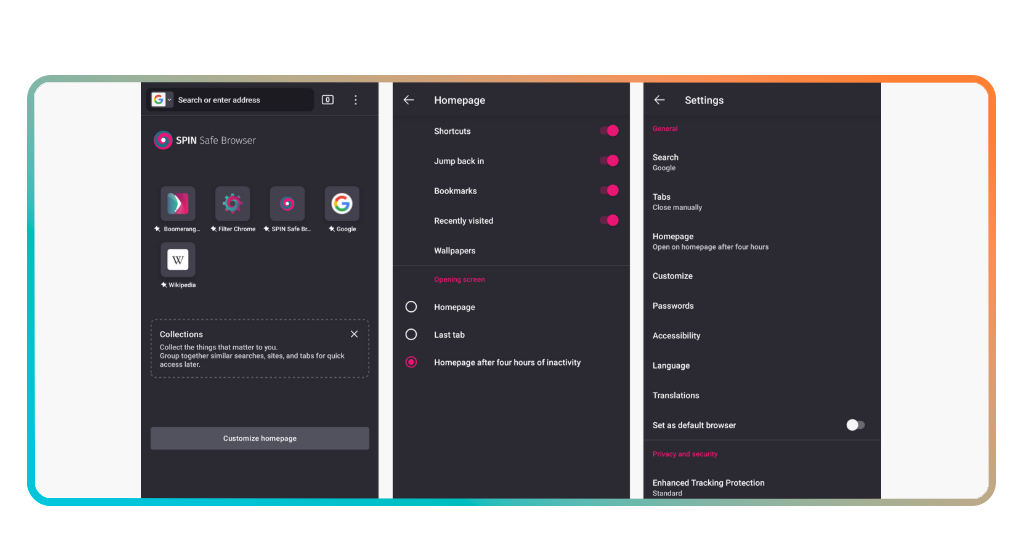
Once SPIN is installed, the next move is making sure it’s the browser that opens every time. Setting it as default means no link, search, or shortcut bypasses this kid safe browser app.
Open SPIN’s “Settings” and look for the default browser option. Toggle it to SPIN, and that’s it. Every browsing session from that point forward runs through SPIN’s filters without exception.
This one setting removes the possibility of your child accidentally opening another browser. It keeps the filtering intact no matter where a link comes from on the device.
Step 3: enable safe search on your browsers
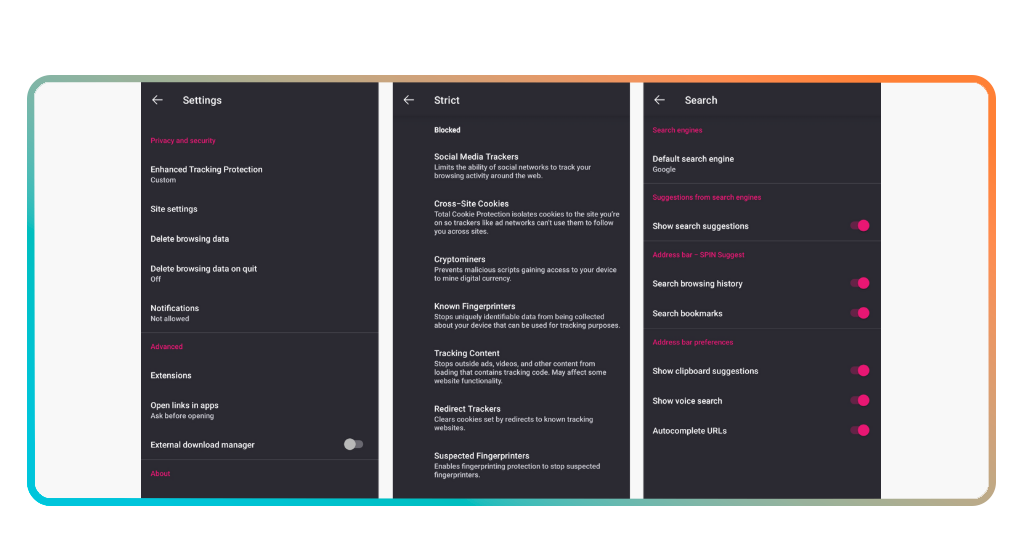
SPIN enforces strict Safe Search automatically on Google, Bing, DuckDuckGo, and Ecosia. Your child does not need to change a single setting for this to take effect inside the browser.
To double-check it’s working, have your child run a search on any of those engines inside this kid safe browser app. Filtered results load by default, with no way to switch Safe Search off.
This also applies to YouTube, where Restricted Mode activates automatically. Videos that don’t meet the content standards simply won’t appear in search results or recommendations at all.
Related: Free ad blocker browser: stop pop-ups and browse faster
Tips for online safety and device compatibility
SPIN does a lot of the heavy lifting on its own, but a few extra moves on your end make the whole setup significantly harder for kids to work around.
None of these tips require any paid tools. They work alongside what SPIN already does, plugging the small openings that tend to go unnoticed until something slips through.
Think of them as the finishing touches that turn a good setup into a solid one. Paired with this kid safe browser app, these habits cover ground that filtering alone cannot.
Pair SPIN with parental control settings
Most devices come with built-in parental controls that limit app downloads, screen time, and access to device settings. Activating these alongside SPIN adds a second layer of protection.
On Android, Google Family Link lets you approve app installations and monitor activity remotely. On iOS, Screen Time gives you control over which apps your child opens and for how long.
Together, these tools and SPIN create a setup where your child runs into a restriction at every turn. One tool covers browsing, the other covers everything happening outside the browser.
Turn off incognito mode on other browsers
SPIN already has incognito mode disabled, but if other browsers are still installed on your child’s device, those private browsing options remain fully accessible and completely unfiltered.
Using this kid safe browser app as the default is a strong move, but removing or restricting other browsers closes that opening for good. Check which browsers are installed and act accordingly.
On both Android and iOS, you can restrict specific apps through parental control. Removing Chrome, Safari, or Firefox from your child’s reach means SPIN is the only option available.
Update the app for the latest security filters
SPIN’s filtering is only as strong as its latest version. Skipping updates means your child’s device could be running on an older set of filters that newer content categories slip right past.
Set the app to update automatically through the Play Store or App Store. That way, every improvement to SPIN’s filtering rolls out to the device without you having to remember anything.
Running the latest version of this kid safe browser app also means any bugs get patched before they create an opening. Keeping it current is the lowest-effort, highest-return move you can make.
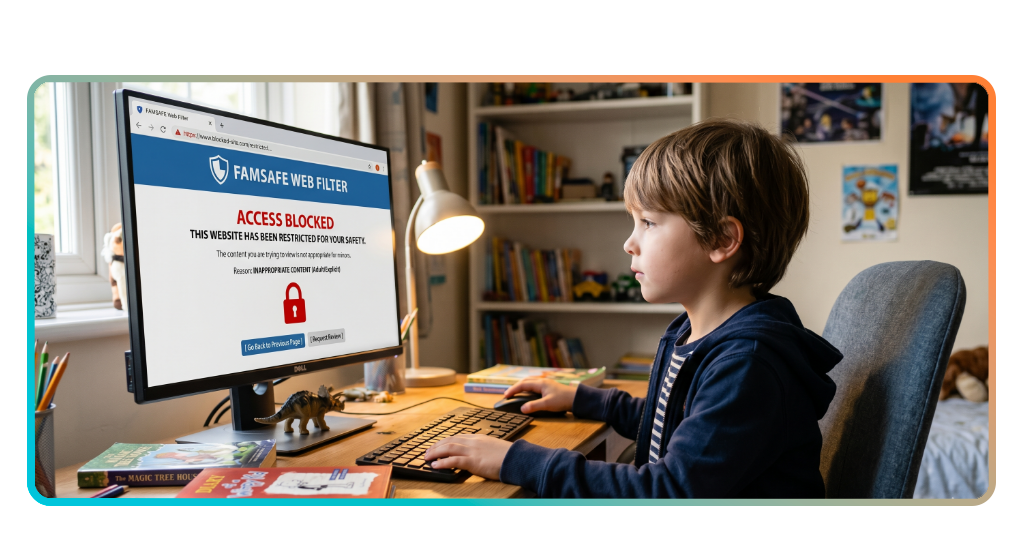
How to protect your children online
SPIN (Android and iOS) handles the filtering, but the internet is bigger than any single app. What happens outside the browser is just as important as what gets blocked inside it.
Your child will eventually use a device you didn’t set up, connect to a network outside your home, or run into something a filter didn’t catch. That’s where your involvement fills the gap.
The habits, conversations, and routines you build around device use are what hold up in those moments. A kid safe browser app is a strong starting point, not the whole answer.
4.5/5
Talk to your kids about safe browsing habits
Kids who understand why certain content is off limits are less likely to go looking for ways around the filters. The conversation doesn’t need to be formal or lengthy to land.
Keep it simple and age-appropriate. Let them know that some content online is harmful, that the browser is set up to block it, and that you’re available if something unexpected appears.
Revisit the conversation as they get older. What works for a 9-year-old won’t cover the questions a 13-year-old brings to the table, so adjust as they grow.
Monitor screen time alongside safe browsing
Knowing what your child browses is one layer of protection. Knowing how long they spend online adds another. Unchecked screen time creates habits that content filters alone can’t address.
Use your device’s built-in screen time tools to set daily limits on browsing. Running this kid safe browser app alongside those limits keeps both the content and the sessions under control.
If your child regularly hits their limit and pushes back, that’s worth a conversation. Patterns in screen time often reflect what’s pulling their attention, and that information is useful for you.
Build a secure digital routine for your family
Consistency is what makes any safety setup hold up. A routine that includes set browsing times, shared spaces for device use, and regular check-ins is harder for kids to work around.
Keep devices in common areas of the home. A child who knows a parent can glance over at any moment approaches the internet very differently than one browsing alone in a bedroom.
Pair that environment with the kid safe browser app and parental controls, and you’ve built something that covers both the technical and behavioral sides of online safety at the same time.
Related: DuckDuckGo Browser: Private Browsing Made Easy
Give your kids the freedom to explore safely
SPIN gives you a real line of defense between your child and the parts of the internet that have no business being on their screen. That kind of coverage adds up over time.
This Insiderbits guide put the full picture in your hands. From filtering content to locking down search results, this kid safe browser app removes a load of risk from your child’s daily browsing.
Explore other Insiderbits articles and find more practical advice on keeping your kids protected online. Every piece of information you pick up makes your family’s digital setup harder to crack.