
A password manager app takes the frustration out of digital life, especially when it comes to remembering dozens of different logins, by moving them into one encrypted vault.
In this article, we will explore Bitwarden (iOS/Android), an app that generates strong passwords, fills in login fields, and keeps credentials synchronized across supported devices.

4.9/5
Which is the best free open-source app to store and autofill passwords securely?
Bitwarden (iOS/Android) is our recommendation if you want a free, open-source password manager that works across smartphones and browsers.
This password manager app keeps logins inside an encrypted vault and reduces the need to remember every password yourself.
Its free tier already covers the essentials most people need: password storage, syncing across devices, password generation, and autofill on supported apps and websites.
The open-source model is also part of its appeal.
Bitwarden’s (iOS/Android) code can be reviewed publicly, which adds transparency to a category where users are trusting one service with highly sensitive information.
For everyday use, the main advantage is convenience without encouraging weaker habits.
With that, instead of repeating one password across several accounts, you can create a different strong password for each login and let the app remember them.
Key features within Bitwarden
The first and main feature on Bitwarden (iOS/Android) is that it stores credentials inside an encrypted vault that you unlock with a master password.
From there, saved logins can be searched and organized in one place, and you can even edit these passwords..
The password manager app also includes a generator that creates random passwords, removing the pressure to invent something memorable for the account.
Autofill can also place saved credentials into supported websites and apps, making unique passwords much easier to use regularly.
Lastly, since the vault syncs across supported devices, a login saved on one device can also be available elsewhere once your account is synchronized.
Step-by-step: how to set up your encrypted password vault
Setting up Bitwarden takes a few steps, but the first one matters most: your master password protects access to the vault, so it should be strong and something you can remember.
Step 1: create your Bitwarden account
To begin with, download Bitwarden (iOS/Android). Then, install and open the password manager app to create a personal account with your email address.
During setup, choose a master password that you do not use anywhere else. Bitwarden uses this password to unlock the vault.
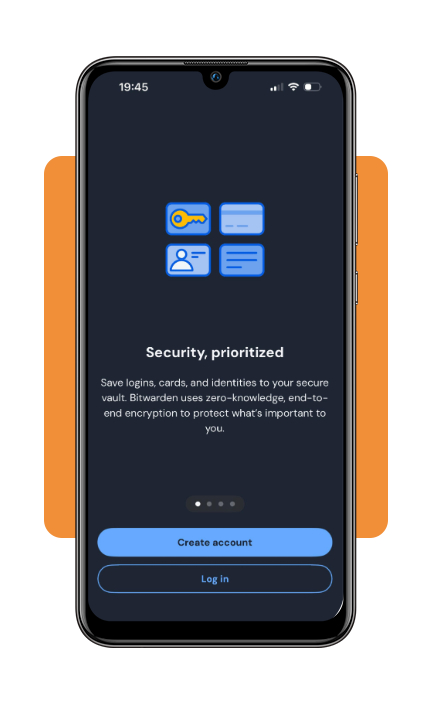
Step 2: add your first login
After that, open the vault and create a login entry for one of your accounts. Save the username, password, and website address so Bitwarden recognizes the service later.
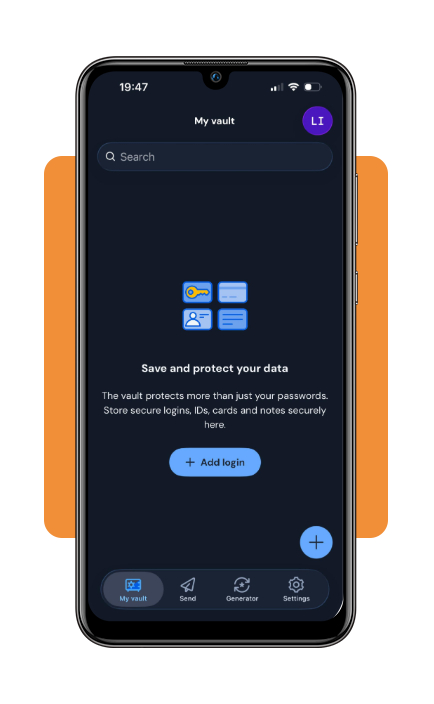
Step 3: turn on autofill
Now, enable Bitwarden as the password autofill provider in your phone settings.
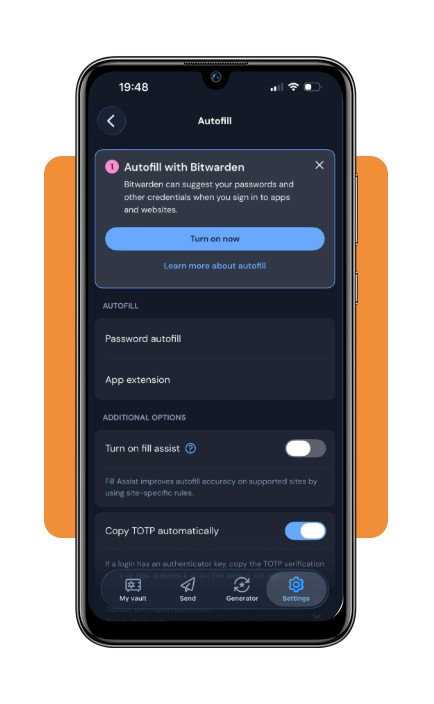
Step 4: test the vault on a login page
Finally, open a website or app whose credentials are already stored and tap the username or password field.
Bitwarden should recognize the matching login and offer to fill the credentials from your vault.
Top identity theft insurance programs
A password manager app protects an important part of your digital life, but identity theft protection services go further by monitoring for suspicious activity.
LifeLock
LifeLock stands out for combining identity monitoring, credit protection, and insurance coverage.
Its higher-tier plans offer monitoring across all three major credit bureaus, along with alerts tied to financial activity and new accounts.
Meanwhile, insurance coverage varies by plan. With that, the amount available for stolen funds or legal costs should be checked before subscribing.
LifeLock‘s pricing also increases as more monitoring features are added.
Aura
Aura takes a broader security approach by combining identity monitoring with tools such as three-bureau credit monitoring and VPN access.
It can be a good fit for someone who wants identity protection and digital security in one service rather than managing several separate products.
The main thing to compare is what each plan actually covers.
Insurance limits, credit monitoring, restoration support, family coverage, and cybersecurity tools can differ substantially even when two services look similar at first glance.
Best options for auditing weak or reused passwords
A password audit is focuses on finding the accounts that create the most risk. That said, very short credentials and old logins are usually the best places to start.
Use Bitwarden’s vault reports
Bitwarden (iOS/Android) has tools that review the credentials stored in your vault and flag problems that deserve attention.
Reports can help surface reused passwords, weak credentials, and other entries worth reviewing.
From there, you can work through the riskiest accounts instead of guessing which passwords need to change first.
So start with important services such as email, banking, cloud storage, and social media. Updating those accounts first gives the audit a clear order of priority.
Run a manual password audit
A manual review is also useful if your passwords are still spread across several devices.
Look for the same password appearing on multiple accounts, credentials based on names or predictable patterns, and accounts you no longer use.
Each active service should ideally have its own unique password.
An audit is also a good opportunity to enable multifactor authentication on accounts that support it.
For services offering passkeys, moving away from traditional passwords can reduce how many credentials you need to manage.
If you are also trying to recover credentials already stored on your devices, this how to see saved Wi-Fi passwords Insiderbits guide explains where to find them without resetting your network.
4.9/5
Stronger passwords make life easier
A password manager app is ideal when it keeps convenience and better security by unique passwords in one encrypted vault.
Bitwarden (iOS/Android) covers password generation, autofill, syncing, and vault organization without forcing users into a complicated setup.
The next step is maintenance. Reviewing reused or weak passwords from time to time helps keep the vault from becoming a storage place for old habits.
In short, a safer setup depends on giving each account a strong credential, protecting the vault itself, and checking that important logins stay in good shape.
Enjoyed this article? Save Insiderbits to your favorites and discover the most useful tech tips.