

A stranger pitching a car warranty during dinner or a caller posing as your bank can ruin a quiet evening, and spam blocking stops both calls before your phone rings to interrupt your night.
Whoscall can screen unknown callers for you, and this guide by Insiderbits shows how to set it up in minutes and which tools protect your money and identity when a scammer slips past.

4.7/5
Which is the best spam blocking app?
Whoscall (Android | iOS) is a caller ID app that names unfamiliar numbers and warns you about scammers and telemarketers, giving you a read on who’s dialing before you answer.
Reports from a global community of members feed its database, which lets a number that burned a stranger last week show a warning label on your phone screen.
Members earn badges and points for reporting scams and finishing simple missions, which turns spam blocking into a team effort that keeps the database sharp for your calls.
Key features within Whoscall
- Caller ID and blocking: flagged numbers carry a ‘Scammer’ tag with their city, and automatic blocking can stop known offenders from ringing your phone;
- Smart SMS assistant: this tool marks phishing texts and risky messages, giving you a heads-up before you tap a shady link or reply;
- Check with Whoscall AI: type a number or link, or upload a screenshot, and the AI reviews it for scam signs in one place;
- Custom names and quick reports: label any number with a name and category only you see, and report scams by choosing the fraud type.
Free version versus premium plans
Whoscall (Android | iOS) is free to download but shows ads in the free version. Premium ‘Individual’ adds advanced features from the Premium tab and starts at $2.89 a month.
‘Duo’ covers two people at $4.59 a month, while ‘Family’ costs $8.69 a month, and an ad-free plan removes every banner for $0.99 monthly or an $18 lifetime payment.
Permissions to expect before you install
Setup asks you to make Whoscall the default caller ID and then approve phone calls, call logs, contacts, and SMS access, with a short prompt explaining each request.
Full spam blocking needs every permission, and the developer says it never sells data, though its store listing notes that messages and device IDs may reach third parties.
Step-by-step: how to set up automatic spam call blocking
Automatic call blocking only works after Whoscall (Android | iOS) earns the right access on your phone, and the app hands you short prompts written in plain language for granting it.
Declining a prompt leaves a coverage gap where a telemarketer can slip through, and a wrong region setting weakens the matching that separates real callers from fakes.
Once everything is in place, spam blocking runs in the background and screens each stranger who dials your number, leaving your attention free for the calls that matter.
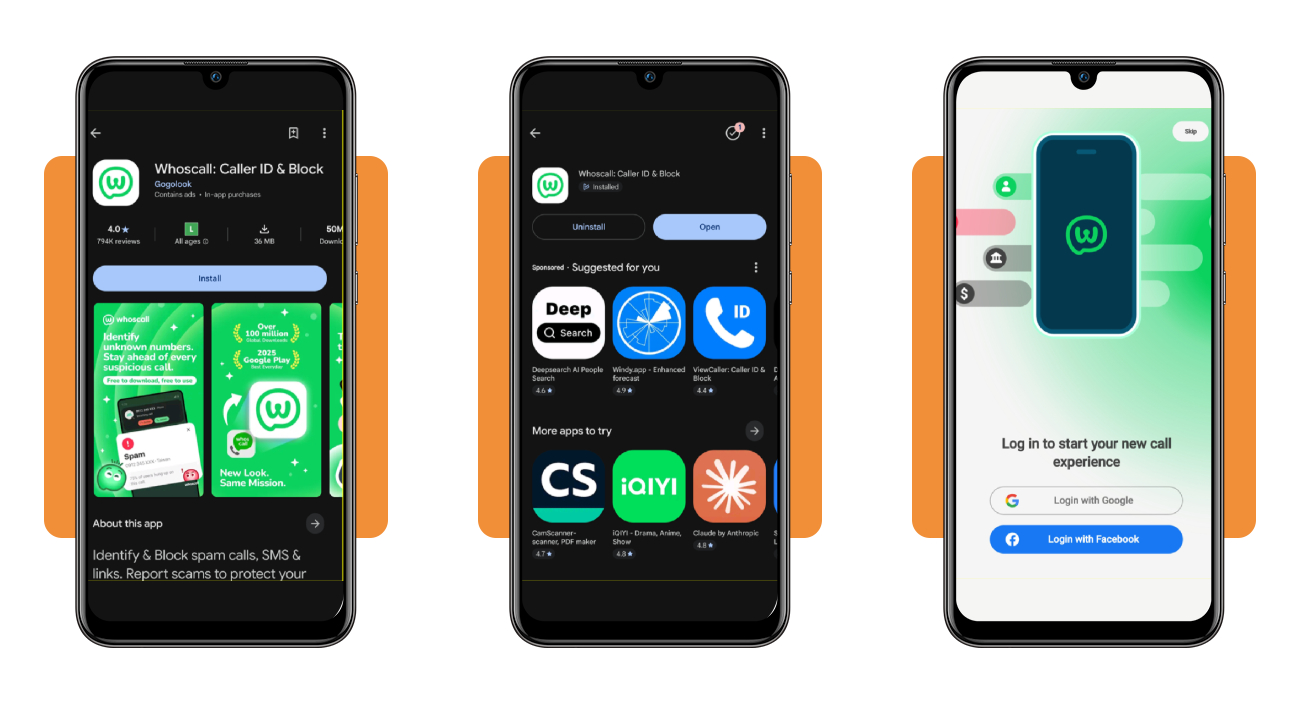
Step 1: download Whoscall and sign up
Open Google Play or the App Store on your phone, search for ‘Whoscall’, and install the official free app before you launch it and start the account setup.
Sign in with your Google or Facebook account to create a profile in one tap, or use the ‘Skip’ option when you’d rather hold off on logging in.
Step 2: grant permissions and confirm your dialing code
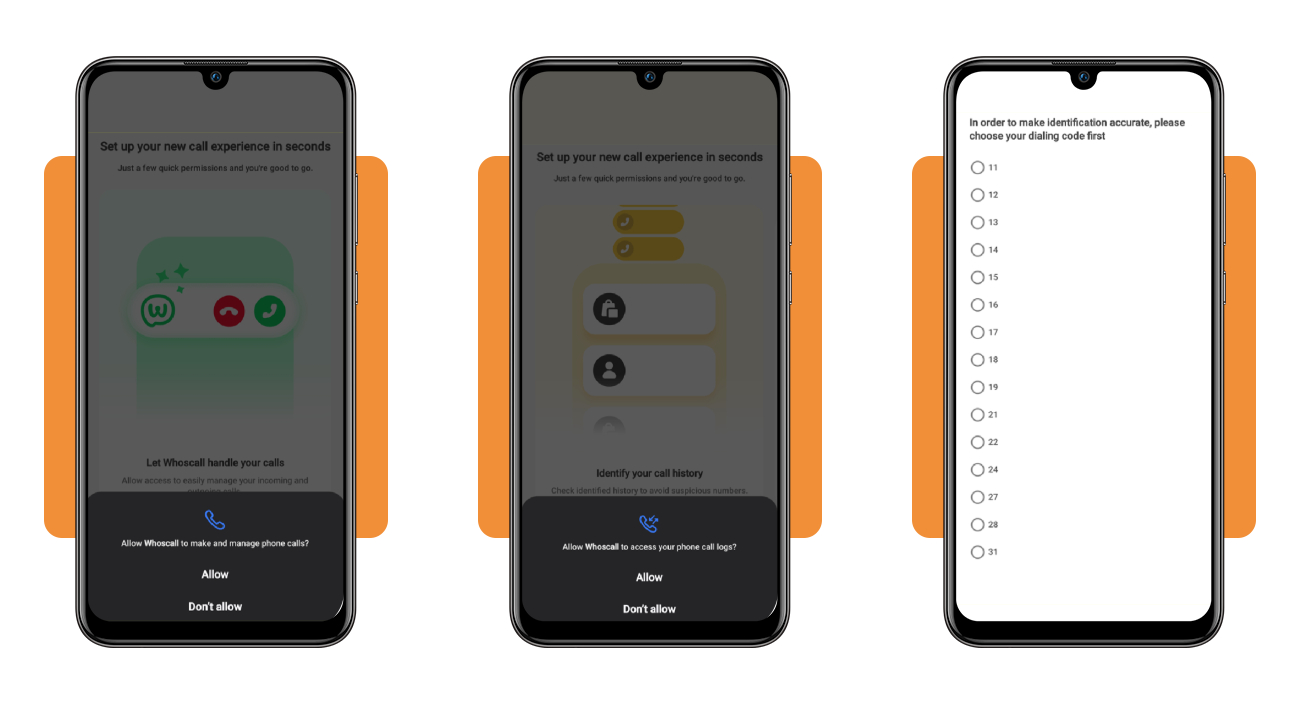
Approve the requests to manage your calls and your history, which lets Whoscall (Android | iOS) judge each incoming number and review the ones that already rang your phone.
Choose the dialing code that matches your number and confirm it, which helps the app tailor its database to your region and sharpens spam blocking on your local calls.
Step 3: set Whoscall as your default caller ID
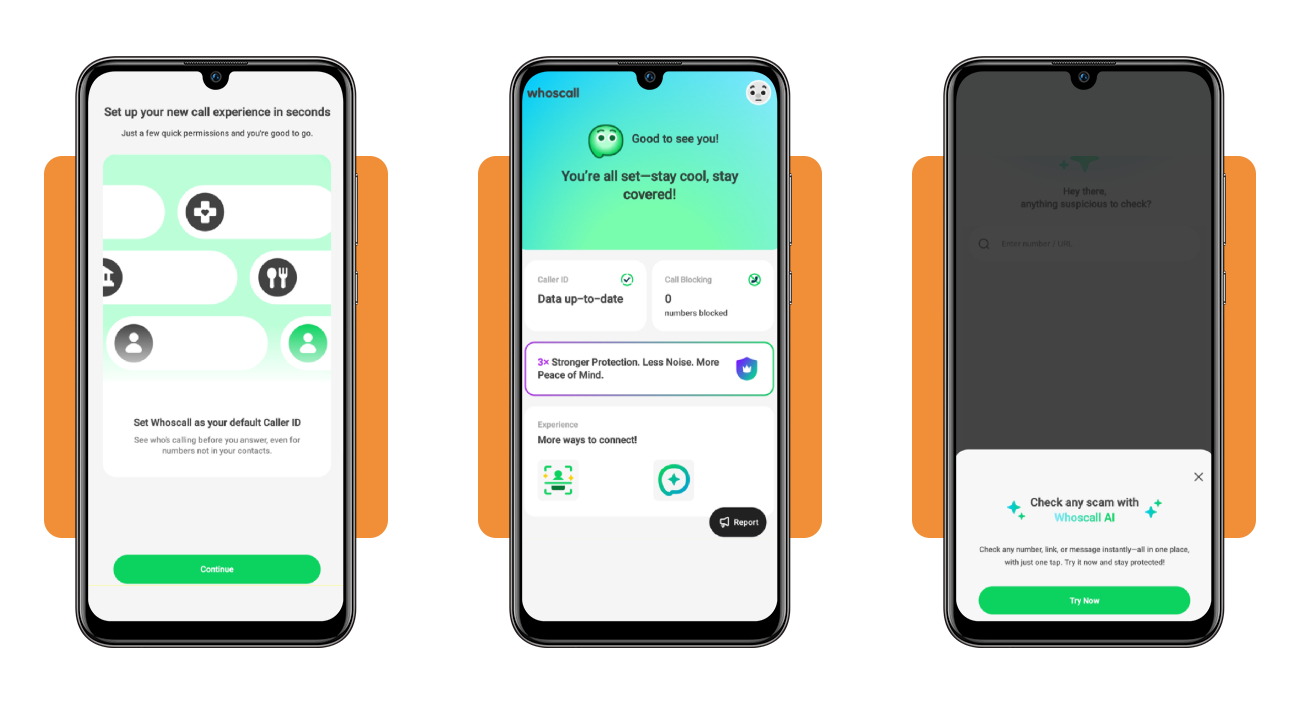
Accept the prompt that makes Whoscall (Android | iOS) your default caller ID, which lets the app display who’s calling before you answer, even when the number isn’t in your contacts.
After that, every call from an unsaved number arrives with a name or warning label, and the home screen tracks each number the app stops from ringing your phone.
Top identity theft protection apps
Identity theft protection apps watch your credit files, bank accounts, and personal details for signs that someone is using your name, alerting your phone when something looks off.
Call filters that handle spam blocking stop the pitch at the door, while these apps cover the damage that follows when a data leak exposes your information.
Plans differ in price, coverage limits, and bonus tools, which lets you match a subscription to your budget and to the type of fraud you worry about most.
Aura for all-in-one digital safety
Aura (Android | iOS) packs credit lock, bank account alerts, a VPN with 100+ virtual locations, and a password manager into one app that covers your identity, money, and online browsing.
The app also asks data brokers to delete your profiles, with the App Store listing citing 425+ sites, and Premium costs $15.99 a month or $119.99 a year.
LifeLock for dedicated restoration support
If a thief opens an account in your name, LifeLock (Android | iOS) assigns a restoration specialist based in the US to your case and works it from start to finish.
Where spam blocking keeps scammers off your line, LifeLock covers lawyers and experts up to $1 million and reimburses stolen funds from $25,000 to $1 million depending on your plan.
Identity Guard for near real-time fraud alerts
Identity Guard (Android | iOS) watches your personal details, credit, and bank accounts and pushes near real-time alerts to you the moment a lender, leak, or payment raises a flag.
The ‘Ultra Individual’ premium plan costs $299.99 a year, and its tools include credit lock, dark web monitoring, a VPN, and an ad and tracker blocker.
Best options for reporting scams
Filters and monitoring apps can’t catch every scammer, and what you do right after a bad call or text decides how much money and data you can recover.
Reporting works as the second layer behind spam blocking, catching the scams that ring through your filters and giving you a route to recover what those callers took.
Before you report, jot down the caller’s number, the date, the payment method, and any names or website addresses the scammer used, and save screenshots of suspicious texts.
Report scammers directly to the FTC
Use the FTC’s ReportFraud website to file a report about scam calls, texts, emails, or shady businesses, and the agency turns those details into cases and trend data.
The FTC never threatens you, demands a money transfer for safekeeping, or asks you to withdraw cash or buy gold, and any caller who does is a scammer.
Ask your bank or payment app for a refund
Contact your bank or credit union about a Zelle, bank transfer, debit card, or credit card payment, and ask them to reverse the charge and refund your money.
Venmo, Cash App, and PayPal take scam reports inside their platforms, and spam blocking can’t recall money already sent, which makes that report your route to a refund.
Recover your identity through the FTC’s official portal
If a scammer got your Social Security number and used it, the FTC’s official identity theft site builds a personalized recovery plan that walks you through each fix.
If you can’t tell whether a scammer used your number, its data breach section lists steps, and a compromised account needs a new password plus two-factor authentication.
4.7/5
Answer only the calls worth answering
Whoscall (Android | iOS) works like a doorman for your phone, checking unknown callers at the door and leaving you free to decide which ones deserve your time and a hello.
In this Insiderbits guide, you learned how spam blocking, identity protection apps, and scam reports team up to keep your calls, your money, and your good name safe.
Keep reading Insiderbits for more articles on online and mobile protection, written to help you lock down your phone, your accounts, and your personal details.