A few years ago, people were using the same password for everything. That would work for banking accounts, email, video games, streaming accounts, all of it. It wasn’t laziness, it was more about pure optimism. People wondered, “What are the chances someone will care about my Netflix password?”. But things change, and in this digital age we are living in, we can’t be so optimistic. That’s why Two-Factor Authentication, or 2FA as the tech crowd calls it, came in.
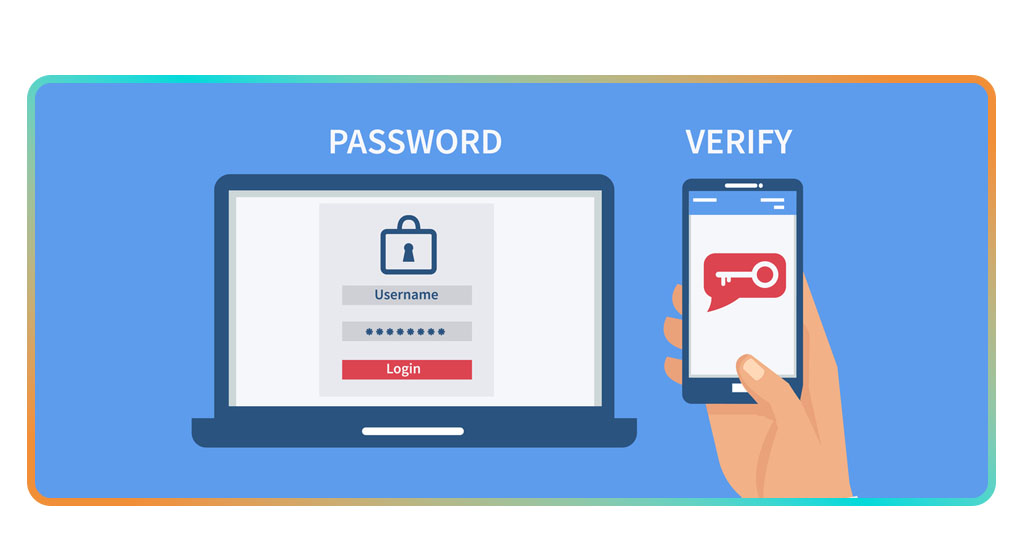
This is a simple idea with big consequences. For example, even if a hacker somehow steals your password, they can’t log in unless they also have access to your second layer of verification, a unique code that changes every few seconds. Enabling two-factor authentication doesn’t cost a thing, and setting it up takes less time than making a cup of coffee. Below, we’ll show you how to protect your logins with free two-factor authentication.
- How To Enable Two-Factor Authentication On Instagram?
- How To Use The Facebook Authentication App?
- How to Boost Security with Microsoft Authenticator
Two-Factor Authentication Apps You Can Use for Free
Unfortunately, even nowadays, many people still don’t think about cybersecurity until something goes wrong. But once someone starts using a 2FA app, it’s hard to imagine going back.
A two-factor authentication app will generate a new code every 30 seconds. These codes will be unique to you, like a secret handshake between your phone and your accounts.
Microsoft Authenticator is one of the easiest apps to use. It works with nearly everything, Microsoft, Google, Facebook, Amazon, and it syncs safely between devices. If your phone goes missing, for example, you can recover your accounts in minutes.
Using this app feels like locking your car with a reassuring “click”. You don’t think about it constantly, but you sleep better knowing it’s done.
How to Set Up Microsoft Authenticator on Your Phone in Minutes
Usually, everything about technology might sound intimidating, mainly for older people, but setting up Microsoft Authenticator is as easy as setting an alarm clock, and far less annoying.
Follow this short guide below to enable two-factor authentication and get your account safe.
- First of all, download Microsoft Authenticator from Google Play or the App Store. You can also head to their official page if you are on a desktop or laptop;
- On the app, you need to install it and verify your phone number. That’s going to work like your digital ID;
- On the website or app you want to protect (say Gmail or Instagram), go to Settings → Security → Two-Factor Authentication;
- Then, choose the Authenticator App as your method and scan the QR code that pops up using Microsoft Authenticator;
- Done. From now on, whenever you log in, you’ll enter your password and the fresh six-digit code Microsoft Authenticator shows you;
- That’s it. No cables and no fees. In less than five minutes, your phone becomes your bodyguard.

4.6/5
Extra Features That Keep Your Accounts Safe
Once you finish setting up Microsoft Authenticator, that’s when the magic really starts to show. Beyond generating codes, it comes with smart extras that make everyday logins faster and smoother.
For instance, you can enable autofill for passwords, sync your data safely across devices, and approve sign-ins with a single tap instead of typing numbers under pressure.
Another underrated perk? It works perfectly even when you’re offline — but the app still has your back.
And if you start noticing something unexpected, you can keep calm. Stop worrying about suspicious login emails. You stop second-guessing every click.
Just log in, tap “Approve’, and move on with your day feeling unreasonably proud of your new, hacker-proof lifestyle.
Two-Factor Authentication Apps: Secure Your Accounts for Free – Conclusion
Cybersecurity used to sound like a distant, nerdy topic, something only companies worried about. But today, your phone is your wallet, and your identity.
That’s why two-factor authentication is worth the tiny bit of effort. It’s free, it’s simple, and it puts you back in control of your online life. The Microsoft Authenticator doesn’t just protect your accounts, it protects your peace of mind.
So do yourself a favor. Take five minutes today, download Microsoft Authenticator and secure your accounts today. It’s the easiest security upgrade you’ll ever make.
Related: Set Up Passkeys on Microsoft Authenticator – Stay Safe Now
Enjoyed this article? Save the Insiderbits blog to your favorites for the latest tools, creative tech tips, and photo editing breakthroughs.