

Is your home internet slower than usual, or do you suspect an unknown device is connected? A Wi-Fi exposure scan can reveal devices using your network.
In this Insiderbits guide, we’ll explain how Fing (Android | iOS) can scan your Wi-Fi, identify connected devices, and help you improve your home network security.

4.6/5
Which is the app to scan your Wi-Fi network and find connected devices?
Fing (Android | iOS) is a network scanning app designed to show which devices are connected to a Wi-Fi network.
It can identify devices and provide information such as their IP address, MAC address, manufacturer, model, and connection status.
This makes a Wi-Fi exposure scan useful when you want to understand what is connected to your home network.
An unfamiliar device doesn’t automatically mean someone is stealing your Wi-Fi, but it gives you something to investigate.
Fing (Android | iOS) can also run internet speed tests, check network performance, identify potential security issues, and provide alerts about new devices depending on the features and plan you use.
Key features and network scanning tools within the Fing platform
Fing’s core network scanner discovers connected devices and organizes them into a network inventory. The platform can identify devices by brand, model, operating system, IP address, and other available information.
The app also includes Wi-Fi and cellular speed tests, upload and download measurements, latency analysis, port scanning, ping, traceroute, and DNS lookup tools.
For network monitoring, Fing (Android | iOS) can alert you when an unknown device joins your network. Its more advanced monitoring features can also track network events and automatically scan for changes.
Some advanced controls depend on Fing’s paid features. These can include blocking unwanted devices, monitoring bandwidth usage, and additional home network security tools.
Step-by-step: how to scan your Wi-Fi network and detect unauthorized users
A network scan only takes a few moments and can give you a clearer picture of what’s connected to your Wi-Fi. We’ll use the Fing mobile app (Android | iOS) for this guide, although Fing also offers desktop and web-based tools.
Step 1: download the Fing app
Download Fing from the Google Play Store or Apple App Store.
Install the app on your smartphone and open it once the installation is complete.
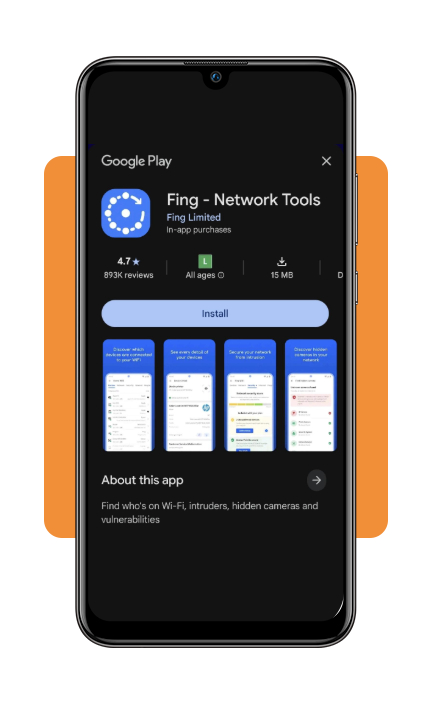
Step 2: connect to your home Wi-Fi
Before starting the scan, make sure your phone is connected to the Wi-Fi network you want to check.
If you’re using mobile data instead, Fing (Android | iOS) won’t be scanning the same local network as your home router.
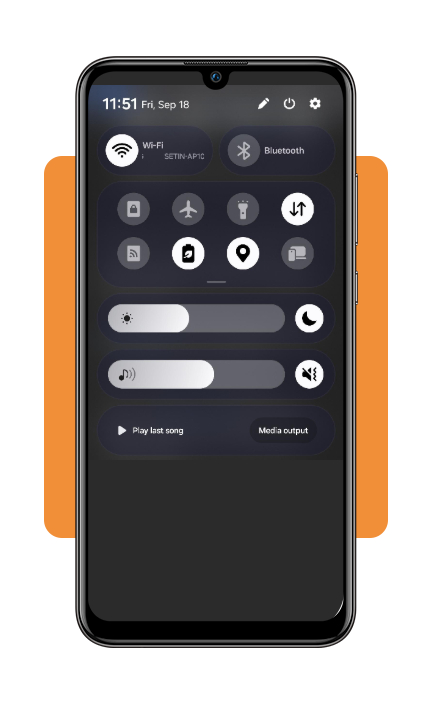
Step 3: start a network scan
Open Fing (Android | iOS) and start the network discovery scan. The app will look for devices connected to the network you’re currently using.
Fing’s own guide says the initial scan can display a complete list of detected devices within seconds.
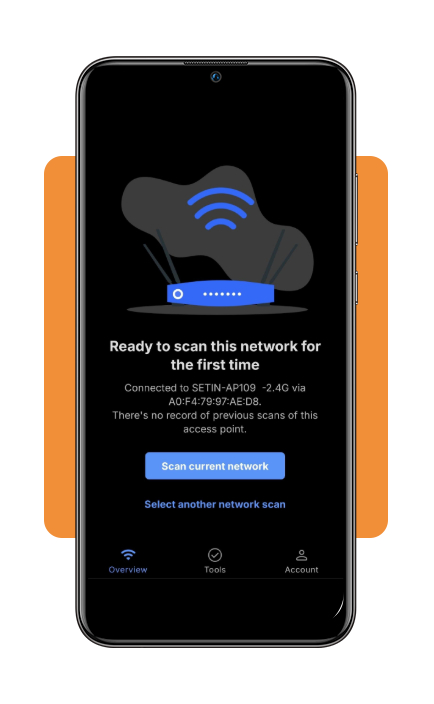
Step 4: review the connected devices
Look through the list and check the device names, manufacturers, and other available details.
You may see smartphones, computers, smart TVs, streaming devices, printers, game consoles, speakers, routers, and other connected equipment.
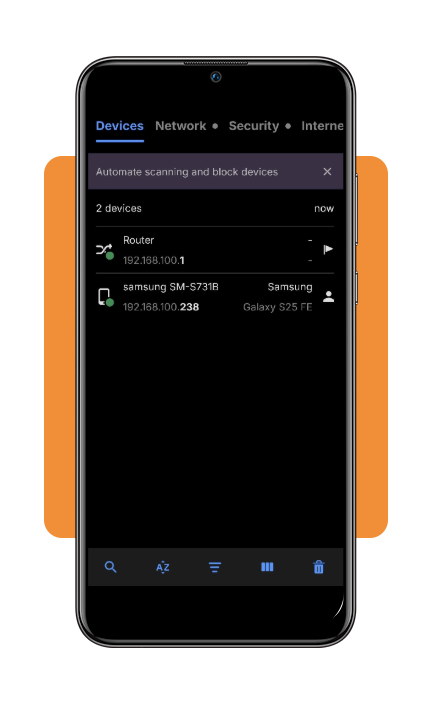
Step 5: investigate unfamiliar devices
If you see a device you don’t recognize, don’t immediately assume it is an intruder.
Check whether it could belong to someone in your household or be a smart home device you forgot about. The device’s manufacturer and other identifying information can help you determine what it is.
If you’re unsure whether a device belongs on your network, compare the devices shown in Fing with the guidance in this PCMag guide to checking every device on your Wi-Fi network.
Step 6: check for network security issues
Use Fing’s available security tools to look for potential vulnerabilities, open ports, or other issues affecting your network.
A scan can help identify potential problems, but it doesn’t automatically prove that your network has been compromised.
Step 7: secure your Wi-Fi if necessary
If you find a device that shouldn’t have access, start by checking your router settings.
Changing your Wi-Fi password is one practical step when you suspect someone has access to your network. Fing (Android | iOS) itself notes that router settings are where you can change network credentials.
Step 8: scan again after making changes
Run another Wi-Fi exposure scan after updating your network settings.
Compare the new device list with the previous scan and confirm that the devices you expect to be connected are still present.
For ongoing monitoring, Fing (Android | iOS) can also provide alerts when new devices join the network, depending on the features available with your account.
Top high-speed internet providers
If your Wi-Fi connection is consistently slow, the issue may be related to your internet plan or provider rather than the devices connected to your network.
Availability and speeds vary by address, so check which providers actually serve your home before choosing a plan.
Google Fiber offers fiber internet with advertised speeds ranging from 1,000 to 8,000 Mbps in the areas it serves. Its fiber network provides symmetrical upload and download speeds on eligible plans.
AT&T Fiber offers fiber plans with speeds ranging from 100 to 5,000 Mbps in available locations. Its fiber availability has expanded across multiple U.S. states, but service still depends on your specific address.
Verizon Fios is another fiber option, with plans ranging from 300 to 2,300 Mbps according to current 2026 provider comparisons. Its availability is concentrated in specific parts of the U.S.
Xfinity provides cable-based broadband across a large U.S. footprint, with current plans offering download speeds from 300 to 2,000 Mbps in the markets covered by its plans.
T-Mobile 5G Home Internet uses a fixed wireless connection rather than a wired fiber or cable line. Current plans advertise speeds of up to 498 Mbps, although actual performance depends on local network conditions and coverage.
When comparing providers, look beyond the advertised download speed. Check upload speeds, latency, data limits, equipment fees, introductory pricing, regular monthly rates, and availability at your exact address.
For a broader comparison, you can also check this guide to top broadband service providers in the U.S.
And importantly, a faster internet plan won’t necessarily solve every Wi-Fi problem. If your connection suddenly becomes slow, run a Wi-Fi exposure scan first to see whether unexpected devices are using your network.
Best VPN services for privacy
A Wi-Fi exposure scan helps you understand which devices are connected to your network, while a VPN serves a different purpose: it encrypts your internet traffic between your device and the VPN server.
VPNs can be particularly useful when you’re using unfamiliar public Wi-Fi networks. However, a VPN doesn’t prevent someone who already has access to your home Wi-Fi from appearing in your network’s connected-device list.
When comparing VPN services, consider their privacy policies, supported devices, server locations, connection protocols, Kill Switch features, and subscription costs.
NordVPN offers mobile apps and features such as a Kill Switch, DNS leak protection, and multiple VPN protocols.
ExpressVPN provides apps for smartphones, computers, and other supported devices, with a focus on encrypted connections and private browsing.
Surfshark offers VPN apps for multiple platforms and includes features such as a Kill Switch and split tunneling on supported devices.
Proton VPN is another privacy-focused option, with open-source applications and features designed around secure internet connections.
You can compare additional providers in this Forbes Advisor guide to the best VPN services.
For broader digital protection, you can also read this Insiderbits guide to data leak scanners and identity protection.
4.6/5
See what’s connected to your Wi-Fi
A Wi-Fi exposure scan can turn an unexplained slowdown into something you can investigate.
With Fing (Android | iOS), you can scan your network, review connected devices, test your internet performance, and look for potential security issues.
Start by downloading Fing (Android | iOS) and connecting your phone to the Wi-Fi network you want to inspect. Then review each detected device carefully before deciding whether any connection is actually unauthorized.
If you discover an unfamiliar device, update your Wi-Fi credentials and review your router’s security settings.
Combining regular network checks with strong passwords, software updates, and appropriate privacy tools can help you maintain better control over your home network.