
A buzz about a frozen card or a stalled package feels urgent enough to tap, and recognizing scam texts before that reflex kicks in can keep your bank account out of a crook’s reach.
In this guide, Insiderbits shows you the free phone controls and official checks that turn shady senders into dead ends and help guard your paycheck against the next fake alert that pops up.
Scam texts: use official checks and message controls
Texts land on a screen you check dozens of times a day, and the FTC cites research showing open rates near 98%, handing fraudsters a remarkable shot at your attention.
Your phone carries free tools to fight back, with Google Messages on Android and Messages on iPhone, letting you report or block a sender from inside the conversation you’re viewing.
Pairing those controls with the FTC’s online advice builds a solid defense against scam texts without any extra apps, while standard messaging and data charges follow your data plan.
Fake fraud alerts built to hook your reply
A message claiming to come from your bank’s fraud team or a retailer like Amazon offers help with a charge you never made, and that friendly offer works as bait.
Once you reply or dial the number they provide, the person on the other end spins a convincing story meant to pull your login or card details into their hands.
Delivery and toll texts demanding bogus fees
Messages about a missed delivery or an unpaid toll push you toward a link, and the page it opens mimics USPS or a state toll program site with alarming accuracy.
That fake site asks for a small redelivery charge or overdue balance, and these scam texts aim to grab your card number or even your Social Security number.
Trusted channels beat any number inside a text
A text that names a company you shop with still deserves a second look, as fraudsters borrow familiar brands to lower your guard and make a fake request seem believable.
Reach the company or toll agency through a website you’ve bookmarked or the number printed on the back of your card, and leave the contact details inside the message untouched.
Step-by-step: verify, block, and report suspicious texts
Fraudsters count on you answering or tapping before you stop to think, and checking their claim on your own terms puts you in charge of how that conversation plays out.
On an Android phone, Google Messages takes care of the rest, giving you block and report options in the inbox and inside the open chat window with no extra app.
Practicing these moves on the next suspicious alert you receive helps you respond to scam texts with confidence and keeps your fingers away from links you never meant to open.
Step 1: verify the sender outside the message
Resist tapping the link to see where it leads, as opening a suspicious address can expose your device or land you on a page someone built to harvest your logins.
Open the app you already use for that bank or store, or type its web address yourself, and check whether the alert matches anything showing in your real account history.
Step 2: block and report from your Google Messages inbox
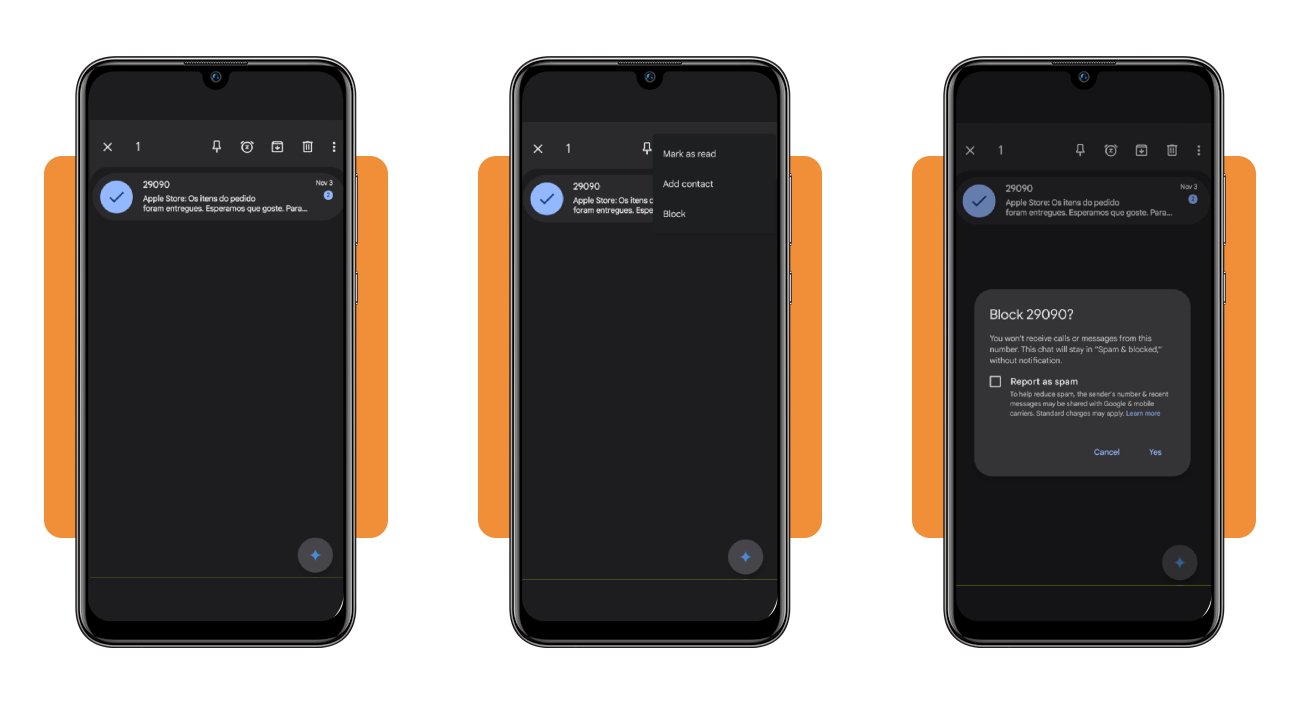
Find the conversation in the Google Messages inbox and touch and hold it until a check mark appears, then tap the three dots in the corner and choose ‘Block’ from the menu.
A confirmation window appears with a ‘Report as spam’ box, and you can tick it to share the sender’s details or leave it empty before you tap ‘Yes’ to finish.
Step 3: flag spam from inside the Android conversation
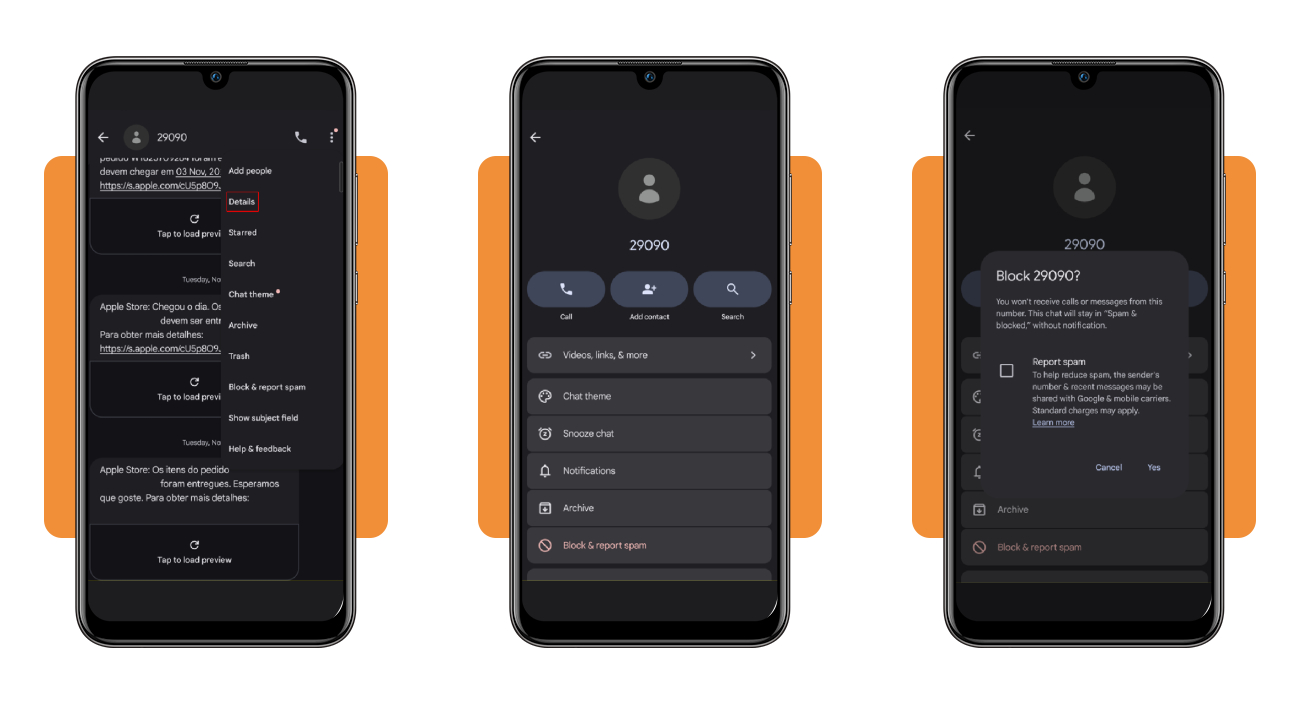
Open the conversation and tap the three dots at the top of the screen, then select ‘Details’ and tap ‘Block & report spam’ before you confirm your choice with ‘Yes’.
Google moves the chat into your ‘Spam & blocked’ folder, and handling scam texts from this screen lets you read through the message history before you cut that sender off.
How to report junk and block senders on iPhone
Messages on iPhone keeps its spam report inside the delete option and its block button on the sender’s info page, with menu names based on Apple’s iOS 27 user guide.
Report the text before you write anything back, as the option disappears once you reply, and block the sender afterward to keep new messages from that number off your screen.
Report a spam text
- Open Messages and swipe left on the unopened text, then tap ‘Delete’ and choose ‘Delete and Report Spam’ to file the report;
- Tap the ‘Report Spam’ link under a text you’ve opened from an unknown sender, then tap ‘Delete and Report Spam’ to confirm;
- Call your carrier if the report option never shows up for a regular SMS or RCS text, as carriers control that feature for some plans and regions.
Block the sender
- Open the conversation you want to stop and tap the sender’s icon at the top of the screen to bring up their details;
- Tap ‘Info’ and scroll to the bottom, then tap ‘Block Contact’ to stop that number from reaching you in Messages and FaceTime.
Understand reporting options and filtering limits
Reporting and blocking do different jobs against scam texts, with a block silencing the sender on your phone and a report passing details to the companies that tune spam filters.
Google can drop messages, its detection flags and suspend senders who break its terms, while an iPhone keeps spam filtering on by default and moves detected junk into a separate folder.
A report on an iPhone leaves the sender free to keep texting you until you block them, and Google lets you report a chat that its own detection labeled as safe.
What Google and your carrier receive from a report
Filing a report on Android sends Google the sender’s number with the last ten messages they sent you, plus a country code drawn from your SIM card and internet connection.
Your report may also open a spam reporting chat that sends your carrier the sender’s number and newest text, while your own replies and name stay out of both reports.
Blocking without reporting is always your choice
Google treats reporting as optional, and you can block a number to stop its calls and messages without handing a word of that conversation over to Google or your carrier.
Skipping the report makes sense for scam texts that land in a group chat, as a report from that thread can include messages and names from other people in it.
iPhone reporting depends on the carrier and iOS version
A spam report on an iMessage sends the text and sender details to Apple and deletes the message from your phone, with a recovery option if you tapped by mistake.
Apple publishes separate instructions for iOS 26 and iOS 27, and for SMS or RCS texts, your carrier and country decide whether a report reaches the carrier and its affiliates.
Where to access official Android and iPhone instructions
Menu labels can shift after system updates, and checking the official help pages lets you match your screen against the source the next time scam texts land in your inbox.
Saving those pages as bookmarks in your phone’s browser gives you a quick reference point whenever a button you expect seems to have moved or picked up a new name.
Search results can surface lookalike support sites, and typing the company’s own address into the address bar keeps you on the real help pages and away from another fraud attempt.
Google’s Messages help pages for Android phones
Google’s page on reporting spam in messages offers separate tabs for Android phones and computers, and it links to articles on spam protection and on blocking or unblocking a number.
If a step on your phone doesn’t match the page, the ‘Messages Help Center’ has a forum where you can post a question and get answers from other Android owners.
Apple’s iPhone User Guide matched to your iOS
A version menu at the top of Apple’s page switches the instructions to match your iOS release, and the page lives in the Messages chapter of the iPhone User Guide.
The same chapter covers screening unknown senders, and Apple links to a support article on phishing tricks that helps you size up scam texts before you touch ‘Report Spam’.
Free FTC text scam guidance online
The FTC keeps a text scam page and a consumer alert on fake fraud warnings online, and you can read both pieces at no cost and without creating an account.
Forwarding an unwanted text to 7726, which spells SPAM on your keypad, gives you another route that works alongside the junk options built into your phone’s own messaging app.
Build safer messaging habits and explore protection tools
Your phone’s menus deal with a sender you’ve already spotted, and a couple of habits cover the moment a message tries to rush you into a decision you haven’t checked.
The FTC notes that fraudsters also open with job offers and wrong number texts, and treating those friendly openers as scam texts in disguise keeps you from typing a reply.
Combining better habits with the filters on your phone lowers your risk, but no setting promises to stop all fakes or bring back money you’ve already sent to a fraudster.
Treat every unexpected link as a red flag
Shortened links and addresses with a swapped letter can hide where a tap takes you, and a link from a friend deserves caution when the message feels out of character.
If you tapped a link and typed a password or card number, call your bank’s fraud line at a number you trust and reset that password on the real site.
Screen unknown senders before they reach your inbox
The iPhone lets you filter messages from unknown senders into a separate list, and ‘Screen Time’ can limit who reaches you to people saved in your contacts at hours you set.
On Android, keep spam protection switched on in Google Messages, and the app can flag suspected scam texts with a warning and move them out of your main conversation list.
Check your spam folder for real messages
Real messages can land in junk, and on iPhone you tap the ‘Filter’ button and choose ‘Spam’, then open a chat and tap ‘Not Spam’ followed by ‘Move to Messages’.
Marking a chat as not spam on Android tells Google the label was wrong, and the app lets you decide whether to share the last ten messages from that sender.
Turn your inbox into a dead end for scammers
Fake alerts count on you feeling rushed, and taking a breath before you tap anything gives you the time to check the claim with a bank or store you know.
In this guide, you saw how to check a suspicious message yourself before you block or report the sender and how your phone sorts scam texts into a spam folder.
Being aware is crucial in the age of technology. Read other Insiderbits articles and pick up tricks that keep your accounts locked down and your phone free of shady messages.