
Few things spark modern rage like a Wi-Fi collapse during a Zoom interview or the final seconds of a playoff game. As someone who lives online, it’s absurd to pay premium ISP fees and still end up crouched in a hallway for signal. We reboot routers like superstitious rituals, hoping consistency will magically appear. It’s the exhausting cycle of plug, pray, repeat.
The twist is that the provider often isn’t the villain. Thick walls, mirrors, bad router placement, even nearby electronics quietly sabotage your signal. We’re fighting blind, which explains all the buffering. A Wi-Fi heatmap app turns that guesswork into visibility, showing exactly where your connection weakens. If you’re done negotiating with dead zones, it’s time to map your own space.
- Wifi Map: App To Get Free Wifi On Your Phone
- 5 Apps that Show WiFi Passwords
- Detect WiFi Intruders on Your Network for Free
Tired of dead zones? Try a free Wi-Fi heatmap app
The fundamental problem with home networking is that Wi-Fi signals behave like water—they flow through open spaces, bounce off hard surfaces, and get absorbed by thick walls.
Without a visual aid, trying to find the perfect router spot is like trying to find a leak in a dark basement. Research on indoor signal propagation shows that even minor environmental factors can degrade your connection by over fifty percent.
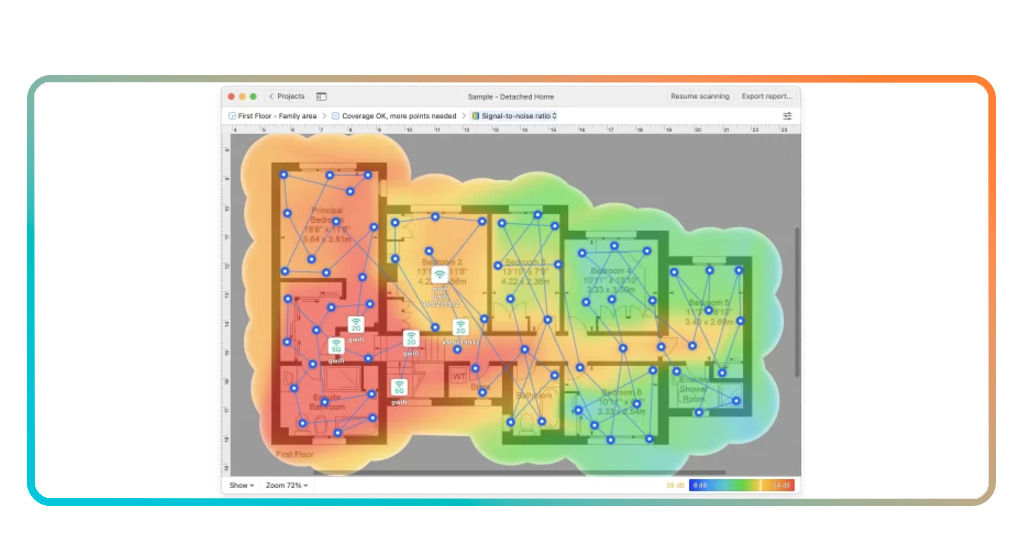
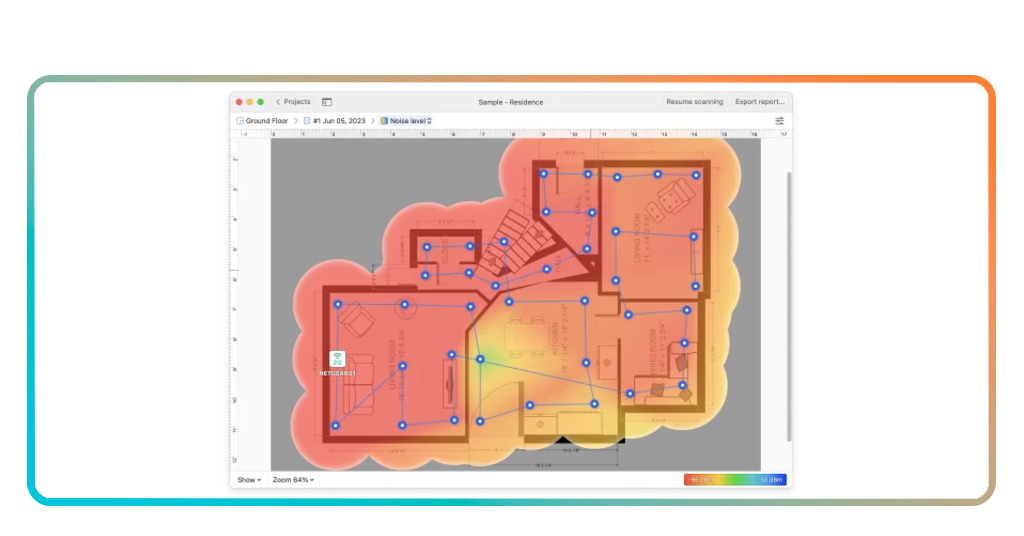
A Wi-Fi heatmap app solves this by using your smartphone’s radio to measure signal decibels as you walk through your home, overlaying that data onto a floor plan to create a color-coded “weather map” of your connectivity.
Green zones mean you’re flying high; red zones mean your Netflix binge is about to end in a pixelated disaster. This visual data transforms a technical headache into a simple DIY project.
Once you see the “red” dead zones in your home office, you can stop blaming your laptop and start addressing the actual physical barriers.
The ultimate “I told you so” tool for dealing with ISPs or roommates who insist the internet is “fine”. By turning the invisible into the visible, you regain the power to optimize your digital life without spending a dime on unnecessary upgrades.
How to map your home signal using NetSpot
Among the sea of technical analyzers, NetSpot has emerged as the gold standard for homeowners because it manages to be powerful without being patronizing.
You don’t need to know what a “dBm” or a “frequency band” is to understand a bright red spot on your bedroom wall.
To start your map, you simply upload or draw a basic sketch of your floor plan within the app and then take “samples” by standing in different spots and tapping the screen.
The Wi-Fi heatmap app does the heavy lifting, calculating the signal-to-noise ratio and interference levels to give you a comprehensive audit of your airwaves.
The process reveals the “hidden” thieves of your bandwidth. You might discover that your neighbor’s router is sitting on the exact same channel as yours, causing a digital traffic jam that slows everyone down.
If you’ve already secured your network against Wi-Fi intruders, this is the logical next step in total network mastery. It’s not just about where the signal is strong; it’s about where the signal is clean and uninterrupted.

4.6/5
Features available in the NetSpot app
NetSpot, available for Android and iOS, provides a suite of tools that go beyond simple signal bars. It is designed to be a one-stop-shop for troubleshooting and optimization.
- Visual heatmaps: real-time color coding of signal strength, noise, and interference across your entire floor plan;
- Internet speed tests: integrated benchmarks to verify if you are actually getting the download speeds your ISP claims;
- Channel analysis: a detailed look at which Wi-Fi channels are overcrowded in your area to help you switch to a clearer path;
- Active scanning: the ability to see all surrounding networks and how their signals overlap with your own;
- AP location optimizer: data-driven suggestions on where to place your router or mesh nodes for maximum coverage.
4.6/5
Do you need to pay to use NetSpot?
One of the best parts about NetSpot is the “freemium” model that actually respects the user.
For the average person living in a standard apartment or house, the free version of this Wi-Fi heatmap app provides more than enough data to fix common issues.
You can perform basic surveys, identify dead zones, and see your channel overlaps without pulling out a credit card.
A refreshing change in a tech landscape that usually hides every useful feature behind a monthly subscription.
However, if you are a “prosumer” managing a massive estate or a small business office, there are paid tiers that offer more advanced features like automated report generation and support for larger-scale architectural drawings.
But for 95% of us who just want to stop the PlayStation from lagging in the basement, the free tool is the “no-brainer”.
You get enterprise-grade diagnostics for the low, low price of absolutely nothing, which is a return on investment that even a journalist can appreciate.
Tips for better coverage and app safety
Before you start running through your house with your phone like a modern-day dowser, keep in mind that the Wi-Fi heatmap app is only as good as the data you give it.
For the most accurate map, make sure all your internal doors are open during the survey to reflect your typical daily environment.
Also, pay attention to the height at which you hold your phone; Wi-Fi signals don’t just move horizontally, so testing at “couch level” versus “desk level” can yield different, enlightening results.
- Placement matters: ensure your router is out in the open and elevated, rather than shoved in a cabinet behind the TV;
- Update your hardware: if your heatmap shows widespread “red” despite a central router, it might be time for a Mesh system;
- Security first: only download apps from official stores (Google Play or Apple App Store) to avoid malware-laden “clones”;
- Check the 5GHz band: use the app to see if your 5GHz signal—which is faster but shorter-range—is reaching the rooms where you game;
- Avoid metal: remember that mirrors and metal appliances are Wi-Fi’s worst enemies; the app will help you see the “shadows” they cast.
Final thoughts
By the time you finish your first map, you’ll have a deeper understanding of your home than your ISP ever will.
You’ll know exactly why the kitchen is a dead zone (spoiler: it’s probably the fridge) and exactly where to put that range extender for maximum effect.
In the digital age, a heatmap is the best tool to combat the annoyance of a spinning loading icon.