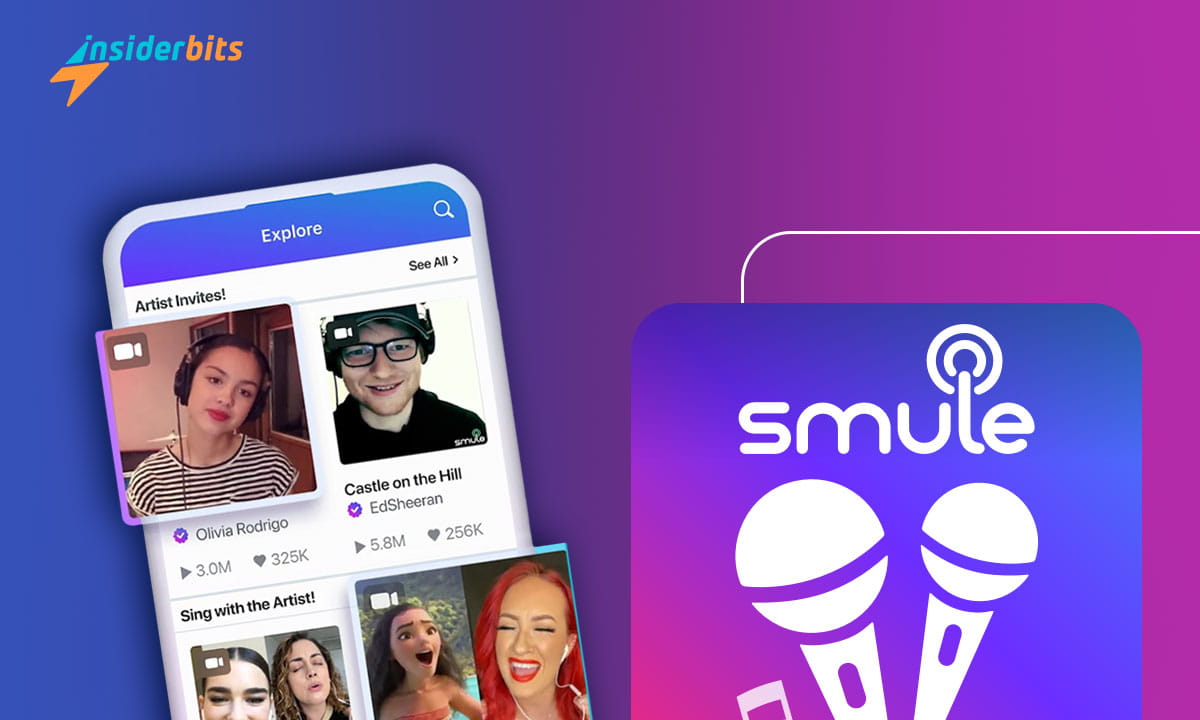
Have you ever wondered what it would be like to duet with a music icon? With the Smule app, not only can you sing with celebrities, but also go on a melodic journey unlike any other.
We at Insiderbits took a deep dive into Smule’s universe, discovering a platform that doesn’t just play back songs but reshapes how we interact with music’s brightest stars.
So get ready for an exciting journey, as we unveil how this app can make you the star of your own musical adventure. Your big break could be just a tap away!
Smule app: an overview
Experience music like never before with the Smule app. Sing with celebrities, friends, or solo, all through a user-friendly interface that makes recording songs a simple task.
Smule’s vast song catalog covers all genres, ensuring there’s something for everyone to enjoy. Discover classics, chart-toppers, and hidden gems to perform or collaborate on.
Let the app’s magic unfold as you sing with celebrities and fellow users in real time. Join live sessions, duet with your idols, and let your talent shine on a global scale.
Smule offers high-definition video and audio filters, enhancing your performances with a studio-like quality. You can also choose between camera on and off recordings.
With Smule, you can privately record your sessions, or you can share them with millions of people through a fun and thriving online community.
And the best part is that it doesn’t matter if you’re not a professional singer! Smule welcomes all levels of talent, offering the perfect platform to refine your skills.
Smule offers a wide range of free content, but if you’d like to experience the app in its entirety, there are weekly, monthly, and annual subscription plans available.
| Pricing: | You can download and use plenty of its features for free, but to experience the app in full, a VIP All Access is available starting at $2.99 per week. |
| Available For: | Android and iOS. |

3.8/5
What are the Smule app features?
Smule is a dynamic platform that puts the world of music right at your fingertips.
With it, your musical dreams take center stage as you sing with celebrities and unlock a universe of exciting features, such as:
- Sing with Celebrities: Experience once-in-a-lifetime duets as you belt out chart-topping songs alongside iconic artists.
- Vast Song Library: Explore a wide catalog with over 10 million songs spanning all genres and decades. From the latest pop anthems to golden oldies!
- Real-time Tuning: Don’t worry about hitting the wrong note! Smule’s real-time pitch correction ensures you always sound your best, boosting your confidence.
- Video Effects: Record your own music videos with captivating visual effects. Customize backgrounds, play with filters, and add studio-like polish.
- Global Singing Challenges: Connect with a global community and participate in challenges, showcasing your talent, and discovering new voices.
- Collaborative Live Karaoke: Not in the mood to sing solo? Join other users or have fun singing with friends and family, no matter where they are.
- Share and Connect: Share your recordings on social media platforms to receive feedback, grow your fanbase, and engage with a supportive community.
- Save and Practice: Don’t want to share your work just yet? Save your private recordings as you practice and advance in the singing world.
- Voice Filters: Experiment with voice filters to give your performance a unique twist. From robotic tones to cathedral echoes, the possibilities are infinite.
- Music Creation Tools: Not just a singing platform, Smule also allows users to create original music using intuitive tools.
As you can see, Smule goes beyond being a mere karaoke app, offering an immersive musical experience to singers of all levels.
Its diverse features not only enhance your singing journey but also encourage connections, providing a digital stage for all music lovers.
Which celebrities can you duet with on Smule?
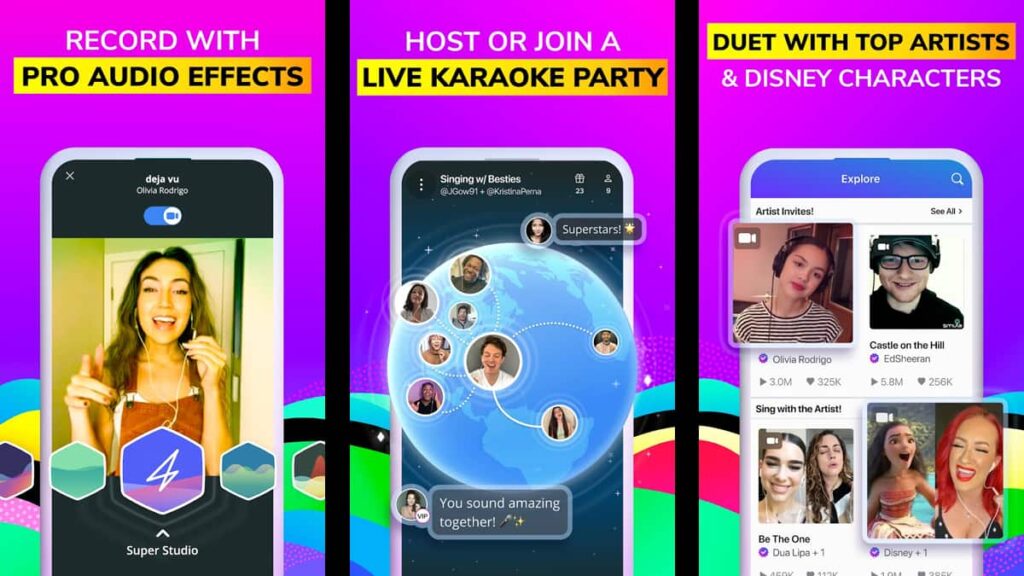
With Smule, sharing the stage with your favorite artists is within reach. The app allows you to experience the thrill of singing your favorite hits with the stars behind them.
Ever wished to harmonize with Ed Sheeran or belt out powerful ballads alongside Demi Lovato?
Maybe you’ve imagined hitting high notes with Jessie J or diving into heartfelt melodies with Alicia Keys. Now you can feel the rush of a star-studded performance with names like:
- Dua Lipa;
- Charlie Puth;
- Adam Lambert;
- Nick Jonas;
- Shawn Mendes;
- Jason Derulo;
- Luke Bryan;
- Kelly Clarkson;
- John Legend;
- Meghan Trainor.
And it doesn’t stop there! Smule offers an extensive list of celebrities to sing with, and because of the app’s constant updates, you can always find a new star to join in the session.
Are there any downsides to the Smule app?
Smule has gathered attention for its unique karaoke and music-making experiences. But like any platform, it’s not without its imperfections.
Let’s take a closer look into some potential drawbacks you might encounter:
- Subscription Costs: While there’s a free version, accessing the full range of songs and features requires a paid subscription.
- Storage Issues: The app consumes significant storage space, especially with multiple recordings and downloads.
- Connectivity Dependency: A strong internet connection is required for smooth functioning, which can be a significant downside in areas with poor connectivity.
- Overwhelming Choices: Smule offers over 10 million songs to choose from, which can feel overwhelming for people who are just starting out.
- Ad Interruptions: Users who prefer the free version might feel demotivated by the amount of ads displayed by the app.
Most of these issues are commonly found in many different apps, but understanding the potential pitfalls can help you make an informed decision about how you engage with Smule.
How to download the Smule app
The Smule app lets you sing with celebrities from the comfort of your home. But first, you need to learn how to get the app.
The world of musical collaboration awaits! Explore the simple steps Insiderbits has laid out for you and soon you’ll be center stage, singing with the stars. Ready to learn how?
Android devices:
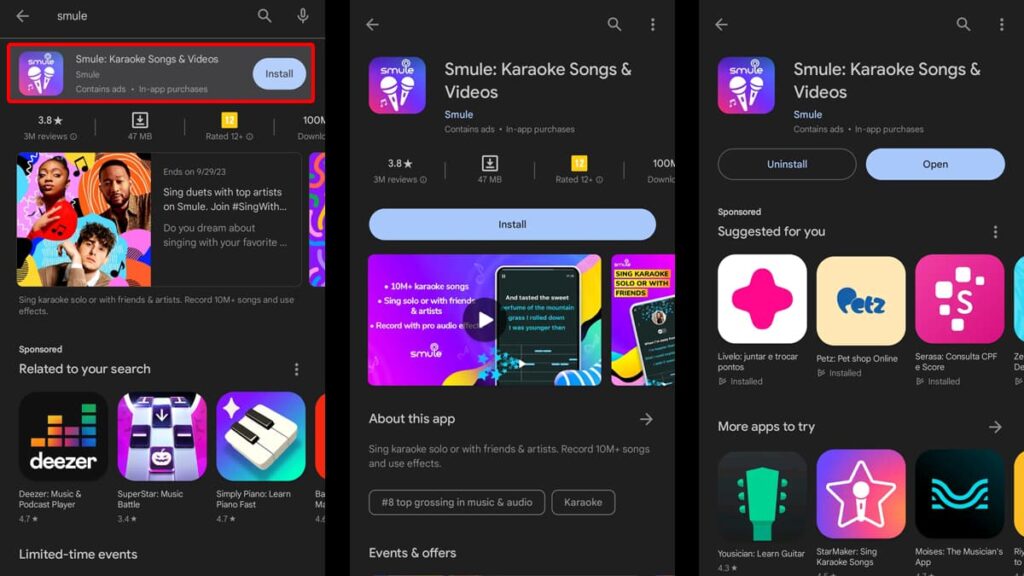
Before your grand performance with the stars, make sure your device is connected to a reliable Wi-Fi or data network. This will ensure a smooth download.
Locate the Google Play Store icon on your device and tap to open it. On the Play Store, navigate to the search bar at the top. Type in “Smule” and find the app in the search results.
You’ll see the Smule app with its distinctive logo. Tap on it. Once inside, hit the “Install” button and the app will start downloading, preparing you for your musical journey.
After the download completes, you can launch Smule directly from the Play Store by tapping the large “Open” button. That’s it! Now you’re ready to sing with your favorite celebrities.
iOS devices:
Locate the App Store on your device—the blue “A” symbol—and tap to embark on your adventure. This is your VIP pass to a universe of apps and today, your ticket to stardom.
In the App Store, use the search magnifying glass at the bottom right. Type “Smule” and watch as your device brings you an app’s list.
Spot the Smule app with its unmistakable logo. Hit the cloud symbol or the “Get” button. Then, Apple may ask for your Apple ID password or ask for Touch/Face ID verification.
Once installed, you can open Smule directly from the App Store or locate its musical note icon on your home screen.
Finally, you’ve successfully landed Smule on your iOS device, and a universe of musical wonders is at your fingertips!
3.8/5
How to sing with celebrities through Smule
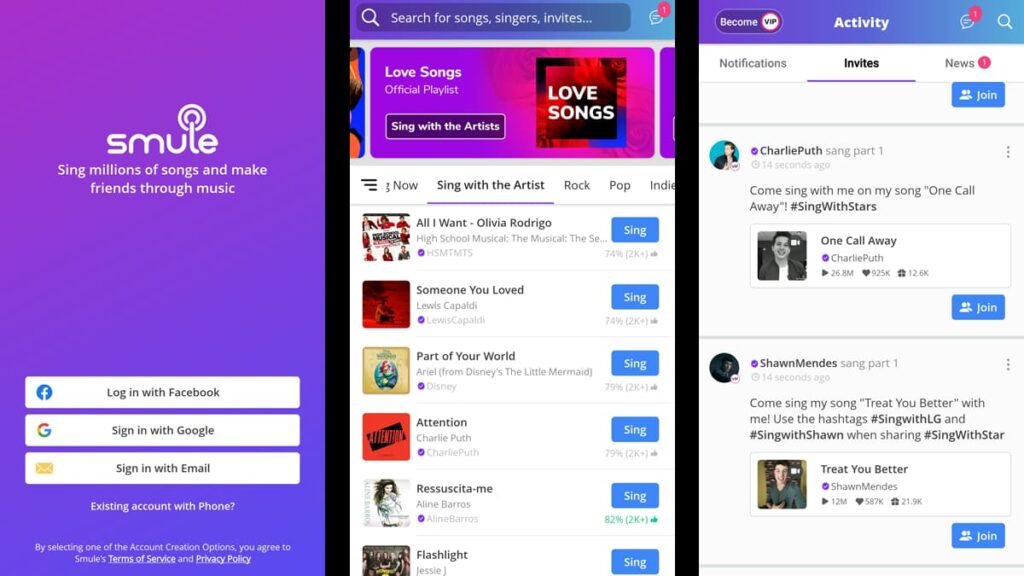
Next, dive into our step-by-step guide and discover how you can harmonize and truly sing with celebrities, turning your musical fantasies into digital duet masterpieces.
Step One: Sign in or register
To start your musical journey and sing with celebrities, you need to be part of the Smule community.
If you’ve previously created an account, simply log in. If you’re new, register with your email or through social media options.
Step Two: Navigate to the “Explore” section
Once inside, look for the “Explore” section. This is where Smule showcases its highlighted songs, including celebrity duets.
Step Three: Search for celebrity duets
In the search bar, type in the name of the celebrity you wish to sing with. Alternatively, you can browse through the featured listings, which often highlight trending celebrity duets.
Step Four: Choose a Song
When you spot a song labeled with “Sing with X celebrity” that’s your cue! Tap on it to open the song’s page.
On the song’s page, you’ll see an option to “Join” the celebrity in a duet. By clicking this, you’ll be directed to sing the portion of the song not sung by the celebrity.
Step Five: Set the Stage
Before diving into the song, you can select audio and video filters, adjust pitch guides, or choose a specific camera setting. Tailor the experience to fit your comfort and style.
Step Six: Record Your Part
Once you’re ready, hit the record button. Follow the on-screen lyrics and sing your heart out alongside the celebrity’s pre-recorded part.
Step Seven: Share & Shine
After recording, review your duet. If you want, you can share your shining moment with the Smule community or on your personal social media platforms.
Singing with celebrities on Smule is more than just a digital experience—it’s an emotional journey and a story shared with millions.
So, whether you’re serenading alongside Ed Sheeran or hitting high notes with Demi Lovato, remember that every voice, including yours, deserves a spotlight.
Harmonizing beyond Smule’s final note
As we’ve seen, Smule is more than just a singing platform—it’s where dreams to sing with celebrities take flight, turning ordinary moments into star-studded performances.
For every hopeful singer or casual music enthusiast, the app offers a musical embrace, a stage where voices unite to create lasting memories.
In our comprehensive Smule review, Insiderbits has walked through the app’s melodic corridors, spotlighting its incredible features and potential.
Now our melody with Smule may be over, but the symphony of reviews continues. Intrigued and inspired? Let the rhythm guide you to explore more articles, only here at Insiderbits.