
A lot of people dream about creating their own comics, imagining characters, stories, dramatic scenes, and even superpowers that could easily belong in a graphic novel. The problem is that turning those ideas into actual pages requires drawing skills, and that discourages aspiring creators before they even start. However, a comic book creator app changes that dynamic by using ready-made visual elements.
Comic Strip is an app that provides templates, speech bubbles, backgrounds, and character assets that can be arranged with simple drag-and-drop controls. Today, Insiderbits will show how this tool allows beginners and hobbyists to focus on storytelling without the need to handle the visual layout, making comic creation accessible even to those who have never drawn a single panel.
- 5 Best Comic Apps For Kids
- Best iOS Apps for Free Comics
- Find the Ultimate Comic Reader for Mobile in These 5 Apps
What’s the best comic book creator app?
In the past, creating comics used to require drawing skills and hours spent sketching characters and panels by hand, and then it wasn’t necessary to have software either.
Today, technology has simplified this process, allowing anyone with a story idea to transform it into a visual narrative directly from their phone.
Nowadays, you need to focus more on storytelling; a good comic book creator app focuses on removing drawing and technical barriers.
One accessible option for beginners and hobbyists is Comic Strip – Comic Maker, which is available for iOS devices.
The app provides a visual workspace where users can assemble comic panels using ready-made assets such as characters and backgrounds, for example.
With that, creators can drag and position these components to build scenes that resemble traditional comic layouts.
Consequently, storyboards that required manual sketches can now be quickly assembled, making the app useful for aspiring writers or anyone experimenting with visual storytelling.
In addition, because everything happens inside a smartphone interface, users can create comic strips almost anywhere.
Whether someone wants to design short humor comics or simply share illustrated stories with friends, a comic book creator app is an entry point into the world of comic production.
Features available in the Comic Strip app
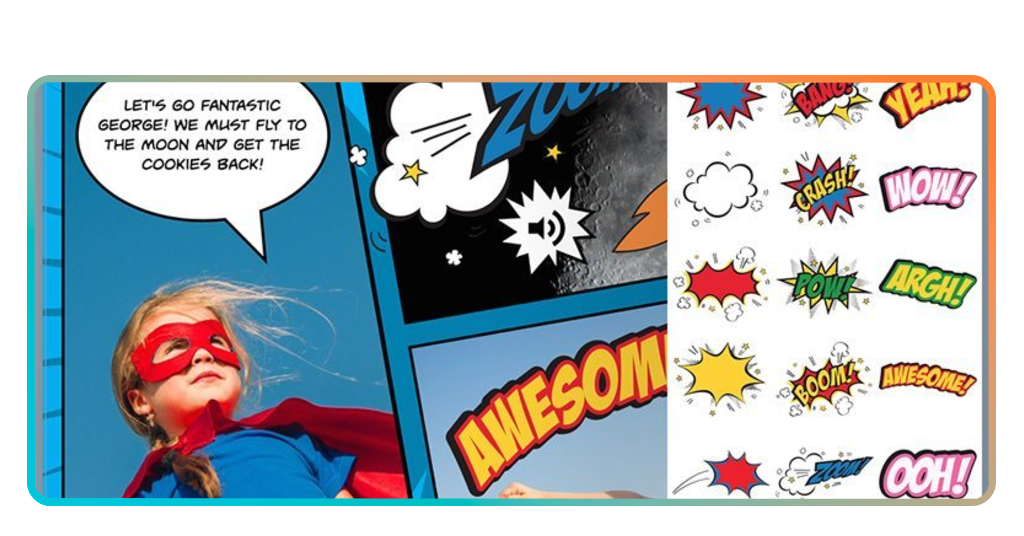
The Comic Strip app includes several tools that transform simple ideas into complete comic pages without requiring drawing skills.
To begin with, one of the most useful resources is the library of pre-designed characters and backgrounds.
These assets let creators quickly assemble scenes by selecting characters, placing them inside panels, and choosing environments that match the story setting.
This makes it possible to build a visual narrative even for people who have never created comics before.
Since dialogue plays a central role in comics, the app helps users add conversations or sound effects through customizable speech bubbles and text boxes.
And instead of manually drawing comic frames, users can select page structures with multiple panels and simply drop images or characters into each space.
Lastly, the export and sharing options permit creators to save their comic pages as images and share them with friends, teachers, or social media audiences.
Overall, these features make the Comic Strip app useful for casual storytelling, school projects, or creative experimentation directly from a smartphone.

Step-by-step: how to make storyboards using the Comic Strip app
Creating a storyboard is one of the easiest ways to transform an idea into a visual narrative, and with a comic book creator app, the process becomes much simpler.
Check the tutorial below to learn how to use panels, characters, and dialogue available inside the Comic Strip – Comic Maker app:
- Step 1: first of all, download and install Comic Strip – Comic Maker from the App Store and open it to start a new project;
- Step 2: after that, select the option to start a new strip and choose a layout that contains multiple panels;
- Step 3: now browse the library of available environments and choose one that matches the setting of your story;
- Step 4: to add characters to the panel, drag them into the frame and adjust their size or position to create the scene composition;
- Step 5: also, add speech bubbles or narration boxes and type the dialogue that moves the story forward;
- Step 6: continue filling each panel with characters, actions, and dialogue to create a complete sequence;
- Step 7: in the end, read the storyboard from beginning to end and adjust panel content so the story progresses clearly;
- Step 8: finally, save and export the storyboard as an image so it can be shared or used in future comic projects.
Comic book styles you can create in the app
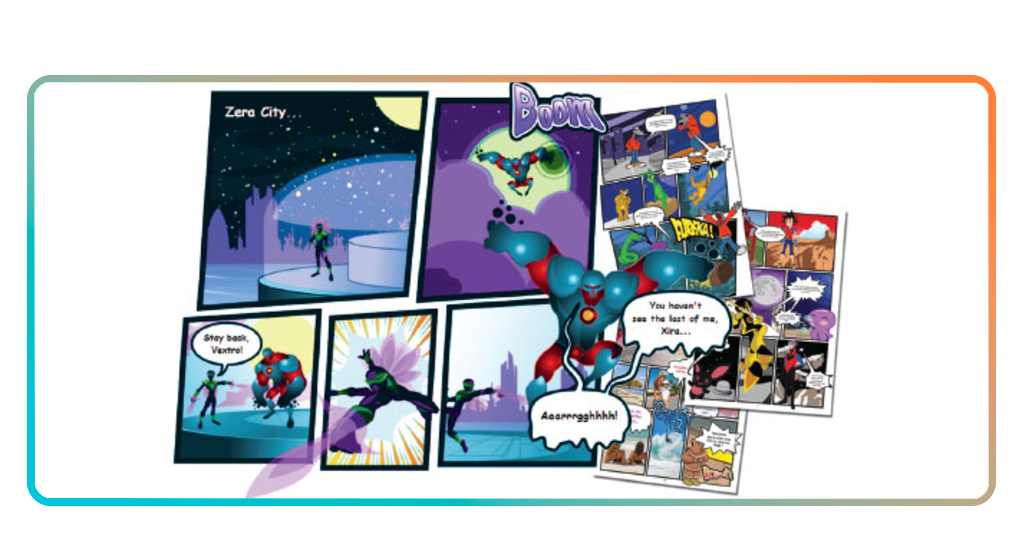
One of the advantages of using a comic book creator app is the freedom to experiment with different visual storytelling styles.
Even without drawing skills, creators can combine characters, backgrounds, sound effects, and panel layouts to mimic several classic comic formats.
The Comic Strip app we are highlighting in this article provides flexible templates that allow users to explore different narrative styles depending on the tone of their story.
A common format is the classic newspaper-style comic strip that consists of a short sequence of panels arranged horizontally, often used for humor or quick storytelling.
Because the structure is simple, it works well for beginners who want to experiment with short jokes or light storytelling.
Another popular style involves adventure or action comics. In this format, panels may vary in size to highlight dramatic moments, and characters can appear in dynamic scenes.
Even with ready-made assets, users can simulate movement and tension by adjusting character positions and panel composition.
In addition, it is worth highlighting storyboards that focus on visualizing scenes and dialogue flow. Usually, writers and students often use this format to plan stories.
Finally, slice-of-life comics are particularly easy to build with mobile tools since these stories focus on everyday situations, simple conversations, and relatable humor.
It is common for them to rely more on dialogue and character interaction than complex action scenes, making them ideal for creators experimenting with their first comic projects.
Tips for creating comic strips on your cell phone
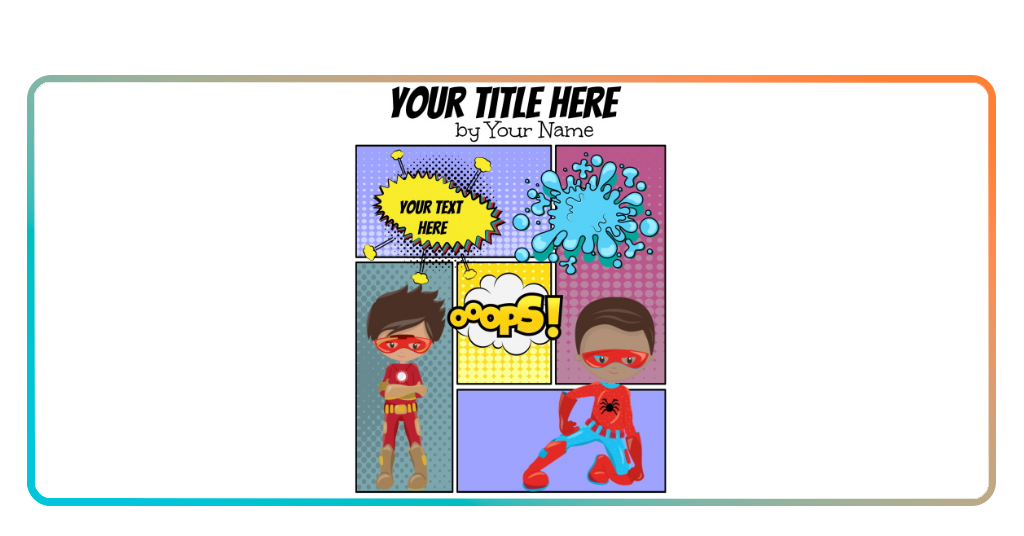
Creating comics on a phone may sound limiting at first, but throughout this article you are probably noticing how comic book creators apps actually make the process surprisingly flexible.
With Comic Strip, you can experiment with storytelling anywhere, whether sketching ideas during a commute or building a full comic strip from home.
You can start, for example, with a simple story idea before opening the app.
Even a short concept, like a conversation between characters or a brief adventure, helps guide how many panels the comic should contain and how the dialogue will unfold.
Also, since phone screens are smaller than traditional drawing surfaces, keeping scenes visually clear improves readability.
And placing characters where the action is easy to follow and avoiding overcrowded panels can make the story much easier to understand.
Finally, experimentation helps creators develop their own style, and trying different layouts, characters, and story ideas gradually reveals which approaches work best.
With consistent practice, a comic book creator app can turn a phone into a small but powerful storytelling studio.
Turning Your Ideas Into Comics: What This Guide Showed
Today, we learned that creating comics no longer requires professional drawing skills or complex design software.
The Comic Strip app makes it possible to transform ideas into comic pages directly from a smartphone.
With the right comic book creator app and a bit of creativity, even your phone can be a space for storytelling.
Whether the goal is to create humorous strips or plan larger stories, a comic book creator app offers an accessible way to start building your own comics.
Related: Find the Ultimate Comic Reader for Mobile in These 5 Apps
Enjoyed this article? Save Insiderbits to your favorites and discover the most useful tech tips!