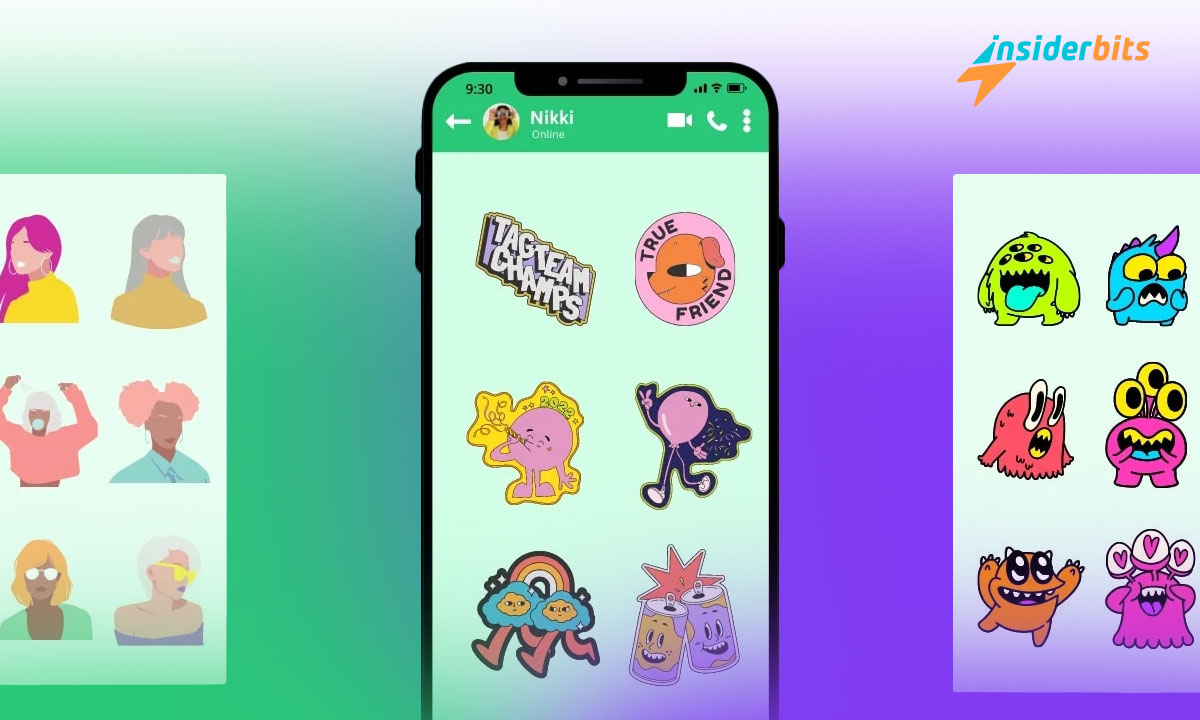
In the following lines, we will present a handy WhatsApp stickers tutorial. WhatsApp stickers are stickers you can add to any conversation to give it a fun touch. With our help, you can create as many as you want to make communication even more fun. Do you want more details? Don’t stop reading us!
WhatsApp Stickers Tutorial on Canva
In this WhatsApp stickers tutorial, we will guide you through the process. First, you’ll need to install the WhatsApp application if you don’t already have it. Once you have installed WhatsApp, we will provide clear and easy-to-follow instructions on how to access and use the sticker feature.
By the end of the tutorial, you’ll be able to use a variety of stickers to add fun and personality to your conversations with friends. Let’s get started and enhance your chatting experience with WhatsApp stickers!
Download the Canva – Design, Art & AI Editor app
The first step that we will leave you in our WhatsApp stickers tutorial is to download an ideal app for your conversations. It is Canva – Design, Art & AI Editor. This software allows you to design and edit professionally. To download it, you have to follow these steps:
- Access Google Play from your mobile device.
- Type in the search bar “Canva – Design, Art & AI Editor”
- Read the description and check that you can install it on your phone.
Approve the system’s requested permissions, then proceed to download the application. Once the download is complete, allow a few minutes for the installation process to finish.

4.7/5
Access the application and start creating
Once you download it, you can start using it. To do this, go to the main screen of your phone and click on it. Then, do the following:
- Open the Canva sticker design app.
- Sign up using your Google email address.
- Press the “+” button to create a new sticker pack.
- Click “Customize” and then go to your phone’s image gallery.
- Select the one you like best and determine the dimensions of the photos.
To finish, select “Use a new design” and then proceed to make any necessary edits. All the editing tools are located at the bottom of the screen. After you’ve made all the changes, remember to click “Save” to save your work.
Following our step-by-step instructions, you can create as many packs as you want for WhatsApp. You can divide them by topic or category. Remember that whenever you make a sticker, you must click “Add to chat” to use it in conversations.
Canva
The “Canva – Design, Art & AI Editor” app allows you to create unique designs for stories, reels, and posts on social networks, posters, and chats. Its features are the following:
- A free editing tool without ads or watermarks. You can crop, rotate, and edit photos effortlessly. You can also adjust brightness, contrast, saturation, and hue.
- Tools to create posts for Facebook, layouts, and Instagram stories.
- A video editor to create fantastic video clips in just a few minutes.
- A free library with more than 2 million royalty-free resources and art for you to use whenever you like. It has over 25,000 audio tracks, licensed music, 500 fonts, and text effects.
Canvas AI comes equipped with advanced artificial intelligence tools. With this feature, you have the ability to easily upload an image and let the powerful AI algorithms take over, automatically performing the necessary tasks.
Create unique images
What did you think of our WhatsApp stickers tutorial? It’s beneficial if you want to brighten up your chats. Bring your ideas to life with free and fully customizable sticker creations. If you read another exciting article on Insiderbits, we have this one: “Samsung Black Screen Rescue: Quick Tips.”