Parents want safer screen time without constant worry. YouTube for kids gives them control while kids enjoy videos built for learning, curiosity, and age-appropriate fun.
The app includes tools like content filters, screen time settings, and profile customization. Setup is quick and lets each child watch what suits their stage of growth.
This is a guide by Insiderbits made to help you take charge of what your child watches and keep entertainment safe and fun for your family. Read on to learn how it all works!
Related: Use TikTok Parental Control Tools to Keep Your Kids Safe
Where to download YouTube Kids
Every parent needs tools that support safer screen time. Before anything else, you’ll want to get the app directly from trusted mobile stores you already use.
Search results sometimes include apps with similar names or icons. Take a second to check for the verified version, which is designed and maintained by Google.
Downloading YouTube for kids through the official listing ensures your child’s screen time is backed by safety features that actually work and reflect what families really need.
Find the official app on Android or iOS stores
The official version has a bright red play button icon shaped like a friendly TV. This helps families instantly spot the correct app among similar results.
Each listing shows preview images of the app’s layout. These help parents feel confident in choosing a version built for young users and guided content selection.
Even reviews from other parents give clues about what to expect. Most highlight how setup works, what kids enjoy, and how parental settings respond to different needs.
Downloading on Android
- Open Google Play and search for YouTube Kids with exact spelling;
- Confirm it’s published by Google and check the app’s icon carefully;
- Tap “Install” and wait for the download to finish loading fully;
- Open the app and begin the guided profile setup experience.
Downloading on iOS
- Visit the App Store and search for YouTube Kids;
- Choose the one by Google with the cartoon TV red icon visible;
- Tap “Get” and authenticate with Face ID or your Apple ID password;
- Launch the app and start customizing settings for your family;

4.7/5
Why YouTube Kids is better than regular YouTube
YouTube for kids lets children explore with filters, screen time limits, and custom modes tailored to their age group, unlike the main app’s open-ended experience.
Regular YouTube includes everything from music videos to comment sections. With this version, you create a bubble where younger audiences enjoy content that fits their world.
Even the interface helps. Large icons, colorful buttons, and no comment sections reduce distractions and keep the experience focused on discovery, learning, and entertainment.
Start for free and set up in minutes
Starting with the app costs nothing and gives families useful controls that support viewing habits while keeping children focused on videos shaped for their growing interests.
Features on YouTube for kids let parents guide screen habits using filters, time limits, and profile settings that adapt to each child’s stage and growing interests.
Parents gain helpful control by choosing features that encourage healthier viewing patterns, and then set up YouTube Kids to show only age-appropriate content for their child.
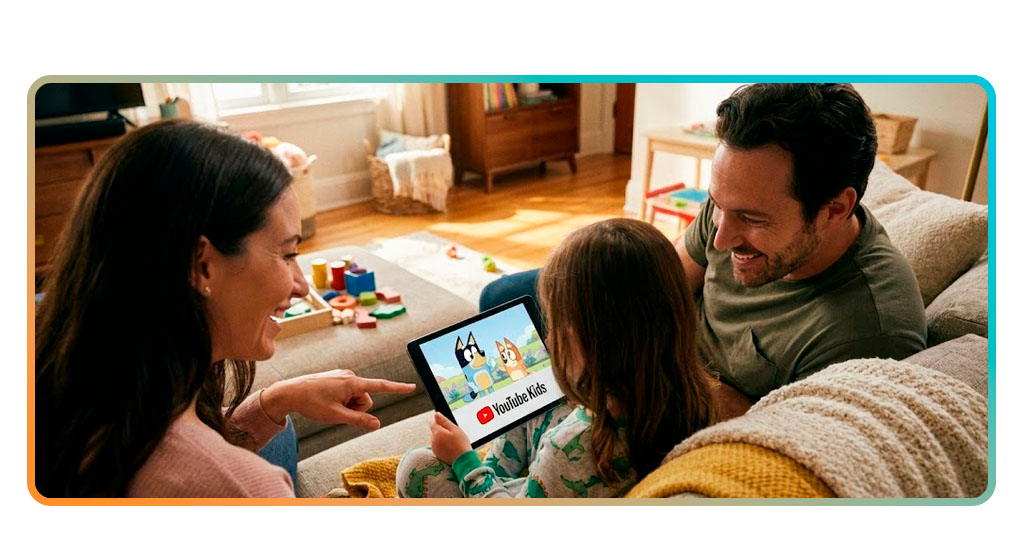
Step-by-step: how to set up YouTube Kids
Once the app opens, setup begins with choices that help shape what your child watches. Each screen helps define limits without requiring extra tools or outside help.
You’ll set age brackets, pick viewing modes, and manage how suggestions appear. These steps create a safer space that still leaves room for curiosity and fun.
To guide healthy habits without constant supervision, use filters and timers that protect your child’s screen time — set up YouTube Kids today and make those limits stick.
Step 1: create the right profile for your child’s age
Start by creating a profile on YouTube for kids. You’ll select your child’s age group, which determines the categories and search options available on their account.
Preschool settings include soft visuals, learning clips, and music. Older children get broader results with carefully selected topics that support curiosity without pushing irrelevant trends.
Profiles keep everything separate. Each child gets their own setup, with preferences stored individually, so content recommendations stay consistent with what they’re allowed to access.
Step 2: choose content settings that match your comfort level
With YouTube for kids, you manage what appears on screen. This part of the setup lets you choose how open or restricted the experience should feel.
Three viewing modes are available: Younger, Older, and Approved Content Only. Each offers a different structure, from guided discovery to full manual selection by adults.
Approved mode turns off search and suggestions. You hand-pick everything they can watch, from specific videos to full playlists, building a closed space curated by you.
Step 3: activate time limits to avoid screen overuse
Time limits reduce passive viewing. You decide how long the app runs each day, helping shift attention to other activities without needing constant supervision or reminders.
Once the timer ends, playback freezes until tomorrow. This gentle interruption keeps usage in check and avoids marathon sessions without turning the app into a punishment.
After setting your limits, you can set up YouTube for Kids to show only age-appropriate content and finish creating a routine that matches how your family operates.
Related: Google Family Link App: Smart Parental Control for Kids
Features that keep content child-friendly
Safety starts with what’s shown and what’s not. Behind every video is a system filtering categories, blocking risks, and curating a space that respects your child’s stage.
The setup doesn’t require extra tools or technical know-how. You get filters, block options, and viewing modes that shift easily as your child grows or interests change.
Parental features include video reviews, search controls, and screen timers, all working quietly to keep content manageable without needing constant checks or daily settings adjustments.
Filters that remove inappropriate videos automatically
YouTube for kids uses built-in filters to screen videos before they appear. These tools quietly block content that doesn’t fit your child’s age or viewing stage.
Inappropriate topics and edgy material usually get flagged and filtered out. While no system is perfect, these tools reduce the chance of unsafe videos slipping through.
Parents can also turn off the search bar completely. This adds another layer of control and keeps kids from wandering into content that wasn’t meant for them.
Reviewed library built specifically for young viewers
Real people help review videos featured on the app. These human checks add another layer of safety beyond automatic filters and help keep content kid-friendly daily.
Many of the videos available inside YouTube for kids come from trusted creators. This helps keep recommendations fresh but still focused on age-appropriate subjects and tone.
The library is grouped by age level. Whether your child is a preschooler or older, the app makes it easier to show content that fits just right.
Tools for parents to check watch history anytime
Parents can view what their child has been watching with just a few taps. It’s a helpful feature to stay aware without hovering all the time.
Watch history helps spot patterns too. If something shows up that doesn’t feel right, you can block it or adjust settings quickly before anything becomes a problem.
This feature works quietly alongside filters and age settings. It helps maintain peace of mind across YouTube for kids while keeping families in control of screen habits.
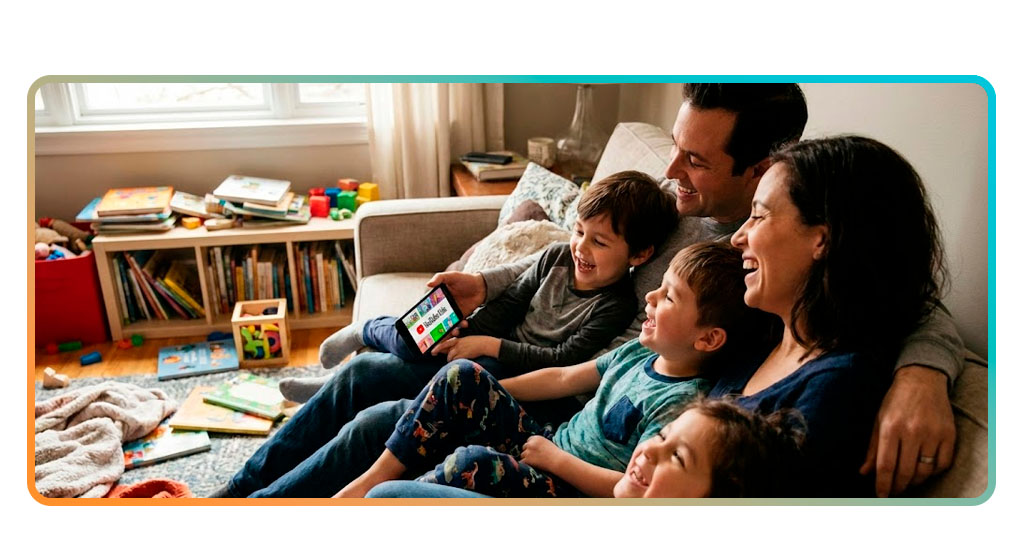
Block YouTube for kids and allow safe videos only
Kids move through screens fast. That is why strong controls exist not to restrict enjoyment but to keep viewing safer and more aligned with your expectations.
When screens are shared, boundaries matter. Blocking tools help define what belongs in your child’s space while supporting content that fits their age and everyday interests.
Instead of checking every video manually, set boundaries once. The app applies those rules quietly, so your child stays within content you have already reviewed and allowed.
Restrict access with built-in parental controls
Parental controls on YouTube for kids let adults shape what appears and what stays hidden. You can block content, set timers, and manage access without extra tools.
Access can also be locked behind a code. This keeps settings secure so only adults adjust filters, open restricted areas, or approve changes whenever they find it necessary.
With these controls active, the app shifts from open browsing to a calmer space that follows your rules while respecting your child’s pace and daily routines.
Use approval-only mode to curate every video
Approval-only mode gives parents full control. Your child can’t watch anything unless you’ve manually allowed it first, which helps create a focused and predictable experience.
This setting is available inside YouTube for kids, offering a curated environment with zero surprises. It’s a great choice for families who prefer total oversight daily.
Even with approval-only mode, you can still adjust settings anytime. New videos can be reviewed and added gradually as your child’s needs and interests grow.
Turn off search to prevent exposure to unwanted content
The search bar opens the door to everything. Turning it off means your child only sees content picked and filtered based on the age range you selected.
This is helpful if you’d rather limit distractions. Without search, children stay on track instead of clicking into unrelated or confusing topics that aren’t helpful.
Families using YouTube for kids can easily toggle search off in the settings. It’s quick to do and helps keep the experience safer without extra effort.
Related: How to Set Up Parental Controls on Google TV and Android TV
Parental control that actually works
YouTube Kids gives parents better control over what children watch, offering tools that create a calmer screen experience. It’s built to support safe habits while still leaving room for curiosity.
This was a guide by Insiderbits designed to show how YouTube for kids can work with your family’s habits, preferences, and values without making daily screen time stressful.
Want more ideas like this? Keep browsing. Insiderbits covers tools, guides, and tips that help make digital entertainment safer, smarter, and more manageable for kids of every age.