
Have you ever taken the ideal picture and then noticed that the background is ruined by a random object, a stranger, or a trash can? Do not be concerned. Photoshop and costly tools are not necessary to fix it. With just a few taps, you can effortlessly remove objects from your photos using Snapseed, a free photo editing app from Google.
You may be repairing old memories, editing selfies, or cleaning up travel photos, Snapseed’s Healing tool makes it simple and quick to remove distractions right from your phone. Think of it as a digital eraser that replaces unwanted parts with surrounding details, to make them blend naturally into the image. Download Snapseed and erase unwanted objects today.
- Le 5 migliori applicazioni per la sicurezza delle foto per mantenere le vostre foto al sicuro
- 6 modi semplici per cambiare il colore di un'immagine in Photoshop
- App per colorare vecchie foto in meno di un minuto
Remove Objects From Photos With Snapseed
Snapseed is one of the most powerful free photo editors available for Android e iOS. Its clean interface and professional-grade tools let anyone enhance photos like a pro — no design experience required.
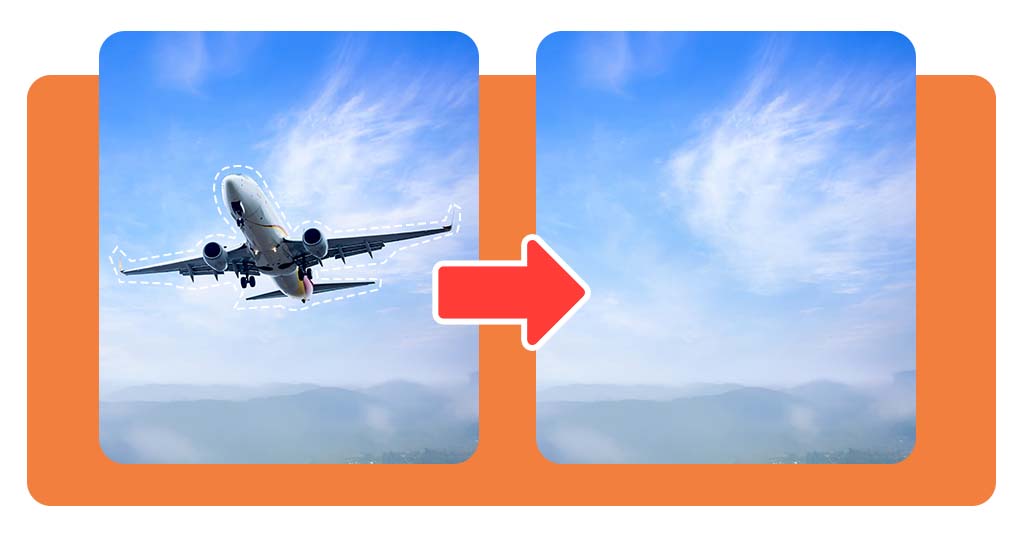
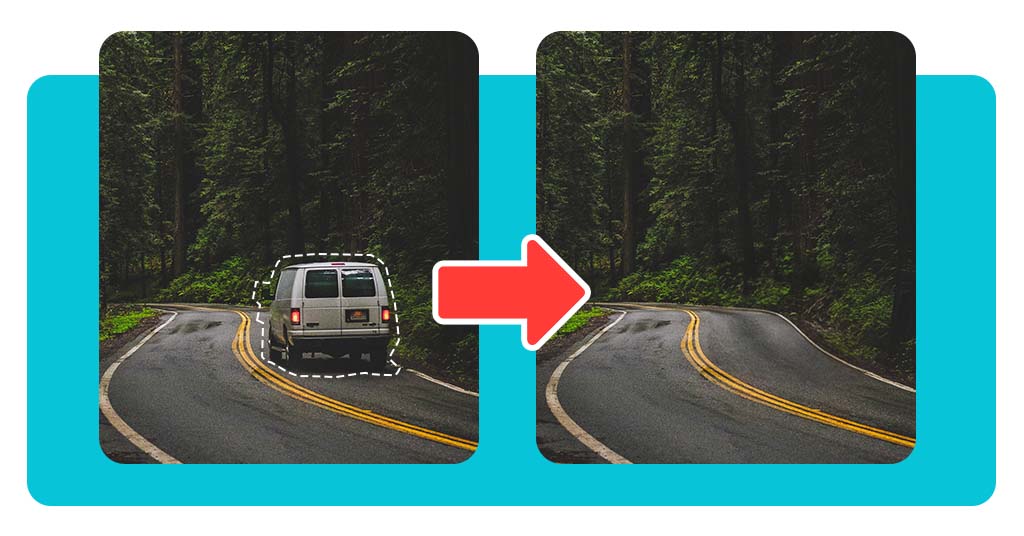
Among its many features, the Healing tool stands out for one reason: it lets you remove objects from any photo seamlessly. Here are a few examples of what you can do with this tool:
- Remove people from a crowded background
- Clean up street signs, power lines, or shadows
- Fix imperfections in old scanned photos
- Make product photos look cleaner and more professional
With Snapseed, you can retouch your photos anywhere, anytime, for free.
4.7/5
Step-by-Step: How to Erase Unwanted Items
Ready to clean up your photos? Here’s a simple step-by-step guide to remove objects from photos using Snapseed:
Step 1: Open Your Photo
Lancio Snapseed and tap the “+” icon to import your picture from your gallery. You can choose any image — a selfie, a landscape, or even an old photo you want to restore.
Once loaded, your image will open on the main editing screen, ready for adjustments.
Step 2: Select “Tools”
At the bottom of the screen, you’ll find Snapseed’s main editing panel filled with creative options like Tune Image, Details, Curves, and more.
Tap “Tools”, then select “Healing”. This is the feature that allows you to erase unwanted objects such as bystanders, dust spots, wires, or anything else that distracts from your subject.
Step 3: Zoom and Adjust
Precision is key when editing. Use two fingers to zoom in on the object you want to remove.
The closer you zoom, the more control you’ll have over fine details, especially if you’re working around complex textures like hair, water, or patterns in the background.
Take a moment to align the view so you can work comfortably on the target area.
Step 4: Paint Over the Object
Now comes the magic. Gently drag your finger over the object or blemish you want to erase. As soon as you release, Snapseed automatically fills the space with matching colors and patterns from the surrounding area.
The app’s algorithm intelligently blends everything so the result looks natural — not “edited”. For larger or oddly shaped objects, you can erase in short strokes rather than one big motion. This helps maintain a more realistic look.
Step 5: Review and Refine
If the first attempt doesn’t look perfect, no problem. Just tap the undo arrow and try again.
Sometimes reapplying the tool with smaller, overlapping strokes creates a more seamless finish. You can also zoom out frequently to check how the overall image looks.
Remember, subtlety makes a big difference. A few careful passes are better than one rushed swipe.
Step 6: Save Your Edited Photo
Once you’re satisfied with the result, tap Export → Save a Copy. This option ensures your original photo remains untouched while saving a new version of your edited image. Your photo is now cleaner, sharper, and ready to share — all in under a minute.
Extra Tools to Perfect Your Edits
Snapseed offers a full suite of tools to make your pictures stand out even more. After using the Healing tool, try enhancing your image with these features:
- Tune Image: adjust brightness, contrast, and saturation for a balanced look;
- Details: sharpen textures and make photos pop;
- Portrait: perfect selfies with subtle lighting and skin tone adjustments;
- Lens Blur: create depth and focus attention on your subject;
- Curves & White Balance: fine-tune colors for a professional-grade finish.
With these tools, you can take a quick phone snapshot and turn it into something stunning — all without leaving the app.
Where to Download Snapseed for Free
Snapseed is completely free and available for both Android e iOS devices.
Once installed, open any photo and start experimenting. The more you use it, the better your results will be.
Why Snapseed is Worth Trying
Unlike other photo editing apps that hide features behind paywalls or subscriptions, Snapseed offers all its tools for free, including the Healing tool. That means you can:
- Remove objects instantly, without watermarks or ads;
- Edit offline, no internet required;
- Save in high quality, preserving your photo’s original resolution.
It’s perfect for students, travelers, small business owners, or anyone who wants clean, professional-looking images without extra cost.
Learn More: Snapseed Help Center
4.7/5
Pensieri finali
You don’t need a desktop or pricey software to make your photos flawless. With Snapseed, anyone can remove unwanted objects, clean up scenes, and polish images like a pro, right from their phone.
Start by removing one distraction, then explore the app’s other tools to enhance your shots even further. Before long, you’ll have a collection of photos that look professionally edited, without spending a cent.
Make your photos picture-perfect in seconds.
Related Reading: Best Apps for Photo Editing