You hand your phone to someone so they can see one specific photo. A vacation. A meme. A screenshot you swear is harmless. Then comes the moment of collective anxiety: the sideways swipe. Suddenly, your entire camera roll feels like a glass house with the curtains wide open. This is not paranoia. Oh, no. This is modern life.
Phones have become wallets, diaries, document folders, and emotional archives. The need for a locked folder has all to do with boundaries. Google Photos Locked Folder exists precisely for this, promising peace of mind by removing sensitive images from plain sight, notifications, memories, and even cloud backups.
- Google Photos AI: Turn Your Photos into Amazing Video Clips for Free
- Diventate nostalgici con i ricordi di Google Photos
- Come ottenere il massimo da Google Foto
Keep personal moments safe from prying eyes
Since that promise comes with trade-offs that are rarely explained clearly, let’s talk about what it actually does, what it does not do, and why understanding the fine print matters.
What is the Locked Folder in Google Photos designed for?
Shortly, to isolate selected images and videos from your main gallery. Once moved, those files disappear from the photo grid, search results, albums, and “Memories” highlights.
This matters more than it sounds. According to a 2023 research study, over 80 percent of adults keep sensitive personal data on their phones, including IDs, financial documents, and private images. Yet, most users still rely on basic screen locks alone.
A locked folder adds a second layer of friction. Even if someone unlocks your phone, they cannot access those protected files without biometric authentication or a device passcode. This feature is especially useful for:
- Personal photos you do not want surfacing accidentally;
- Screenshots of documents like passports or visas;
- Medical records or prescriptions;
- Work-related images that should stay private;
- Travel documents stored temporarily, similar to what we discuss in this Insiderbits’ article.
The value here relies not on secrecy, but in control.
Setting up google photos locked folder on any device
The setup process is intentionally simple, but it varies slightly depending on your device.
Su Android, Google Photos Locked Folder is deeply integrated into the system. You can set it up directly from the app settings, choose a lock method, and start moving files immediately.
Su iOS, the experience is more limited. Google Photos exists, but system-level restrictions mean the Locked Folder behaves differently and lacks the same depth of protection available on Android.
To activate the feature on Android:
- Open Google Photos and go to “Library;”
- Tap “Utilities” and select “Locked Folder”;
- Choose your authentication method;
- Move selected photos or videos into the folder;
- Confirm the transfer and verify access protection.
Even though Google Photos is available on Android e iOS, the Locked Folder feature is most robust on Android devices, as confirmed by Google’s own documentation.
The distinction matters, especially for users who assume feature parity across platforms.

4.5/5
What happens to your cloud backups when you hide items?
Here is the part Google does not highlight loudly enough. Photos and videos stored in the Locked Folder are not backed up to your Google Photos cloud by default.
They are kept locally on the device. That is the security advantage, but also the biggest risk.
Once moved:
- Files are removed from cloud backups;
- They do not sync across devices;
- They are excluded from shared albums;
- They will not reappear if you reinstall the app;
- They are permanently lost if the device is lost, reset, or damaged.
Trust me, it’s not a bug, but the core design. Locked Folder prioritizes privacy over redundancy. If you rely heavily on cloud recovery, this feature requires deliberate planning.
Ideal for temporary storage or high-sensitivity items, not irreplaceable memories, unless you maintain secure external backups.
Accessing protected files with biometrics or passcodes
Security inside the Locked Folder mirrors your device’s strongest authentication method. That means fingerprint, facial recognition, or a PIN, depending on your settings.
Every access attempt requires verification. Files cannot be previewed through notifications, widgets, or external apps. Even screenshots are restricted on some devices.
Compared to similar tools like Samsung Secure Folder, which creates an entirely separate encrypted environment, Google Photos Locked Folder is more lightweight. It focuses narrowly on media files, not apps or system data.
An approach that reduces complexity and lowers the risk of misconfiguration, making it accessible to average users without sacrificing baseline protection: In practice, fewer options means also fewer mistakes.
Crucial mistakes to avoid to prevent accidental deletion
Although Locked Folder improves privacy, it also makes user error more likely. The most typical errors consist of:
- Deleting Google Photos without moving files out of the Locked Folder;
- Resetting the phone without backing up sensitive images elsewhere;
- Assuming cloud sync still applies;
- Forgetting which account or device stored the files;
- Using Locked Folder for long-term archival storage.
Once the app is removed or the device is wiped, those files are gone. Permanently.
Samsung’s own documentation for Secure Folder highlights similar risks, reinforcing that local-only security always trades convenience for control:
The difference is that Google’s interface makes the process feel deceptively safe. It works so smoothly that users forget the lack of a safety net.
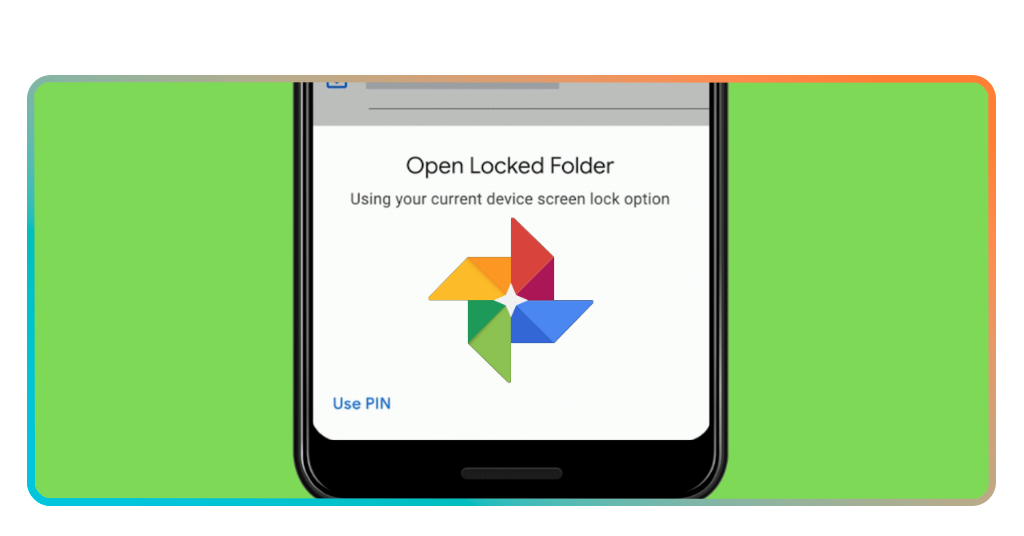
Why locked folder is about peace of mind, not secrecy
The Locked Folder feature exists for everyday life. For boundaries. For moments you want to keep private without encrypting your entire phone or installing third-party tools.
Removes sensitive images from casual exposure, from algorithmic resurfacing, and from accidental sharing. That alone reduces stress in a world where phones are constantly passed around.
At the same time, informed use is essential. Knowing that files become local-only changes how you store documents, how long you keep them there, and when you should move them back to the main library.
This balance between privacy and responsibility is what separates a useful feature from a dangerous one.