
Rent, groceries, and gas tend to claim most of your paycheck, leaving little room for a reliable connection at home. Checking your free internet eligibility could change that story for good.
This guide from Insiderbits walks through Lifeline qualification, the application steps involved, and practical ways to trim your household bills, putting genuine monthly relief within your reach.
Correlato: Home internet test: see how your Wi-Fi is performing now
How to check your free internet eligibility easily?
Il Lifeline Program gives your household a federal discount on monthly phone or internet service, and you might already meet the requirements based on your income level.
Il Federal Communications Commission oversees this benefit, while the Universal Service Administrative Company processes applications for homes nationwide.
A handful of quick details about your household set your free internet eligibility in motion, covering everything from your income bracket to any government benefits you currently receive.
Features available on the Lifeline Support portal
- Apply and manage your benefit: submit a new application, recertify your enrollment each year, and track your approval status directly through the online site;
- Switch or transfer your service: move your benefit to a new provider once a month, or change companies entirely when your current plan stops working;
- Find help fast: locate participating companies near your home address, browse frequently asked questions, or reach a live representative every day of the week.
Income-based versus program-based qualification
One path to qualifying centers on programs you might already use, such as SNAP, Medicaid, public housing assistance, or veterans’ pension and survivor benefits.
The other path relies on your household earnings, comparing your total income against the federal poverty guidelines based on your state and the number of dependents you support.
Extra protections for survivor applicants
Survivors of domestic violence, human trafficking, or related crimes face a separate track toward free internet eligibility, built around extended criteria beyond the standard program requirements.
Your information stays protected throughout the entire process, and approved survivors can still receive up to six months of emergency support before recertification requirements even apply.
Documents you may need on hand
If you’re qualifying through a program like Medicaid or SNAP, expect to show an official benefit letter or another document confirming your active participation in that specific program.
If income determines your qualification instead, gather a recent tax return or a few consecutive pay stubs, as these documents help confirm your household earnings fall within range.
Correlato: Social benefits app: find local programs available to you
Step-by-step: how to apply for government benefits online
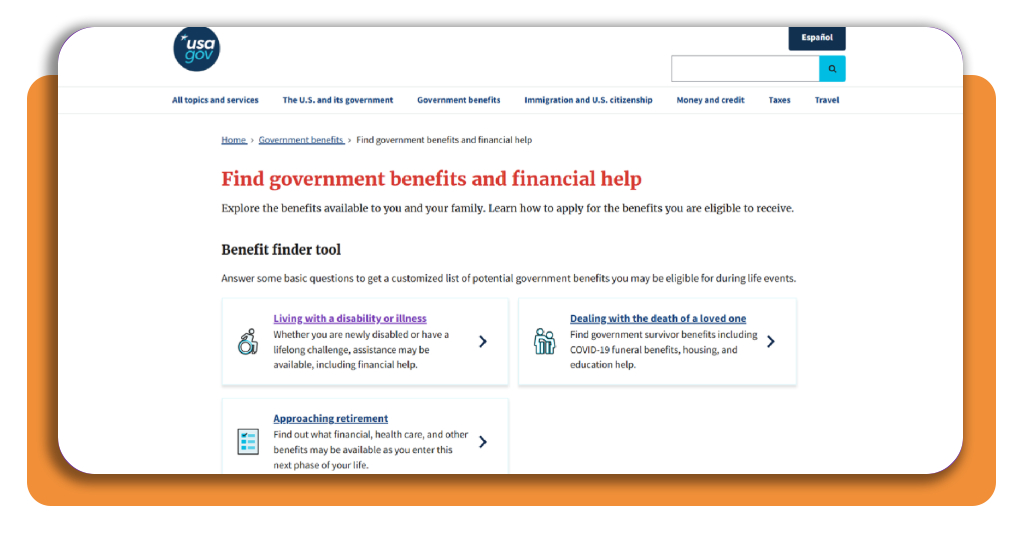
USA.gov runs a benefit finder tool for anyone juggling rent, bills, and daily expenses on a tight budget, connecting your household with real assistance programs.
Beyond general categories, this resource offers dedicated paths for specific life events, walking you through options tied to disability, the loss of a loved one, or retirement planning.
Lifeline sits among the programs this benefit finder can surface for you, meaning checking your free internet eligibility takes only a few extra clicks once you start searching.
Step 1: access the benefit finder and select your aid
Visit the official benefit finder page directly on USA.gov, where every available category sits ready for you to browse the moment the page finishes loading completely.
Choose the category that matches your situation, whether that’s retirement, dealing with loss, or disabilities, and your selection shapes every result the finder shows you next.
Step 2: answer a few quick questions
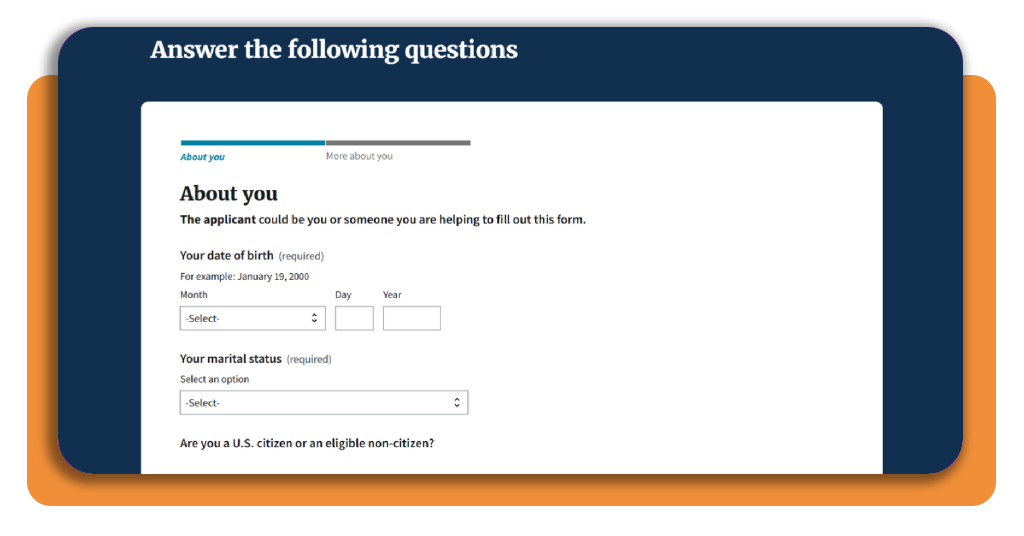
The finder asks about your household size, your state of residence, and your current income range, narrowing the list of programs down to what is available to you.
None of these questions ask for sensitive details like your Social Security number, letting you move through the entire form quickly without worrying about handing over personal information.
Step 3: gather your supporting documents
Depending on the specific benefit you’re pursuing, you’ll need proof like recent pay stubs, a tax return, or a letter confirming your enrollment in a qualifying assistance program.
If Lifeline shows up among your results, having proof of free internet eligibility ready, like a benefit award letter or recent utility bill, speeds up final verification.
Step 4: submit your application and wait
Before you submit anything, scroll back through every field you filled out, checking your name, address, and income figures against the documents sitting right in front of you.
Approval notices typically arrive within a couple of weeks, and once your household gets the green light, reach out to a participating provider to activate your new service.
How to save money on monthly utility bills for free
Energy prices, water rates, and phone plans shift throughout the year, and providers don’t usually notify you when a cheaper rate or new discount becomes available.
Local utility companies and state programs sometimes run assistance funds that go unclaimed simply because most customers never think to ask their provider about them directly.
Bundling these savings with free internet eligibility through Lifeline means you could see relief across several bills at once, not just your internet connection.
Switch providers for cheaper monthly bills
Shopping around for a new provider on your phone, internet, or energy plan puts real leverage in your hands, especially in areas where several companies compete for business.
Before you commit to a new company, check whether your current contract carries an early termination fee, as certain providers waive that charge for loyal, long-term customers.
Claim discounts before they expire
Plenty of assistance programs open only during specific months of the year, and missing that narrow application window means waiting an entire year for another fair shot.
Providers offering Lifeline discounts sometimes require yearly recertification, and confirming your free internet eligibility on time keeps that discount active.
Track spending to avoid late fees
Writing down every due date for your rent, utilities, and phone plan on a calendar keeps your monthly budget visible instead of scattered across mailboxes and email accounts.
Setting up automatic payments through your bank account handles due dates directly, protecting your credit score while keeping late fees away from your budget each month.
Bundle services to cut extra costs
Combining your phone, internet, and cable service under one provider unlocks a discount that beats paying for each service through separate monthly bills from several different companies.
Before locking into a bundle, add up each service and compare that total against the bundled price, as some packages include add-on features you rarely even use.
Correlato: WIC SNAP qualification: check your benefit eligibility
Turning eligibility into everyday relief
Il Lifeline Program exists to help your household pay less for phone or internet service each month, and applying takes far less effort than most people expect going in.
In this Insiderbits guide, you saw how free internet eligibility works, what it takes to apply for benefits online, and what you can do to trim your household bills.
Insiderbits has plenty of articles to help you stretch your paycheck further, covering official government benefits and resourceful apps. Keep browsing for more knowledge!
Domande frequenti
What is the Lifeline Program?
The Lifeline Program is a federal benefit that provides eligible low-income households with a discount on monthly phone or internet service. It is overseen by the Federal Communications Commission (FCC) and administered by the Universal Service Administrative Company (USAC).
How do I check my free internet eligibility?
You can check your eligibility through the Lifeline Support portal at lifelinesupport.org. A few quick details about your household — such as your income level and any government programs you participate in — are enough to get the process started.
What programs qualify me for Lifeline?
You may qualify if you participate in programs such as SNAP, Medicaid, public housing assistance, or veterans’ pension and survivor benefits. You can also qualify based on your household income falling within the federal poverty guidelines.
What documents do I need to apply?
If you’re qualifying through a program like Medicaid or SNAP, you’ll need an official benefit letter or a document confirming active participation. If qualifying by income, gather a recent tax return or a few consecutive pay stubs to confirm your earnings fall within the eligible range.
How long does approval take after I apply?
Approval notices typically arrive within a couple of weeks. Once your household is approved, you can reach out to a participating Lifeline provider to activate your discounted service.
Are there special eligibility rules for survivors?
Yes. Survivors of domestic violence, human trafficking, or related crimes can access a separate eligibility track with extended criteria. Approved survivors may also receive up to six months of emergency support before recertification requirements apply.