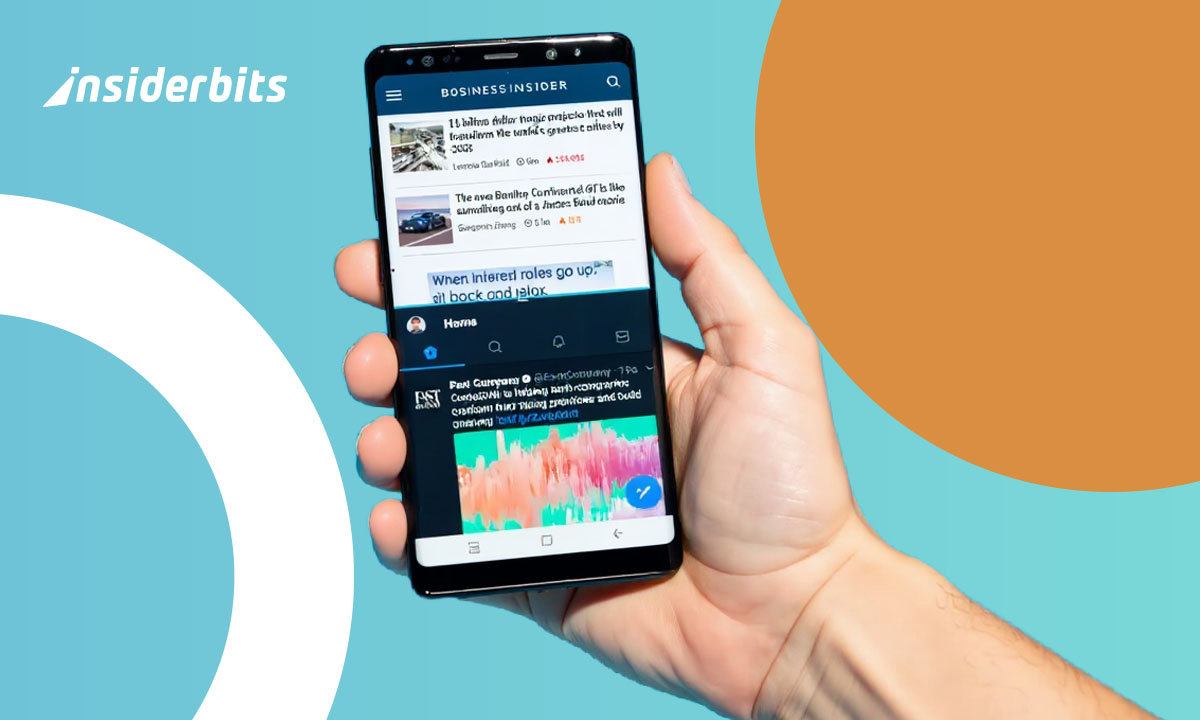
You’ve probably done it before: watched a video while checking your messages, or copied something from the web into another app. But did you know your Android phone can actually run both apps side by side? Welcome to Split Screen mode, one of Android’s most underrated built-in tools.
No extra downloads, no paid apps, just pure multitasking power. With Split Screen, you can open two apps simultaneously and interact with both, whether you’re replying to emails while streaming YouTube or comparing notes between Chrome and Google Docs. Let’s break down how it works, why it’s so useful, and how to master it like a pro.
- Beyond the Screens: Protect Your Eye Health With Apps
- Bring Your Screen to Life with Animated Wallpapers!
- Suggerimenti semplici per scattare screenshot su dispositivi Android
Split screen on Android: how it works
Split Screen is a native Android feature, meaning it’s already built into most phones, no need for third-party software. The function divides your screen into two adjustable sections, each running a separate app in real time.
This is a serious productivity tool that lets you:
- Read and reply to messages while watching videos;
- View a presentation while taking notes in Google Keep;
- Compare prices between shopping apps without switching windows;
- Keep a translation app open during a video call;
- Manage social media and emails side by side.
Different brands like Samsung, Xiaomi, and Motorola may tweak the interface slightly, but the idea remains the same: your phone becomes a multitasking machine.
Step-by-step: how to open two apps at the same time
Here’s how to activate Split Screen on most Android devices. And yes, it’s easier than you think:
- Open your first app: start by launching the app you want to use on one side of the screen;
- Access recent apps: swipe up from the bottom (or use the recent apps button, depending on your navigation settings);
- Tap the app’s icon: on the preview window of your first app, tap its icon at the top;
- Select “Split screen”: choose the option from the menu. The app will automatically move to the top (or left) half of your screen;
- Choose your second app: the bottom (or right) half of the screen will show your recent apps or home screen. Tap the second app you want to open;
- Adjust the divider: drag the center bar to resize each window depending on what you need to focus on;
- Exit Split Screen mode: drag the divider completely up or down to return to full-screen view.
Within seconds, you can be doing twice as much with half the effort.
Tips to make multitasking easier
Utilizzo Split Screen is simple, but mastering it takes a few small tweaks that can elevate your experience. Here’s how to get more out of it:
- Combine the right apps: not all apps support Split Screen (like some games or camera tools). Stick to productivity apps like Chrome, Notes, Gmail, YouTube, or WhatsApp;
- Pin your favorites: keep your go-to multitasking pair, like Docs + Chrome or YouTube + Telegram, pinned to your recent apps for quicker access;
- Use landscape mode: if you’re watching videos or reviewing visuals, rotate your phone horizontally. It gives you more screen real estate and comfort;
- Reduce distractions: turn on “Do Not Disturb” to keep notifications from breaking your workflow;
- Practice drag-and-drop: on some phones, you can drag text, images, or links from one Split Screen app into another. Perfect for quick sharing or research.
Want to mirror your screen to a bigger device while multitasking? Check out this guide to learn how to cast your phone to a TV or computer for an even more efficient setup.
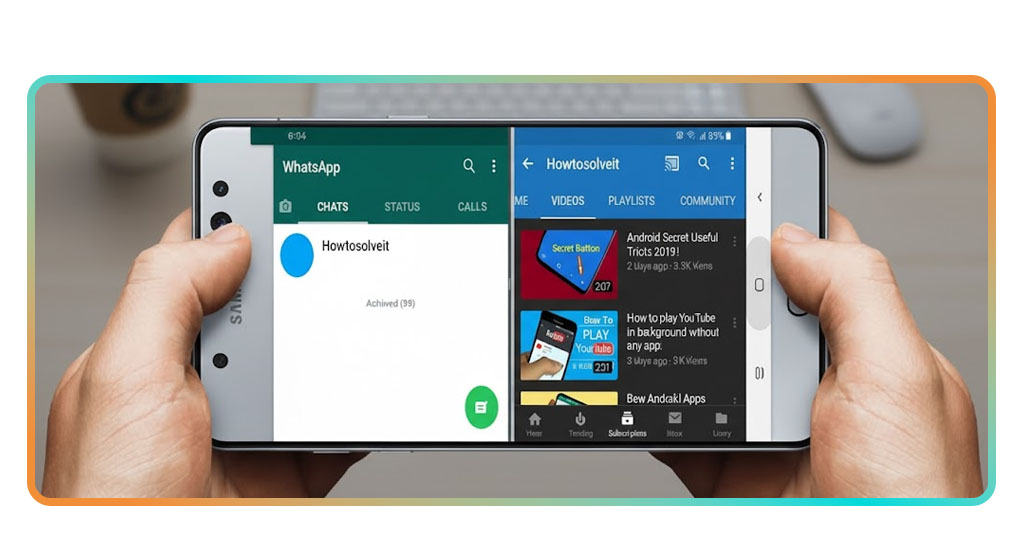
Where to enable split screen on your device
While the feature is built into most Android phones, how you enable it can vary slightly by manufacturer. Here are a few examples:
- Samsung (One UI): go to Settings, then to “Advanced features” then to “Labs”, and make sure Multi Window is turned on. You can then swipe up with two fingers to trigger Split Screen instantly;
- Pixel and stock Android: follow the steps above or long-press the app icon in recent apps to select “Split screen”;
- Xiaomi/Redmi: access “Recent Apps”, tap and hold one app, then choose “Split screen” from the top of the screen;
- Huawei: swipe up from the bottom with two fingers or tap the multitasking icon, depending on your EMUI version.
For detailed instructions, you can also check Google’s official support page o Samsung’s Multi Window guide.
Informazioni
Platforms: Android
Dimensioni: Varies by device
Download: Pre-installed
Valutazione: ⭐ 4.7/5 stars (native Android feature)
Prezzo: Gratuito
Why split screen deserves more attention
Despite being around for years, Split Screen mode is one of Android’s most overlooked tools. Maybe because it hides in plain sight, or because users assume it’s complicated — spoiler: it’s not. Once you try it, it’s hard to go back.
Think about it. You can study while watching tutorials, check your bank app while making online purchases, or compare documents during work calls.
It’s the kind of subtle productivity boost that saves minutes every day — and over time, that adds up.
So go ahead and give your multitasking game an upgrade. Boost your productivity, reduce app-switching chaos, and experience Android the way it was meant to be used.
Use two apps at once — try Split Screen today.