
You open a site, type what you think is your password, and get locked out again. The cycle repeats so often that the “forgot password” button starts to feel like part of the login process, which is exactly where a password manager app steps in to break the loop. Instead of juggling dozens of logins in your head, you shift the burden to a tool built for it.
For most people, the issue is not creating passwords; it is remembering them consistently across platforms. Between banking, streaming, work tools, and random accounts you forgot existed, the mental load piles up quickly. A password manager app promises to centralize that chaos into something manageable without requiring a memory upgrade.
4.8/5
What a password manager app is and what it does
A password manager app is a security tool that stores, generates, and encrypts your login credentials in a secure environment.
Instead of reusing simple passwords like “123456” or “Password123″—which are prime targets for hackers—the app creates long, randomized strings for every site you visit.
You only need to remember one “Master Password” to unlock the entire vault, allowing the software to handle the heavy lifting of logging you into apps and websites automatically.
As a proactive security hub, a password manager app monitors the dark web for data breaches, alerts you if your information has been leaked, and identifies which of your current passwords are weak or overused.
By using a manager, you follow the highest security standards recommended by CISA, effectively making your digital footprint nearly impossible for cybercriminals to compromise.
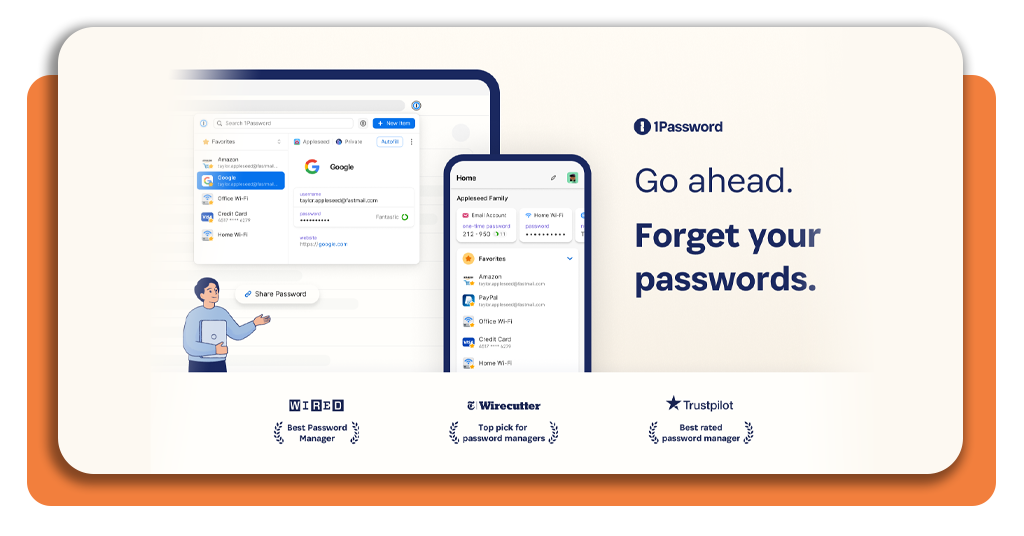
Step-by-step: how to use 1Password
1Password is widely considered one of the most reliable options in the market due to its intuitive design and robust protection. To start securing your accounts with this password manager app, follow this guide:
Step 1: download and install
Visita il sito App Store o Google Play to install the app on your smartphone and tablet.
Step 2: create your master password
Choose a phrase that is long and memorable but impossible for others to guess. This is the only password you will ever need to remember again.
Step 3: secure your secret key
1Password provides a unique “Secret Key” for your account. Download your Emergency Kit and store it in a physical safe location, as this key is required to log in on new devices.
Step 4: import your data
Use the built-in import tool to pull existing passwords from your browser (like Chrome or Safari) into the app.
Step 5: enable autofill
Go to your phone’s settings and select 1Password as your primary autofill provider. Now, when you tap a login box, the app will suggest the correct credentials instantly.
Passwords you can store in the tool
Many users assume a password manager app is strictly for social media or email logins, but its utility is far broader—you can transform your vault into a complete digital safe for:
Financial information: store credit card numbers, bank account details, and CVV codes for faster, more secure online shopping;
Official documentation: keep digital copies of your passport, social security number, and driver’s license for quick reference during travel or applications;
Software and licenses: save the activation keys for your computer programs and professional subscriptions so you never lose them during a hardware upgrade;
Confidential notes: use the app to hide WiFi passwords, alarm system codes, and sensitive medical history;
Two-factor authentication (2FA): modern apps can store your 2FA seeds, generating one-time codes directly inside the vault to replace clunky SMS or separate authenticator apps.
Security features, encryption levels, and more
The foundation of any reputable password manager app is its encryption standard. 1Password utilizes AES-256 bit encryption, which is the same protocol used by the military and top-tier financial institutions.
This ensures that even if a hacker were to intercept your data, it would appear as gibberish that would take billions of years for a supercomputer to decode.
Furthermore, the “Zero-Knowledge” architecture of this app ensures that your data is encrypted locally on your device before it ever reaches the cloud.
Not even the employees of the app company can see your passwords.
In 2026, features like Watchtower have become standard, providing real-time analytics on your “Password Health” and notifying you if a website you use has been compromised.
Pro features and tonal adjustments
For those who use their app in a professional capacity, the Pro features offer a level of control that goes beyond basic storage.
You can enjoy RAW support for document scanning and 16-bit image depth for high-quality tonal adjustments on your saved identification documents.
Additionally, users can set the size of their canvas for custom secure notes, ensuring that layout and readability are preserved.
If you are interrupted while organizing your vault, photo sessions and notes are auto-saved, allowing you to continue your security audit exactly where you left off.
Plans for every user
While you can download the app for free to explore its interface and basic functions, the full range of security features is available through a subscription:
Individual plan: priced at approximately $2.99 per month (billed annually), this plan covers one person with unlimited password storage on unlimited devices, plus 1GB of encrypted file storage;
Families plan: at roughly $4.99 per month (billed annually), this is the best value for households. It covers up to five family members and allows for “Shared Vaults,” making it easy to share WiFi passwords or streaming logins safely;
Teams and business: starting around $7.99 per user, these plans offer advanced administrative controls, activity logs, and integration with professional security suites for companies.
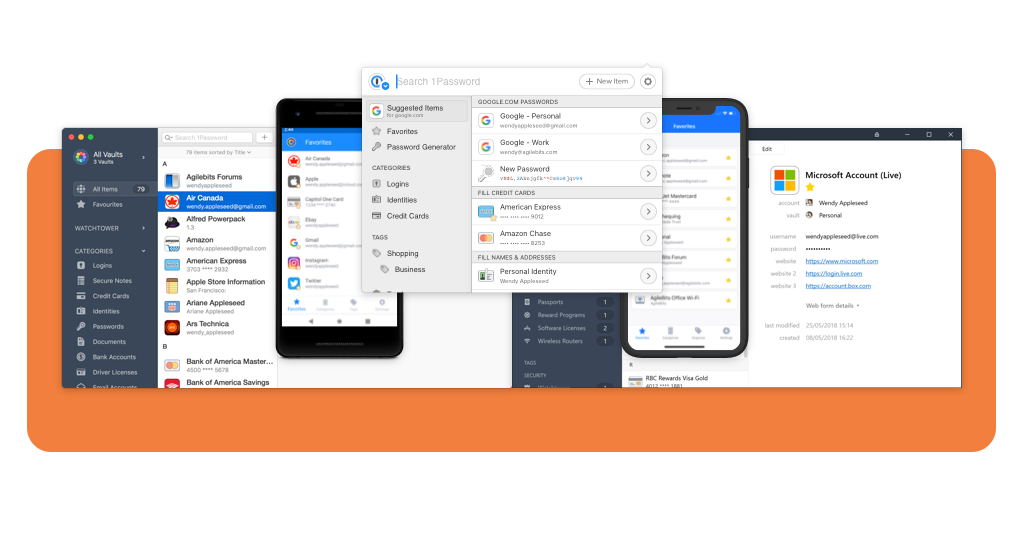
Common mistakes to avoid when using password manager app
Even with the best password manager app, your security is only as strong as your habits. Avoid these frequent pitfalls:
- Using a weak master password: if your “one password to rule them all” is easy to guess, your entire vault is vulnerable. Use a long “passphrase” rather than a single word;
- Forgetting to update breached logins: when the app alerts you to a breach via Watchtower, act immediately. Ignoring these warnings leaves a door open for hackers;
- Losing the recovery key: because of the high level of encryption, the company cannot “reset” your account if you forget your Master Password. Always keep your Emergency Kit in a safe, physical place;
- Storing passwords in browsers: browsers are often less secure and more susceptible to local malware. It is always safer to use an app that requires biometric or Master Password verification for every access.
4.8/5
Take control of your privacy today
Investing a few minutes to set up a password manager app today will save you countless hours of stress in the future.
Whether you are managing personal accounts or professional credentials, the security provided by tools like 1Password is the best defense against the growing tide of cybercrime.
For more insights on the best digital tools for your smartphone, visit our comprehensive guide on password manager apps at Insiderbits.