Watching a cinematic trailer for a massive “AAA” title like Cyberpunk 2077, only to realize your current hardware is a generation behind, is common for millions of players. For the average, the $2,000 entry fee for a high-end desktop often confines premium experiences to those with deep pockets. This leaves mobile-only users stuck with simplified titles while the world of PC games on mobile remains an unreachable dream.
A Insiderbits, we consider high-fidelity gaming to be a right rather than a luxury only available to those with expensive gear. You can transform your smartphone into a portable powerhouse by utilizing low-latency streaming. With just one tap of an icon, you can now play the heaviest PC games on your phone thanks to modern cloud infrastructure, ending the days of sacrificing resolution or frame rates.
- Are You Tired Of Playing On Your Mobile? Get To Know These Ten Best Free PC Games
- TOP 5 Giochi in arrivo su Google Play
- Stream Xbox games to your PC and play anywhere
How to play your PC games on mobile?
Cloud gaming is changing how people access high-performance titles, removing the need for expensive hardware or long downloads.
Instead of running locally, the game is processed on remote servers and streamed in real time, turning even a smartphone into a capable screen.
For users looking to experience PC games on mobile at high frame rates and color depth, the shift is significant.
There’s no need to deal with 100 GB installations or overheating devices, since the processing happens entirely in data centers.
In practice, getting started is straightforward: a stable internet connection, access to a cloud gaming platform, and optionally, external peripherals like controllers or keyboards.
From there, your device becomes a gateway to advanced features such as ray tracing and ultra-high resolutions.
Modern codecs like AV1 and H.265 help maintain responsiveness, reducing latency and preserving image quality even on mobile networks.
The result is an experience that increasingly mirrors what players expect from a desktop setup.
CloudGear: a deep dive into the pro gaming browser
As cloud gaming grows, specialized tools are emerging to make the experience more seamless. One example is CloudGear, a browser designed specifically for high-performance streaming.
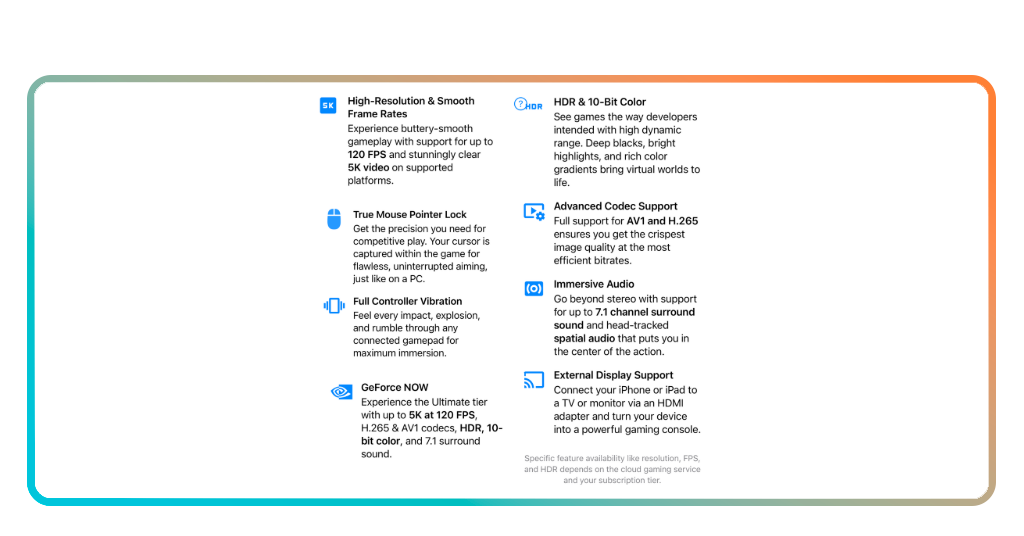
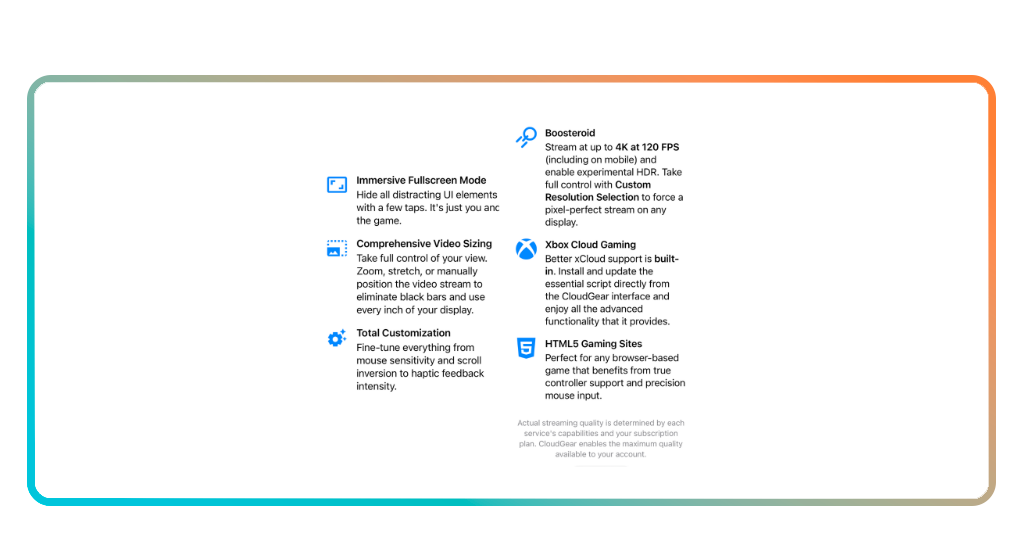
It supports up to 5K resolution and 120fps, with a rendering engine optimized for platforms like GeForce NOW, Xbox Cloud Gaming, and Boosteroid. For those focused on PC games on mobile, the difference is in the details.
CloudGear integrates advanced codecs such as H.265 and AV1 to maintain visual fidelity and responsiveness, even over cellular connections.
It also expands how mobile devices are used, enabling output to external monitors or AR glasses without the formatting issues common in standard screen mirroring.
This effectively turns an iPhone or iPad into a portable gaming station.
While it operates as a premium service, CloudGear offers a 7-day free trial, giving users the chance to test features like mouse support, keyboard integration, and spatial audio before committing.
After trial, you get to choose the following plans:
- Full Unlock – 1 Month: $1.99;
- Full Unlock – 1 Year: $17.99;
- Full Unlock – Lifetime: $44.99.

Step-by-step: how to play PC games on mobile using CloudGear
Setting up your mobile device to handle high-end desktop titles is a straightforward digital process. To ensure you get the lowest possible latency for your PC games on mobile, follow these chronological steps.
Step 1: download the streaming portal
Navigate to the App Store to install the CloudGear application, which acts as the dedicated interface between your phone and the cloud servers.
Step 2: create your gaming profile
Open the app and register for a free account; this will allow you to sync your settings and save your favorite cloud shortcuts for faster access.
Step 3: link your digital libraries
Connect your existing accounts from platforms like Steam or NVIDIA GeForce NOW within the app to see your personal collection of PC games on mobile.
Step 4: configure your virtual controller
If you don’t have a physical Bluetooth controller, use the app’s internal settings to map on-screen buttons that mimic a standard Xbox or PlayStation layout.
Step 5: run a connection benchmark
Use the app’s diagnostic tool to check your ping and jitter; for a smooth experience, a 5GHz Wi-Fi connection or a stable 5G cellular signal is highly recommended.
Step 6: launch your first title
Select a game from your library and hit “Play”. The cloud server will spin up instantly, delivering a high-definition stream of your favorite PC games on mobile within seconds.
Tips for a better experience and connection
The biggest enemy of a cloud gamer is “input lag,” which is the delay between pressing a button and seeing the action on screen. To master PC games on mobile, you must prioritize your network stability.
A strong Wi-Fi setup is often the easiest win. Whenever possible, opt for a 5GHz band instead of 2.4GHz, which tends to be more congested and susceptible to interference from other devices.
The difference can be subtle on paper but noticeable in fast-paced gameplay. On mobile data, consistency matters more than raw speed.
A solid 5G signal with full bars helps sustain the high bitrate required for smoother visuals, especially when advanced features like ray tracing are involved.
In the end, cloud gaming performance depends less on your device and more on the strength and stability of the connection behind it. Fine-tuning that link is what turns a playable session into a seamless one.
How to improve your gaming experience
To truly elevate your sessions, consider investing in a “wrap-around” mobile controller, such as a Backbone or Razer Kishi.
These devices turn your phone into a handheld console, providing the tactile feedback necessary for fast-paced shooters or complex RPGs.
Furthermore, you can explore this comprehensive guide to cloud platforms to see which servers offer the best performance in your specific geographic region.
If you are a fan of the Microsoft ecosystem, don’t miss our tutorial on how to stream Xbox games directly to your device to expand your library of PC games on mobile even further.
Hardware freedom in the palm of your hand
The democratization of gaming means that your skill should be the only limit to your performance, not your bank account.
Playing PC games on mobile is no longer a futuristic concept—but a current reality that allows you to carry a $2,000 gaming rig in your pocket.
Download the right tools today and reclaim your right to play any game, anywhere, at any time.