There was a time when searching the internet meant typing long descriptions like “blue shoe with weird buckle vintage maybe 90s”. Thankfully, those dark ages are behind us. With Google Lens in Chrome, you can now highlight an image, a product, a piece of text, or even part of a video, and get instant, visually matched results. It’s for people who don’t want to take the time to explain what they see, which is pretty much all of us.
Trying to find the source of a picture or the name of that cool gadget you found can take a lot of time and tabs. This tool will save you time and keep you from going crazy. Not only is Google Lens in Chrome useful, it’s also the closest thing we have to a browser that can read your mind. You won’t go back once you know how to use it well.
- Android Fights Back: Presents Google Scam Tool
- Android Hacks: How to Switch From Google Assistant to Gemini AI
- Best Google Messages Animations and How to Activate Them
Use Google Lens in Chrome browser for fast searches
Google Lens in Chrome builds on the same visual-search tech you find in the standalone Google Lens app.
But instead of switching apps or uploading images manually, Chrome lets you run Lens directly on any image, frame, or screenshot inside the browser.
The feature is already baked into Chrome. Whether you’re identifying landmarks, translating signs, checking prices of furniture, or stalking the origin of a mystery outfit, Google Lens in Chrome gives you immediate answers without juggling multiple tabs.
This makes it perfect for students, professionals, travelers, shoppers, and anyone who prefers visual info over text.
Considering how much content today is audiovisual and image-based, the ability to search what you see makes browsing significantly smarter.
And if you want a broader look at how Google’s ecosystem uses visual tools, check out the Insiderbits guide.
Step-by-step: identify images, products, and text
Using Google Lens in Chrome takes less time than making instant noodles. Here’s the cleanest guide to getting started:
- Open Chrome and find any image or visual element you want to analyze;
- Right-click the image and choose “Search image with Google Lens”;
- Chrome opens a Lens sidebar on the right side;
- Review results, which may include product matches, pages containing similar images, translations, or related searches;
- Refine or crop the search area if the image contains multiple objects;
- Click any result to open it in a new tab.
For text inside images — signs, menus, screenshots —, you can highlight the text within the Lens sidebar to translate or copy it.
Chrome uses the same translation engine, but adds the advantage of pulling text from photos. If you want to improve your browsing workflow even more, here’s the full Chrome to download.
Features that make browsing smarter
Google Lens in Chrome really stands out as a power move for anyone who multitasks or researches visually.
Key features
Visual product search: perfect for online shopping detectives. Find similar items, compare prices, track down original stores, and avoid overpriced dupes.
Instant text translation: for travelers or students, highlighting foreign text inside the Lens sidebar brings up immediate translations, word definitions, and contextual meaning.
Copy text from images: for the chronically screenshot-dependent (we all know who we are), Lens extracts text cleanly so you don’t have to retype anything.
Find image sources and versions: useful for journalists, designers, academics, and anyone who needs to verify visual content.
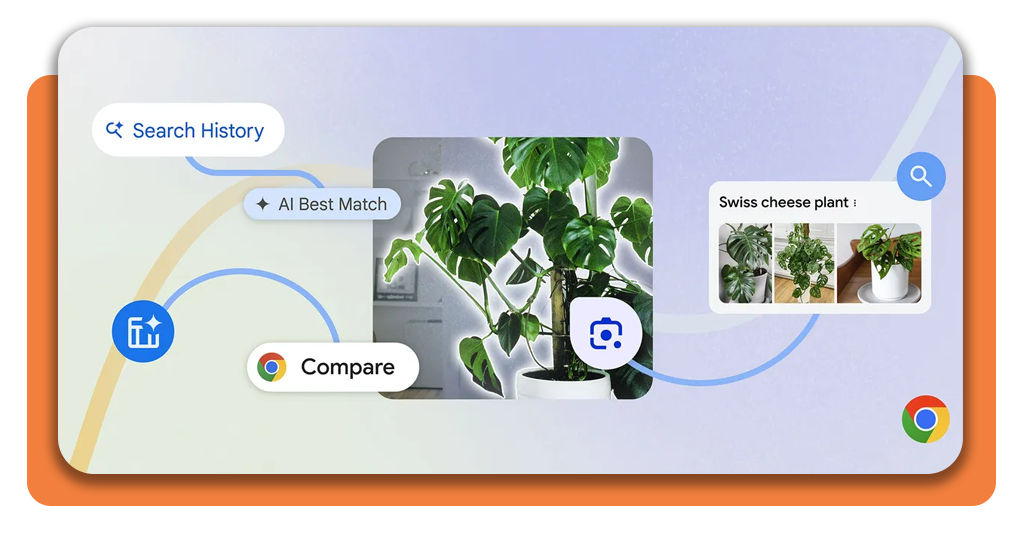
Identify plants, animals, and landmarks: because sometimes you see a cute plant and want it but don’t know its name.
This integration is especially powerful compared to traditional search because it removes friction. Instead of typing your best guess into a search bar, you simply right-click and let AI handle the heavy lifting.
Where to access Google Lens in Chrome
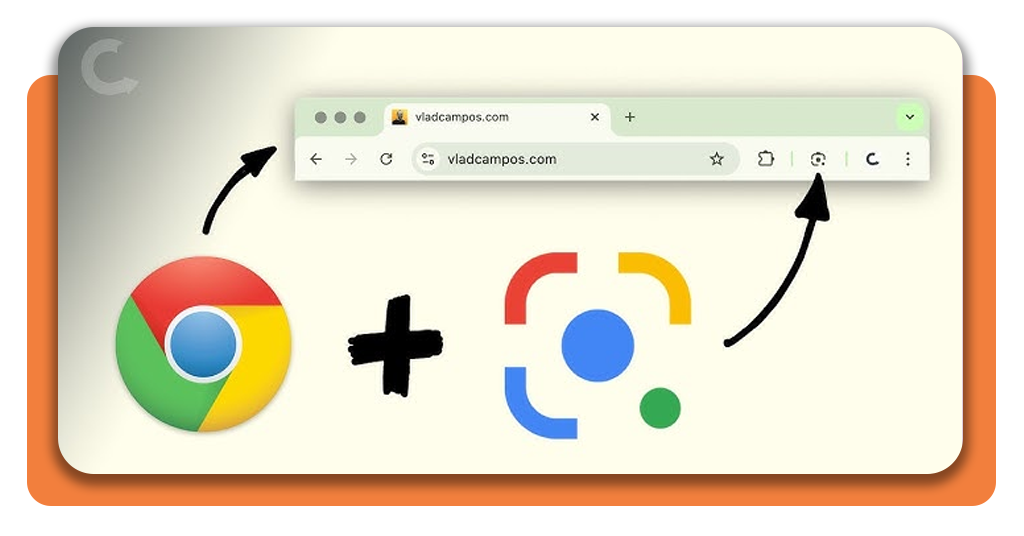
Accessing Google Lens in Chrome is easier than trying to explain memes to your parents. The tool is embedded directly in the browser, so all you need is:
- An updated version of Google Chrome (check for updates in Settings);
- An image or visual element on any webpage;
- Right-click to activate Lens.
If you’re on a Chromebook or using Chrome on desktop, the experience is identical. The tool appears in the same context menu.
On Android, Chrome also includes Lens natively, though the interface may redirect to the dedicated Lens app for advanced options.
For official instructions, Google’s support page breaks down all the tech details.
Why it beats manual searching
Using Google Lens in Chrome dramatically reduces the time you spend guessing keywords. Instead of describing what you see, you let the browser handle the interpretation:
- Fashion items or aesthetics where naming is subjective;
- Foreign language text that is difficult to type manually;
- Products without clear brand labels;
- Landmarks or artwork with no identifying info;
- Scientific illustrations or technical images that require precision.
How Google Lens in Chrome compares to standalone Google Lens
You might be thinking: “If Google Lens already exists as an app, why use the Chrome version?”. Good question — and yes, I know you’re the kind of person who asks the good questions. Here’s the difference:
Standalone Google Lens
Works best for real-world searches: snapping photos, scanning documents, translating street signs, identifying objects in your environment.
Google Lens in Chrome
Shines in digital research: online shopping, analyzing images in articles, identifying screenshots, translating text from photos online, fact-checking visuals.
Using both gives you a full visual-search toolkit. But if you spend most of your time in Chrome — for work, study, doomscrolling, or managing fifty tabs like a digital dragon —, the built-in version is the fastest choice.
Final thoughts
Google Lens in Chrome is one of those features people underestimate until they try it. Once you use it to identify a product from a Pinterest image, translate a foreign menu, or confirm whether a viral picture is real, it becomes part of your everyday browsing routine.
If you want to step into the world of visual browsing, update your browser, right-click an image, and let Lens do the rest. Search faster. Search smarter. Search visually.