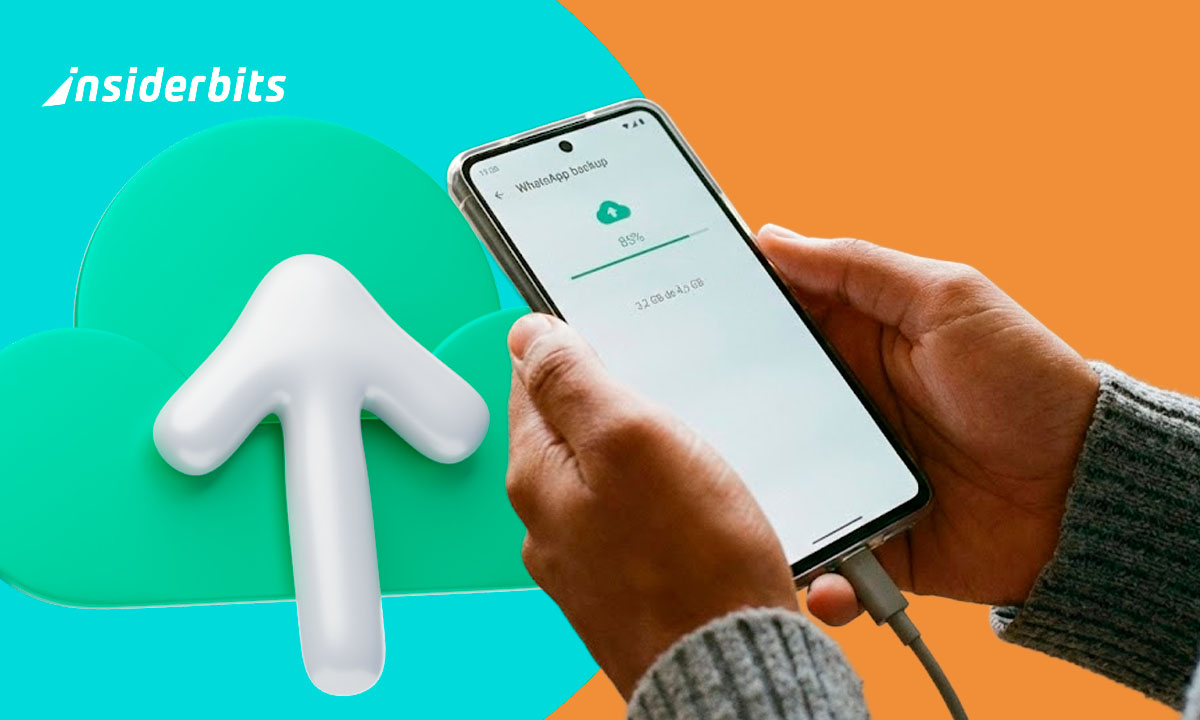
Backing up WhatsApp has quietly become one of the most important habits for people who depend on the app to store entire conversations that cover everything from family stories to work messages and even those last-minute photos that somehow became essential. This is a practice that protects messages against the unpredictable nature of phones, especially because devices fail at the worst possible moment, while cloud storage keeps your history untouched and waiting for you.
When you back up WhatsApp, it is the kind of protection that brings surprising comfort to everyday life since you no longer need to worry about losing conversations that might contain personal memories, travel plans, or important files you promised to send but forgot. Once activated, cloud backup turns WhatsApp into a safe digital archive that survives accidents, resets, battery deaths, and other incidents. If you want to protect your conversations, read the article below to activate automatic cloud backup and keep your chats safe forever.
- Is Your iPhone Safely Stored? Checking Your iCloud Backup
- 15 Ways to Create Fun Status Updates for WhatsApp
- 5 Must-Have Sticker Apps for WhatsApp Users
How to Back Up WhatsApp Backup to the Cloud
WhatsApp allows users to store chats in the cloud so their messages remain accessible no matter which device they use, which helps maintain continuity even when phones are replaced, lost, or unexpectedly retired from service.
Android users that want to back up Whatsapp depend on Google Drive while iPhone users rely on iCloud, creating two different routes that lead to the same sense of stability because both platforms preserve messages in a safe remote space.
The system does its job quietly in the background once configured, which takes pressure off your shoulders and keeps your conversations protected even when you forget that backup exists.
Anyone who has experienced the panic of losing a phone knows exactly how valuable this invisible safety net becomes for daily communication.
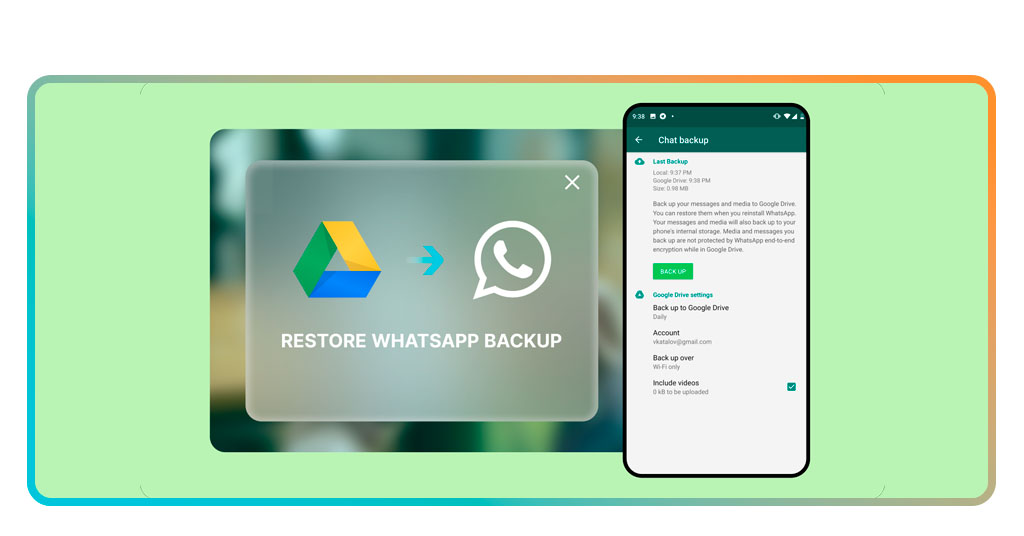
Step-by-Step: Enable Automatic Cloud Backup
Follow this short guide below to effectively back up WhatsApp right now:
- Firstly, open WhatsApp (App Store/Google Play Store) and access Settings, which is the place where the app keeps all the essential tools hidden behind a menu that most people visit only when something goes wrong;
- Then, tap Chats and then select Chat Backup, a section that concentrates every option related to cloud storage and gives you a clear view of how your history will be protected;
- Choose Google Drive if you use Android or iCloud if you have an iPhone because WhatsApp sends your messages to the service that matches your device automatically once this connection is confirmed;
- Pick a backup frequency that fits your routine, since some people prefer daily protection while others feel comfortable with longer intervals, depending on how active their conversations usually are;
- Activate Auto Backup so WhatsApp updates your cloud history on its own;
- Confirm the cloud account linked to your device to guarantee your messages have a defined destination before the app starts sending your photos, videos, and conversations into safe storage;
- Run a manual backup once to test the connection, which gives you immediate reassurance that the system is working correctly and your chat history is already stored in the cloud;
- Keep an eye on the date of the last backup from time to time, because checking this small detail helps you stay confident that everything continues to sync normally without interruptions.

4.5/5
Features That Protect Your Messages and Media
WhatsApp encrypts backups stored in the cloud, which helps keep your private messages protected even when saved remotely and accessed later during restoration.
The app organizes your photos, videos, and conversations into a structured format that loads with surprising ease during new installations, avoiding that messy feeling of missing content or broken message history.
Having the option to decide whether media should be included in the backup gives users more control, especially when storage space becomes an issue and priorities need to be set carefully.
A manual backup option stays available for users who want a fresh copy saved before big trips, updates, or moments when the phone starts acting suspiciously.
Where to Download WhatsApp
WhatsApp is available in the Google Play Store and the App Store through secure links that guarantee the most recent and reliable version for your device.
The official WhatsApp website also provides direct downloads, which helps anyone who prefers installing through a browser or needs a clean version after troubleshooting.
Once installed, the setup process feels simple and quick enough for beginners, which makes configuration smooth even for people who rarely adjust phone settings.
After completing setup, users can reach the backup screen in seconds and activate cloud protection without dealing with unnecessary complexity.
4.5/5
How to Back Up WhatsApp Chats Automatically to the Cloud – Conclusion
When you back up Whatsapp, it gives your messages a stable home in the cloud so your information survives device failures, unexpected resets, and phone replacements that used to erase everything instantly.
Once activated, the automatic system works silently in the background and protects your history without demanding daily attention from you, which makes cloud backup one of the easiest digital habits to maintain.
With a single configuration, you’ll be able to protect your WhatsApp messages with just one simple setting.
Related: Add Music to Your WhatsApp Status – Try These Simple Tricks
Enjoyed this article? Save the Insiderbits blog to your favorites for the latest tools, creative tech tips, and photo editing breakthroughs.