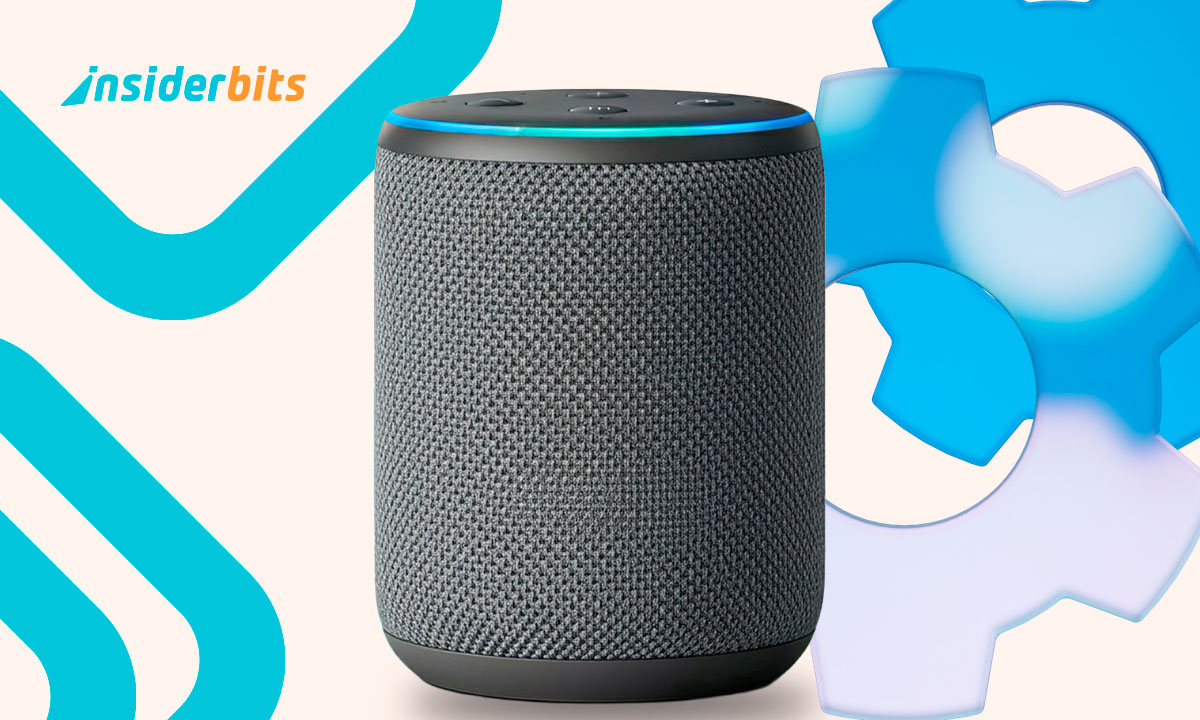
Of course, Alexa is helpful, we all know that, but sometimes it is too helpful. It hears reminders before you forget them, plays music the moment you ask, and occasionally responds to things you’re convinced you didn’t say. Smart speakers are convenient, but they also sit in the middle of your home like tiny digital observers. That’s why taking control of your privacy settings is essential if you want your conversations to stay yours.
Many people don’t realize how many options Amazon hides inside the Alexa app. For example, you can find voice history, stored recordings, shared data, permissions you forgot you approved, and Alexa quietly keeps track of more than most users expect. The good news is that tightening your privacy only takes a few minutes, and once you adjust those settings, the device becomes far less nosy. This guide by Idées reçues walks you through how to protect your voice data and keep your home conversations private. Secure your Alexa today — adjust your privacy preferences in minutes.
- Comment connecter Alexa au WiFi sans l'application ?
- Comment réparer Amazon Alexa lorsqu'elle ne fonctionne pas
- Alexa+ Update Brings Smarter AI Features to Your Home
Alexa Privacy Settings: What to Adjust Right Now
Alexa’s privacy panel is the control room where you decide what the device remembers, what it listens for, and what it sends back to Amazon.
The most important setting is voice recording retention. By default, Alexa can store your voice interactions indefinitely, which is convenient until you realize you don’t really want a permanent collection of your kitchen conversations sitting in a server somewhere.
One of the other privacy settings worth checking is the one that allows Amazon to use your recordings to improve voice recognition.
While the intention might be noble, many users prefer keeping their audio out of automated training systems. Turning that off gives you a cleaner, more private experience.
You should also review which third-party services have access to your Alexa account. Over time, skills you tested once or apps you linked casually may still have permission to pull information or respond to your commands.
In short, cleaning those up removes clutter and strengthens privacy in one sweep.
Step-by-Step: Delete Voice History and Limit Data Sharing
Here’s a simple guide to help you review and adjust the most important privacy settings:
- To begin with, download the Alexa app on the Google Play Store sur le App Store depending on your device;
- Once the app is installed, open the app and enter More. Then, tap “Settings”, and choose Alexa Privacy;
- After getting there, browse through stored recordings and delete anything you don’t want kept. You can also activate auto-deletion so old recordings vanish on schedule;
- Disable “Use of Voice Recordings”. Turn off the option that allows Amazon to use your audio to improve its AI models;
- Also, disable data-sharing features that send interactions or transcripts to Amazon for analysis;
- Review which apps or smart-home skills have access to your account and remove anything you no longer use;
- Lastly, turn on Alexa Mute when needed. The physical mute button cuts the microphones entirely, ideal for private moments or family conversations you want to keep offline.
Each of these changes gives you more control over what Alexa hears, and what it remembers.

4.7/5
Features That Keep Your Conversations Safe
Alexa includes several built-in privacy settings protections that many users overlook. The device indicators, for example, are surprisingly informative.
When the light turns blue, Alexa is actively listening. Meanwhile, when it’s red, the microphones are off completely. It’s a small visual cue, but it offers peace of mind during moments when privacy matters.
Another protective feature is the option to block human review. In the past, Amazon used human auditors to help improve voice recognition accuracy.
Although this is now optional, many users still prefer turning it off entirely. Once disabled, your recordings stay out of training loops, human or automated.
If you have a child in the house, you can also manage how Alexa interacts with kids by enabling Amazon Kids.
This resource will add an extra privacy layer while limiting certain data uses, making the smart speaker feel less like a wide-open gadget and more like a supervised assistant.
And for households that use multiple Alexa devices, there’s a handy option to control voice recognition accuracy.
You can train Alexa to recognize your voice, which reduces accidental activations and prevents responses meant for another person in the house.
Where to Find Amazon’s Official Privacy Tools
Amazon keeps a dedicated Alexa Privacy Hub, and it’s surprisingly thorough. This page explains how Alexa handles data, why certain features exist, and which settings impact your privacy the most.
Inside the Alexa app, the privacy dashboard organizes everything in one place: settings, permissions, history logs, and management tools.
Check the guide above to learn how you can adjust your preferences from your phone in seconds, and the changes apply instantly to every Alexa device tied to your account.
If you prefer using a computer, the browser version gives you even more visibility. You can examine detailed logs, review smart-home connections, and remove linked services with fewer taps.
Ultimately, Amazon doesn’t advertise these tools loudly, but they’re there, and they’re genuinely useful when you know where to look.
4.7/5
Privacy Settings You Should Test Today to Protect Your Alexa – Conclusion
Alexa can be incredibly convenient, but convenience shouldn’t mean sacrificing privacy. A few adjustments inside the Alexa app are enough to transform the device from a curious listener into a more respectful assistant.
Securing your privacy settings doesn’t take long, and the payoff is a home environment where your conversations stay personal.
So, if you are that one person who’s always looking to keep your stuff only for you, protect your voice data and keep your home conversations private.
En rapport : Try these Alexa commands to boost your smart home
Enjoyed this article? Save the Idées reçues blog to your favorites for the latest tools, creative tech tips, and photo editing breakthroughs.