Unknown callers can break your concentration with unexpected interruptions that arrive at inconvenient moments, and iPhone users often face this issue with calls that come from unfamiliar sources. This situation becomes even more uncomfortable when suspicious numbers appear repeatedly because it creates an impression of urgency that does not match the actual intent of the call. Thankfully, there’s a simple way to silence these unknown callers by changing some options on iPhone settings.
In summary, Apple introduced a native feature that filters unknown callers and sends them straight to voicemail, creating a calmer environment without cutting off communication with people who matter to you. The setting protects your routine through a simple adjustment that removes noise from your day while keeping essential calls fully accessible. This experience reflects a smoother way to manage your device, since everything works automatically once the feature activates. We explain in the article below how you can block unknown numbers without missing important calls.
- Best Apps to Identify and Block Spam Calls
- How Google Meet AI Translations Are Changing Global Calls
- App to make free calls abroad: your family just one click away
How to Silence Unknown Callers on iPhone
To silence unknown callers, you work through a straightforward logic that sends unfamiliar numbers to voicemail while allowing contacts, recent interactions, and Siri suggestions to ring normally.
That’s it! This is the feature that eliminates pressure to answer unexpected calls.
Also, the feature creates a strong layer of protection since it reduces the space that spam and robocalls use to reach your phone.
The system does this with minimal friction because the caller hears one ring before automatic redirection, which preserves accessibility for people who might try again later.
With that, the option appears directly under phone settings, and one of the best things is the function runs in the background without extra steps.
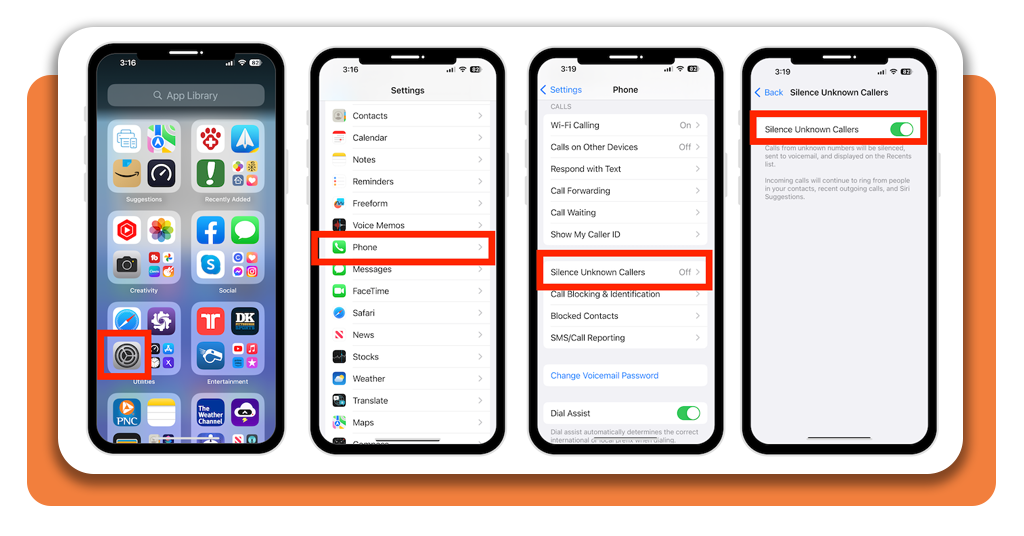
Step-by-Step: Enable the Feature in Settings
- The process starts inside the Settings app, where the menu centralizes all call controls in a simple layout;
- The option to silence unknown callers appears clearly marked within the list and displays a short explanation showing how the filter sends unfamiliar numbers to voicemail;
- Once located, open Settings from the home screen, and select Phone to access call management options, then tap silence unknown callers;
- After turning the feature On, the adjustment activates immediately, keeping calls from saved contacts active while unknown callers remain quiet in the background.
The Difference Between Blocking and Silencing Calls
The main difference is blocking a number stops this specific number from reaching your phone. That happens because the system rejects every attempt instantly and prevents any notification from appearing.
On the other hand, when you silence unknown callers works differently, since it redirects unfamiliar numbers to voicemail and lets them appear in the call log without disrupting your screen.
This distinction matters for situations where you want to eliminate persistent contacts permanently while still allowing unknown or unexpected callers to leave information when needed.
The combination of both tools creates a balanced environment where unwanted numbers disappear completely and unfamiliar calls remain accessible without interrupting your day.
Extra Tips to Block Spam and Robocalls
While you can use the feature to silence unknown callers, Apple offers additional resources through tools that organize blocking lists and limit unwanted interactions.
For example, third-party carriers also support spam protection with alerts that identify suspicious behavior and mark calls accordingly.
The iPhone displays these labels automatically once the carrier’s system detects a pattern that resembles a robocall.
Consequently, you block persistent numbers manually. By combining these filters, you can build an even stronger barrier.
As you can see, you can take just small adjustments to create a safer environment for your daily use because your attention stays undisturbed throughout the day.
Keep Your Phone Quiet and Secure
After silencing unknown callers, you will notice a quiet phone gives you more control over your routine. So this feature helps shape this experience through a simple toggle that removes unexpected rings from your environment.
This setting reinforces your digital comfort, since you avoid distractions created by unfamiliar callers who cannot bypass the filter.
It is important to highlight that the feature does not affect emergency communication, as contacts and familiar numbers continue to reach you normally.
This balance maintains accessibility without sacrificing silence, which creates a stable experience in situations where focus matters.
The result supports a healthier relationship with your phone because interruptions lose their ability to derail your attention.
Unknown Callers: Learn To Silence Unknown Callers on iPhone With Just One Tap – Conclusion
Silencing unknown callers brings a sense of clarity to your day, since interruptions lose their impact once the feature starts filtering unfamiliar numbers.
The iPhone handles this function in a gentle and efficient way that keeps essential calls fully available while preserving your quiet moments.
Anyone looking for a calmer digital routine will appreciate the simplicity of this system. Your iPhone becomes a more peaceful companion as random calls fade into a private space that never interrupts your day.
En rapport : How to Make Text Bigger on Phone: Accessibility Made Easy
Enjoyed this article? Save the Idées reçues blog to your favorites for the latest tools, creative tech tips, and photo editing breakthroughs.