Fast talkers and side comments make meetings harder to follow. Live Transcribe listens carefully and writes everything out so you catch more without needing to interrupt.
It’s built into Android and works quietly while you focus. No extra gadgets needed. Just open it once and let it handle the back-and-forth with clear captions.
Idées reçues created this guide to make things simpler, clearer, and more accessible. Keep reading to learn how to get free live captions for any conversation instantly.
En rapport : Best Dyslexia-Friendly Resources for Adults
Live Transcribe: free real-time captions app
Keeping up with spoken words isn’t always easy. This free app offers an easy way to follow conversations as they happen using only your Android phone.
Once installed, it listens and displays speech as readable text in real time. Whether you’re in class or a meeting, you can finally read what’s said.
This tool changes how people connect during fast conversations. Try Live Transcribe and follow every word in real time with less stress and no interruptions or repeats.
4.1/5
Built in partnership for better access
The app was made with help from Gallaudet University to reflect actual communication needs, not just what developers thought might work for accessibility.
Every detail was chosen with intention. Vibrations alert you when your name is spoken, and custom vocabulary makes it easier to follow familiar names or terms.
It’s not designed for show. It’s built for real life, where conversations change quickly and background sounds shouldn’t get in the way of understanding what’s important.
Speak, type, or listen in real time
Spoken words appear as captions. Typed replies show instantly. You don’t need to switch modes or explain how you communicate. Everything stays fluid and natural.
Support for over 120 languages means Live Transcribe adapts fast. You can even add your own terms to improve recognition for names, local words, or phrases.
Not everyone wants to speak out loud. This app lets you type your reply and still stay engaged without having to pause the flow around you.
Works quietly while you focus on the conversation
The captions stay tucked into the bottom edge of your screen. No flashes, no pings, just text that appears when people speak near your phone.
It doesn’t chase noise or demand your attention. The app filters sound and turns voice into readable words while you stay present in the conversation.
You won’t notice much until you check the screen. Then you’ll see how Live Transcribe follows along silently, catching what was said while you’re still listening.
Features that improve accessibility and focus
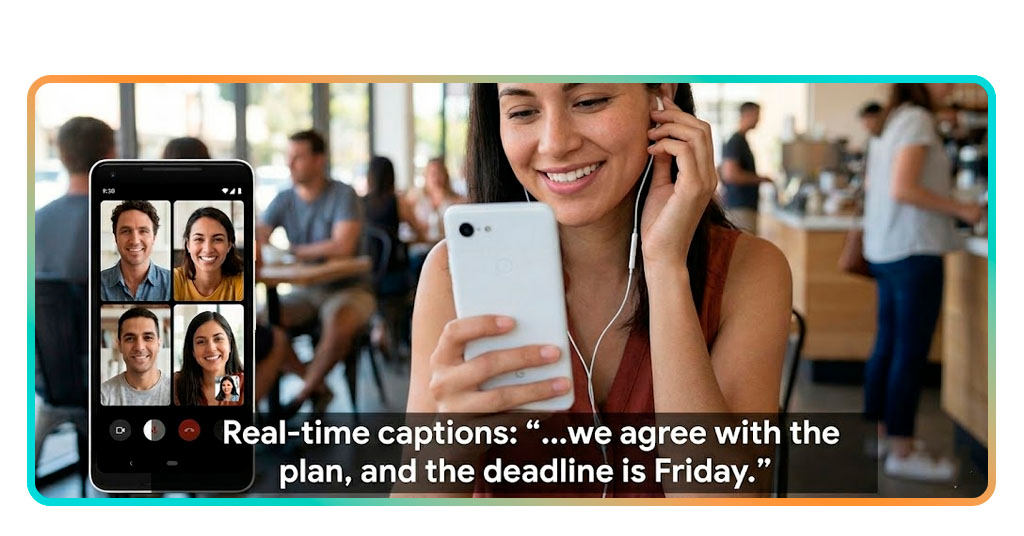
Following fast conversations in loud spaces can be exhausting. Real-time captions help you stay engaged without needing to ask people to slow down or repeat themselves.
Accessibility isn’t just about reading words. It’s about how those words appear, how distractions are filtered out, and how attention stays centered on what really matters.
With the right combination of cues, captions, and audio filtering, this app becomes more than a transcription tool. It becomes part of how you manage noisy environments daily.
Customize words and get name alerts
Not every name or phrase is easy to transcribe, especially when it’s specific to your work or region. That’s where Live Transcribe offers customization tools that help.
You can add your own terms into the app, so it learns how people speak around you. No more guessing or correcting captions during important discussions.
Alerts for your name are also available. If someone says it during a meeting, your phone vibrates and highlights that moment, so you never miss your cue.
Vibration cues and foldable screen tricks
Not all communication is visual. Vibration feedback works in silent rooms or loud ones. It nudges you quietly without flashing or making noise across the entire space.
You’ll also notice how Live Transcribe supports foldable phones. Captions appear on the outer screen so you can read while facing others, even during brief conversations.
The layout adapts based on your device. Large screens show more text, while smaller ones stay compact. Either way, features are balanced to keep everything readable and discreet.
Stay focused with visual sound awareness
Sometimes it’s not speech that matters. A baby crying, a doorbell ringing, or a fire alarm can carry just as much weight in the moment.
Visual sound notifications use shapes and icons to show what’s happening. You can look down and instantly understand what sound just triggered the alert on your phone.
This feature works with or without captions active. It even stores past sound events for later review. Live Transcribe becomes your quiet listener when you need extra support.
En rapport : Hidden Accessibility Features That Boost Your Phone’s Power
Step-by-step: how to use it during meetings or classes
There are some tools that feel like work before they even start. This one keeps things simple, so all you need is your phone, a voice, and a few seconds.
Whether you’re in a crowded room or on a quiet call, captions make it easier to follow along and participate fully, without asking anyone to repeat themselves.
The steps below show how to get everything running in minutes. Download the free app and never miss a meeting detail again, even when conversations move fast.
Step 1: enable Live Transcribe on your Android device
Open your phone settings and go to “Accessibility”. You’ll find the caption tool listed under “Installed apps”, where Live Transcribe appears as an option. Tap to allow microphone access.
Once activated, a microphone icon appears on your screen. Tap it anytime you need captions, and the app will start listening and turning voices into text right away.
You don’t need to install anything complicated. Just make sure your Android version supports the feature and that your internet is working when using voice recognition.
Step 2: position your device for accurate captioning
Where you place your phone matters. Keep it near the speaker or audio source so the microphone can clearly pick up voices without echo or background interference.
If you’re in a group, try putting the phone on a table between participants. Small adjustments make a big difference when using Live Transcribe.
Avoid blocking the microphone or covering the screen with papers or other items. That way, the captions stay clean, fast, and easy to follow during the conversation.
Step 3: follow the conversation and adjust settings if needed
Once captions start showing, just focus on the screen. You’ll see every sentence appear as people speak, with breaks and punctuation added automatically.
You can also adjust the font size, switch languages, or pause the captions if the meeting takes a break. Everything’s done with simple taps on screen.
These little controls help personalize the experience, making it more comfortable for long sessions or fast talks. That’s part of the power behind using Live Transcribe.
How to access your transcriptions if needed
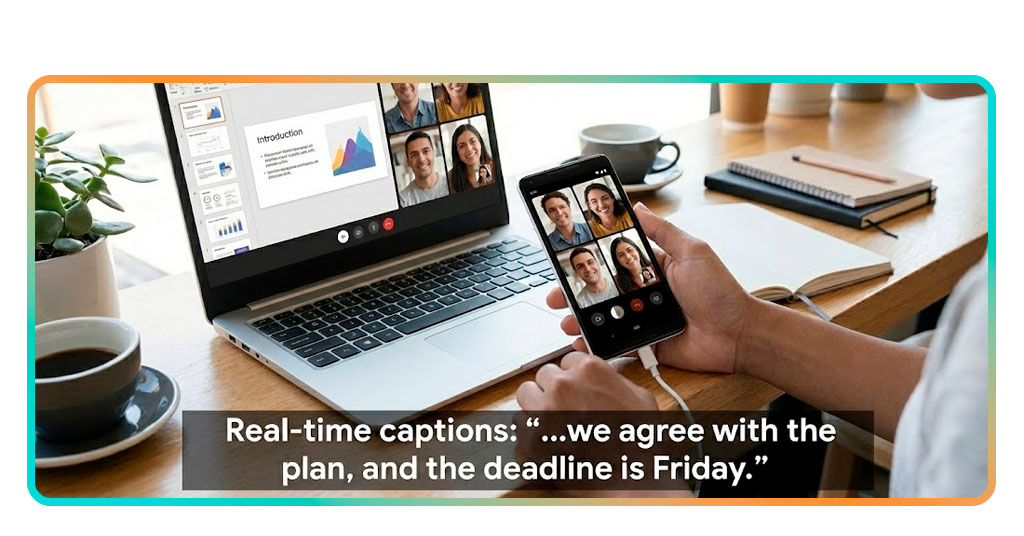
Sometimes it’s not just about reading captions live. Going back to check what was said helps when you need to review decisions or clarify what you missed.
Being able to re-read a past conversation or double-check something said earlier is a major advantage. It adds peace of mind to fast-paced meetings and busy schedules.
Accessing saved transcriptions is easy and takes only a few taps. You don’t need tech skills or extra software. Everything works directly inside the same caption tool.
Open your saved transcripts inside the app
To see your recent transcripts, open Live Transcribe and tap the settings or history icon. From there, you’ll find a list of past caption sessions stored locally.
These saved conversations appear in order by date and time. Just tap on any one to open and scroll through everything that was transcribed during that moment.
It’s a quick way to refresh your memory after a call, especially if something important comes up and you want to catch it again without asking.
Review and select the parts you want to keep
Scrolling through a saved transcript is like reviewing notes. Scan the conversation, look for key phrases, and highlight what stands out so you don’t lose track of it.
Marking important sections or identifying follow-up items is easy. This makes the app not just a captioning tool, but a handy note assistant when using Live Transcribe.
You’ll spend less time rewriting things later and more time using what you captured, especially helpful for students, project leads, or anyone managing long conversations.
Export your notes using your preferred method
After reviewing, you can copy and share the content directly from your phone. Use apps like email, chat, or docs to move the text wherever you need it.
This helps if you want to send quick updates, back things up for later, or turn your transcript into action items without typing everything from scratch.
It’s one more reason people turn to this app for meetings, interviews, and personal use. Everything stays accessible, useful, and easy to manage with Live Transcribe.
En rapport : How to Make Text Bigger on Phone: Accessibility Made Easy
4.1/5
Stay connected, one caption at a time
Real-time captions open up new ways to stay present in conversations. With just your phone, understanding fast dialogue becomes easier for anyone who needs extra visual support.
This guide was created by Idées reçues to show how Live Transcribe supports communication. It works during meetings, classes, or any moment where listening alone isn’t enough.
Interested in more accessibility tools? Idées reçues offers tips and app recommendations made to help you navigate daily life with fewer barriers and more meaningful interactions.