
Slow streaming in the bedroom. A frozen Zoom call during a presentation. Your laptop insists it has “two bars” even though the router is five meters away. Wi-Fi dead zones are the domestic ghost stories of the digital age, the kind that don’t scare you, but absolutely ruin your patience. And here’s the twist: the problem usually isn’t your internet plan. It’s the way signals behave inside your home.
Most users only realize this when connectivity drops at the worst possible moment. But once you look at your home like a network engineer, or let an app do it for you, the chaos suddenly makes sense. Heatmaps expose invisible weak spots, showing exactly where Wi-Fi collapses, bends, or weakens around walls, appliances, and furniture. It’s the kind of clarity that turns frustration into strategy.

4.4/5
Why your home has dead spots — and how this app maps them
Before blaming your provider, consider physics.
Walls, materials, electrical interference, and distance all conspire to create Wi-Fi dead zones.
Brick, concrete, and metal absorb the signal; microwaves and Bluetooth devices disrupt it; open spaces change how the router broadcasts.
NetSpot visualizes all of this by measuring signal strength while you walk around your house with your phone.
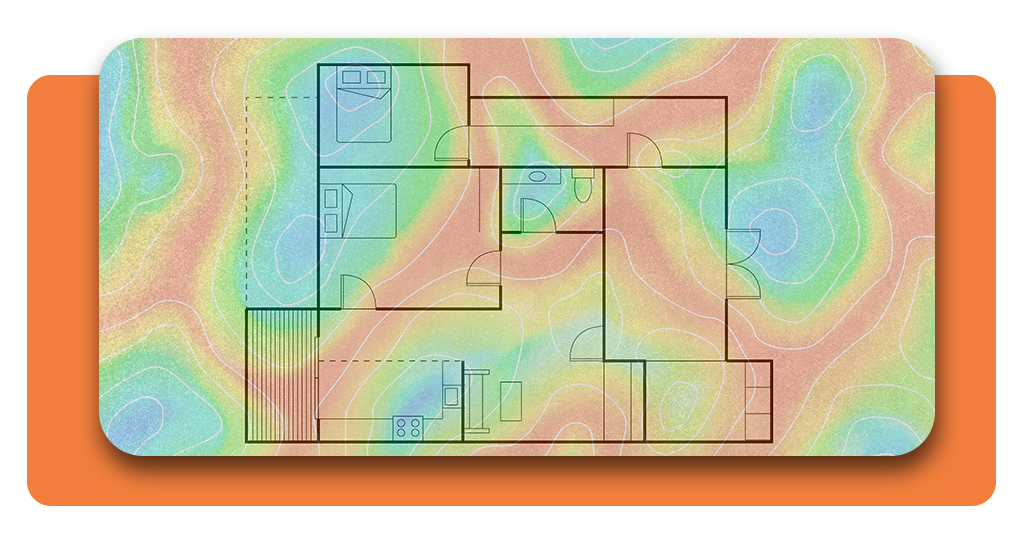
NetSpot uses real-time scanning to generate color-coded heatmaps: red for strong coverage, blue for weak areas. Instead of guessing which room sabotages your connection, you see a visual blueprint.
A space that “should” have a good signal often doesn’t, because Wi-Fi doesn’t care about intuition. It cares about obstacles and interference patterns you weren’t seeing until now.
To understand why this matters, look at how Wi-Fi propagation behaves: even doors, mirrors, aquariums and kitchen appliances weaken signal strength.
According to NetSpot’s own support documentation, a typical home may lose up to 75% of usable signal simply due to placement and internal barriers. Heatmaps reveal these blind spots long before you consider expensive upgrades.
Learn how different internet types behave at Insiderbits’ article Fiber vs. 5G home internet: we tested both.
The Wi-Fi dead zones scanner that shows all weak areas
NetSpot is a diagnostic tool with features usually reserved for IT teams. The app, available for Android et iOS, measures noise levels, evaluates channel congestion, and identifies coverage inconsistencies across every room.
If your upstairs office feels like it exists in a digital desert, NetSpot proves it and shows why. You walk through your space, perform the scan, and the app instantly converts your movement into a coverage map.
Areas that always glitch during video calls appear in cold colors; places where streaming thrives appear in warm tones. Instead of arguing with your router, you finally have data.
For more technical reading on how Wi-Fi behaves in real environments, visit NetSpot’s knowledge hub.
Fixing coverage: boosters, placement tips, and smart routing
Once you know where your Wi-Fi dead zones are, fixing them stops being guesswork. No need to buy random extenders or hope that changing rooms magically helps.
NetSpot gives you the map; you make informed moves. A practical, journalist-approved shortlist:
- Move the router to a higher, central, unobstructed position;
- Avoid placing it near mirrors, microwaves, or heavy electrical devices;
- Switch to less crowded channels after scanning interference;
- Add a mesh system only if your space exceeds what a single router can handle;
- Use wired backhaul when possible for multi-floor homes.
Each step is dramatically more effective when guided by a heatmap instead of intuition. You’re no longer upgrading blindly but optimizing with evidence.
- Carte Wifi : App pour obtenir du Wifi gratuit sur votre téléphone
- 5 applications qui affichent les mots de passe WiFi
- Detect WiFi Intruders on Your Network for Free
How to improve signal strength room by room
Strong coverage doesn’t happen by accident. It’s engineered. With the help of a heatmap, you can tune your Wi-Fi dead zones out of existence, room by room:
Bedroom:
If your signal collapses behind thick walls, reposition the router so the bedroom falls within its forward-facing broadcast field. Many routers send most of their strength in a specific direction — heatmaps reveal that orientation instantly.
Home office:
If your calls freeze, it’s likely interference from overlapping networks or a distance issue. Change to a less congested channel and consider a small booster. NetSpot helps identify exactly which channels are drowning in traffic.
Living room:
TVs, consoles, and set-top boxes often sit inside cabinets or behind decorative panels, which block signals. A quick scan usually exposes a cold spot right where your entertainment center is located.
Kitchen:
A Wi-Fi Dead Zone classic. Appliances generate noise and signal absorption. Even refrigerators weaken coverage. Heat mapping helps you reroute signal paths that avoid large metallic obstacles.
Outdoor areas:
Terraces and balconies usually fall outside optimal range. Instead of dragging the router closer, use the map to determine the most efficient extender location.
With these visual cues, you stop troubleshooting in the dark. You’re essentially redesigning your home’s wireless landscape based on real measurements.
4.4/5
Map your signal and eliminate surprises
Once you see your home’s Wi-Fi layout in color, the frustration around weak coverage disappears. There’s something empowering about turning invisible problems into visible solutions.
Instead of assuming you need a better plan, you finally understand the real issue: distribution, not speed.
And here’s the truth most providers don’t say out loud—the fastest connection in the world can still fail inside a poorly mapped environment.
A heatmap app does not just help you fix Wi-Fi dead zones; it gives you control over a system that used to feel mysterious.
If your signal collapses every time you walk into that one room, the answer is no longer a mystery. It’s on your screen, clear as day.
Start mapping, and your connection finally starts behaving like you pay for it to.