

Scrolling back through a recording and trying to understand what was said wastes time. A solid voice recording app clears that mess up, turning every spoken word into clean text right away.
In this guide, Idées reçues takes a closer look at the Voice Recorder & Transcriber app, showing you how to use its features to your advantage, plus a few tips for sharper audio. Read ahead!
En rapport : Voice over job: make a career out of your voice through Voices

4.3/5
Looking for a professional studio mic app?
Voice Recorder & Transcriber (Android) packs a microphone, editor, and transcription engine into one app, giving you a way to capture and clean audio without extra software or hardware.
Every recording session lets you pause, resume, and review your audio instantly, while built-in tools trim silence, crop unwanted sections, and sharpen sound before you hit save.
The voice recording app holds up through projects that demand precision, and once you finish a session, background noise settles and speech stays clean enough for public release.
Features available in Voice Recorder & Transcriber
- One tap recording: open the app, tap the microphone icon, and start capturing clear sound immediately for memos, interviews, or spontaneous conversations around you;
- Speech to text conversion: turn spoken words into text across 100 languages, complete with automatic punctuation and formatting, the instant transcription finishes;
- In-app transcript editing: review every line of text right inside the app, correct mistakes, highlight important phrases, and rearrange sections carefully before exporting;
- Flexible import and export options: bring in existing audio files or send finished recordings and transcripts out as text, audio, or various document formats.
Turn any room into a booth
Loud environments used to ruin decent recordings, forcing you to redo conversations or settle for muffled audio, but this app captures sound with real, noticeable depth every time.
A closet full of clothes, a curtained corner, or a small carpeted space absorbs echo naturally, giving your recordings a tighter, more controlled sound without renting real equipment.
Capture podcasts, interviews, and lectures
Podcast episodes, one-on-one interviews, and lengthy lectures each come with a different pace and structure, and this app adjusts to whatever format your project calls for.
Multiple speakers, overlapping questions, and long tangents get sorted into text automatically, so the voice recording app saves you from combing through hours of raw audio later.
Built for creators always on the move
Recording gear used to mean cables, external microphones, and a dedicated setup you couldn’t carry between locations, but this app fits entirely inside the phone you carry daily.
Whether you’re switching cities, waiting between meetings, or riding a train with a limited signal, every recording stays saved locally, ready for editing or transcription the moment you reconnect.
En rapport : Podcast Recording App: Start Your Studio-Quality Podcast for Free
Step-by-step: how to record high-quality audio using the app
Recording audio used to demand a learning curve before anything sounded usable, but Voice Recorder & Transcriber (Android) strips that barrier down to just four screens.
Nothing about the layout hides behind menus or settings you’ll never find again, and every action stays visible the moment you open a fresh recording session.
Your device only needs a stable Android setup and a few free megabytes before the voice recording app installs and walks you straight into your first session.
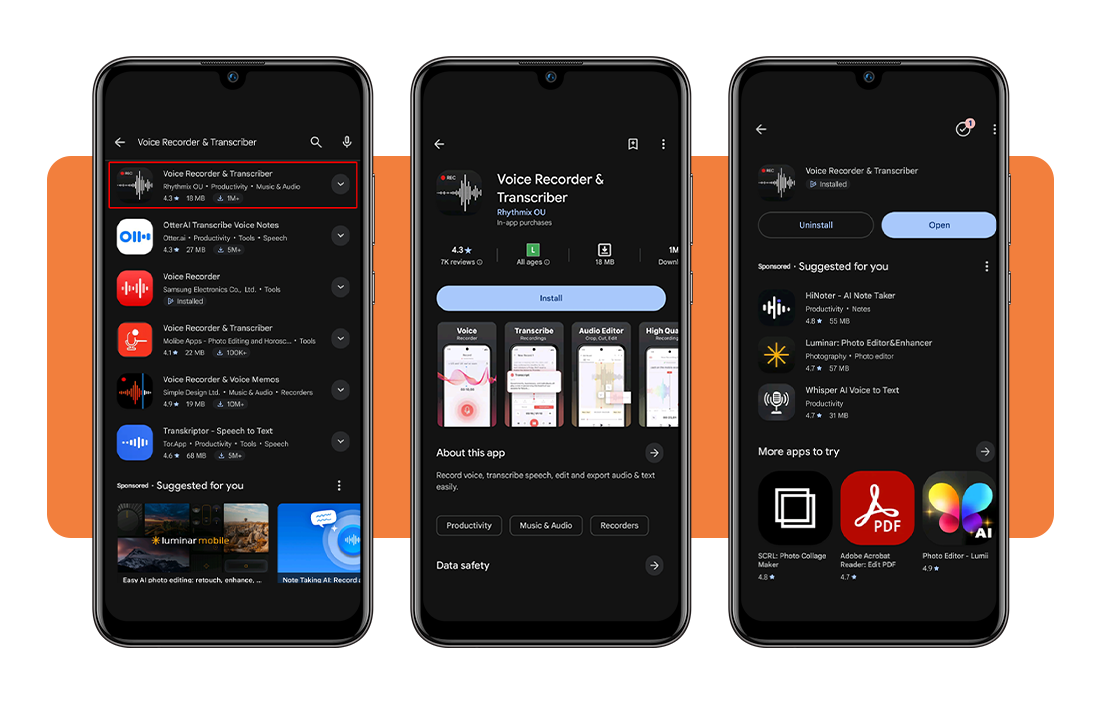
Step 1: download the app on your device
Head to the Google Play Store, search for ‘Voice Recorder & Transcriber’, and tap ‘Install’ once the listing from Rhythmix OU appears on your screen.
The download finishes in moments, given the app’s small file size, and a fresh icon lands on your home screen, ready to open immediately.
Step 2: check the onboarding process
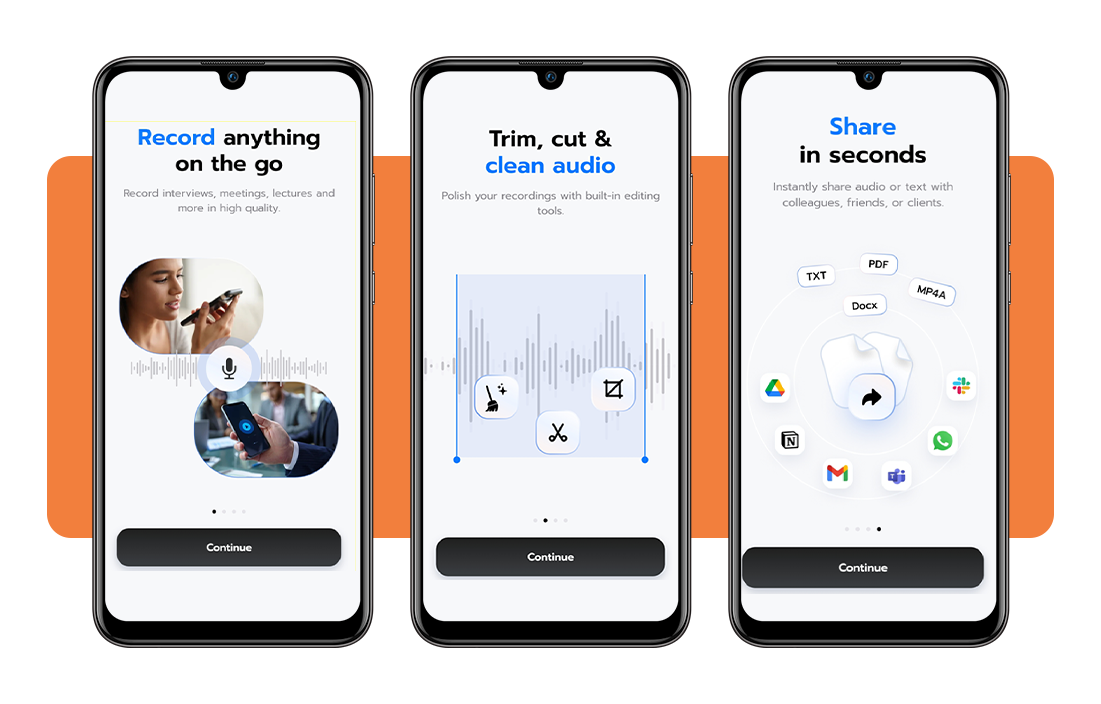
Opening the app for the first time triggers a short series of screens explaining core functions like recording, editing, transcribing, and sharing your finished audio files.
Tap through each screen or skip ahead entirely, since nothing shown in this stage requires setup, and you’ll land on the main note screen either way.
Step 3: create a new voice recording
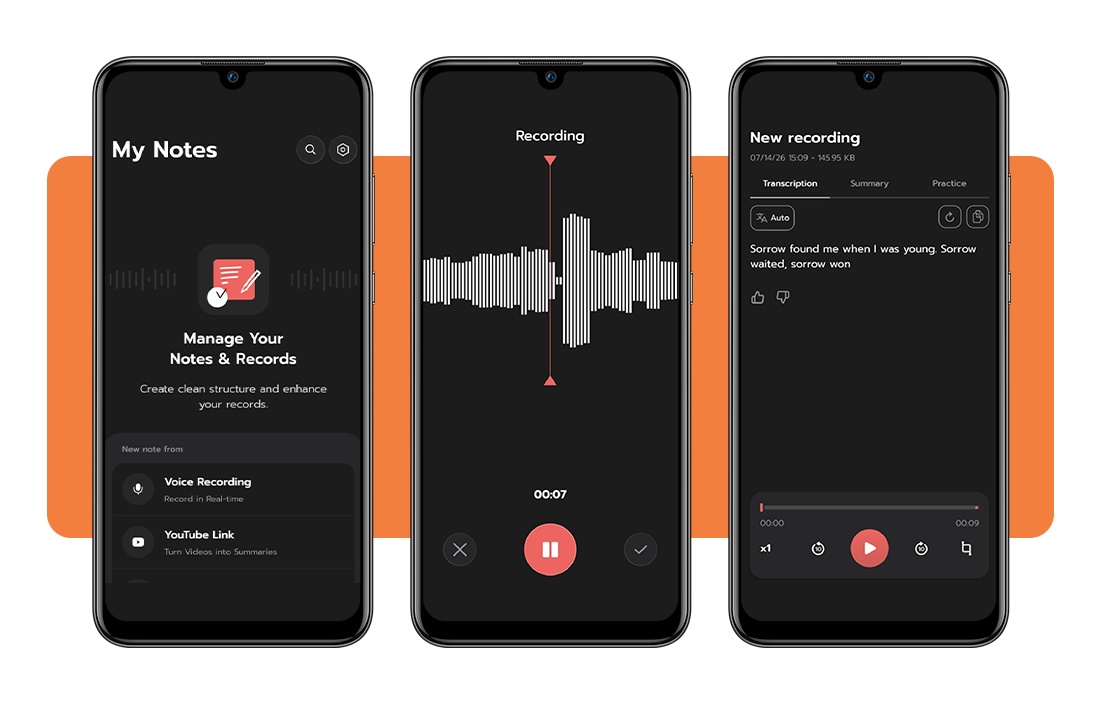
Tap the microphone icon or select ‘Voice recording’ from the new note menu, and your device starts capturing audio the instant you confirm the action.
Pause whenever a break interrupts you, resume without losing earlier audio, and stop the session once you’ve said everything the recording needs to include.
Step 4: transcribe, edit, and export your file
Open your finished recording and switch to the transcription tab, where spoken words turn into readable text automatically without any manual typing required.
From there, correct any misheard phrases directly inside the text box, then export your audio or transcript as a file that this voice recording app formats for you.
Tips for better sound quality and device compatibility
A cracked, tinny recording usually traces back to one small oversight, not a broken microphone or a device that’s somehow too old to handle audio well.
Your phone already carries the hardware needed for sharp sound, and the voice recording app handles compression on its end once your raw audio gets saved.
Where you sit, how far you hold your device, and what’s buzzing in the background all shape whether playback sounds professional or leaves you straining to hear it.
Always record in a quiet room
Ceiling fans, distant traffic, and half-heard conversations from another room creep into recordings, and no editing tool fully strips that noise back out.
Shutting a door, silencing nearby devices, and stepping away from open windows removes most interference before your first word even reaches the microphone.
Keep the phone’s mic close to you
Volume and detail drop off sharply the farther your mouth sits from the microphone, so holding your device within a foot or two captures noticeably richer sound.
Setting a phone flat on a table across the room usually produces thin, hollow audio that no amount of post-production editing manages to fix.
Use headphones for interview recordings
Wired or Bluetooth headphones with a built-in microphone give this voice recording app a steadier signal to process, especially through longer back-and-forth exchanges.
Interviews shift in distance and volume constantly, and a headset mic holds its position no matter how close or far your subject happens to sit.
Check storage space before long sessions
Extended sessions, particularly lectures or multi-hour meetings, generate large files fast, and running low on storage mid-recording cuts your audio off entirely.
Clearing a few gigabytes ahead of time, or shifting older files elsewhere, keeps your device ready for recordings that run well past a few minutes.
En rapport : Record your family stories with StoryCorps today!
4.3/5
The recorder that also takes notes for you
Voice Recorder & Transcriber hands you a full recording studio, sound editor, and typist, all wrapped inside one small icon sitting right on your home screen.
In this article, Idées reçues broke down how to record, transcribe, edit, and share files, along with tips this voice recording app relies on for cleaner sound.
Explore other Idées reçues articles if you’re curious about different tools built to save time, cut clutter, and make your phone work harder for your everyday tasks.