Leaving social media behind starts with a decision and a few simple steps. If you’re ready to delete Facebook, it’s worth knowing what happens and how to prepare.
Before jumping ahead, it’s good to think about your photos, messages, and connected apps. A little preparation now will help you avoid headaches later and protect your digital footprint.
This guide by Insiderwissen walks you through everything clearly so nothing catches you off guard. It’s an easy way to take control of your online privacy in minutes.
Verwandt: Hide Instagram Activity for maximum privacy today
Where to download or update the Facebook app
Most users forget how critical updates are until buttons disappear or options vanish while adjusting account settings. Updates prevent that from happening when you least expect it.
Automatic updates don’t always work across all devices. Taking a few seconds to update manually can protect you from bugs, blocked tools, or frozen privacy menus mid-process.
Before trying to delete Facebook, make sure the app is installed through official stores so the removal process runs properly without blocked features, missing buttons, or unreliable menus.
How to check if your app is the latest version
Some features break silently in outdated apps. Checking for updates ensures that tools tied to deletion work without interruption or missing confirmation steps when you need them the most.
Open your phone’s app store and search for Facebook. If the button says “update” instead of “open”, tap it and wait for the update to finish before continuing.
Once it’s complete, go to your settings and test if all menus appear. If everything responds correctly, you’re ready to proceed with data downloads or account management steps.
Downloading Facebook safely on Android and iOS
Official app stores are your safest option. They filter out fake versions that could interfere with your attempt to delete Facebook or modify your privacy settings during account changes.
How to install Facebook on Android
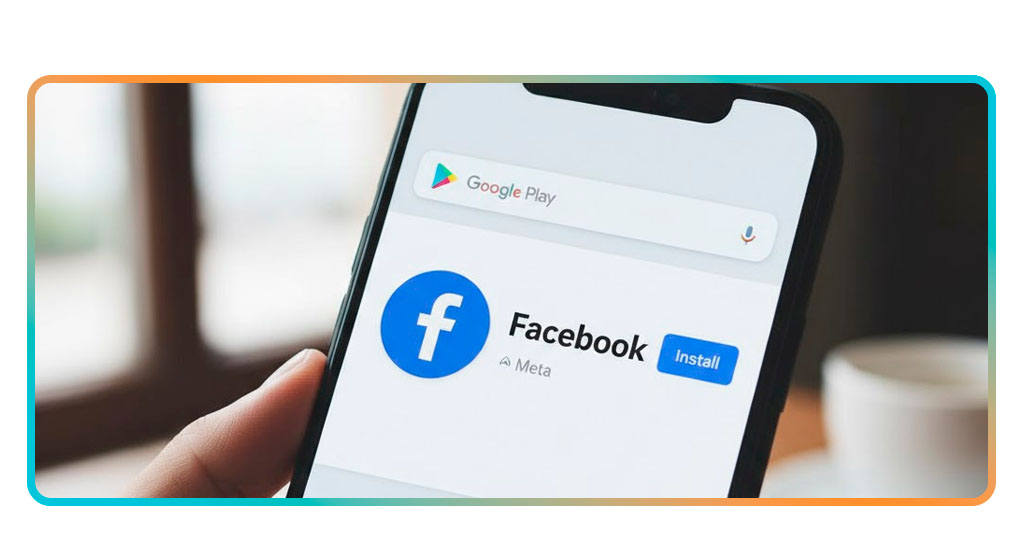
- Open the Google Play Store and search for “Facebook” using the search bar;
- Tap the official app with Meta Platforms listed as the developer and press Install;
- Wait for the download to finish and tap “Open” to start using your account.
How to install Facebook on iOS
- Launch the App Store and type “Facebook” into the top search field;
- Find the official app with Meta Platforms as the developer and tap “Get”;
- Use Face ID or your password to confirm and wait for the installation to complete.
Why updating helps prevent errors during deletion
Deleting your account requires working menus, confirmation, and functioning buttons. Older versions tend to disrupt those steps, leading to failed attempts and hours of troubleshooting.
Without an updated version, trying to delete Facebook might result in glitches, settings not saving, or options that don’t load even when you follow every required step correctly.
A quick version check makes a difference. It ensures the removal features show up, respond as expected, and complete the request without breaking midway through the process.
Things to do before deleting your account
Before removing your profile, there’s more to think about than just tapping delete. A few small steps can protect your information and avoid problems if you change your mind later.
Your account holds years of photos, messages, and app connections. Some things may be hard to recover. Taking control now helps prevent regret and gives you options after you’re gone.
Think of it as housekeeping. Download your data, review linked accounts, and double-check what else might be affected once the profile disappears. It’s easier than cleaning up later.
How to back up your Facebook data and photos
Before you delete Facebook, it’s smart to download your information. That includes photos, comments, messages, and other memories saved over the years that you might want to keep.
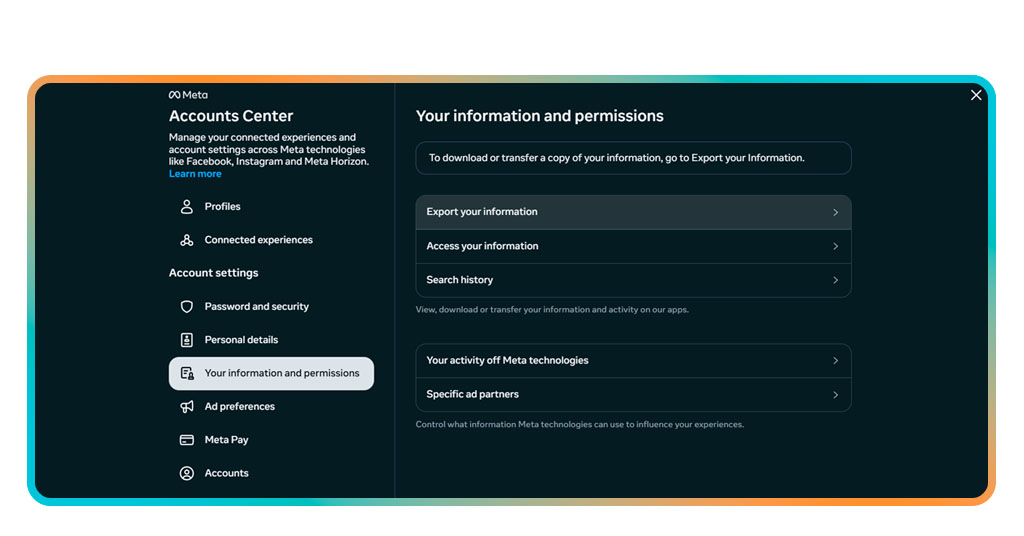
Go to Settings > “Accounts center” > “Your information”. Select “Export your information” and choose the file format. You’ll receive a link with everything stored on your profile, ready to save.
Photos are included, but videos and posts also come with your file. Check boxes carefully if you only want certain types of content, or select everything to keep it all.
Managing connected apps and logins before leaving
Many users forget that some logins depend on their profile. Before you delete Facebook, unlink your account from other apps and websites you signed into using it.
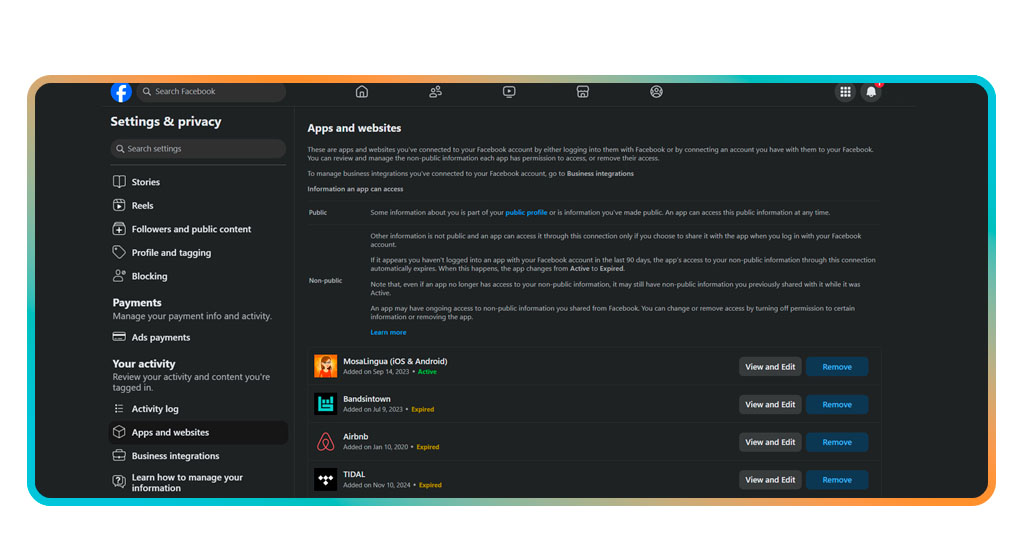
Visit “Settings and privacy”, then “Apps and websites”. Remove any services listed there to avoid losing access later. Some logins won’t work without that Facebook link still active.
After removing the connections, test your logins separately. This step ensures that your Spotify, Pinterest, or other services won’t lock you out after the deletion request goes through.
What happens to Messenger and linked services
Messenger doesn’t always vanish with your profile. If the app is installed and active, friends may still message you unless it’s disabled before or during account removal.
Even if you delete Facebook, some tools like Messenger or games using your ID can keep limited access. That depends on how you’ve managed those services in your settings.
Take a minute to review which accounts stay linked. That check avoids future confusion when something unexpected still shows your name or profile image after deletion is complete.
Verwandt: So löschen Sie ein LinkedIn-Konto
Step-by-step: how to remove your profile permanently
Facebook doesn’t hide the delete option, but it isn’t right on the home screen either. Knowing where to look saves time and prevents unnecessary frustration during the removal process.
The deletion steps are short, but skipping one can cause delays. Following them carefully makes sure the request actually goes through without being paused or reversed midway.
You won’t need to contact support or write emails. Just a few taps inside your settings will let you remove everything and move on without leaving data behind.
Navigating to account settings with a few taps
Finding the right settings may take a moment, especially if you’re using the app version to delete Facebook through your mobile device instead of logging in from a browser.
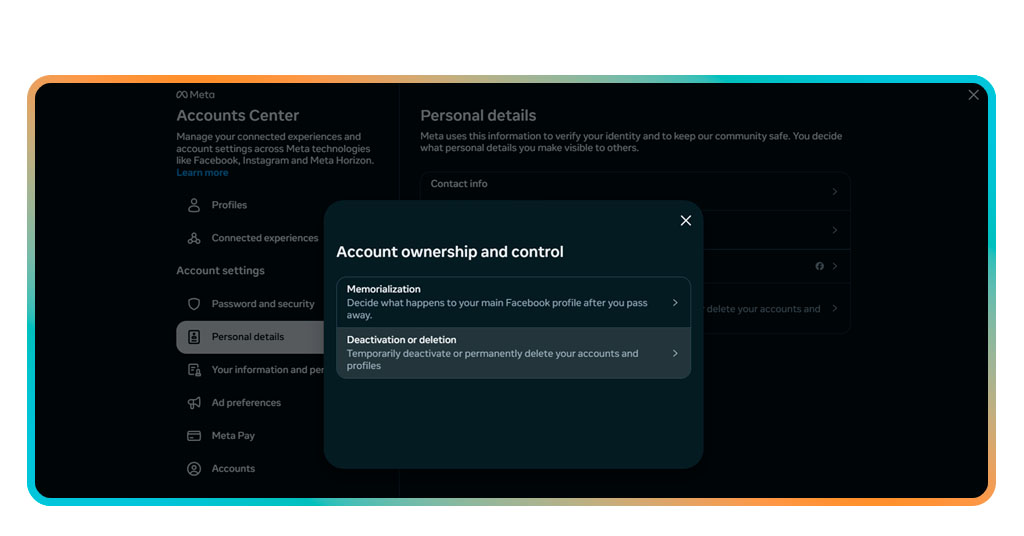
Open the app, tap your icon, scroll to “Settings and privacy”, “Settings”, then select “Accounts center”. Everything needed for deletion appears under “Account ownership and control”.
If you’re using a browser, the process is basically the same. You can easily delete or deactivate your account inside Meta’s “Accounts center”.
Confirming your deletion request safely
Once you start the process to delete Facebook, the system gives you one final review screen before anything becomes official or irreversible, just in case you change your mind.
Select your profile, and you’ll see options to deactivate as well. Scroll down and tap “Delete account” to move forward, then enter your password to confirm the decision.
That password step exists to prevent unauthorized actions. It’s required even if you’re already logged in, adding an extra layer of protection before your data is scheduled for removal.
What happens after you click delete
Deleting your account isn’t the final tap. There are a few things that happen next before everything disappears, and understanding them helps avoid confusion during the final stage.
After you delete Facebook, your profile enters a holding state. It won’t be visible to others, and your friends won’t see your timeline or be able to message you.
Some features may temporarily appear inactive, but the account hasn’t fully cleared yet. This period allows for reversals, which we’ll explain in more detail in the next section.
How to delete Facebook forever
Deleting your account doesn’t mean it’s gone immediately. There’s a delay, and it’s important to know what happens between tapping delete and your data actually being removed.
Even if your profile disappears from view, some parts stay in the system for a while. This temporary pause allows for reversals, accidental requests, or second thoughts along the way.
If you’re determined to delete Facebook forever, you need to know what lasts, what doesn’t, and how to fully disconnect without leaving your digital footprint floating in old servers.
Understanding the 30-day grace period
Facebook gives you 30 days after your request in case you change your mind or made the decision too quickly. Logging in during this time cancels the deletion entirely.
During this window, no one can see your profile, posts, or photos. Your timeline becomes invisible, and messages won’t show your name or respond to new conversations.
After the 30 days pass, your account disappears permanently. Until then, the system keeps everything paused in case you want to undo it by simply logging in again.
Erasing all traces of your data online
Some apps still hold your login data even after deletion. To fully delete Facebook, you should also unlink connected services and clear old permissions from external sites.
Visit platforms you’ve connected to and remove Facebook as a login method. This stops those services from reactivating your account or using stored credentials after removal.
For search engines, it may take time for your content to disappear. Cached pages, old images, or links can stay visible unless you request removal directly through those platforms.
Reclaiming your privacy and moving forward
Your digital habits might feel different without Facebook. But once the account is gone, you gain more control over what’s shared, tracked, or stored across platforms every day.
If your goal was to delete Facebook and reduce data exposure, remember that privacy settings on other services still matter. Adjust those accounts to reflect the same mindset.
Letting go of platforms that collect your data is a strong step toward better digital habits. If you’re ready to begin, delete your Facebook account safely today!
Verwandt: So löschen Sie Ihr X-Konto
Ready for a fresh start online?
Deleting your account doesn’t need to be stressful. With a few simple steps, you can leave Facebook behind and take better control over what stays tied to your name online.
This was a complete guide by Insiderbits on how to delete Facebook for good, showing each step without pressure, distractions, or complicated detours that get in the way.
If you’re interested in more helpful content, keep reading Insiderwissen. You’ll find guides built to support better digital habits and help you feel more in charge every single day.