
Changing the font on your iPhone can subtly transform how you experience the device. Since fonts carry personality, and their shapes influence how you perceive every message, this is the type of feature many people are looking for. While Android users can alter system fonts freely, Apple approaches customization differently, preserving stability and elegance at every visual layer. But don’t worry, it’s not necessary to have a tech degree to change font on your iOS device.
So, even with these restraints, Apple offers users a way to personalize their experience without altering the system core. Through iFont, you can safely install and apply fonts to supported apps, enriching your daily interaction with the screen. This tutorial explores what makes iOS font customization unique, how to use iFont step by step, and why such small visual changes can refresh the entire feel of your phone. It’s a simple yet rewarding way to add a signature touch to your digital space. Download iFont and customize your phone today.
- 6 coole KI-Tools für das iPhone, während Sie auf Apple-OpenAI warten
- Charging Your iPhone 15: Apple’s Recommendations for Safe and Efficient USB-C Cables
- Colorful WhatsApp: try the new colors unlocked for iPhone now
Can You Change the Default Font on iOS?
Apple’s philosophy prioritizes harmony and readability across its ecosystem. The default typeface, San Francisco, was designed for both beauty and functionality, scaling seamlessly across screens and ensuring text clarity in every app.
That’s the reason why replacing it system-wide, like to change font on iOS, would break that unity, which is why iOS keeps it fixed.
However, users still have space for creativity through Apple’s built-in support for external fonts in compatible applications.
You can add new typefaces using verified profiles that operate within iOS security settings, maintaining full reliability, and creating a flexible yet structured environment for personalization.
The distinction between Android and iOS lies precisely in this design control. Android invites experimentation across all system layers.
Meanwhile, iOS offers selective customization that respects stability and identity. iFont embraces that balance, opening a controlled door to individuality within Apple’s refined framework.
By working inside official boundaries, iFont allows you to explore aesthetics without risk. You can expand your font library while staying aligned with the design principles that define iPhone’s signature look.
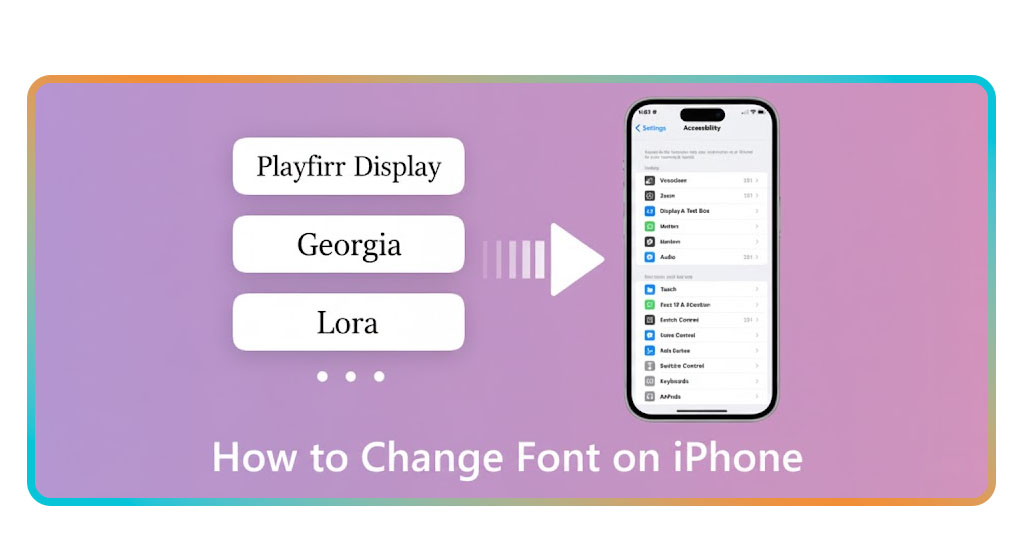
Why Apple Limits Font Customization
Apple’s philosophy has always placed design consistency at the heart of the iPhone experience.
From app icons to text layout, everything follows a strict visual rhythm that maintains balance and clarity across the entire system, and fonts are a central element of this structure because they shape how users read and interpret information.
Allowing unrestricted font changes could create inconsistencies in interface proportions, text alignment, and accessibility.
The system’s native typeface, San Francisco, was engineered to optimize legibility across screens, adapting its weight and spacing automatically to match every device.
Despite this, Apple has progressively introduced controlled options for personalization through verified profiles and dedicated apps.
Step-by-Step: How to Install and Apply New Fonts
Follow this guide below to download iFont and customize your phone today:
- To change font in your iPhone, open the App Store, search for iFont: find, install any font, download it, and launch the app after installation;
- Then, explore its clean interface, where you can browse different font families and view previews before choosing;
- Tap “Get Fonts” to access the available library and select a style that matches your taste;
- To apply new fonts, install and follow the on-screen instructions to add them securely to your device;
- Approve the configuration profile in Settings when prompted, ensuring full compliance with Apple’s safety standards;
- Once installation is complete, open Settings > General > Fonts to confirm your new additions;
- Use your installed fonts inside compatible apps like Mail, Pages, or Keynote to personalize your documents.
The entire process takes just a few minutes, adding a refined and personal touch to your iPhone’s visual identity.

4.6/5
Features That Let You Customize Your Device
What sets iFont apart is the blend of control and aesthetic freedom it delivers. The app supports .TTF and .OTF formats, making it compatible with most online font repositories and allowing easy imports via AirDrop, Files, or iCloud Drive.
You can preview every font before installing it, reading sample texts that help you imagine how it will appear in everyday use.
In addition, iFont offers a management panel where you can rename, remove, or reorder installed fonts. The tool keeps everything structured, ensuring your experience remains efficient and intuitive.
For creative users, designers, and students, this organization translates into flexibility without technical complexity.
Beyond its practical features, iFont enhances your connection with the device, turning routine interactions into visually enjoyable moments.
How to Change Font on iPhone: Easy Tutorial – Conclusion
To change fonts and personalize your iPhone is an act of subtle creativity within Apple’s structured design system. Even though the company limits system-wide modifications, it leaves room for secure expression through verified tools like iFont.
Using iFont brings a visual identity that feels original yet perfectly aligned with iOS aesthetics.
This balance between innovation and security represents what makes Apple’s environment special. With iFont, you can change your font style in minutes — free.
Verwandt: Understanding the iOS Operating System
Enjoyed this article? Save the Insiderwissen blog to your favorites for the latest tools, creative tech tips, and photo editing breakthroughs.