

Staying on top of every grade and homework gets complicated once school schedules start rolling out, but the Canvas Parent app helps you spot where your child needs support early.
In diesem Insiderwissen guide, we’ll take a closer look at every feature, from grade alerts to direct messaging, so you can guide your child’s learning without hovering over every assignment.

4.5/5
What is the best app to track children’s grades and assignments?
Grades used to hide behind report cards and parent-teacher conferences, leaving you guessing about how your child handled homework and tests between those updates each semester.
Today, checking on your child’s progress doesn’t require waiting for feedback, and the Canvas Parent app (Android | iOS) puts grades, assignments, and announcements on your phone.
Instructure built this app around a parent observer account, separate from your child’s own login, so your access stays limited to viewing rather than submitting or editing schoolwork.
Built specifically for parent oversight
Your dashboard shows a running snapshot of every class your child takes, sorted by course, so you never have to hunt through separate apps or folders for updates.
Missing assignments, recent grades, and new announcements surface automatically once your child’s teacher posts them, keeping you informed without asking your kid for a status update.
Checking if your school supports it
Not every school district turns on parent observer access, and confirming this detail with your child’s school comes before assuming you already have the option to log in.
A quick email or a call to the front office clears up the question fast, and once your school confirms it, downloading the Canvas Parent app (Android | iOS) takes minutes.
Free download with no hidden costs
Cost never factors into this particular parenting decision. You can download the app without paying anything or entering any card details during the account setup process.
The only requirement on your end involves your child’s own school enabling observer access, giving you complete functionality without ever hitting a paywall or a subscription prompt.
Step-by-step: how to connect your Canvas Parent app account
Setting up your account takes a few simple steps, and you can finish the entire process from your phone without printing forms or visiting the school office itself.
Before diving in, have your email address and a secure password ready, and confirm your child’s school already uses Canvas as its official learning platform.
Once you have those details, opening the Canvas Parent app (Android | iOS) for the first time feels straightforward, and each screen guides you along.
Schritt 1: Laden Sie die App auf Ihr Gerät herunter
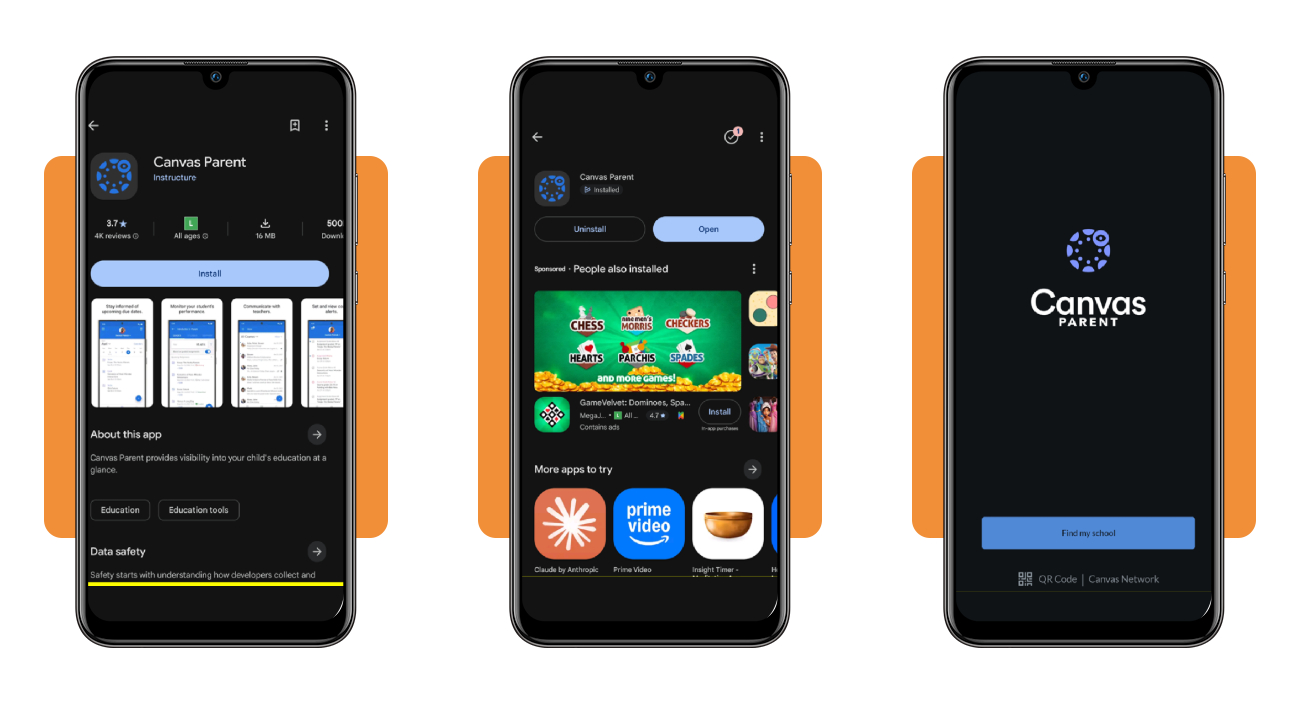
Gehen Sie zum App-Store on iPhone or the Google Play Store on Android, search for ‘Canvas Parent’, and tap ‘Get’ or ‘Install’ on the correct listing from Instructure Inc.
Once the download finishes, open the app, and you’ll land on a welcome screen offering a ‘Find My School’ button along with a quick QR code scan option.
Step 2: create your parent observer account
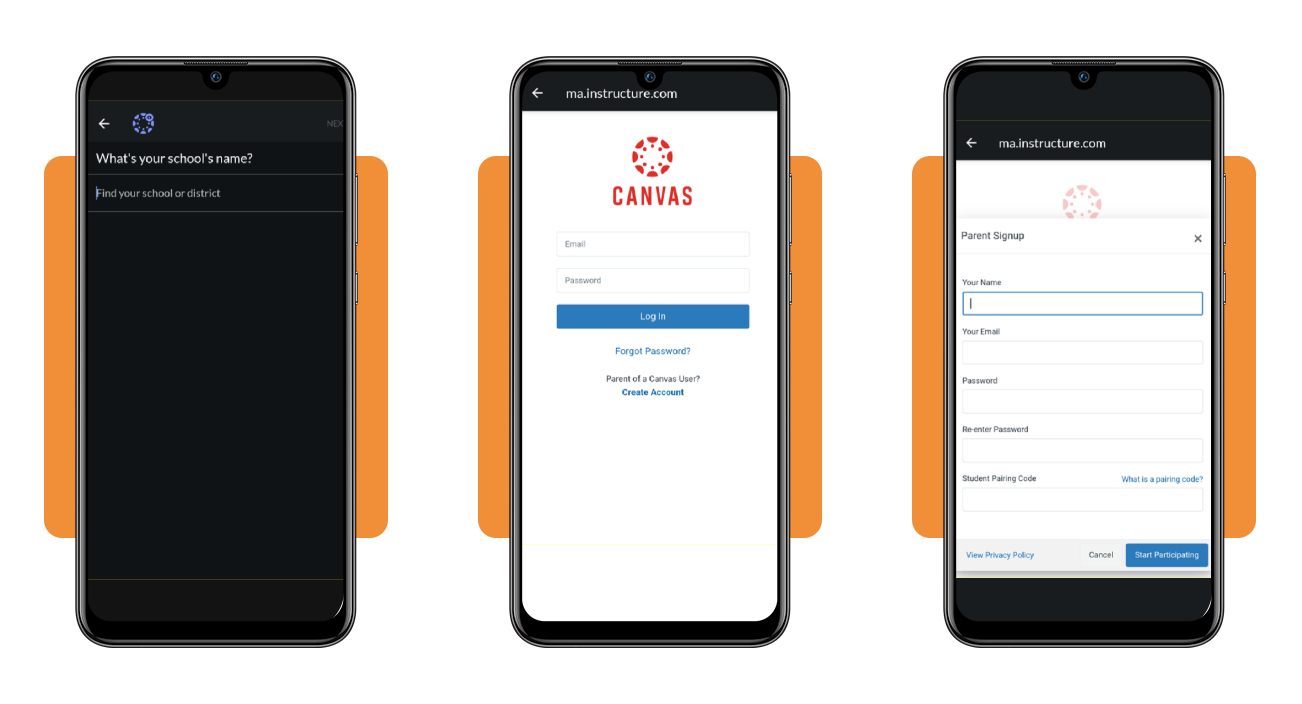
Tap ‘Find My School’ and type your child’s school or district name, then select the ‘Parent of a Canvas User’ link beneath the login fields on the page.
Fill in your name, email address, and a secure password, then enter the student pairing code your school provided to finish setting up the Canvas Parent app account.
Step 3: link your student and confirm
After you tap ‘Start Participating’, the app confirms the pairing code and connects your account directly to your child’s active courses, assignments, and teacher announcements.
Check that your child’s name and grade level appear correctly on the dashboard, and you’re ready to start checking grades and schedules without missing anything important.
Top features to monitor homework and school deadlines
Once your account connects, a handful of tools inside the app handle most of the daily tracking work, so you spend less time hunting for updates.
You won’t juggle three separate logins for scores, deadlines, and scheduling anymore, since everything sits in one dashboard and refreshes the moment a teacher makes a change.
Getting comfortable with these tools early makes the Canvas Parent app far more useful, especially once your child’s week fills up with different teachers and shifting workloads.
Assignment due dates at a glance
Each task shows its title, point value, and submission status, so you know right away whether your child turned something in or still needs to wrap it up.
Tapping into any task pulls up the full instructions and grading criteria the teacher shared, giving you enough detail to help out without texting anyone for clarification first.
Grade tracking across every course
Scores update the moment a teacher enters them, showing both a running percentage and a breakdown by category, like tests, participation, or weekly practice work.
Switching between grading periods helps a lot near report card time, letting you see how your child performed over a specific stretch rather than the whole year.
Calendar view for upcoming deadlines
The built-in calendar gathers every due date and school event into one monthly or weekly layout, so nothing slips through the cracks between different class pages.
Filtering by child keeps things manageable if you’re tracking more than one student, and the Canvas Parent app assigns each class its own color for faster scanning.
Common questions about grade alerts and teacher notifications
Notifications can feel confusing at first, and many parents wonder how the alert system flags something worth their attention before trusting it fully with their child’s school grades.
Reaching a teacher used to mean tracking down an email address or waiting through the front office, but direct messaging inside the app changes that for busy parents.
These questions come up often enough that walking through the basics saves you time, and understanding how the Canvas Parent app handles alerts prevents a lot of frustration.
Setting custom grade alert thresholds
Inside your notification settings, you can pick a specific score, like anything below 80%, and get pinged the moment any grade drops beneath that chosen line.
You can set different thresholds for each course as well, which helps if math needs closer attention than an elective your child already handles well without much extra oversight.
Messaging teachers directly through the app
The inbox works like a private message thread between you and each teacher, letting you ask about missing assignments or confirm a due date without hunting for emails.
Teachers usually reply within their regular school hours, and you’ll get a notification the second a response lands, keeping the conversation in one place for future reference.
Fixing notifications that stop working
If alerts stop coming through, check your phone’s notification permissions first, then confirm push notifications stay turned on inside the app’s own settings menu before trying anything else.
Signing out and back in often clears up the glitch, and reinstalling the Canvas Parent app resets stuck notification settings when nothing else seems to fix the issue.
Required settings to link multiple student profiles
Families with more than one child in school need a setup that handles each kid separately, without mixing up grades, deadlines, or messages between siblings by accident.
Your account already supports this from the moment you sign up, and adding a second or third child takes only a few extra taps in the settings menu.
Getting these settings right from the start saves you from confusion later, and the Canvas Parent app (Android | iOS) keeps every profile organized so nothing overlaps.
Adding another child to your account
Open your account settings and look for the option to add a student, then enter the new pairing code your school provided for that particular child.
Once you confirm the code, that student’s courses and information load into your dashboard right away, sitting alongside any children you already added to the account.
Switching between student profiles easily
A student selector sits near the top of your dashboard, letting you tap between children without logging out or setting up a separate account for each one.
Whichever student you select stays active until you switch again, so you can check one child’s grades thoroughly before jumping over to see how the other one’s doing.
Managing separate alerts for each child
Notification settings apply per student, so you can set stricter grade thresholds for one child while keeping a lighter touch on another who handles school independently.
Each alert clearly names the student it applies to, which keeps things clear when you’re managing more than one profile inside the same Canvas Parent app account.
4.5/5
One app closer to your child’s success
Canvas Parent (Android | iOS) gives you a clear window into your child’s school life, turning report card surprises into small conversations you can have together long before grades slip.
In diesem Leitfaden, Insiderwissen showed you everything the Canvas Parent app (Android | iOS) offers, covering account setup, alert settings, and how to keep tabs on more than one child.
If your child’s education is a priority, keep browsing Insiderwissen and check other guides on how to support their progress, from learning tools to habits that make school feel less overwhelming.