
If you’ve noticed Meta’s AI popping into your conversations like an overly enthusiastic coworker who doesn’t understand boundaries, you’re not alone. The feature is everywhere — comments, chats, search bars, even those moments when you just want to type “hi” without a robot offering life advice. Fortunately, you can mute Meta AI or, at the very least, limit how loudly it tries to participate in your digital life.
Meta introduced its AI assistant to “enhance user experience”, but let’s be honest: sometimes you don’t want enhancement. You want quiet. You want your apps to behave like they did before the algorithm decided to join the conversation. And that’s where this guide comes in: a walkthrough for those who want control and peace from automated interruptions.
- Meta Quest: Exploring the Depths of 3D Immersion
- Metal Detector Apps For Android – The Five Best Apps
- Metacritic’s Top 5 Must-Play Open World Games
Mute Meta AI: take control of your conversations
Muting Meta’s assistant is not as simple as flipping a switch, but you do have tools.
Whether you use Facebook, Instagram, or WhatsApp daily, the company offers ways to reduce AI prompts, disable suggestions, or limit how your content is used to train their models.
According to Meta’s official documentation, users have the right to request data usage limitations and adjust specific AI interactions.
While Meta AI cannot be fully removed from the platforms, you can mute certain features, reduce notifications, and control what type of data the system learns from.
If privacy is your main concern, tools that let you manage or delete activity also matter. Insiderbits has a full guide on cleaning your Facebook history, to help you protect your digital footprint.
Why people want to mute Meta AI
The sudden expansion of automation inside Meta’s apps changed the rhythm of how people interact online. For many users, especially those who prefer quieter feeds and non-AI chats, the assistant feels intrusive.
Common reasons for muting include:
- Reducing automated suggestions in search or chat;
- Limiting how AI rewrites or reformulates your prompts;
- Keeping conversations between actual humans without robot interruptions;
- Lowering the chances of your content being used for AI training;
- Protecting your privacy with intentional, granular settings.
These features vary across apps, but the goal remains the same: taking back control of your digital spaces.
Step-by-step: turn off or limit AI features
While Meta doesn’t provide a single universal “mute Meta AI” button, you can silence specific features across Facebook, Instagram, and WhatsApp:
- Open the app (Android | iOS) and tap the Menu section;
- Go to Settings & Privacy, then Settings;
- Scroll to the “AI” or “Privacy” section, depending on your version;
- Look for options related to Meta AI interactions, suggestions, or search enhancements;
- Disable features like “AI-powered suggestions”, “Search enhancements”, or “Message enhancements.”
Meta’s help center clarifies your data rights and opt-out pathways.

4.5/5
- Open the app (Android | iOS);
- Enter your Settings panel via the top-right menu;
- Go to Privacy;
- Turn off “AI suggestions” inside the Search and Comments sections;
- Remove algorithmic filters inside your Suggested Content;
- Request a limitation on your data usage for AI training through Meta’s form, linked above.

4.5/5
WhatsApp’s AI integrations are not as intrusive yet, but they still show up in search and chat shortcuts.
- Open the app (Android | iOS);
- Access Settings;
- Go to Chats, then toggle off any “AI features” or “Smart suggestions” available in your region;
- Disable cloud-based suggestion tools if listed;
- Refrain from interacting with AI chats to avoid algorithmic reinforcement.
WhatsApp’s controls are evolving quickly, so check back regularly as Meta updates the interface.

4.8/5
Features you can adjust for privacy and comfort
If your goal is to mute Meta AI without losing essential functionality, your best strategy is customizing features that affect your content and interactions. What can you adjust?
Limit AI training with your data
Meta allows you to request that your personal information not be used to train AI models. From Meta’s own help center, you can submit a formal request to limit training.
This won’t mute Meta AI, but it dramatically reduces your digital contribution to it.
Reduce visibility in your chats
By disabling suggestions inside messages, you remove the assistant’s “Did you mean…?” type of interruptions. This is especially helpful for users who want clean, uninterrupted conversations with real people.
Remove contextual prompts
Search bars across Meta apps often surface AI responses before you’ve typed anything meaningful. Turning off “enhanced search” reduces these automated appearances.
Delete or manage activity logs
The fewer behavioral signals Meta has, the less likely the AI is to personalize interactions. By combining muted features with stronger privacy settings, you create a quieter, more controlled environment across your apps.
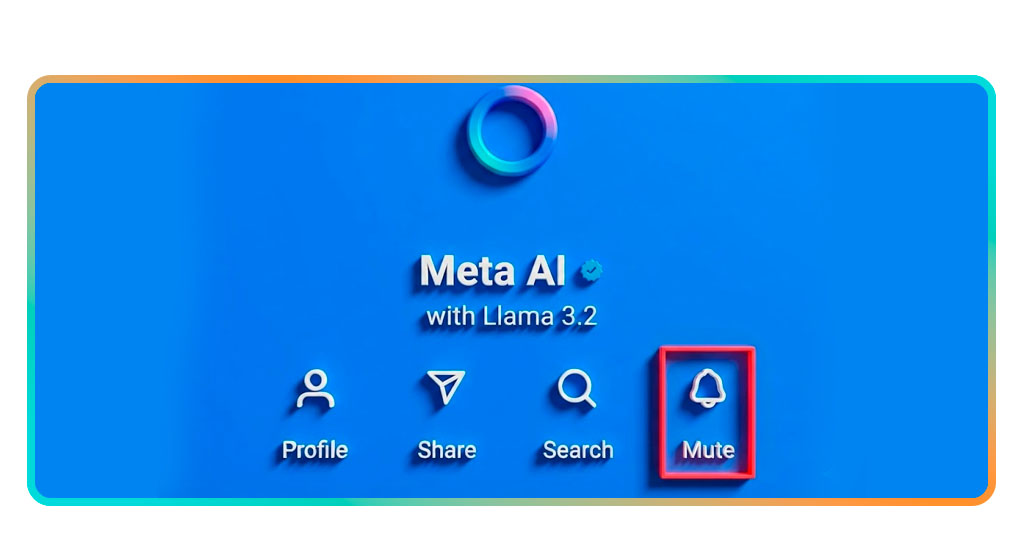
Where to access Meta’s privacy settings
Meta’s privacy hub is intentionally centralized so users can manage data, customization settings, and AI controls in one place, assuming you know where to click. You can access all core privacy and AI-related features through:
- The Meta Privacy Center;
- The “Artificial Intelligence” settings page;
- The Data Subject Rights request form linked within the same page;
- Activity logs inside each app (Facebook, Instagram, and WhatsApp).
When adjusting these settings, keep an eye on these essential sections:
- Search and AI suggestions;
- Content preferences and visibility;
- Ad personalization settings;
- Activity logs and stored interactions;
- AI training opt-out forms.
If Meta updates interface layouts, these categories may move, but they remain the core of how you mute, silence, or limit Meta AI across your apps.
Take control of your apps
With the right settings, you can limit AI prompts, reduce distractions, and keep your interactions as human as you want them to be. Customize your experience and turn off Meta AI in a few steps.
For people who prefer to write their own messages, search without “smart” suggestions, or simply enjoy a quieter digital life, muting Meta AI is not just possible, but necessary.
And now that you know exactly where the controls are: enjoy a distraction-free chat on your favorite Meta apps.