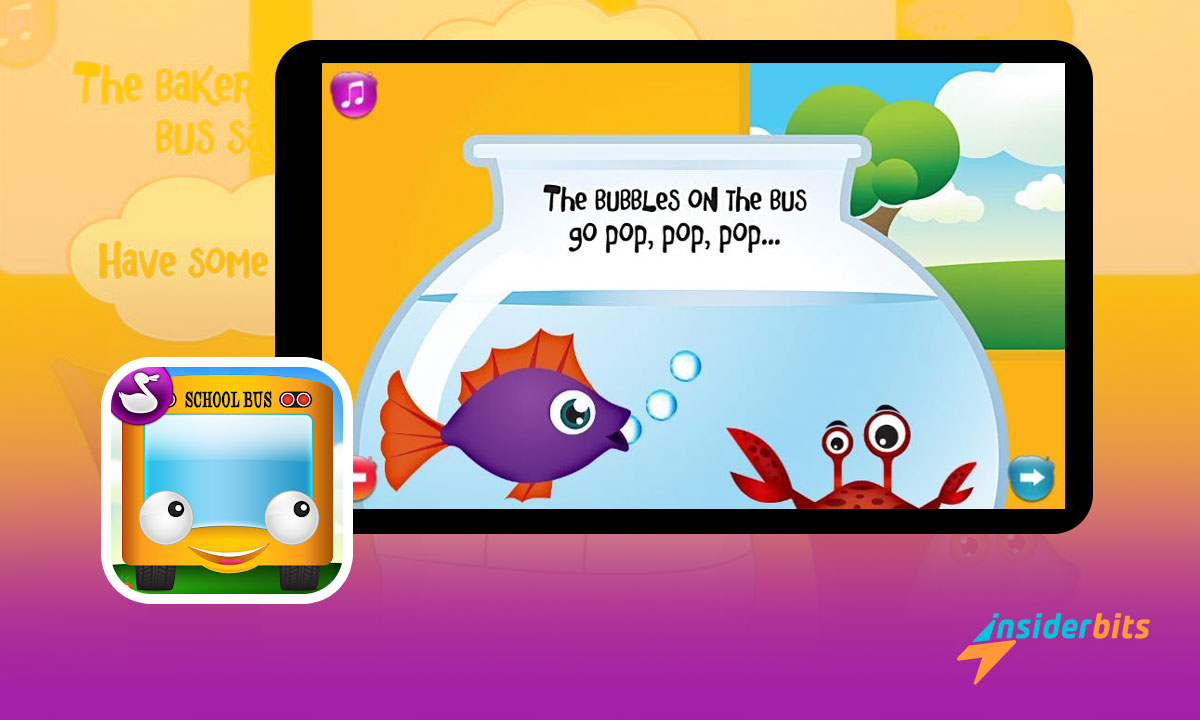
The Wheels on the Bus app transforms a classic song into a vibrant, interactive experience for young children, fostering both enjoyment and educational growth.
This review by Insiderbits highlights the app’s role as an educational tool, enhancing cognitive and motor skills through fun, engaging activities tailored for young learners.
Merging classic songs with beautiful storytelling, this musical book offers an enchanting journey of knowledge. See why it’s the perfect choice for your child’s learning!
Related: Rhyme & Fun: Exciting Dr. Seuss Apps for Kids!
Inside the app: an overview

Climb aboard a vibrant yellow bus that invites children to interact with various elements like swishing wipers and popping bubbles, enhancing their sense of wonder.
The Wheels on the Bus app creates an engaging environment where children can sing along, play games, and learn about rhythm and coordination through fun activities.
Each tap brings new surprises, from barking dogs to playing musical instruments, helping children develop their auditory and tactile skills in an enjoyable way.
Recognized as a top educational app, it supports multiple languages and provides a playful platform for early learning, focusing on language and motor skill development.
This musical book transforms a familiar tune into an interactive learning tool, making each session a delightful exploration of sounds and stories for young minds.
Wheels on the Bus’ best features

Step into a playful world where the classic nursery rhyme comes alive! This educational app turns everyday learning into a delightful adventure, complete with interactive elements.
Designed for young minds, it helps develop cognitive abilities and introduces multiple languages through an immersive, hands-on approach that keeps little learners engaged.
- Interactive Gameplay: Engage your child with fun activities like spinning the wheels and opening bus doors, enhancing fine motor skills and interaction.
- Multilingual Learning: Experience the classic song in English, Spanish, French, German, and Italian, broadening language exposure and cultural awareness.
- Music Integration: This feature combines the joy of music with the charm of a musical book, allowing children to hear different instruments and styles.
- Creative Expression: Children can record their own voices singing the bus song, fostering creativity and confidence in their musical abilities.
- Award-Winning Design: With several accolades, including the Parents’ Choice Gold Award, this app is recognized for its exceptional educational value and design.
Wheels on the Bus remains a beloved tool among parents for its ability to weave education with entertainment with ease, capturing children’s imagination and curiosity.
It’s the perfect companion for young explorers eager to learn, laugh, and grow through interactive play and enchanting musical journeys.
Related: 5 Apps That Teach with Stories
What about the app’s limitations?
Even though this educational app captivates young learners with its interactive features and musical play, it’s not without its potential shortcomings.
It’s essential to weigh these aspects to ensure it meets the developmental needs of its young users. Here, we outline a few concerns that might give parents pause:
- Limited Content Updates: The app rarely receives new content, which can lead to repetitive gameplay and reduced interest from children over time.
- Heavy Battery Usage: The interactive and graphic-intensive nature of the app can drain device batteries quickly, limiting playtime and inconveniencing parents.
- Device Compatibility Issues: Some users might experience performance issues on older or less common devices, impacting the app’s usability and enjoyment.
- Overstimulation Risks: For children sensitive to sensory input, the vivid animations and sounds might be overwhelming rather than engaging.
- Limited Educational Depth: The app is fantastic for basic skill development, but it may not adequately support more advanced educational goals or deeper learning.
While the Wheels on the Bus app delights many young users with its interactive storytelling and musical elements, these issues underscore the need for careful consideration.
For parents looking for educational value, it’s wise to evaluate how this app fits into broader learning objectives and routines, ensuring a well-rounded experience for their children.
How to download this exciting educational app

Ready to bring the classic nursery rhyme into your home? Downloading the Wheels on the Bus app is a simple process that opens up a world of learning and fun.
This educational app is available for free on both Android and iOS devices, ensuring your little ones can enjoy interactive play no matter what technology you use.
Android devices
- Open the Google Play Store on your Android device.
- Type “Wheels on the Bus” into the search bar to find the app.
- Select the app from the search results to view its details.
- Tap the “Install” button to begin downloading the app to your device.
- Once installed, open the app to start exploring its features with your child.
iOS devices
- Launch the App Store on your iOS device.
- Use the search function and enter “Wheels on the Bus” to locate the app.
- Tap on the app in the search results to see more information.
- Press “Get” to download the app to your device.
- After installation, tap “Open” or find the app on your home screen to begin.
Now that you know how to download the app, a delightful musical book awaits to be discovered by your children, filled with interactive surprises and educational benefits.
Engage your young ones with this charming application that combines fun, music, and learning in a wonderfully crafted digital experience.
Related: ABCya! Games: Fun and Learning for Kids
How can this musical book help children learn?

This brief guide will help you understand how to seamlessly navigate through this educational app’s colorful and interactive landscape.
With our help, you’ll make sure your kids can fully engage with every educational opportunity and interactive delight it has to offer. Follow our lead below:
Opening the app
Once you’ve downloaded the Wheels on the Bus app, find the icon on your device and tap it to open. The main menu will appear, displaying several playful options to explore.
From the main menu, you can access different activities by tapping on the icons. These include playing the song, interactive games, and setting options for language preferences.
Playing the song
Tap the “Play” button from the main menu to start the musical adventure. The app will navigate to a screen where the bus and its passengers come to life.
As the song plays, animations and interactive hotspots will appear on the screen. Encourage your child to tap on these elements, such as the bus’s horn or the doors.
Interactive features
In the interactive section, your child can engage with various elements like the wipers, wheels, and doors. Each tap triggers animations that are both fun and educational.
These features are designed to be intuitive for kids. As they interact with the bus, they learn about cause and effect, enhancing their understanding through playful exploration.
Language selection
If you want to introduce your child to new languages, this educational app offers versions of the song in multiple languages. This can be accessed from the settings in the main menu.
Choose from languages such as Spanish, French, or German. This feature enriches the educational value of the app, offering exposure to different sounds and words.
Recording feature
The app also includes a fun recording feature where your child can sing along with the bus. Navigate to the microphone icon in the main menu to access this feature.
Follow the prompts to record your child’s voice. This not only allows them to practice singing but also builds confidence as they hear themselves interact with their favorite musical book.
Closing remarks on this fun learning tool
The Wheels on the Bus app brings a lively and enjoyable learning experience to young children, making their early educational journey vibrant and memorable.
As an educational app, it excels in creating an engaging atmosphere that encourages kids to learn through play and interaction, which in turn fosters essential skills.
This analysis brought to you by Insiderbits showcases the app as more than just a fun musical book; it’s a gateway to educational fun that resonates with young minds.
Don’t stop here! Find more captivating reviews and articles at Insiderbits, dedicated to providing you with the latest insights and tips for educational success and enjoyment.